au PAY (auかんたん決済)

auかんたん決済

How to use

STEP 1Register a new au ID

  • STEP1-1
    Enter your phone number and tap [Next]

    Access here, enter your phone number and tap "Next"

  • STEP1-2
    Enter the verification code sent to you via SMS and tap [Next]

    Enter the verification code sent to you via SMS and tap [Next]

  • STEP1-3
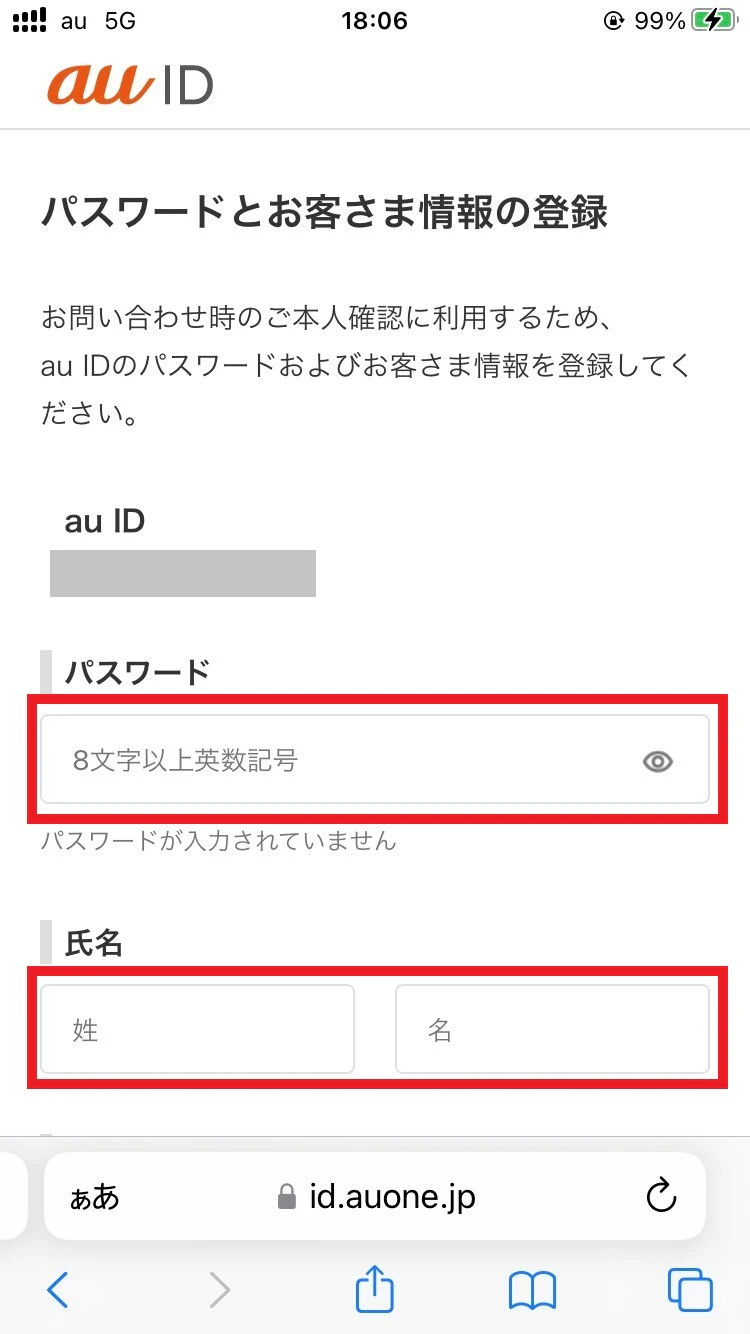
    Register the password you want to set and your customer information

    Register the password you want to set and your customer information

  • STEP1-4
    After entering the information, tap [Agree to the terms and conditions and continue]

    After entering the information, tap [Agree to the terms and conditions and continue]

STEP 2Link your povo account (povo2.0 communication contract) with your au ID

  • STEP2-1
    Tap [More] at the bottom of povo2.0 app home screen and then [Billing Information]

    Tap [More] at the bottom of povo2.0 app home screen and then [Billing Information]

  • STEP2-2
    Scroll down and toggle [Link au ID?] to ON

    Scroll down and toggle [Link au ID?] to ON

  • STEP2-3
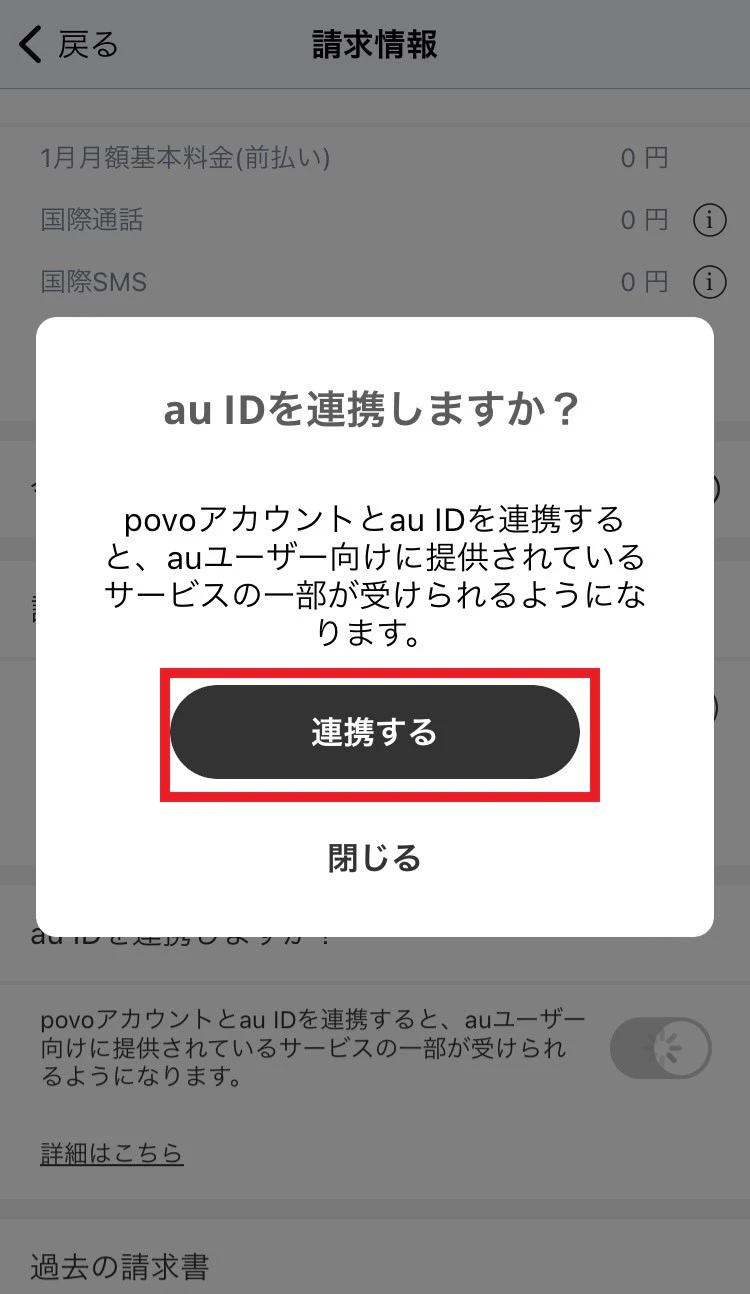
    A pop-up will appear asking, "Do you want to link au ID?" Tap "Link"

    A pop-up will appear asking, "Do you want to link au ID?" Tap "Link"

  • STEP2-4
    Enter your au ID and tap [Next]

    Enter your au ID and tap [Next]

  • STEP2-5
    Enter your password and tap [Login]

    Enter your password and tap [Login]

  • STEP2-6
    Enter the verification code sent to you via SMS and tap [Next]

    Enter the verification code sent to you via SMS and tap [Next]

  • STEP2-7
    Check the terms of use and tap [Agree and Next] to complete the connection

    Check the terms of use and tap [Agree and Next] to complete the connection

  • STEP2-8
    Tap [More] at the bottom of povo2.0 app home screen and then [Billing Information]

    Tap [More] at the bottom of povo2.0 app home screen and then [Billing Information]

  • STEP2-9
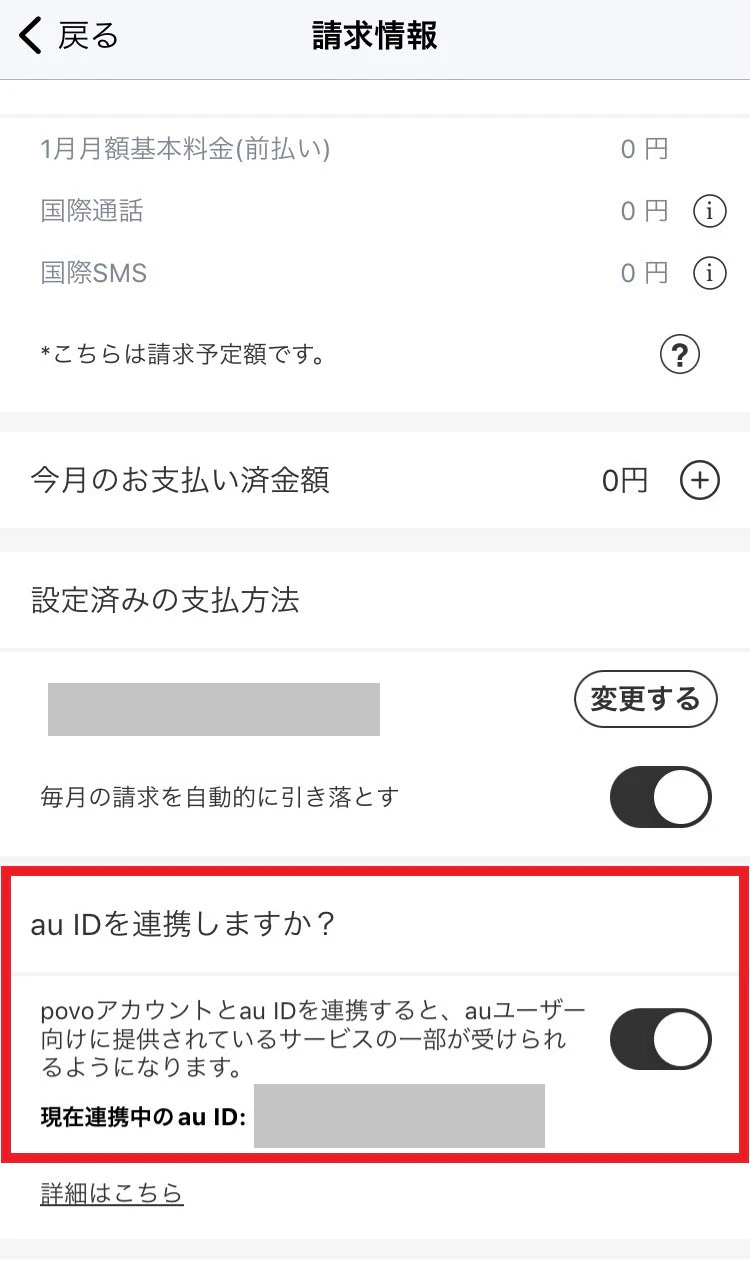
    Make sure the toggle for "Link au ID?" is ON and the desired au ID is displayed

    Make sure the toggle for "Link au ID?" is ON and the desired au ID is displayed

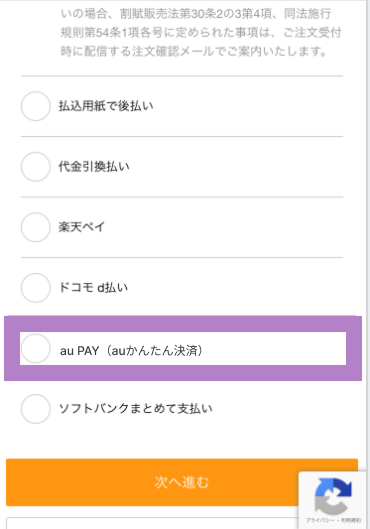
STEP 3On the payment screen of a shopping site or digital content
Select "au PAY (auかんたん決済)"

If you use "App Store" or "Google Play"

You can easily use it with just the following settings, without any pre-settings like those above.
STEP 4Authenticate with an SMS verification code

  • STEP4-1
    alt_txt

    Add the product to your cart and select au PAY (au auかんたん決済) as your payment method.

  • STEP4-2
    alt_txt

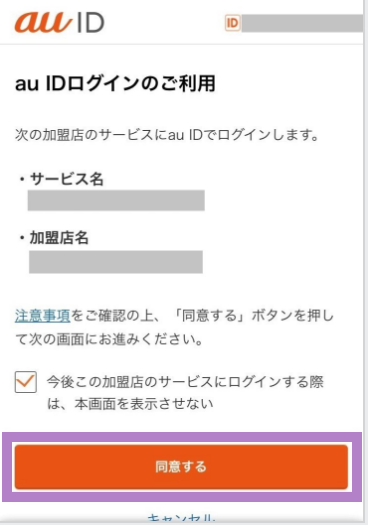
    Link au ID (only when using a general affiliated store service for the first time) and tap the [Agree] button

  • STEP4-3
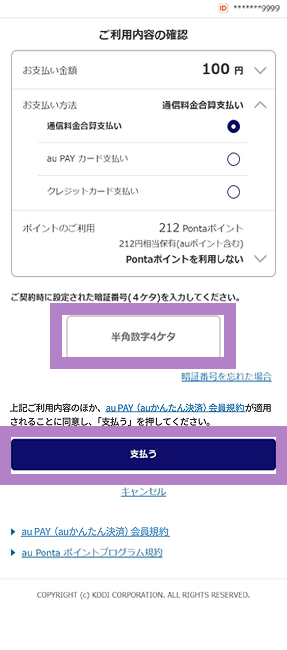
    alt_txt

    Enter the verification code sent via SMS and tap the pay button.

  • STEP4-4
    alt_txt

    The payment will be completed by moving to the merchant's completion screen.

*If you use auかんたん決済(combined payment of communication fees) with povo2.0 at general affiliated stores, two-step authentication via SMS is required.
Therefore, please note that this service cannot be used on devices that cannot receive SMS.

Unavailable service methods

With auかんたん決済(combined payment of communication fees) on povo2.0, some services such as au PAY balance top-up, au PAY Market, and au Online Shop are not available.

*This may change at any time.* The following services are currently unavailable.

Usage limit

When using auかんたん決済(combined payment of communication fees), the following usage limits are set.

Until March 31, 2023

povo usage validity
~12 months
to
13 months
End
age up to 12 years old Not available Not available
12 to 17 years old 5,000円 10,000円
18 years or older 10,000円 20,000円

After April 1, 2023

povo usage validity
~7 months
to
8 months
End
age up to 12 years old Not available Not available
13 years of age or older 0円 2,000円

* The maximum usage limit for auかんたん決済(combined payment of communication fees) may vary according to our standards depending on your payment status, service contract and usage status, etc.

Important Notice

  • If you switch from au or UQ mobile to povo2.0, your usage limit may change. If you are a UQ mobile user who switches to povo2.0, you can continue paying with au PAY (auかんたん決済) (combined payment of communication fees) by linking povo account with your au ID before the next billing period.
  • If you cancel povo2.0 communication contract, or if you unlink your povo account (povo2.0 communication contract) from your au ID using the povo2.0 app, you will no longer be able to use auかんたん決済.
  • Paid content and paid apps that you pay for using auかんたん決済(combined payment of communication fees) will not be automatically cancelled or canceled. If you no longer need them due to a change of model or cancellation of your povo2.0 communication contract, please cancel or cancel your membership yourself on the respective service site or app.
  • If you fail to pay auかんたん決済(combined payment of communication fees) or if you reach your usage limit, your use of this service may be temporarily suspended or prohibited.
  • auかんたん決済(combined payment of fees) cannot be used if your phone is unpaid, unused for 180 days or more, or if your phone is suspended due to loss or theft.
  • There are some services for which auかんたん決済(combined payment of communication fees) cannot be used with povo2.0.
  • Measures against minors making high-value invoices for games, etc.
    Please take measures to prevent unintentional charges, such as large game charges, when using auかんたん決済(combined payment of communication fees).
    • <Security measures>
    • - Don't give out your credit card number.
    • - Do not allow notifications for two-step authentication that you do not recognize.
    • <Imposing restrictions>
    • - Set usage restrictions for au PAY (auかんたん決済), App Store, and Google Play.
    • - Change the maximum amount for combined fees charges.
    • <Checking usage status>
    • - Set up a sub-address and check your child's usage.
    • ・Check your usage details using the povo2.0 app or au ID site.
  • Cannot be used exclusively with povo2.0 Data Only.