You may not be asked to enter a PIN code when using your smartphone on a regular basis. However, there are times when you may need a PIN code, such as when you change your SIM card. There are also PIN codes that are linked to the smartphone itself.
This article provides a detailed explanation of PIN codes, including an overview, a list of default PIN code settings for each carrier, how to change them, and how to find the PIN unlock code (PUK).
First, we will explain the overview of PIN codes and a list of initial PIN code settings.
PIN code is an abbreviation for Personal Identification Number, also known as a personal identification number. It is easy to understand if you think of it as a pin code for a SIM card or device. It is mainly used to prevent unauthorized use of the smartphone itself or SIM card by third parties. Most carriers allow you to set a PIN code of 4 to 8 digits.
There are two types of PIN codes: PIN1 and PIN2, each with a different purpose. Please note that if you enter either code incorrectly three times, the PIN will be locked and you will not be able to operate your smartphone.
The PIN1 code is used to prevent unauthorized use of the smartphone or SIM card by third parties.
On devices from major carriers, this is often turned off by default, so you probably won't be asked to enter it unless you set it up yourself. If you turn the on/off setting on, you'll have to enter the 4- to 8-digit number you set every time you insert the SIM card into your smartphone or turn it on. If you don't enter it correctly, you won't be able to make or receive calls, and you won't be able to use various functions.
The PIN2 code is a 4- to 8-digit number used when using a user certificate, applying for issuance, resetting accumulated fees information, etc.
If you turn on the on/off setting, you will need to enter a PIN code when operating user certificates, etc. Depending on your carrier, this may be turned on automatically, so it's a good idea to remember the default PIN code just in case.
The default PIN code is not different for each model, such as iPhone or Android. The PIN code is linked to the SIM card, and the default PIN code differs for each carrier.
Below are the PIN codes (initial settings) for each carrier when purchasing a SIM card. [Four major carriers]
・docomo……Initial setting: “0000”
・ au... Default setting: "1234"
・SoftBank...Initial setting: "9999"
・Rakuten Mobile...Initial setting "0000"
There is also a PIN code called a "screen lock" that is tied to the smartphone device. Because the screen lock PIN code is tied to the smartphone itself, even if the PIN code is stolen, it cannot be used to log in to another device.
Therefore, it is considered more secure than a password.
As mentioned above, if you enter the PIN1 code or PIN2 code incorrectly three times, the PIN will be locked. However, the PIN lock can be unlocked by entering the unlock code (PUK).
The method for checking the PIN unlock code (PUK) varies depending on the carrier, such as docomo or au.
Please note that if you enter the PIN unlock code (PUK) incorrectly 10 times, you will need to go through the procedure at your carrier's shop or customer center.
For docomo, the PIN unlock code (PUK) is listed on the contract application form when you sign the contract.
If you cannot find the contract application form, you can view it by going to "Confirm/Change Contract Details → Click here to view the PIN Unlock Code (PUK)" on My docomo. You can also call the docomo Information Center or check at a docomo shop.
In the case of au, the PIN unlock code (PUK) is printed on the back of the plastic card in which the SIM card is attached.
If you don't have the plastic card, you can view it by going to My au, "Smartphone/Mobile Phone → Contract Details/Procedures → Customer Registration Information → Check PIN Unlock Code (PUK Code)." You can also check it by contacting the Customer Center or visiting au shop.
For SoftBank, you can view it on My SoftBank, contact chat support or call, or check at a SoftBank shop.
In the case of Rakuten Mobile, the subscriber himself/herself will need to contact the Communication Center to confirm.
Setting or changing the PIN1 code makes it difficult for a third party to replace the SIM card and use it, which is an effective security measure in case your smartphone or mobile phone is lost or stolen.
Especially when traveling abroad, there is a higher chance of smartphones and mobile phones being stolen depending on the region, so it is a good idea to set or change a PIN code to be safe.
When changing your PIN code, it will be easier if you check the instruction manual for your smartphone model. You may be able to find the instruction manual for your smartphone model online by searching for "model name + instruction manual."
Here we will show you how to set and change a PIN code on a typical iPhone or Android smartphone.
(1) Tap "Settings → Mobile Communications → SIM PIN" to turn the SIM PIN on or off.
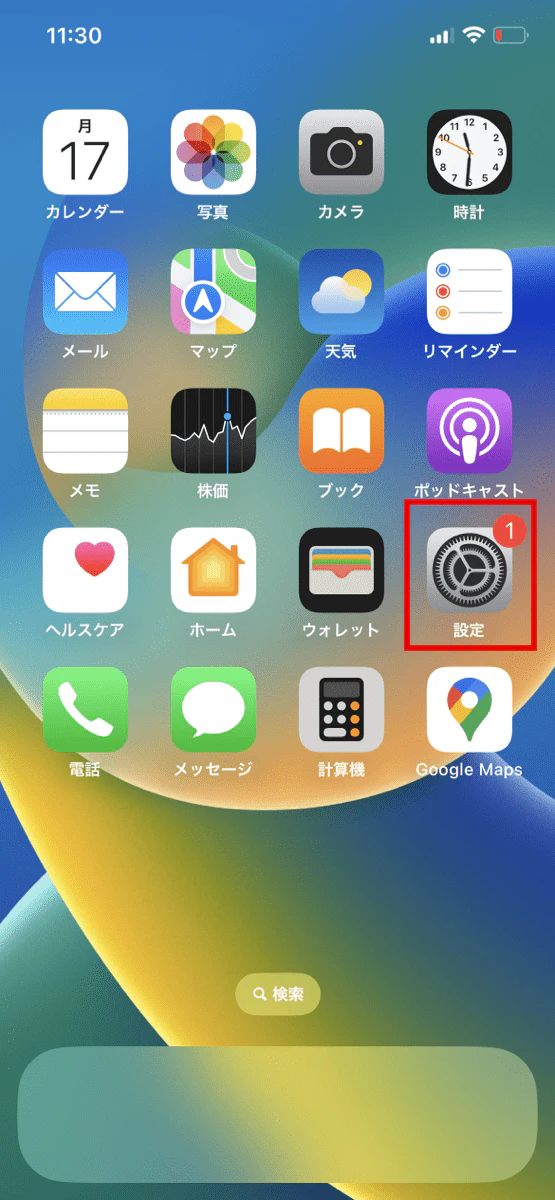
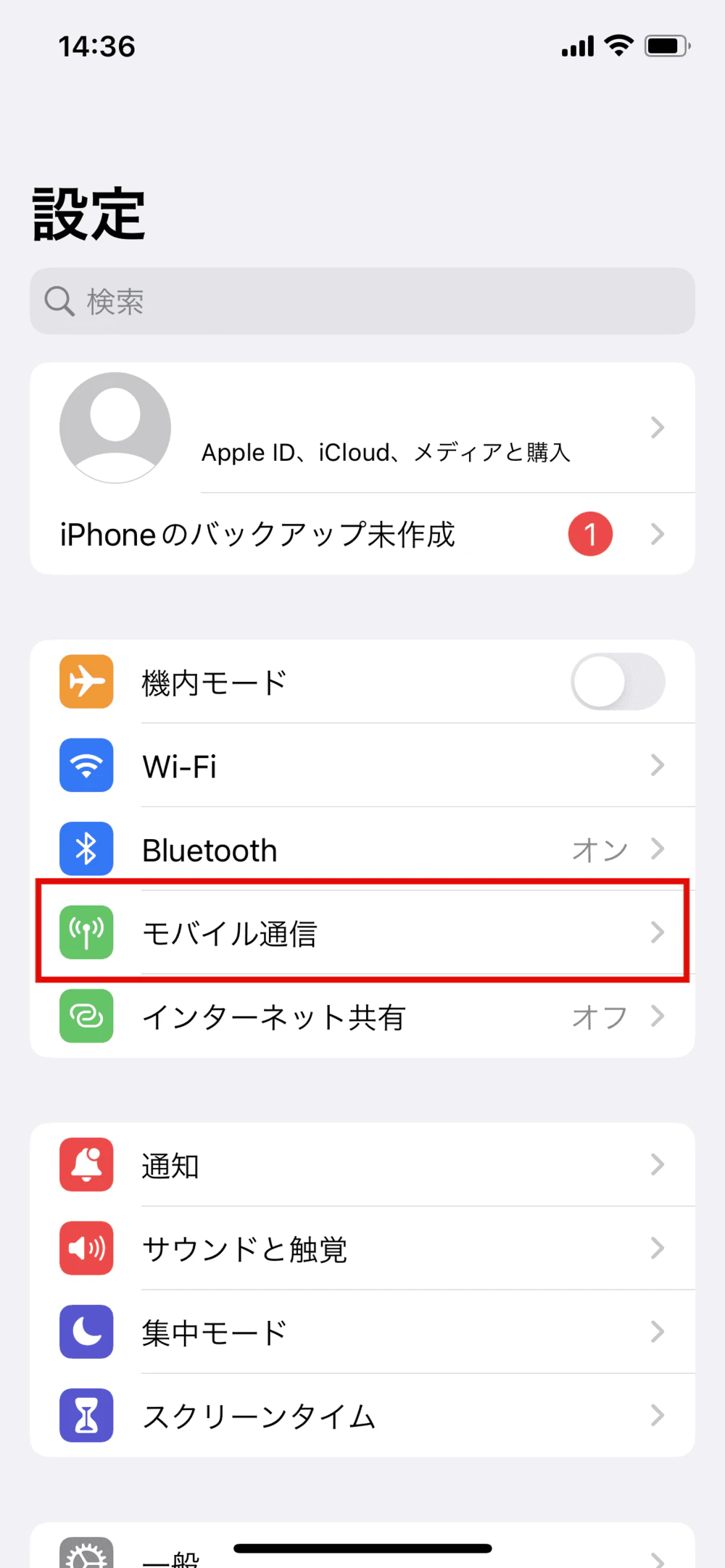
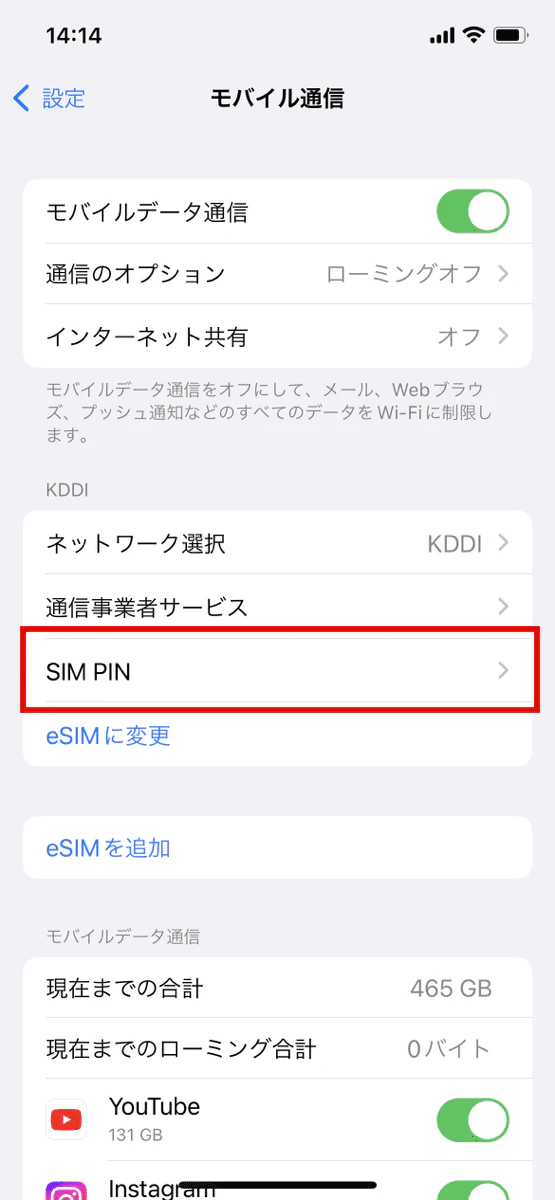
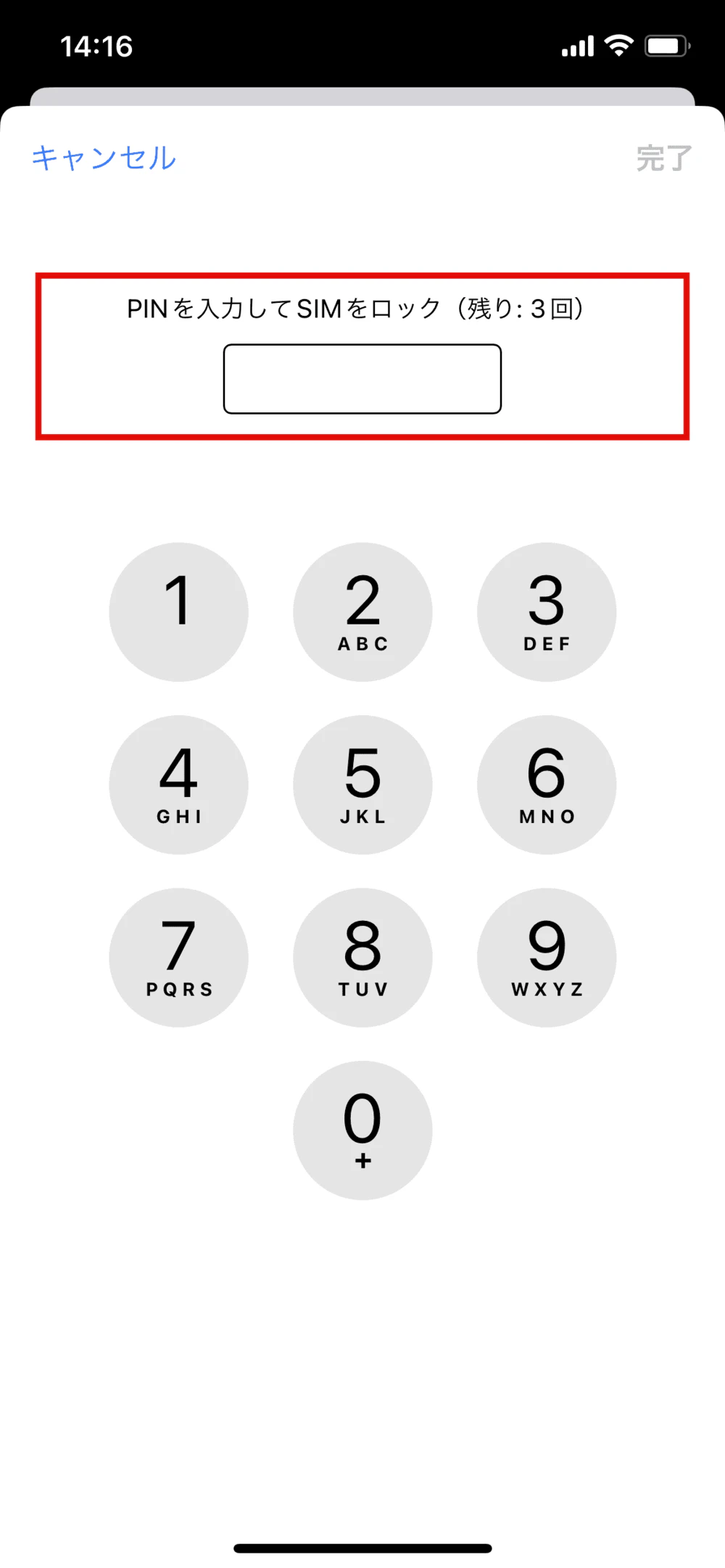
On an iPhone, open "Settings," select "Cellular," and tap "SIM PIN" to go to the PIN1 code entry screen.
If you are entering the PIN code for the first time, please enter the default PIN code for your carrier. If you enter it correctly, the PIN code will be turned on, and you will not be able to use your smartphone unless you enter the PIN code when turning on your smartphone or inserting or removing the SIM card.
Once SIM PIN is enabled, tap "Change PIN," enter your current PIN, then enter your new PIN, and finally enter the new PIN again to complete the setup.
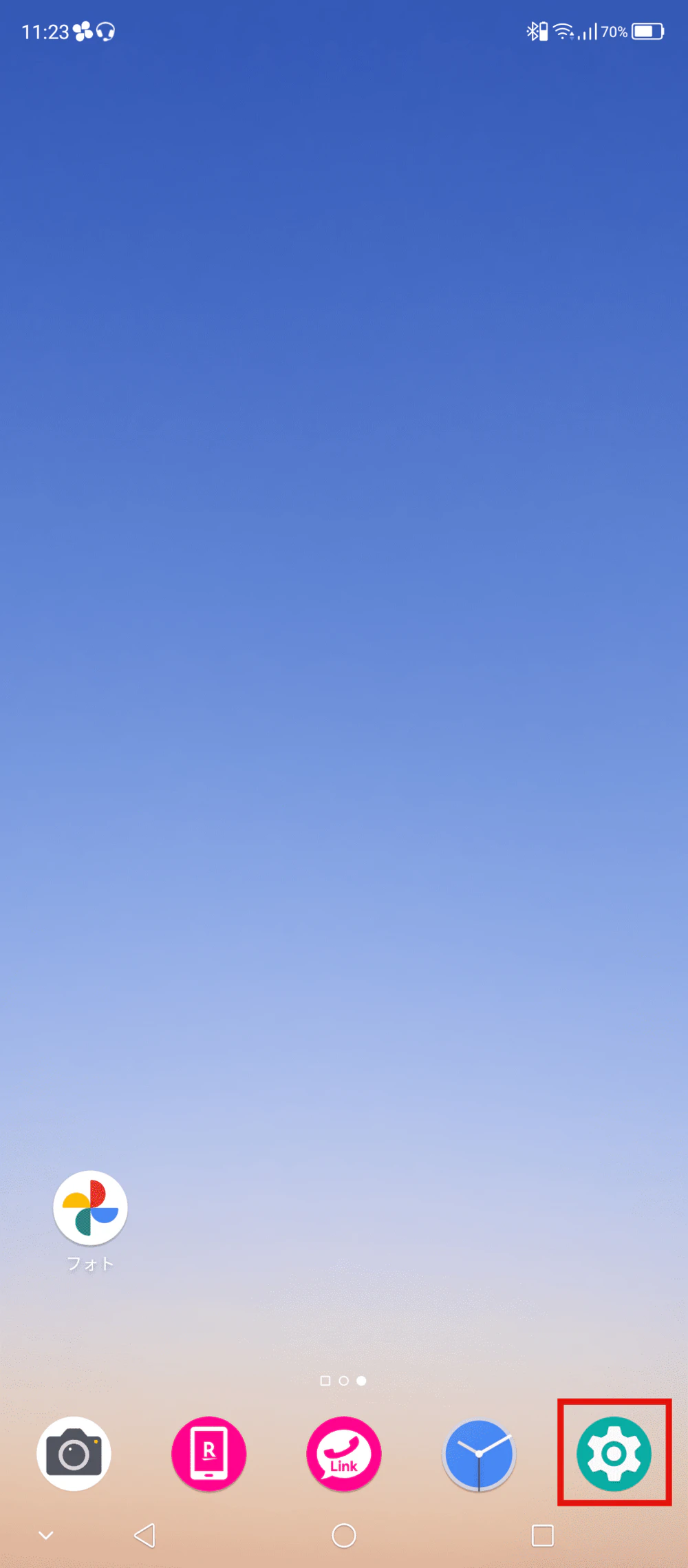
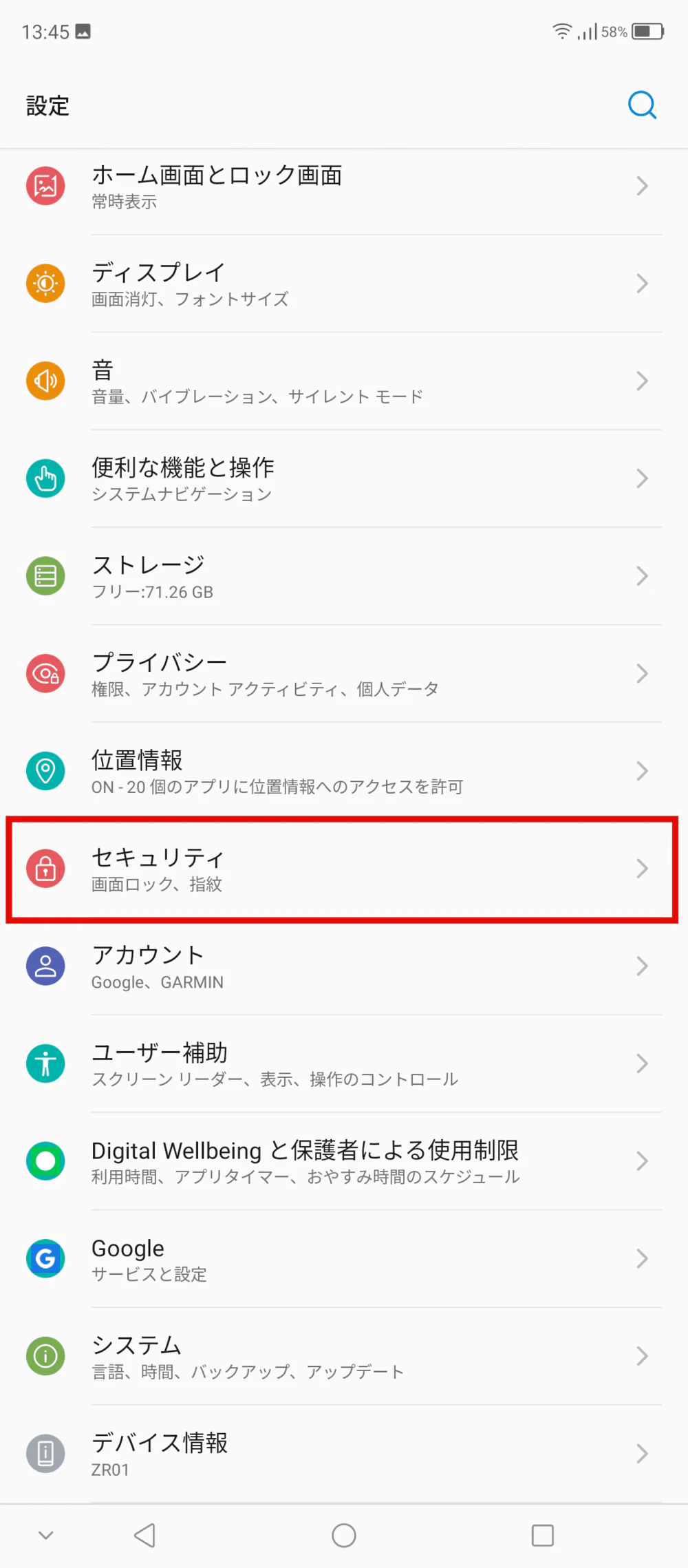
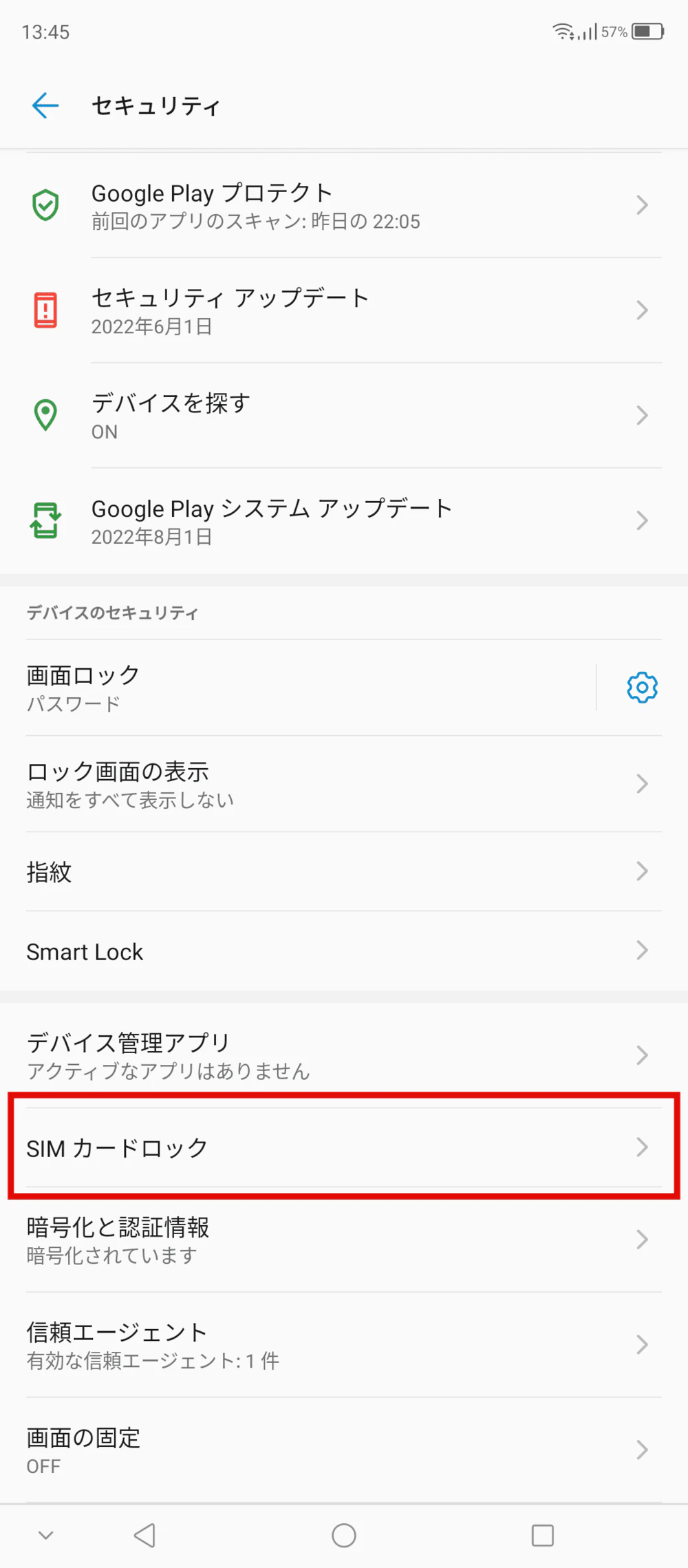
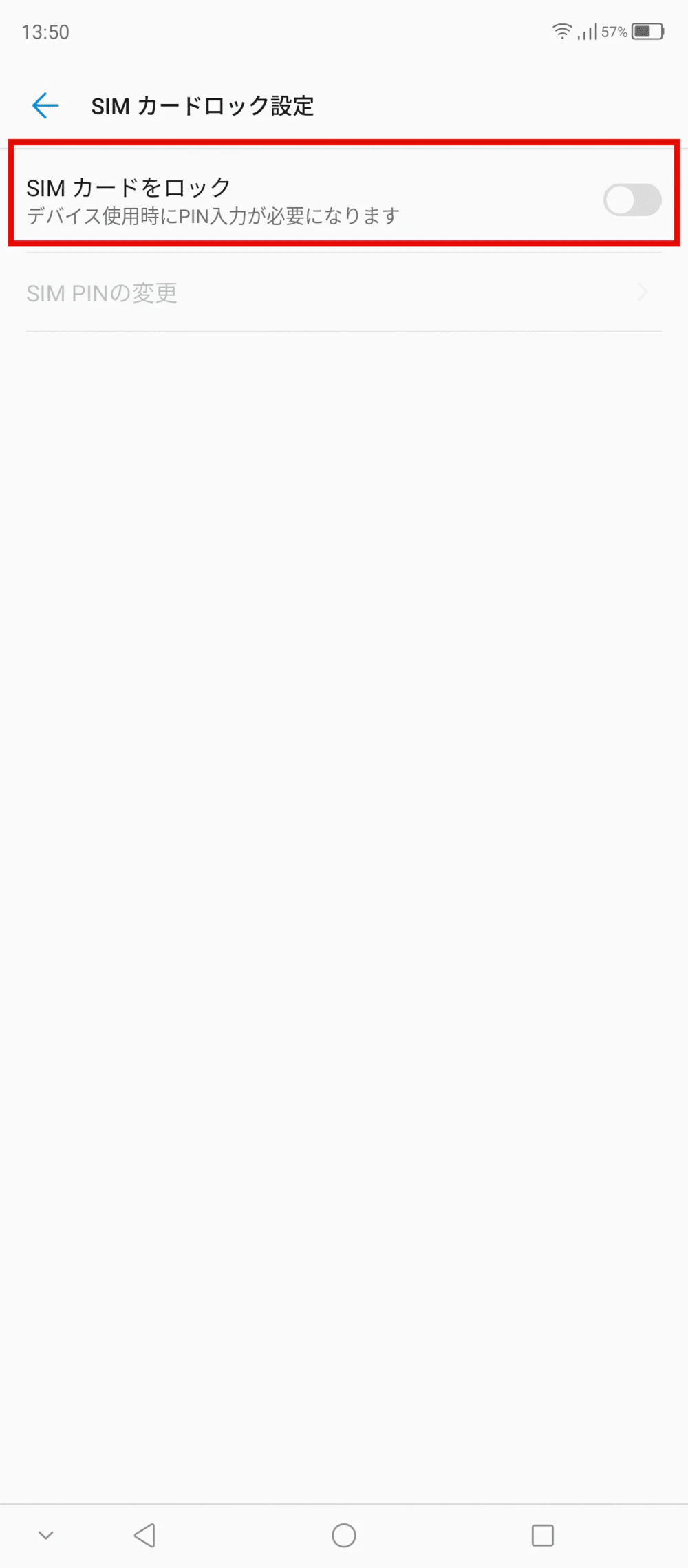
On Android, the procedure varies depending on the OS version and model, so here is an example: Open "Settings," select "Security" and "Advanced," turn on "SIM Card Lock" and "Lock SIM Card," and tap "Change SIM PIN" to display the PIN1 code entry screen.
If you are entering your PIN for the first time, check the initial settings for your current carrier and enter the appropriate PIN code. If you have set a PIN code before, enter the PIN code you are currently using. Then enter a new PIN code, select OK, and then enter the new PIN code again and select OK.
With povo, the initial PIN code for both the SIM card and eSIM is set to "1234." You can change the password using the same method for changing the PIN code on iPhone and Android as described above.
However, if you enter the wrong password three times, the PIN will be locked. In this case, the code to unlock the PIN is written on the back of the SIM card, so enter that code to unlock it.
Please note that if you enter the PIN unlock code incorrectly 10 times, you will no longer be able to unlock the PIN at all.
povo2.0 (*1) is a new fees plan for smartphones launched by au (KDDI) in September 2021.
povo2.0 is a plan with a basic fees of 0 yen (*2) (*3) (*4), and you can add necessary services as paid Topping.
There are six types of paid Topping to choose from: six types of data, two types of content, two types of calls, and one type of support. It's economical because you can purchase paid Topping when you need them.
For example, if you're always worried about running out of data at the end of the month, with the all-topping povo2.0 Topping you can Topping additional data when you need it. Also, even if you have extra data this month, you can continue to Topping the data as is as long as it's within the contract validity without adding any additional data. This is a new way to use your smartphone, where you can purchase only the amount of Topping you need when you need it.
povo2.0 has no contract validity restrictions, and there are no administrative fees when signing a new contract or switching carriers. We also offer special campaigns from time to time. If you're considering switching to a low-cost SIM, please feel free to try out povo2.0.
*1: As this is an online-only plan, all procedures and support will be handled online. Please contact us via the povo2.0 app or official website.