New customers who sign up after October 3rd can use the service overseas by completing the application procedures specified by our company. After signing up, please contact povo support (chat window).
 Identity verification documents
Please prepare one of the following.
 Credit card
You can make payments for povo2.0 by credit card.
Even if you don't have a credit card, you can use Postpay(Paidy)*.
 Compatible Devices
To use this service, you will need a SIM-free or SIM-unlocked povo2.0 compatible device.
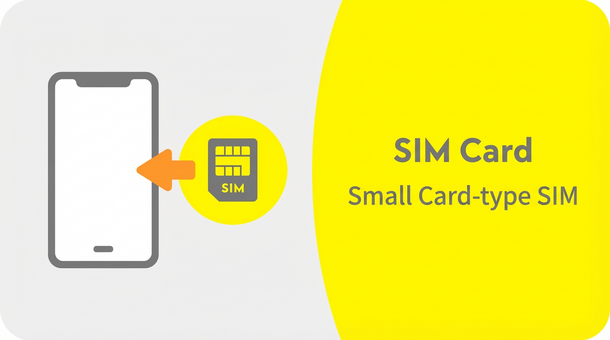
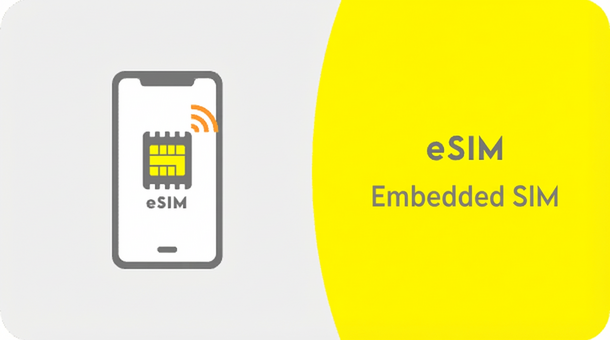
In addition, if you wish to use eSIM, please make sure that your smartphone or other device is compatible with eSIM before proceeding. If you select eSIM on an incompatible device, you will not be able to communicate.
(*Select SIM/contract type, confirm important information, enter credit card information)
(If you are processing online, you will need to download the app before completing eKYC.)
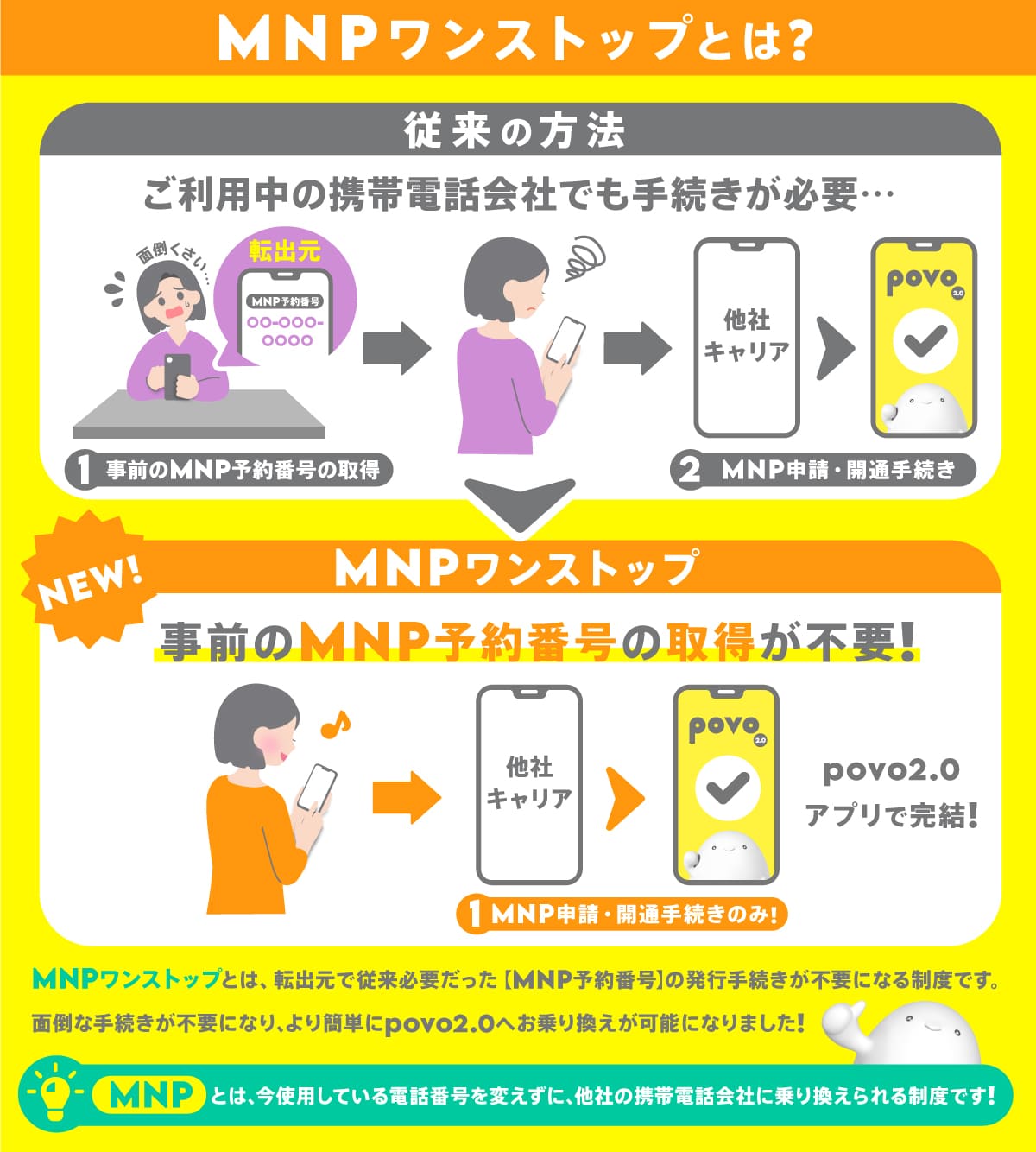
With MNP One Stop, you can obtain MNP reservation number at the time of application (for more information, click here).
You can also get it from your current mobile phone company.
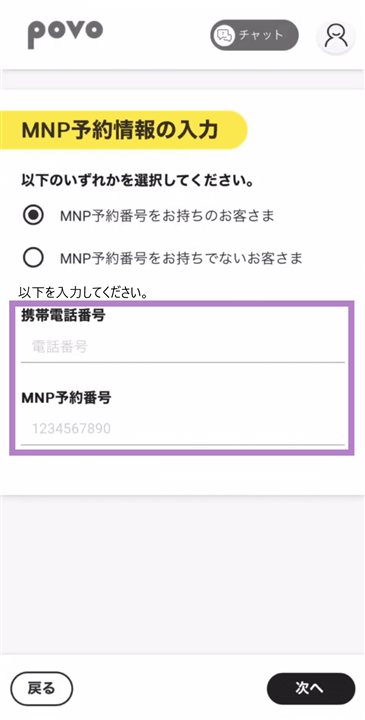
Select "Customers with MNP reservation number" from the app and enter your mobile phone number and MNP reservation number.
Those who are about to obtain an MNP reservation number (using MNP One-Stop)
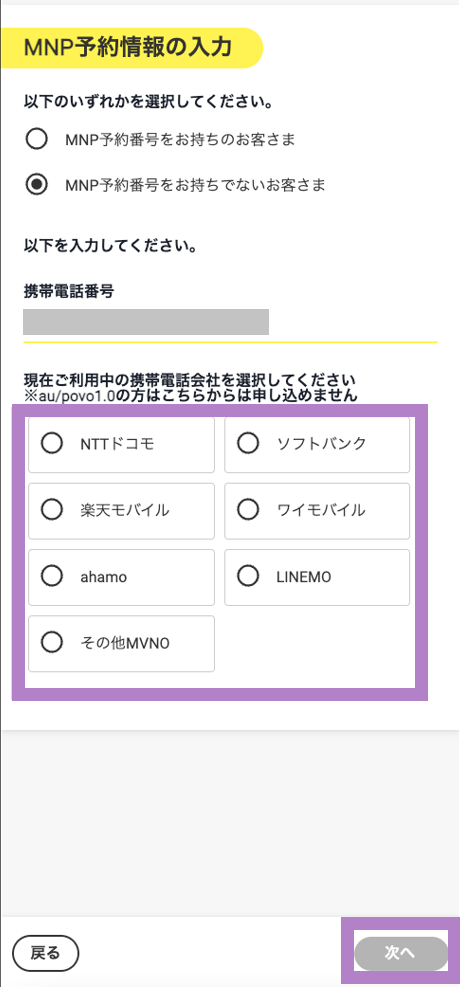
Please select "Customers who do not have an MNP reservation number" and select the mobile phone company you are currently using.
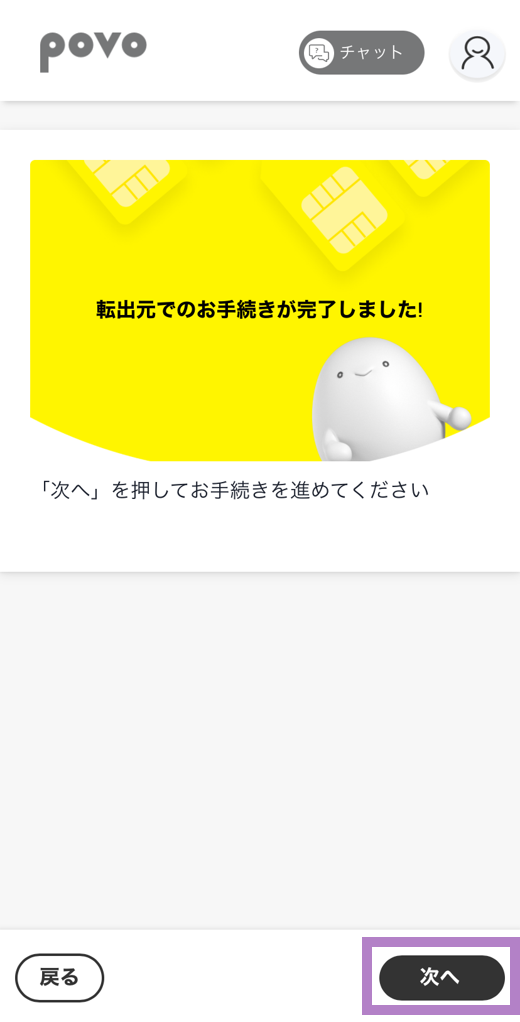
After completing the procedure, you will be redirected to the povo application page, where you can proceed with the procedure.
From the web
Log in to MyDoCoMo and complete the procedure.
Reception hours: 9:00-21:30
*Excluding system maintenance times
From a mobile phone or landline phone
<From a mobile phone> 151
<From a regular phone> 0120-800-000
Reception hours: 9:00-20:00
From the web
Access "My Softbank" → Select "Menu" at the top right of the screen → Select "Contract/Option Management" → Select "Customer Information" at the top of the screen → Scroll to the bottom of the screen → Select "Other Procedures" > "Introduce/Cancel MNP Reservation Number" → Log in again with your PIN (4 digits) → Select "Proceed"
From Yahoo! Mobile
TOP → My SoftBank → Various change procedures → MNP reservation related procedures
Reception hours: 9:00-21:30
From a mobile phone or landline phone
<From mobile phone> 5533
<From a regular phone> 0800-100-5533
Reception hours: 9:00-20:00
From the web
Y!mobile → My Y!mobile (Login) → Check/Change Contract Details → Mobile Number Portability (MNP) Reservation Procedures
From a mobile phone or landline phone
<From a mobile phone> 116
<From a regular phone> 0120-921-156
Reception hours: 9:00-20:00
From the web
Access my Rakuten Mobile
From the three-line menu in the top right corner of the screen, select "My Rakuten Mobile" → "Contract Plan" → "Various Procedures" → "Switch to another carrier (obtain MNP reservation number)" to complete the procedure.
When you perform MNP, your contract with your previous telephone company will be terminated (cancelled) and you will enter into a new contract (new contract) with the new telephone company, so please be aware of the following points.
You cannot transfer the email address issued by your current mobile phone company.
Any services provided by your current mobile phone company (such as fees plans and discount services) will end upon cancellation.
Content and electronic money provided by content providers may not be transferable.
If you have signed up for a discounted service such as an annual contract, you may incur additional charges upon cancellation.
MNP does not apply to data-only services (single services).
*Please make sure that the SIM lock is unlocked beforehand.
*Please activate your SIM between 9:30am and 8pm.
If you activate your SIM after 8 PM, the activation time will vary depending on your application. Please see here for details.
*You can use it once the installation is complete. However, you may need to set up the APN.
*A Wi-Fi environment is required for the setup.
*A device other than a smartphone (PC or tablet is also OK) is required to use povo.
*Please activate the SIM between 9:30am and 8pm.
If you activate your SIM after 8 PM, the activation time will vary depending on your application. Please see here for details.
*Call charges and SMS sending charges will be charged separately.