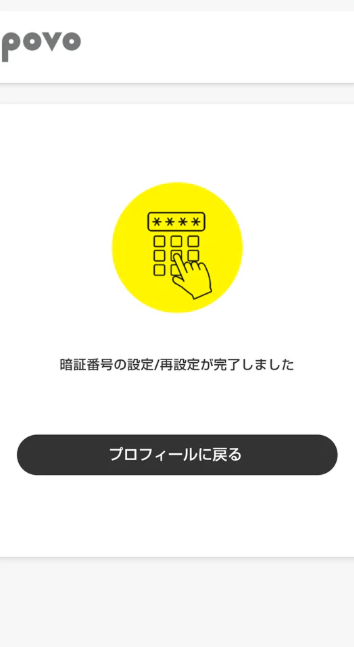
When purchasing for the first time, you will need to set a PIN number in advance.
Notice to customers using iPhone
Visual voicemail
is now available on iOS 18.0.
*Please note that if you use visual voicemail, you will not receive message notifications.
<How to set up service start>
①Update your iPhone to the latest OS (iOS 18.0 or later).
② From the messaging app (SMS), enter the address 00090004 and the body of the message 1234 and send the SMS.
If you are still unable to use visual voicemail after completing the above steps, we apologize for the inconvenience, but please try the following:
3. From the messaging app (SMS), enter the address 00090005 and the body of the message 1234 and send the SMS.
④ If you receive a response that the iPhone reception settings have been configured, the setup is complete.
*No SMS sending fees will be incurred for ② and ③.
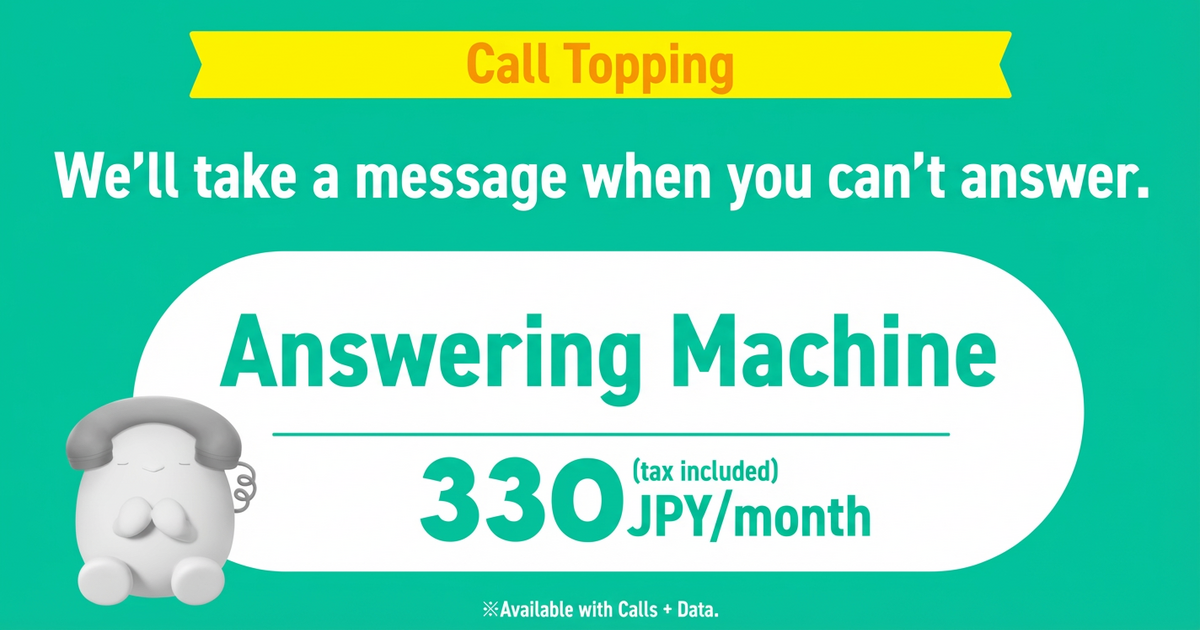
330 yen (tax included)/month
The service is applied from the month of purchase and billed in the current month (only the first month of purchase is billed in the following month).
If no special request is made after purchase, the service will automatically continue every month.
Call charges will apply for playing and recording messages. However, if you have purchased "Unlimited Calls* within 5 minutes*" Topping, the charge will also be applied to voicemail service calls.
*Calls to phone numbers that other companies have set fees starting with 0570 (Navidial, etc.), number guidance (104) (number guidance charges are not covered for free, calls fees are covered for free), administrative 1XY service (188), # dialing (Quick Dial), sending SMS, calls to satellite phones, calls to phone numbers we separately specify Calls to the Company's separately designated phone numbers, etc. are not eligible for free calls through Topping. International calls and incoming/outgoing calls overseas are also not covered. Calling charges will be billed according to the service.
●We will take messages from the caller when the power is turned off or when you cannot answer the phone.
| Topping Name | Answering machine service |
|---|---|
| Number of saved messages (including voicemail) | 3 minutes x 100 items |
| Message storage time | One week after recording |
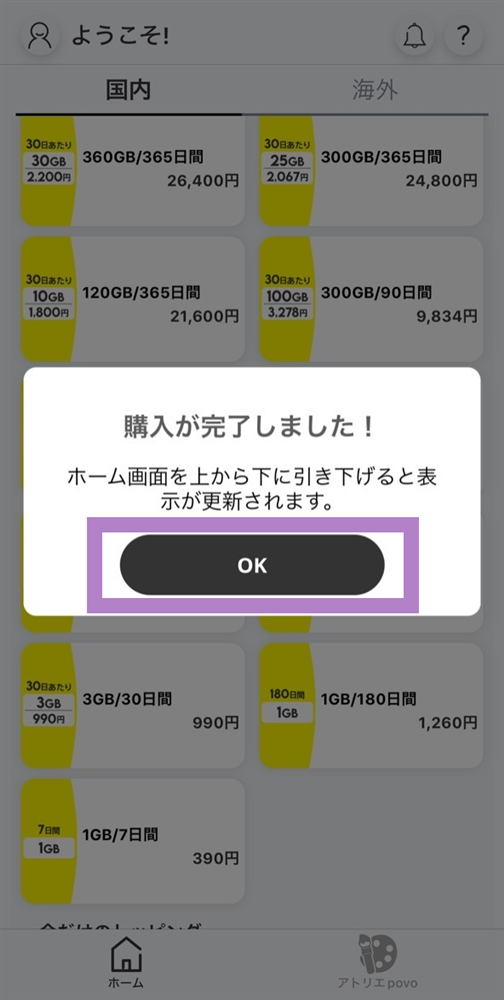
● Topping can be used immediately after purchase.
●Purchases and cancellations can be made between 12:05 a.m. and 11:50 p.m.
●When purchasing for the first time, you will need to set a PIN number in advance.
●The voicemail service is not available for some calls, such as calls from emergency call receiving agencies (110, 119, 118).
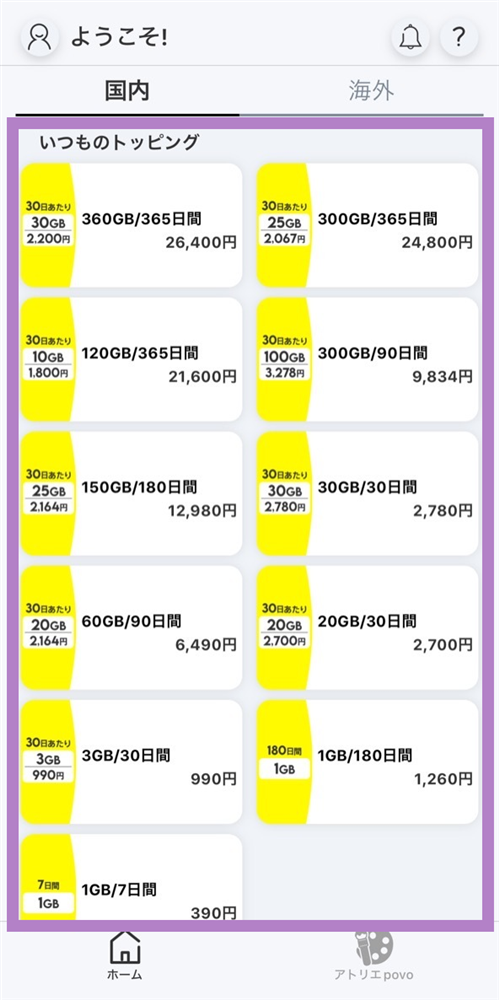
●Please purchase Topping through the povo2.0 app.
●When purchasing for the first time, you will need to set a PIN number in advance.
●Purchases and cancellations can be made between 12:05 a.m. and 11:50 p.m.
Also, outside of the above hours, the purchase button/cancel button will be inactive.
*If the purchase/cancel button is inactive during the above time, please go to the home screen and swipe to refresh.
● We cannot accept purchase/cancellation applications if you are in the process of completing the following procedures or if you are currently under contract.
・MNP reservation number being issued
・SIM reissue in progress
・Service suspended
Once you have completed the above procedure or started using the service, please complete the procedure again using the povo2.0 app.
●If you purchase the answering machine service Topping in the middle of the month, you will be charged the full flat rate.
●If you cancel the answering machine service Topping (including canceling povo2.0) in the middle of the month, you will be charged the full flat rate.
You can cancel the voicemail service Topping through the app. Cancellation will take effect the following month.
● Please note that the following procedures cannot be performed on the day of purchase of this Topping or on the 1st of the month following the cancellation request.
・Cancel povo2.0 line
・Issuance of MNP reservation number
●Call charges will be incurred for playing and recording messages.
● If you don't receive a message notification
Message notifications may not be delivered depending on the device you are using.
We apologize for the inconvenience, but please perform the following steps.
<How to set up message notification>
① From the messaging app (SMS), enter 00090015 as the recipient and 1234 as the body of the message and send the SMS.
②The setup is complete when you receive a setup completion message from 0002001003.
*No SMS sending fees will be incurred for ①
*All prices listed include tax included unless otherwise specified.
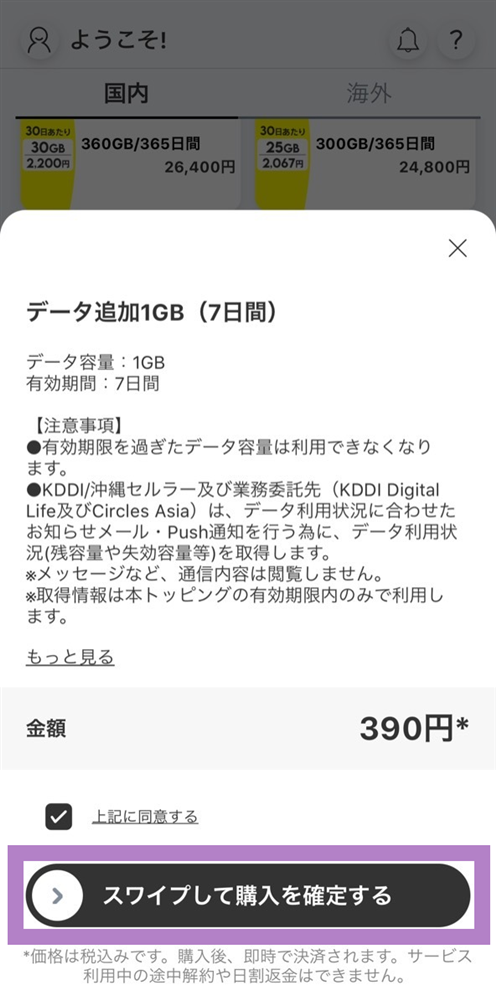
Please apply using povo2.0 app.
When purchasing for the first time, you will need to set a PIN number in advance.
*Can be set between 12:05 AM and 11:50 PM.
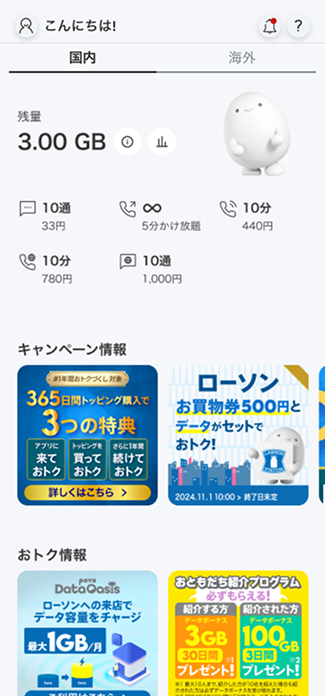
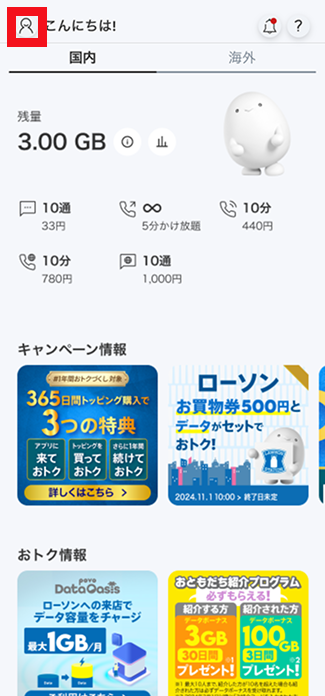
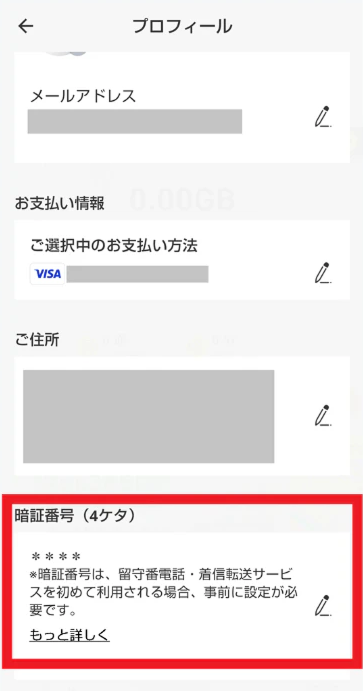
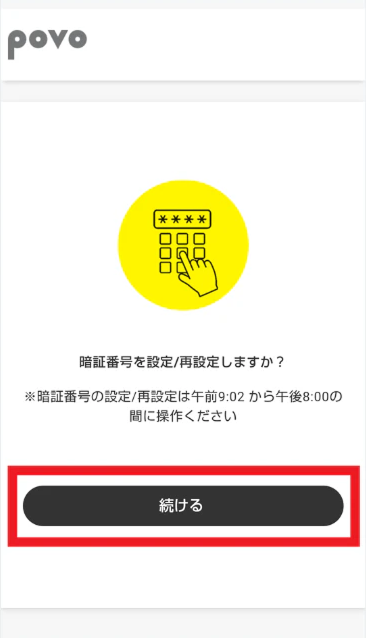
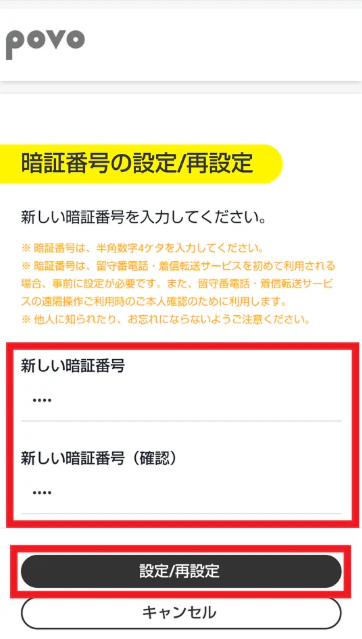
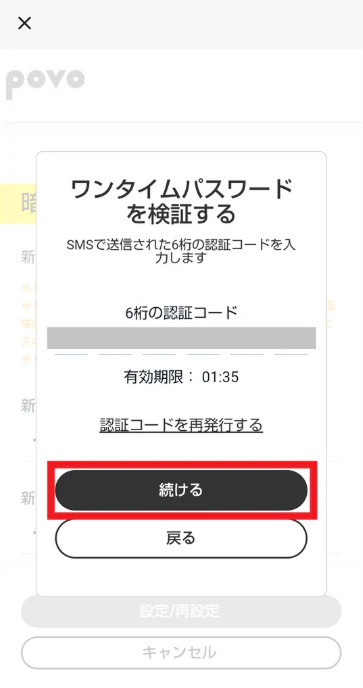
By calling a special number, you can play back messages and check general information.
| Message playback | 1417 |
|---|---|
| General Information | 141 |
You can start or stop the service by calling a special number.
| Voicemail service connection conditions | Service launch | Service outage |
|---|---|---|
| Always | 1412 | 1420 |
| No answer and busy | 1411 |
*After purchasing the answering machine service Topping, the service is activated for both "no answer" and "busy" by default, so you can start using it right away without having to do anything to activate it yourself.
*When you start the call forwarding service, the voicemail service will be stopped. If you want to use the voicemail service, please start the service again.
*If you cancel the voicemail service by calling 1420, the call forwarding service will also be canceled. For more information about the call forwarding service, please click
here
.
You can set the time between receiving a call on your mobile phone and connecting to the voicemail service between 5 and 55 seconds.
| Change ring time | 1418XX Enter the number of seconds you want to set (05 to 55) in XX. If the number of seconds is a single digit, enter 1418X dial. (Example: To set it to 5 seconds, call 14185) |
|---|
You can stop the accumulation of messages and voicemails when you are away on validity business trip or vacation overseas.
| Start of storing messages and voicemails | 1611 |
|---|---|
| Stop storing messages and voicemails | 1610 |
Learn more about voicemail
You can set up the voicemail service from other KDDI line mobile phones (au /UQ/ povo1.0 / povo2.0 /other MVNOs), landlines, overseas phones, etc.
① Call 090-4444-XXXX. XXXX will be one of the following depending on the purpose of use.
| General Information | 1416 |
|---|---|
| Message playback | 1415 |
| Starting the service | 1418 You will be transferred to an answering service without being called. |
| Start service (no call forwarding) | |
| Full transfer service only suspended | 1419 It only stops full transfers that started on 1418. |
| Service outage | 1430 (Note 1) |
②Enter your povo2.0 phone number
③Enter your PIN (4 digits)
④ Follow the guidance
*To perform this operation, you will need the PIN number you set in advance.
*If you enter the wrong PIN three times in a row, the call will be disconnected.
*Remote control uses push-tones. Remote control cannot be performed using a phone that cannot send push-tones.
You can set the response message and operation guidance to English.
| Set English | 14191 |
|---|---|
| Set Japanese | 14190 |
Customers using an iPhone (iOS 18.0 or later) can sign up for this service to use visual voicemail, which delivers messages to their iPhone as audio files.
*Visual Voicemail allows you to save, display, play, and manage messages on your iPhone. Therefore, messages saved on your iPhone can exceed the number of messages saved and the retention validity for the service.
*Please note that you will not receive message notifications when using visual voicemail.
<If your current iPhone is running iOS 18.0 or earlier and you want to start using Visual Voicemail>
① Update your iPhone to the latest OS (iOS 18.0 or later).
② From the messaging app (SMS), enter the address: 00090004 and the message: 1234 and send the SMS.
*If you are still unable to use visual voicemail after completing the above steps, we apologize for the inconvenience, but please try the following:
3. From the message app (SMS), enter the address 00090005 and the body of the message 1234 and send the SMS.
④ If you receive a response that the iPhone reception settings have been configured, the setup is complete.
*No SMS sending fees will be incurred for ② and ③.
If you connect to the answering center but do not leave a message, we will notify you of the caller's "calling number" and the "date and time" of the call via call history or SMS (C-mail) (except in cases where the call was blocked).
*If the call is made without notification, you will not be notified.
*You can turn the "Incoming call notification" function on or off in the menu in General Information 141.
*If there is a concentration of calls to a specific phone number, in order to maintain service quality for customers and stable network operation, we will set a limit on the number of SMS messages sent to that phone number using the "Incoming Call Notification" function and take measures to restrict some notifications (limit: 99).
When we receive a message, we will notify you of the "caller's phone number" of the person who left the message and the "date and time" of the message via call history or SMS (C-mail).
*If the call was made without identification, we will inform you of the reason for the call being made without identification (such as a public phone number) instead of the calling number.
*If there is a concentration of calls to a specific phone number, in order to maintain the quality of service for customers and ensure stable operation of the network, we will set a limit on the number of SMS messages sent to that phone number using the Message Notification function and take measures to restrict some notifications (limit: 99).
*Notice to customers who do not receive message notifications
Message notifications may not be delivered depending on the device you are using.
We apologize for the inconvenience, but please perform the following steps.
<How to set up message notification>
① From the messaging app (SMS), enter 00090015 as the recipient and 1234 as the body of the message and send the SMS.
②The setup is complete when you receive a setup completion message from 0002001003.
*No SMS sending fees will be incurred for ①
You will need to download the app to apply (new, switching from another company/ UQ mobile), purchase Topping, and make various confirmations.
Search for "povo2.0" on App Store or Google Play, or download it from the link below.