Changing your home screen (smartphone screen) is one way to make your Android easier to use. There are many things you can do, such as changing the home screen display itself and organizing apps and widgets into folders.
In this article, we will introduce the basics of Android's home screen, how to change it, and some useful features. Please use this as a reference to make your Android more convenient.
The Android home screen (smartphone screen) refers to the screen that first appears when you unlock your smartphone. It may be easier to understand it as the screen that is normally displayed.
The screen that is locked is called the lock screen.
On the Android home screen (smartphone screen), you can not only change the wallpaper, but also add apps and organize them into folders.
For example, by storing multiple game apps in one folder, the apps won't be scattered across your home screen, making it easier to find where each app is.
On Android, the default function may allow you to switch between several types of home screens (smartphone screens).
You can also create a more customizable home screen by using the home app (an app that allows you to customize your home screen) available on Google Play.
Here are some home apps that will help you customize your home screen.
Nova L au ncher Home is a popular free home app with over 50 million downloads. If you're just starting out and want to try out a home app, try Nova L au ncher Home first. It's highly customizable, allowing you to change the following elements of your home screen (smartphone screen) to your liking:
If you purchase the paid version, you will be able to use gesture and notification functions, so if you want to use it even more conveniently, you may want to consider purchasing it.
Smart au is a free home app that has been downloaded over 10 million times. Its main feature is its ability to automatically sort apps.
Here we will explain the following points regarding the Android home screen (smartphone screen).
Please note that the setup procedure may vary depending on the Android version and model you are using.
To change the background image on your Android home screen (smartphone screen), first press and hold an empty area on the home screen, then tap "Wallpaper and Style" (or "Wallpaper"), and then tap "Change Wallpaper."
You will be taken to the image selection screen, so if you want to use a photo you took yourself, tap "My Photos," or if you want to use a recommended image, tap "Category" or "Images." After selecting an image, tap "Set Wallpaper" or "Done" at the bottom of the screen.
To add an app to your Android home screen, first swipe up from the bottom of the home screen. Then tap and drag the app you want to add.
An image of the home screen will be displayed, so drag it to where you want to place the app and release your finger to complete the process.
To delete an app from your Android home screen (smartphone screen), first press and hold the app you want to delete. Then, drag (tap and move) the app to the "Delete ×" icon. Once you've brought the app over the "Delete ×," release your finger.
A screen will appear asking you to choose between "Delete" and "Uninstall," so choose the option you prefer. "Delete" will simply remove the app from your home screen, while "Uninstall" will remove the app from your smartphone itself.
To create a folder on the home screen (smartphone screen), first press and hold the app you want to put in the folder, then drag the app (tap and hold) over another app you want to put in the same folder, then release your finger.
If there are other apps you want to add to the folder, touch and hold the apps, drag them, and then release your finger over the folder you just created.
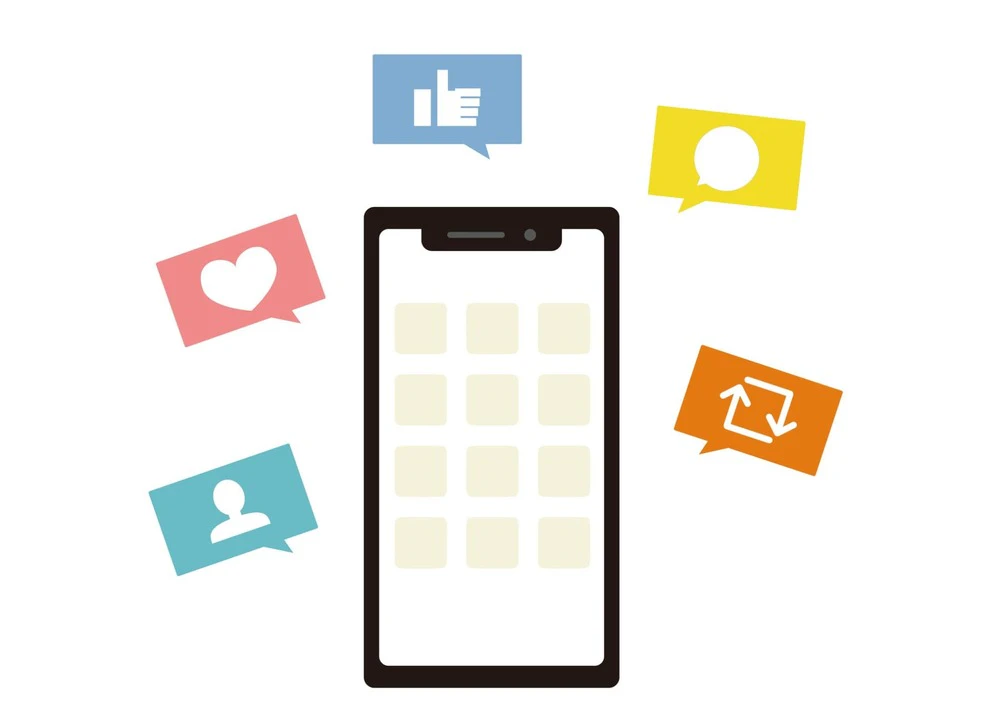
Notification dots are a feature that notifies you on your home screen (smartphone screen) when you receive a notification from an app, such as an incoming call, new message, or update. Depending on your Android model, they may also be notification badges (the type that displays the number of unread messages).
To turn notification dots on or off, first tap "Settings," then "Apps & notifications," then "Notification settings." Then tap "Advanced settings," then tap "Allow notification dots" and toggle it on or off.
If you want to turn on notification dots for just an individual app (this is also an example of how to do it), tap "Settings" and "Apps & Notifications" and select the app you want to display notification dots for. The app's details screen will then appear, so tap "Notifications" and "Allow notification dots" and turn the toggle on.
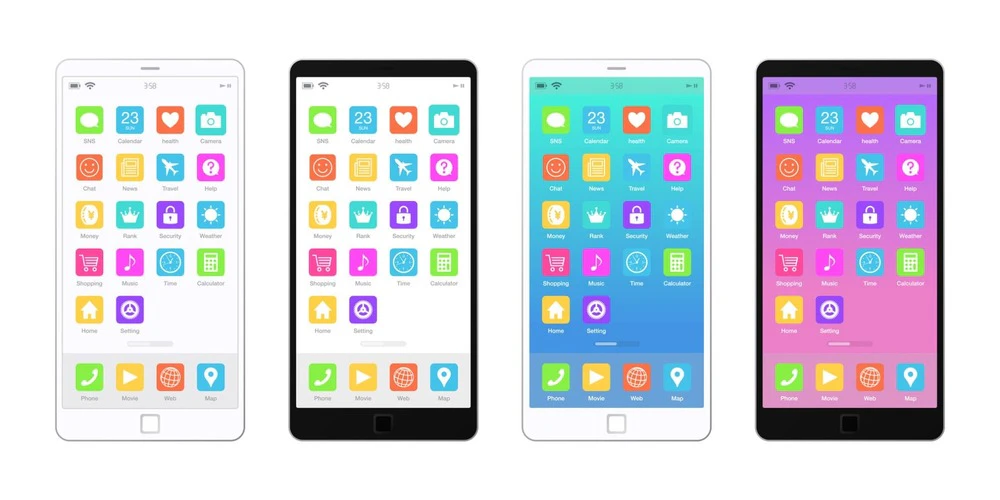
Organizing your Android home screen (smartphone screen) has many benefits. Here we will introduce how to organize your home screen.
Organizing your home screen (smartphone screen) can reduce the time it takes to search for apps. Also, organizing apps by category can improve work efficiency.
To organize your smartphone's home screen, it is recommended that you first place frequently used apps and shortcuts in an easily visible location, such as the home screen.
Additionally, creating folders for each app category, such as manga, games, and videos, will make the screen easier to read.
If you use the same smartphone for both work and personal use, it's convenient to divide the home screen into two and place the apps you need on each. Press and hold any app on the home screen and drag it to the right side of the screen to open a new home screen. Repeat this process to add as many home screens as you need.
Here are some handy tips you can use on Android.
There are two ways to display your smartphone screen on a TV: wired and wireless.
This method uses a cable to display your smartphone screen on a TV. Because it is connected via a cable, the display is stable, but the terminal must comply with a specific standard.
If your smartphone has a Micro USB Type-B (2.0) connector, it must support the MHL (Mobile High-Definition Link) standard. If your smartphone has a USB Type-C connector, it must support the DisplayPort Alternate Mode standard.
If your device supports the above, you can connect it directly to your TV using a USB-HDMI cable, but if it does not, you will need a conversion cable. It is a good idea to check the model's instruction manual beforehand to see if it is compatible.
To display your Android smartphone screen wirelessly on a TV, you will need a separate wireless connection device. Wireless connection devices include Apple TV, Chromecast, Fire TV, and Miracast receivers, and can be purchased for around 10,000 yen at most.
There are three main ways to take a screenshot of your Android smartphone screen, depending on the Android version and model.
povo2.0 (*1) is a new fees plan announced by au (KDDI) that has a basic fees 0 yen (*2) (*3) (*4) and allows you to add necessary services as Topping.
There are six types of paid Topping to choose from: six types of data, two types of content, two types of calls, and one type of support. It is economical because you can purchase and use paid Topping when you need them.
povo2.0 has no contract validity and is constantly running special campaigns. If you're interested in low-cost SIM cards, be sure to give it a try.
*1: As this is an online-only plan, all procedures and support will be handled online. Please contact us via the povo2.0 app or official website.