
povo2.0 's "eSIM Quick Transfer" is a feature that allows you to reissue and transfer an eSIM from your previous iPhone to your new iPhone.
*: This function is only available between iPhones, and both the old and new iPhones must be running iOS 16 or later.
This feature is limited to iPhone users, but it is useful for people who "replace their iPhone every few years" or "replace their iPhone every time a new model comes out."
In this article, we will summarize the basics of eSIM quick transfer and what you can do with it, and then explain the steps and precautions for eSIM quick transfer.
povo2.0 supports eSIM quick transfer, making it easy for iPhone users to change their phone model.
eSIM Quick Transfer is a feature specific to iPhones that allows you to reissue the eSIM on your current iPhone and transfer it to a new iPhone.
There is no need to verify your identity online, and you can change your model just by changing the settings on your iPhone.
There are three types of SIM cards: standard SIM cards (miniSIM), microSIM cards, and nanoSIM cards. Let's take a look at the features of each.

Here are three things you can do with povo2.0 's eSIM Quick Transfer:
povo2.0 's eSIM Quick Transfer allows you to change your phone model from your iPhone settings, so there's no need to go through the hassle of customer support or issuing and scanning a QR code.
You can easily change your model using Bluetooth or iCloud.
povo2.0 's eSIM Quick Transfer allows you to change your phone model using your own iPhone device, and the process can be completed online.
Until now, the general method was to ask the receptionist at a mobile phone store to change your model.
povo2.0 uses eSIM quick transfer, so you can change your phone model online anywhere you have an internet connection, whether at home or on the go.
povo2.0 's eSIM Quick Transfer also allows you to change your SIM card to an eSIM.
Even if you have a physical SIM card, you can use eSIM Quick Transfer to not only change your SIM card to an eSIM, but also easily change your phone model.
Changing from a SIM card to an eSIM can be done using the same steps as eSIM quick transfer.
However, please note that once you switch to eSIM, you will need to go through the povo2.0 app or contact customer support to switch back to a SIM card.
The following page explains in detail how to change from eSIM to SIM card.
Reference: "Model change procedure" (povo)
There are two ways to perform an eSIM quick transfer:
To perform an eSIM quick transfer, you will need your old device, your new device, and an internet connection such as Wi-Fi. If you have access to a stable internet connection, you can use the tethering function built into your smartphone.
Follow the steps below to perform an eSIM quick transfer using Bluetooth.
First, please make sure that you have performed the following settings on both your new iPhone and your previous device.
To set up Bluetooth, open "Settings" on your iPhone, tap "Bluetooth," and turn it on.
To set a passcode, go to "Settings," tap "Passcode," turn "Passcode On," and set your preferred numeric or alphanumeric characters.
Next, tap the "Settings" app from the home screen of your new iPhone, then tap "Cellular."

Next, tap "Set up mobile data" or "Add mobile data."

Tap "Transfer from Nearby iPhone."
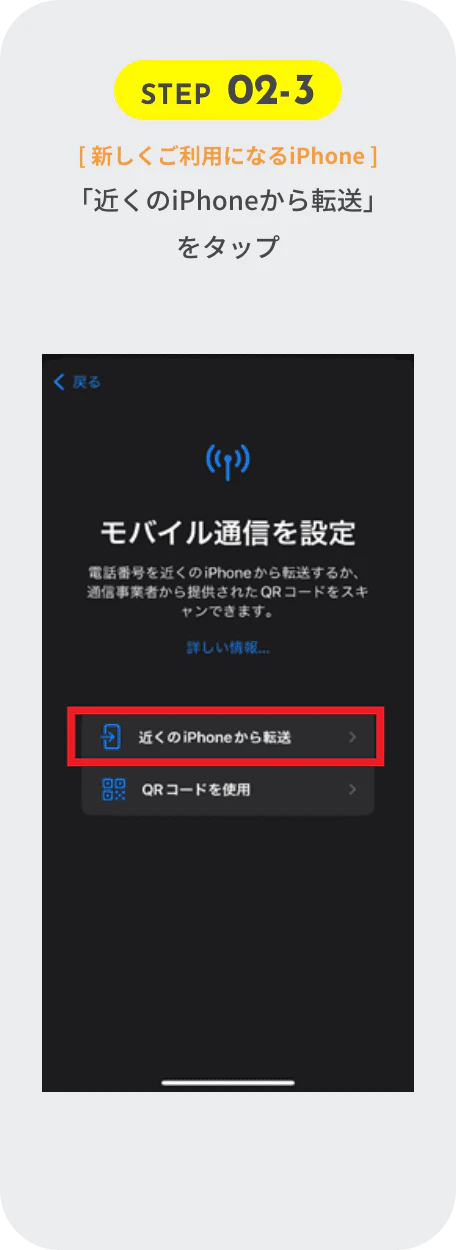
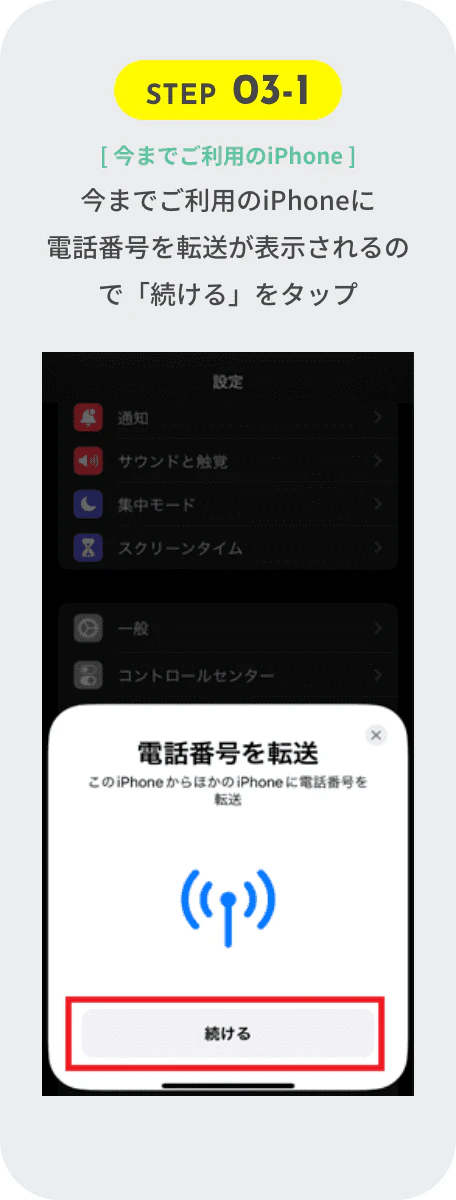
Next, a screen titled "Transfer Phone Number" will appear on the screen of your iPhone. Tap "Continue."
A 6-digit verification code will be displayed on your old iPhone, so enter that code into the verification code field on your new iPhone.

Next, tap "Transfer from another iPhone," which lists the phone number you want to change to.

The eSIM quick transfer is complete when the "Mobile communication setup complete" screen appears on your new iPhone.
To check if the service has been activated correctly, please call the test number 111 (toll-free), listen to the guidance to the end, and then hang up. After that, (*1) if you can open a browser such as Safari or Chrome with Wi-Fi turned off, you can use data communication.
The following page is also useful for information on eSIM quick transfer using Bluetooth.
Reference: "eSIM Quick Transfer" (povo)
*1: Before purchasing data Topping, it may take some time for the screen to display, but as long as the screen can be displayed, there is no problem.
Follow the steps below to perform an eSIM quick transfer using iCloud.
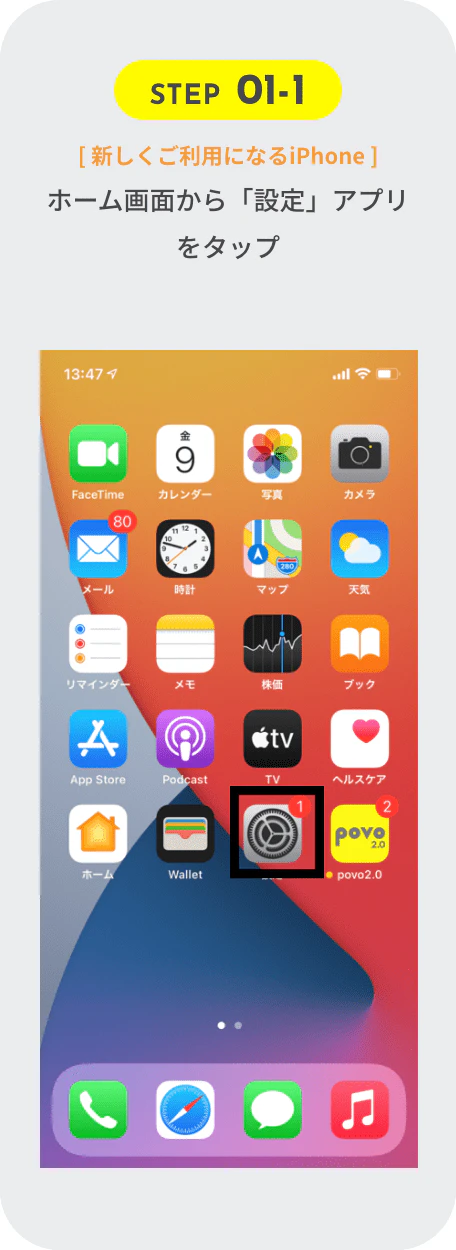
First, tap the "Settings" app on your new iPhone's home screen.
Then tap "Sign in to iPhone."

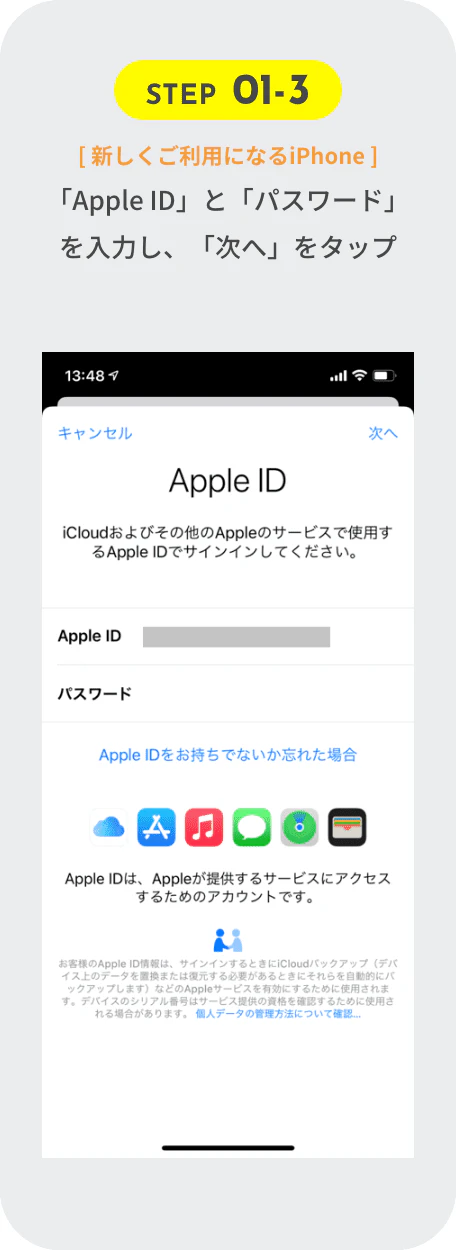
Next, enter your old iPhone's Apple ID and password and tap "Next."
An "Apple ID verification code" will be sent to your old iPhone via SMS.
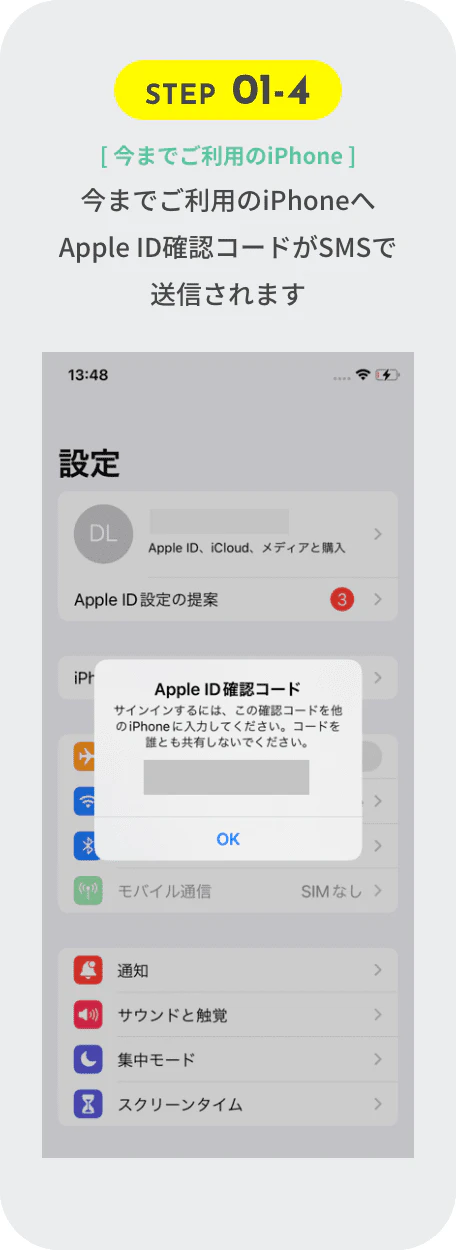
Enter the confirmation code sent in STEP01-4 in the input field.
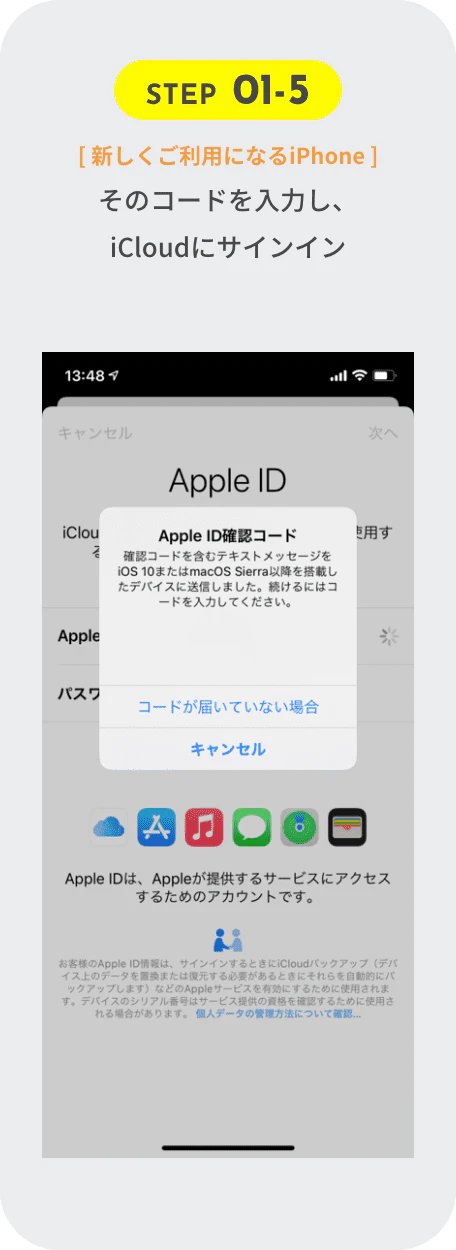
Enter the iPhone password you set up yourself. If you have not set a password for your old or new iPhone, you will need to set a new one.

To set a passcode, go to "Settings," tap "Passcode," select "Passcode On," and enter your preferred numbers or alphanumeric characters.
On your new iPhone, tap the "Settings" app on the home screen, then tap "Cellular"
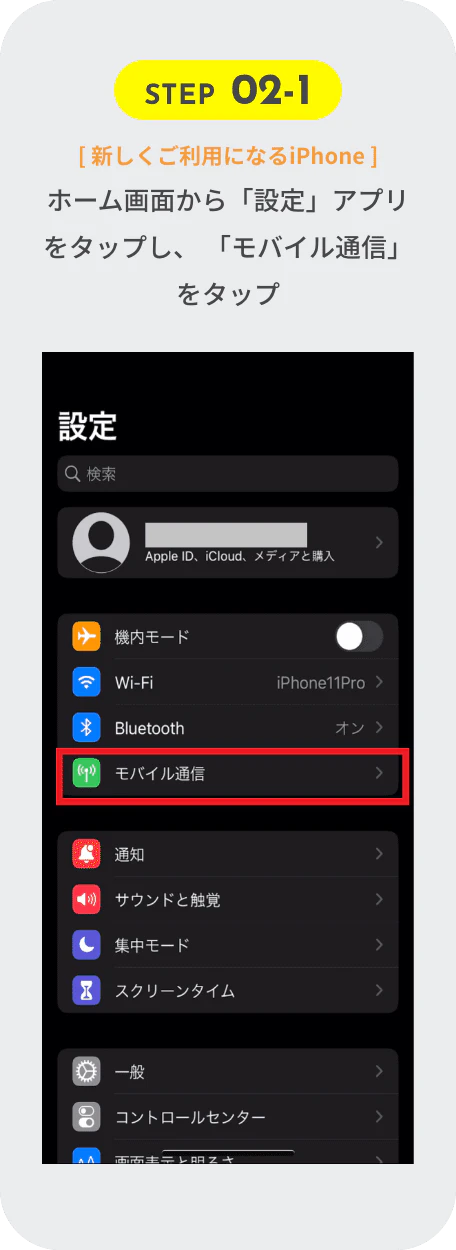
Next, tap "Set up mobile data" or "Add mobile data."

Next, tap "Transfer from another iPhone" which lists the phone number you want to change to.
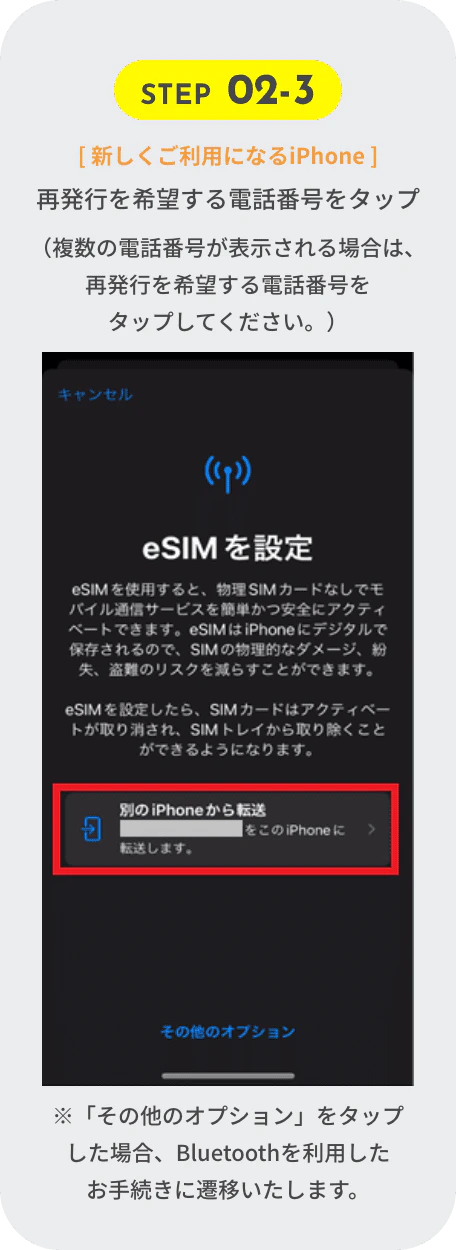
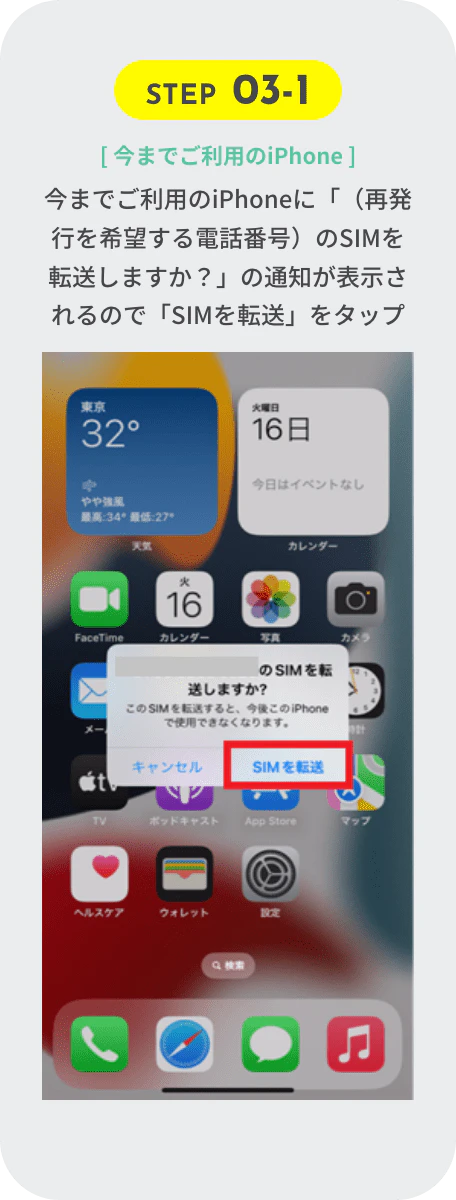
A message will appear on your current iPhone asking, "Do you want to transfer the SIM card for (the phone number you plan to change to)?" Tap "Transfer SIM card."
The eSIM quick transfer is complete when the "Mobile communication setup complete" screen appears on your new iPhone.
Finally, call the test number 111 (toll-free), listen to the guidance to the end, and then try to launch the browser with Wi-Fi turned off to check if you can use mobile data.
The following page is also useful for information on eSIM quick transfer using iCloud.
Reference: "eSIM Quick Transfer" (povo)

Please note the following four points when using povo2.0 eSIM quick transfer.
There are set times when povo2.0 eSIM quick transfers can be accepted.
Reception hours are as follows:
Also, please be aware that reception hours may differ depending on the timing of maintenance, so it may take some time to transfer.
Reference: "eSIM Quick Transfer" (povo)
povo2.0 's eSIM quick transfer is only available for transfers between iPhones, and both the old and new iPhones must be running iOS 16 or later.
iOS16 is only available for iPhone 8 and later devices, and devices such as iPhone 7 and 6s cannot be updated to iOS16, so they cannot use eSIM quick transfer.
Before performing an eSIM quick transfer, make sure your device is compatible with iOS 16.
In order to perform an eSIM quick transfer to a new iPhone, you need data from your old device. If you reset your iPhone before transferring the eSIM, you will not be able to perform the eSIM quick transfer.
If you are resetting your old device, be sure to do so only after completing the quick eSIM transfer using the steps described above.
If your new iPhone is SIM-locked, you may not be able to change your phone model at all, let alone quickly transfer your eSIM.
SIM lock refers to the process whereby when you purchase a smartphone or other device from a major carrier, it is locked so that you can only use the SIM card of the carrier from which you purchased it.
New mobile phone devices sold after October 1, 2021, are required to be sold without a SIM lock, but iPhones purchased from major carriers before that date will need to be SIM unlocked.
However, if your new iPhone was purchased from au affiliate, you do not need to unlock the SIM. SIM unlocking is only required if you are switching to an iPhone purchased from docomo or SoftBank before October 1, 2021.
This article is also useful for SIM unlocking.
In this article, we explained povo2.0 's eSIM quick transfer.
povo2.0 's "eSIM Quick Transfer" is a feature that allows you to transfer eSIM data on your device when switching from one iPhone to another.
Simply put, this feature allows you to change your phone model anywhere as long as you have an internet connection.
povo2.0 's eSIM quick transfer method uses "Bluetooth" and "iCloud," allowing devices to communicate with each other, making it easy to switch from an old iPhone to a new one.
However, there are four things to keep in mind when using eSIM quick transfer:
1. Reception hours are limitedPlease be sure to check points 2 to 4 in particular, as if you do not, you may not be able to use eSIM quick transfer.