Bluetooth allows for wireless communication, making it easy to use and cordless, but there are rare cases where it may not connect due to a malfunction.
Generally, you can connect by disconnecting the device and then reconnecting it. However, if Bluetooth still does not connect, this may be due to a malfunction or radio interference.
In this article, we will explain what to do when Bluetooth does not connect.
This article explains how to set up Bluetooth on iPhone and Android, as well as the causes and solutions for when you can't connect, so you should be able to resolve your Bluetooth problems by reading it.

When Bluetooth won't connect, many people have tried various methods, such as reconnecting the device or disconnecting the Bluetooth connection.
If the Bluetooth connection still does not work, deleting the registration information and re-setting it may help.
From here, we will explain how to connect Bluetooth on iPhone and Android.
Follow the steps below to connect your iPhone via Bluetooth.
1. Open "Settings" on your iPhone and select Bluetooth
2. After confirming that Bluetooth is on, turn on the Bluetooth function on the connected device.
3. When the name of the connected device is displayed, tap it.
4. When the message "Connected" appears, the connection is complete.
To reconnect, open the Bluetooth screen. On the other hand, you can disconnect by tapping the "i" icon next to the name of the connected device and selecting "Forget this device."
Once you have disconnected, you can reconnect by following the setup method described above.
Follow the steps below to connect Android Bluetooth.
1. Open "Settings" on your Android device and tap "Connected Devices"
2. Tap "Connection Settings" and turn on Bluetooth
3. Turn on the Bluetooth function of the device you want to connect to, tap "Pair with a new device," and select the device you want to connect to.
4. When the name of the connected device appears under "Connected devices," the process is complete.
To reconnect, open the Bluetooth screen, tap the name of the connected device, and a pop-up message will appear asking "Do you want to disconnect?" Tap "OK" to disconnect.
Once you have disconnected, you can reconnect by following the setup method described above.
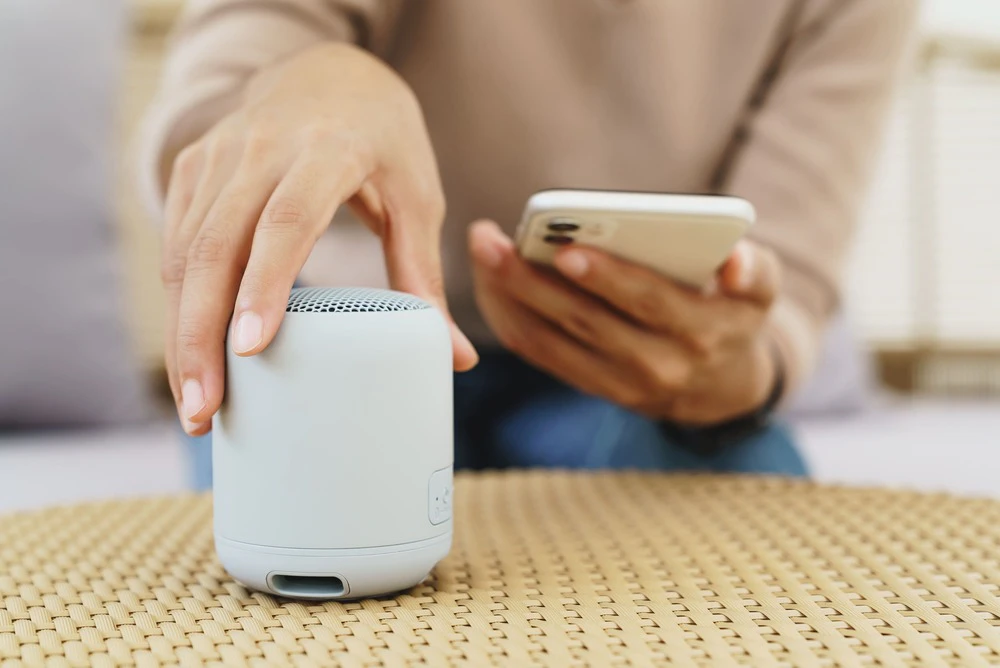
If Bluetooth does not connect even after reconfiguring the device to be connected, it may be due to a malfunction of the device, an error in the configuration, or the wrong type of device.
Here we will explain what to do if your Bluetooth connection is not working.
Before suspecting a malfunction or problem with the device, first try restarting the device connected to your smartphone.
Because Bluetooth is a wireless connection, there may be problems with your smartphone or the connected device, preventing the connection.
In this case, restarting both devices may resolve the temporary error and allow Bluetooth to connect.
If Bluetooth won't connect, you may be able to connect by updating your smartphone's OS.
When connecting via Bluetooth, there is a "profile" that serves as the basis for connecting devices. This may differ depending on the Bluetooth device, and if either your smartphone or the device you are connecting to does not support this "profile," the connection will not be possible.
Updating your OS will make it compatible with the latest profiles, so updating your smartphone and connected devices may enable Bluetooth connection.
If the device you are connecting to is not compatible, Bluetooth may not connect.
For example, if the Bluetooth connection version of the device you want to connect to is different from that of your smartphone, you will not be able to connect.
Most smartphones sold after 2015 have Bluetooth version 4.0 or higher, so in that case the connected device must also have Bluetooth version 4.0 or higher.
There are a total of 12 different versions of Bluetooth.
| Bluetooth version | Summary |
|---|---|
| 1.0 | The first version of Bluetooth |
| 1.1 | The version that sparked the spread of Bluetooth |
| 1.2 | Version that incorporates interference prevention for Bluetooth and Wi-Fi using 2.4Ghz |
| 2.0 | A version that includes a function that increases the maximum communication speed to 3Mbps |
| 2.1 | ・Improved ease of pairing ・Supports Near Field Communication (NFC) for short-distance wireless communication ・Function extension to extend the battery life of Bluetooth devices |
| 3.0 | ・Added a function to increase the maximum communication speed to 24Mbps |
| 4.0 | Addition of LE (Low Energy) function that significantly reduces battery consumption |
| 4.1 | ・Strengthening LE (Low Energy) ・Version that incorporates measures to prevent communication interference with LTE |
| 4.2 | ・LE data transfer speed is 2.5 times faster |
| 5.0 | A version with significantly improved communication speed, communication range, and communication capacity |
| 5.1 | Version with added direction finding function |
| 5.2 | Version with LE Audio functionality |
Currently, most Bluetooth devices are 4.0 or higher, and if the version is not compatible, Bluetooth may not connect.
For example, the latest version, 5.2, cannot be connected unless both the smartphone and the connected device are compatible with version 5.2.
I also bought the latest high-quality headphones and tried to connect them to my iPhone 7 (version 4.2), but they wouldn't connect.
First, check the version of the device you are connecting to your smartphone.
The quickest way to check the versions of both your smartphone and the device you want to connect to is to check the manufacturer's official website, but it's also listed in the instruction manual.
Check that the battery level of the connected device is not low.
If the battery is low, Bluetooth may not connect.
This is a common problem when Bluetooth does not connect, so please check the remaining battery level.
Bluetooth can only be connected within a certain range, so if the distance between your smartphone and the device you want to connect to is too far, the connection may not work.
Also, if there is a wall or other obstacle between the device you are connecting to and your smartphone, this may interfere with communication.
In this article, we explain what to do when your Bluetooth won't connect.
If Bluetooth won't connect, in most cases you can connect by doing two things: restarting the device and reconnecting the devices.
However, if Bluetooth still does not connect, try the following solutions.
・Update your OS to the latest version
・Check compatibility with the device you want to connect
・Check the battery of the device you want to connect
・Check that the device you are connecting to is not too far away.
If you are unable to connect Bluetooth even after trying the solutions above, it may be due to a version mismatch, incompatible profile, radio interference, or device malfunction.
If you are unable to connect Bluetooth no matter what you do, we recommend contacting the manufacturer.
*The names of products and services mentioned in this article are trademarks or registered trademarks of the respective companies. ・Bluetooth is a registered trademark of the US Bluetooth SIG, Inc. ・iPhone is a registered trademark of Apple Inc. ・Android is a registered trademark of Google LLC.