"MMS" is one way to send and receive messages on a smartphone. Many people have seen the name MMS before, but don't know how to use it. Even if they do know the name, some may think it's the same service as SMS or iMessage.
Although these are all messaging services, they each work differently. In this article, we'll explain in detail what MMS is, how to use it, and how it differs from other messaging services (SMS, iMessage) for those who don't know how to use it.
MMS (short for Multimedia Messaging Service) is a chat-style messaging service that uses a carrier email address from a telecommunications carrier that supports MMS. Currently, the carriers that support this service are KDDI (au), SoftBank, and Y!mobile. MMS-compatible email addresses have the following format:
| Telecommunications carrier name | Address Format |
|---|---|
| au | @ezweb.ne.jp |
| SoftBank | @softbank.ne.jp |
| Y!mobile | @ymobile.ne.jp |
The main feature of MMS is that it allows you to exchange long text messages, images, and files. You can also send and receive messages to email addresses and PC addresses of other carriers.
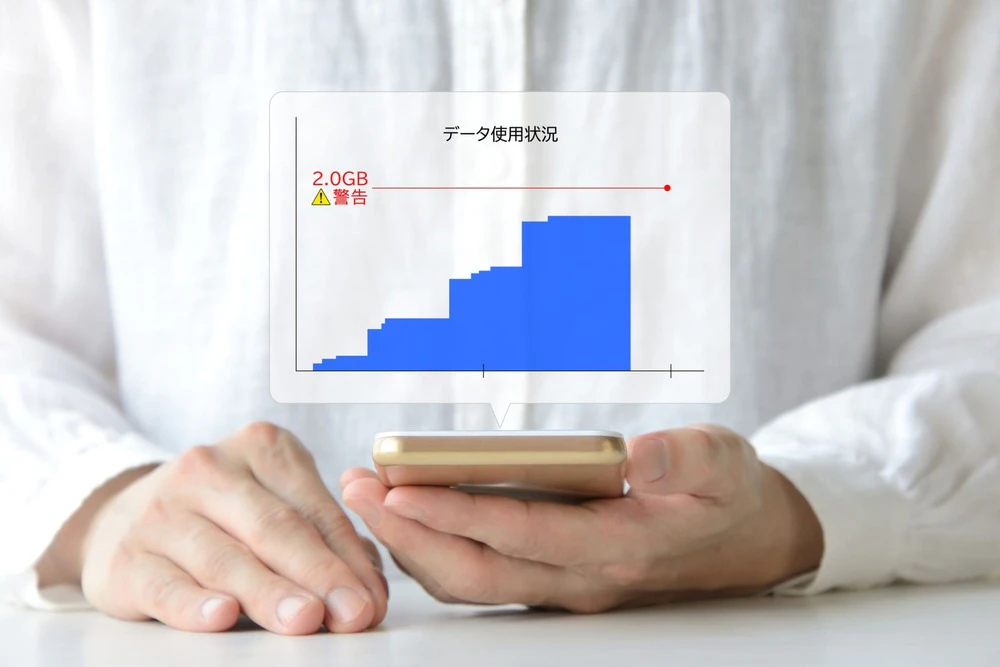
The appeal of MMS is that you can send a lot of information in one message to the email address of the person you want to send the message to. fees is included in your data communication fees.

What is the difference between MMS and other messaging services (SMS and iMessage)? Here we have put together a table comparing MMS with SMS and iMessage.
| MMS | SMS | iMessage | |
|---|---|---|---|
| Address | ・email address ・Telephone number (only for the same carrier) |
Telephone number | ・Telephone number ・Apple ID |
| Maximum number of characters | Varies by carrier and model | 670 characters (1530 characters if using only half-width alphanumeric characters) | Unlimited |
| Attaching files | ◯ | ✕ | ◯ |
| Sending fees | Varies by plan | 3.3 tax included per message (up to 70 characters) | Included in data fees |
| Receiving fees | Varies by plan | Free | Included in data fees |
SMS (short message service) is a service that allows you to send and receive messages to other phone numbers using your smartphone. It is available with most telecommunications carriers and low-cost SIM cards, but you cannot send messages to multiple people at the same time. Additionally, SMS does not allow attachments such as images or videos, and messages are limited to 670 full-width characters or 1,530 half-width alphanumeric characters. Therefore, it is best suited to exchanging short text messages.
While SMS itself is free to use, there is a cost associated with sending messages depending on the number of characters. For messages up to 70 characters (*1), a fee of 3.3 yen (*2) will be charged per message. SMS is often used for two-step authentication to prevent fraud on web services.
*1: Depending on the model, you can send up to 670 double-byte characters. However, up to 134 characters will incur a sending fee of two messages, and for every 67 characters thereafter, a sending fee will be charged. *2: fees will vary depending on the carrier you use.
iMessage is an app that allows you to send and receive various types of data, including messages, photos, videos, and audio, between Apple devices such as iPhones and iPads. With iMessage, you can send messages with no character limit. You can also send emojis, handwritten text, and Apple's original stickers.
Because iMessage sends and receives messages over the Internet, there are no additional fees like regular SMS. However, if the recipient is using an Android device or other device that does not support iMessage, the message will automatically be switched to SMS or MMS, and SMS charges will apply, so be aware of this. In that case, you will also not be able to send attachments or iMessage-specific stickers.

MMS is a convenient service that allows you to attach images and files and send long messages. Below, we will explain how to use MMS for both iPhone (iOS) and Android, for those who have never used it before.
To use MMS on an iPhone (iOS), use the Messages app. The Messages app automatically switches between three methods—MMS, SMS, and iMessage—to find the best way to send a message depending on the type of message and the recipient's situation. If the recipient is using iOS and iMessage is available, it will switch to iMessage. If the recipient is using Android, it will switch to either MMS or SMS.
The following conditions will cause the message to switch to MMS:
・When sending to an email address
・If you enter a subject
・When you attach an image or file
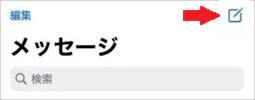
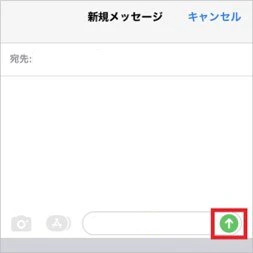
To send an MMS from an iPhone (iOS), follow these steps:

For Android, you will usually use the official Google app "Messages" (although depending on your carrier and model, your phone may have its own messaging app installed).

When using the Messages app, if a screen appears that says "Set as default app," select "Messages."
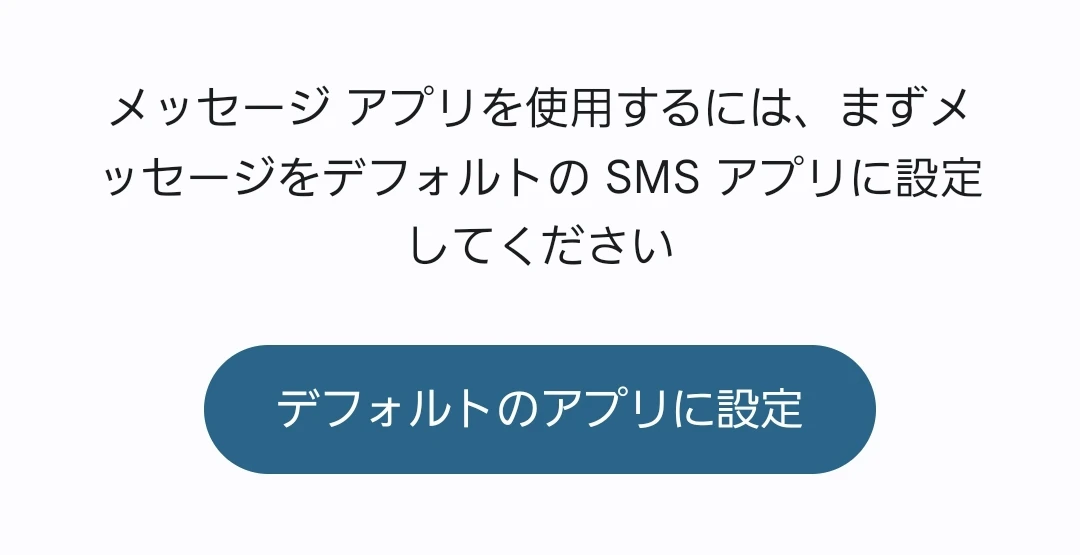
To send an MMS from Google 's official Messages app, follow these steps:

There are cases where you try to send an MMS but the message cannot be sent. The reasons why MMS cannot be used are often incorrect settings or problems on the receiving side. Below we will explain what to do if you cannot use MMS.
If you cannot use MMS, it may be due to a problem with your smartphone settings, so please check the following settings.
1. The MMS address is not set in the messaging app
Solution: Register your carrier email address in the messaging app and check if you can use MMS.
2. It's been blocked as spam
Solution: Ask the recipient to unblock you and try again to see if you can send MMS.
3. The recipient is a phone number
Solution: If you send a message to a phone number, it will be sent as an SMS. Change the address to an email address and try again to see if you can send it as an MMS.
The only carriers that support MMS are KDDI (au), SoftBank, and Y!mobile. If the recipient's email address is a free email service like Gmail, it's likely that the user is using a carrier that doesn't support MMS. In this situation, MMS cannot be used.
Even if MMS isn't available, there are messaging services with similar functionality. Examples include LINE, +Message (Plus Message), and DM (direct messages) on various social media platforms. Here we'll introduce these services that can be used as alternatives to MMS, along with their advantages and disadvantages.
LINE is a messaging app that can be used on smartphones, tablets, and computers. LINE allows you to exchange messages even if you are using different carriers. You can also send and receive emojis, images, videos, and stamps. To send a message, you must add the other person to your "friends list," or vice versa.
LINE is convenient, but there are some security concerns. Because the "friend list" is synchronized with the smartphone's address book, a misconfiguration can cause your name to be displayed to unknown people and you to be added to their friend list without their permission. This concern can lead to problems such as receiving messages from unknown people.
"+Message (Plus Message)" is a messaging app jointly developed by docomo, KDDI (au), and SoftBank. You can exchange messages using the phone number registered on your smartphone.
+Message allows you to attach photos, images, and stamps, and also allows group messaging. However, use of +Message is limited to those who have SMS contracts with brands provided by docomo, KDDI, and SoftBank, or MVNOs.
Alternatives to MMS include messaging features on social media platforms such as Twitter (formerly known as X), Instagram, TikTok DM (direct message), and Facebook Messenger. These messaging features may even surpass the capabilities of MMS, depending on the platform you use.
However, to use SNS DM, the recipient must have a corresponding SNS account. Also, if you don't know the recipient's SNS account, you can't use it, so this can be considered a disadvantage.

In this article, we've explained the overview of MMS, how to use it, and how it differs from other messaging services. MMS is a convenient service that allows you to exchange long messages, images, and files, but it is currently only supported by KDDI (au), SoftBank, and Y!mobile.
When using MMS, you use a carrier email address, and fees of the message is included in your data charges. Since data is used every time you send or receive a message, if you are concerned about data usage, we recommend au 's online-only brand, "povo2.0" (*3).
povo2.0 has a basic fees of 0 yen (*4) (*5) (*6), and you can freely choose Topping (paid) as needed. While MMS is not available with povo2.0, if you can use a messaging service that can replace MMS, you can enjoy messaging services without worrying about Unlimited data (24 hours) 330 yen/time, tax included included" (*7) or the large-capacity Topping" Data Top-up 150GB (180 days) 12,980 yen/time, tax included included." If you're not particular about MMS but would like to reduce your monthly data charges, why not take this opportunity to consider using povo2.0?
*3: This is an online-only plan, so all procedures and support are online. povo2.0 Please contact us through the application or the official website. *4:Call charges and SMS sending charges are not included.
Sending domestic SMS: tax included 3.3 yen/text (up to 70 characters) Receiving: Free
Up to 670 full-width characters can be sent depending on the model. 2 sending fees will be charged for up to 134 characters, and 1 sending fee for every 67 characters after that. 5: If you subscribe to 5 lines(*) under the same name, a contract administration fee of tax included 3,850 yen/line will be charged for the 6th line and thereafter.
*Including lines that have been terminated or cancelled by the Company within the past year. 6: Maximum 128 kbps for sending/receiving at 0 GB for 0 yen. 7: Communication speed may be limited during network congestion or when using videos, cloud games, etc.