How to use povo2.0 with vehicle mobile router


*Information as of October 31, 2024. It may differ from the latest procedures.

Before the procedure

Please prepare an in-car mobile router that can be used with povo2.0.
*For details on how to use the mobile router (+F FS050W/+F FS040W) and how to operate it, please refer to the instruction manual included with the product.
■+F FS040W Various instruction manuals Here
■+F FS050W Various instruction manuals Here
*If you are currently using a SIM card other than povo2.0 with your in-car mobile router (+F FS050W/+F FS040W), please apply for povo2.0 using the steps below, reset the mobile router (factory reset), then insert the SIM card into the mobile router, turn it on, and wait a while.

Career Manufacturer Device name
SIM-free Fuji Soft
Co., Ltd.
+F FS050W
*1*2
SIM-free Fuji Soft
Co., Ltd.
+F FS040W
*1*2
"povo2.0 Data Only" cannot be used with SIM cards.
*1:
Please insert the povo2.0 SIM card into the router. To purchase Topping, you will need to have a separate device that can run the povo2.0 app.
*2:
eSIM is not supported.

What you need to complete the procedure

1Identification documents

alt_txt

Please prepare one of the following.

·driver's license
・My Number Card

*Please be sure to remove the protective cover before taking photos.

・Residence card

For more information about identity verification documents, click here
2Setting up payment methods

alt_txt

Even if you don't have a credit card, you can use Postpay(Paidy)*.
For more information about Postpay(Paidy)click here

3povo2.0 app compatible devices

alt_txt

You will need to have a device that can use the povo2.0 app.
Please check the compatible devices by clicking the button below.
The povo2.0 app is required to sign up for povo2.0 and purchase Topping.

*Please note that the GRATINA KYF37 is not compatible with the povo2.0 app.
Application flow

STEP 1Apply via the app or website (first-time applicants)

STEP 2Register a povo account

  • STEP2-1
    alt_txt

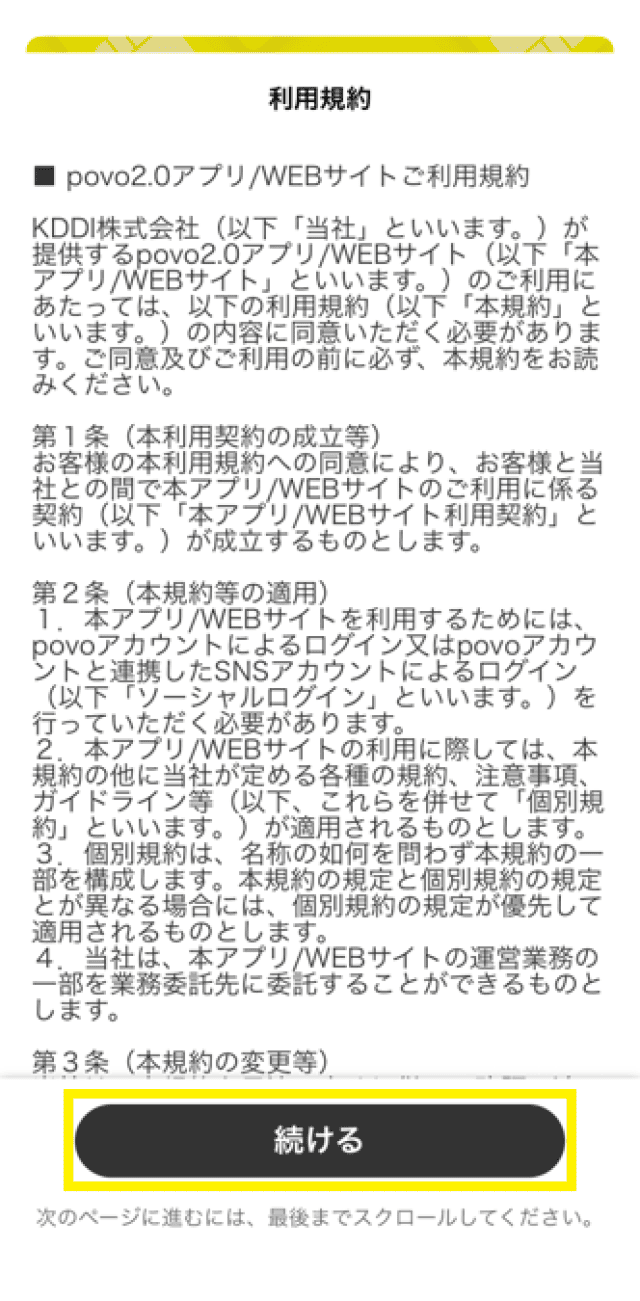
    Scroll down to read the terms of use, then tap "Continue"

  • STEP2-2
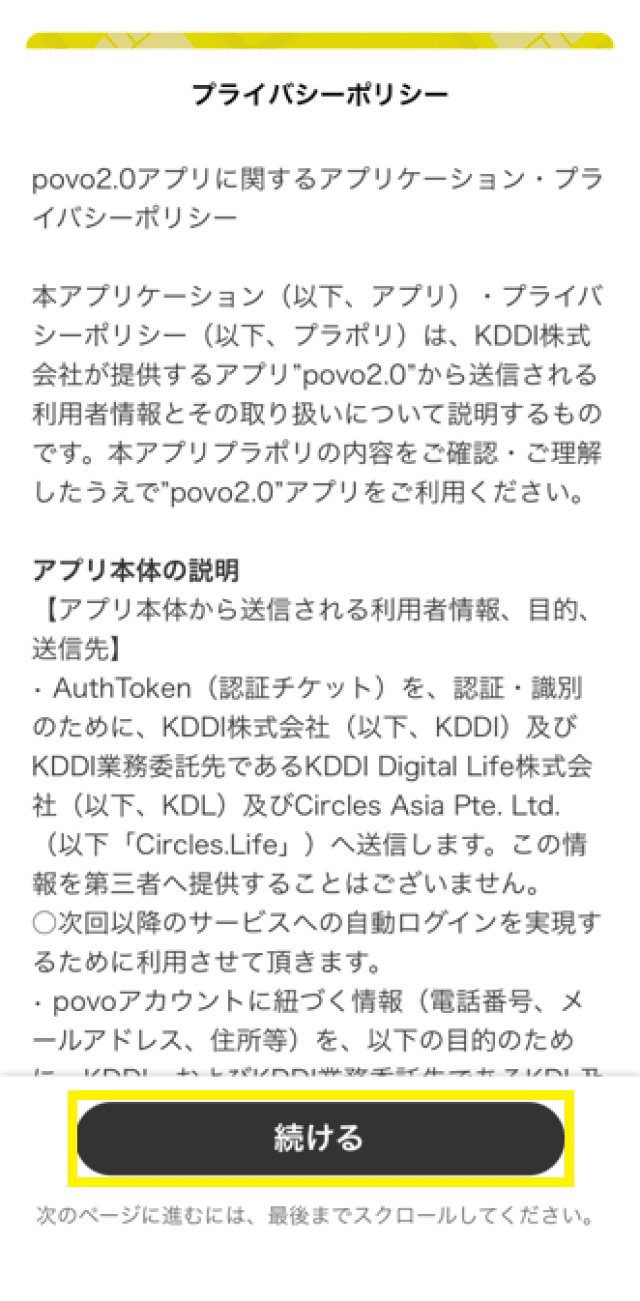
    alt_txt

    Scroll down to the bottom and read the privacy policy, then tap "Continue"

  • STEP2-3
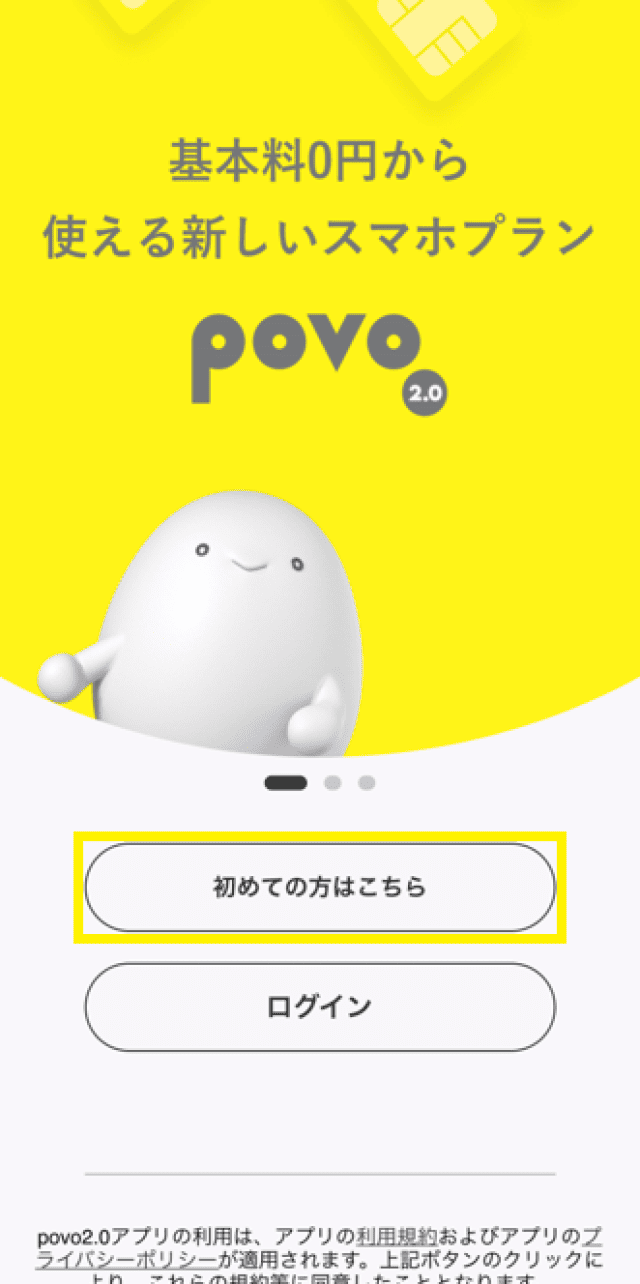
    alt_txt

    Tap "First-time users click here"

  • STEP2-4
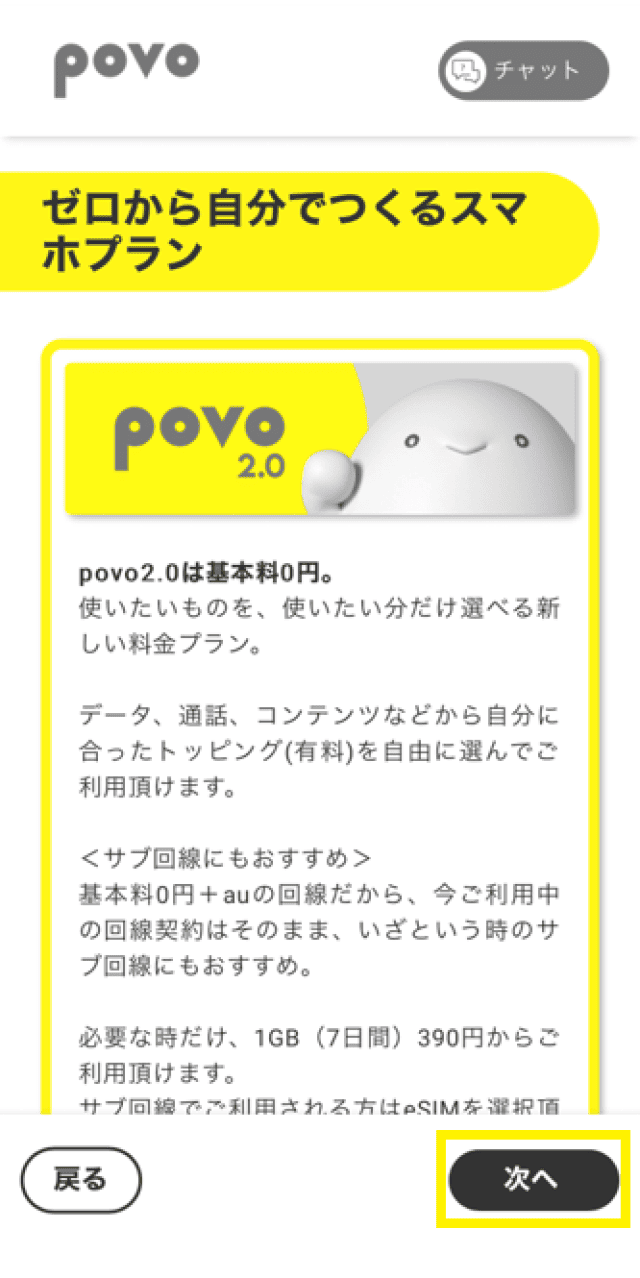
    alt_txt

    Tap "Next"

  • STEP2-5
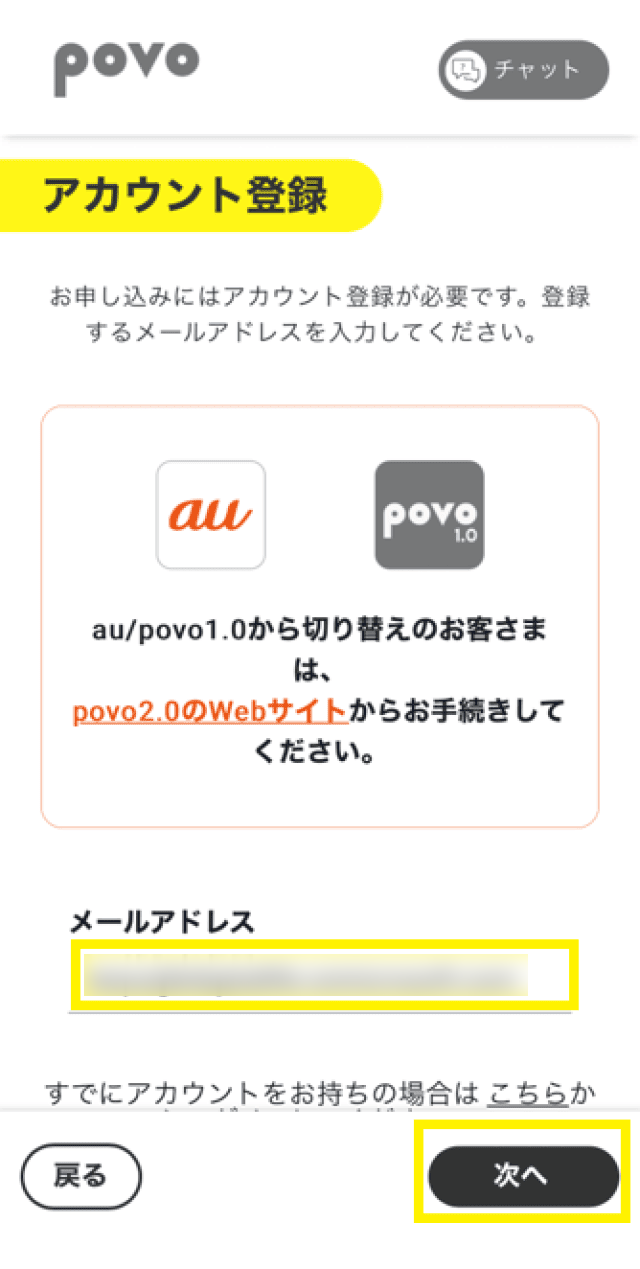
    alt_txt

    Enter your email address and tap "Next"

  • STEP2-6
    alt_txt

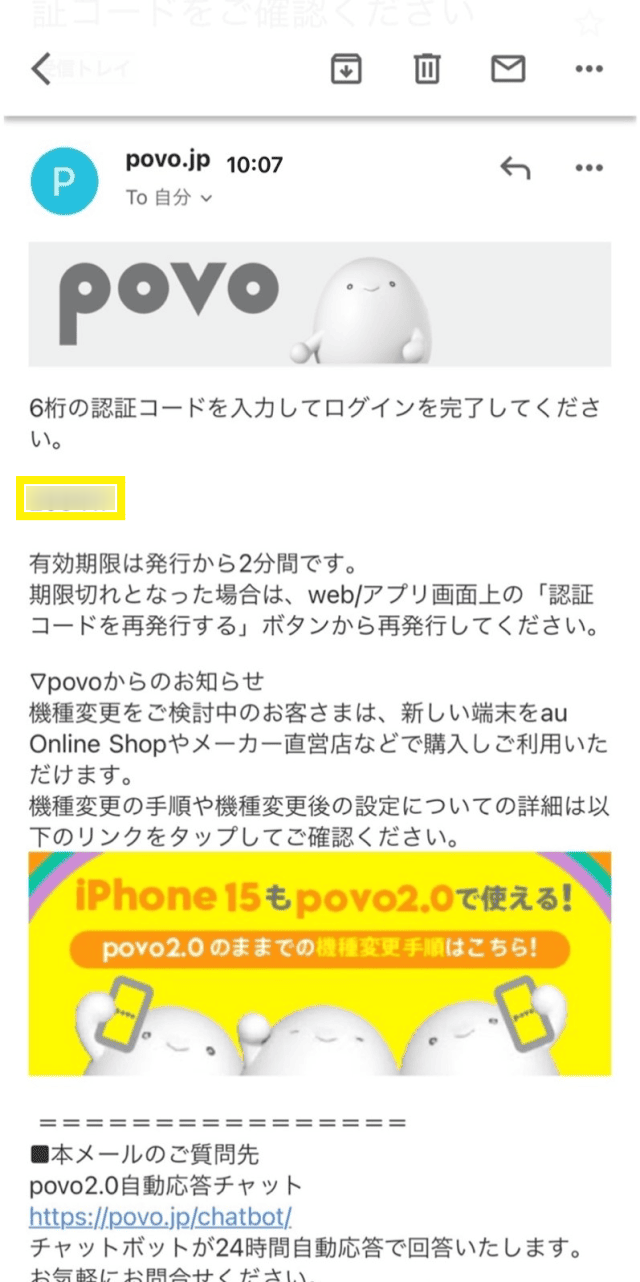
    Go to the email address you entered and confirm the 6-digit authentication code.

  • STEP2-7
    alt_txt

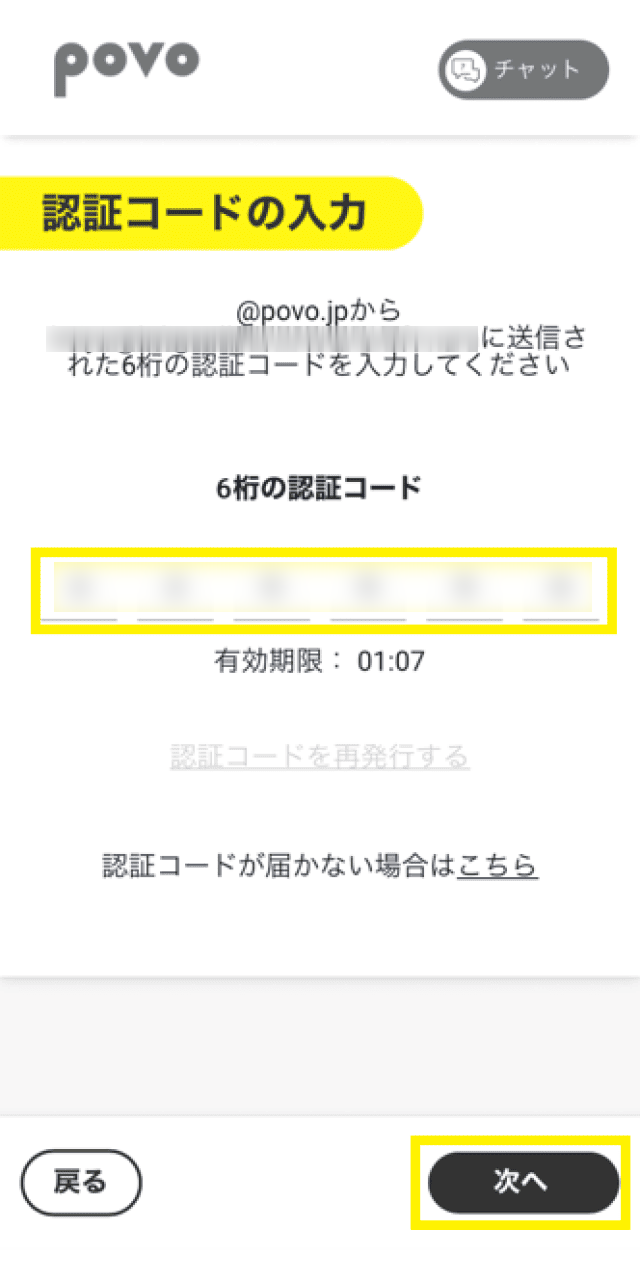
    Enter the 6-digit authentication code and tap "Next"

*If you are already using povo2.0, please log out of the povo2.0 app and register a new account.

STEP3Identity verification and customer information entry

*The in-car Wi-Fi router (AN-S092/AN-S092P) does not support eSIM, so be sure to apply for a SIM card.
  • STEP3-1
    alt_txt

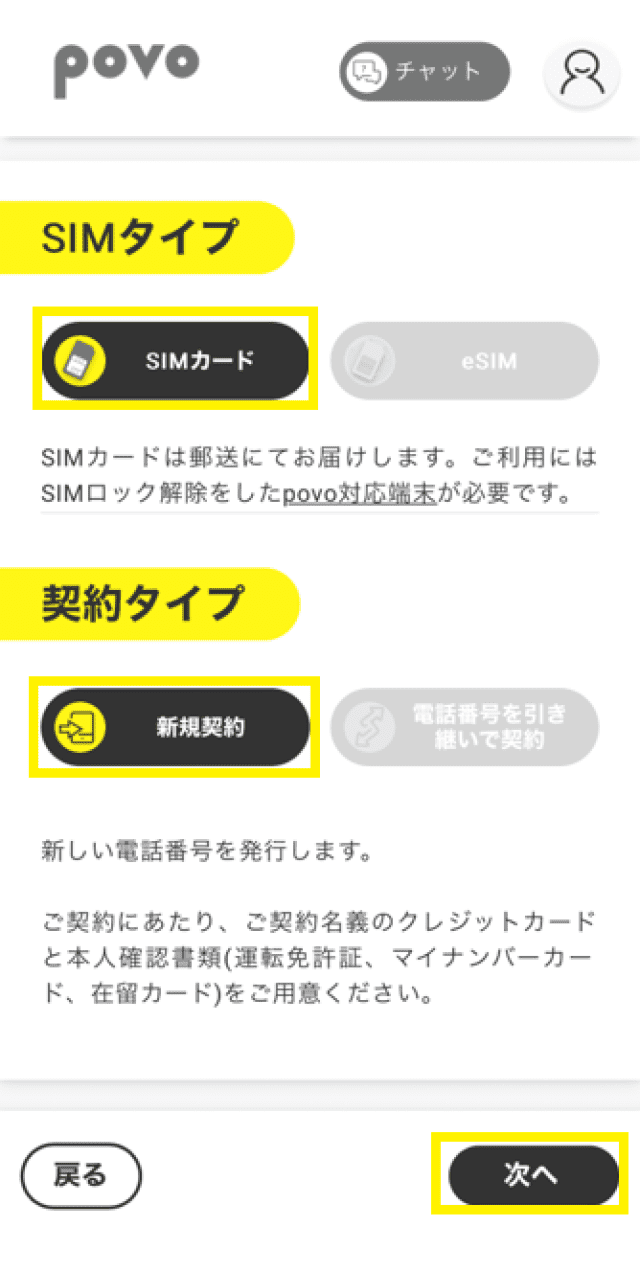
    Select "SIM card" and "New contract" and tap "Next"

  • STEP3-2
    alt_txt

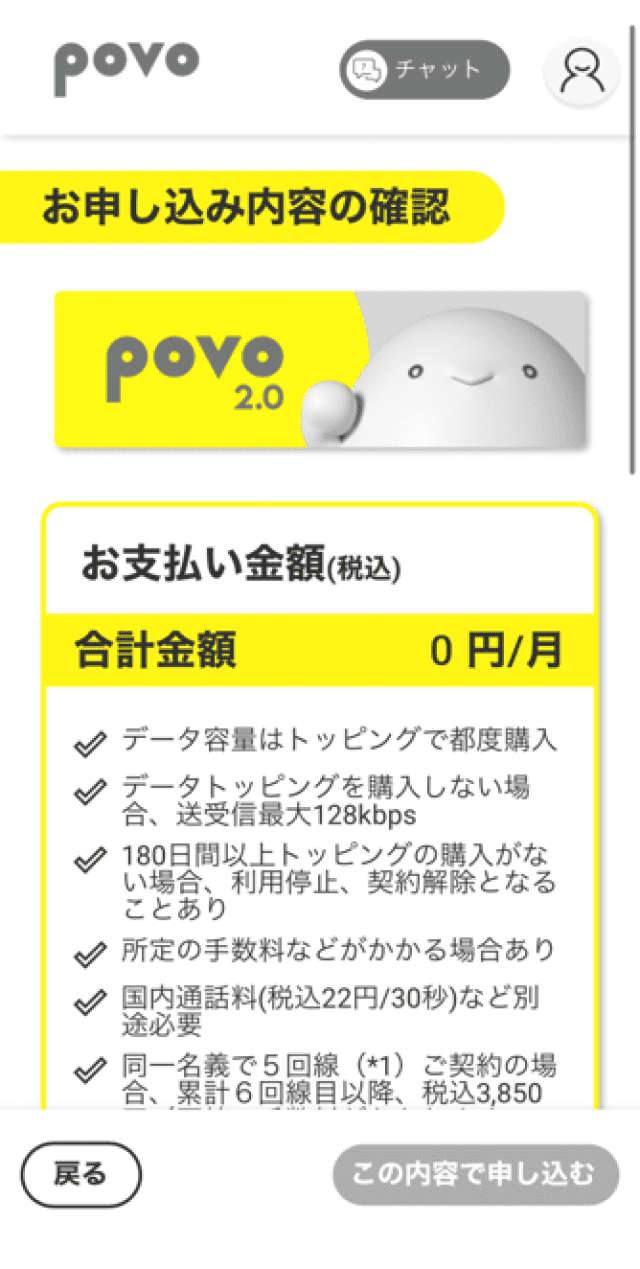
    Please confirm your application details and scroll down

  • STEP3-3
    alt_txt

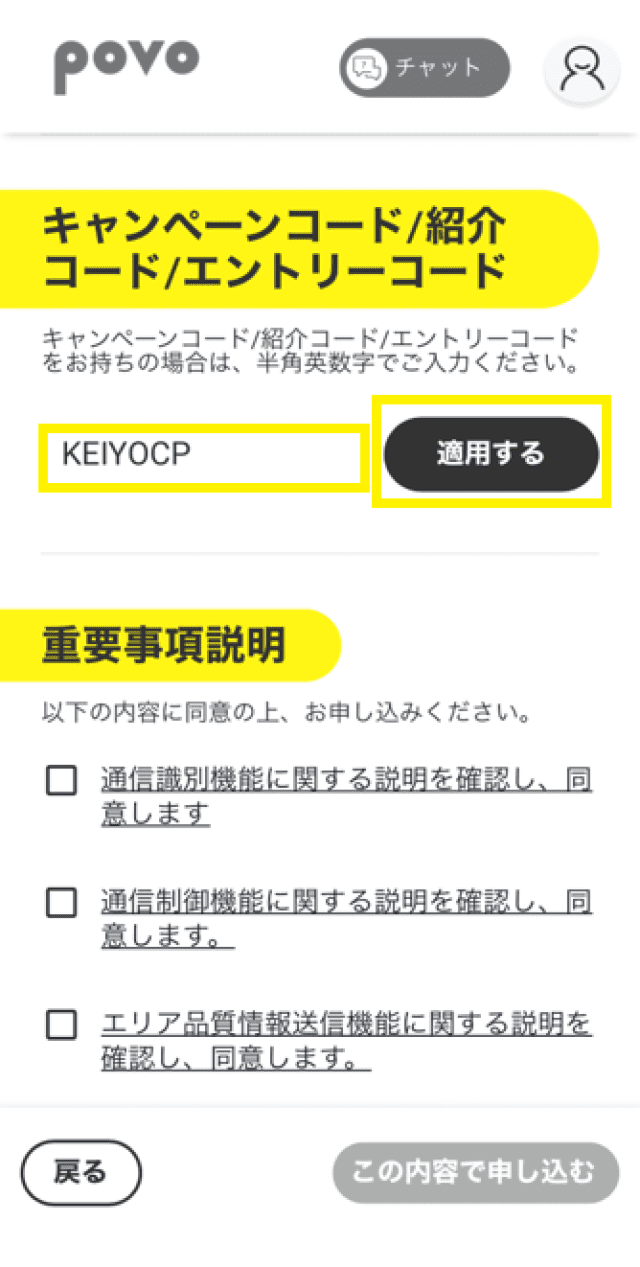
    If you have a campaign code/referral code printed on a flyer, etc., please enter the code and click the "Apply" button. If you do not plan to use it, please proceed to the next step.

  • STEP3-4
    alt_txt

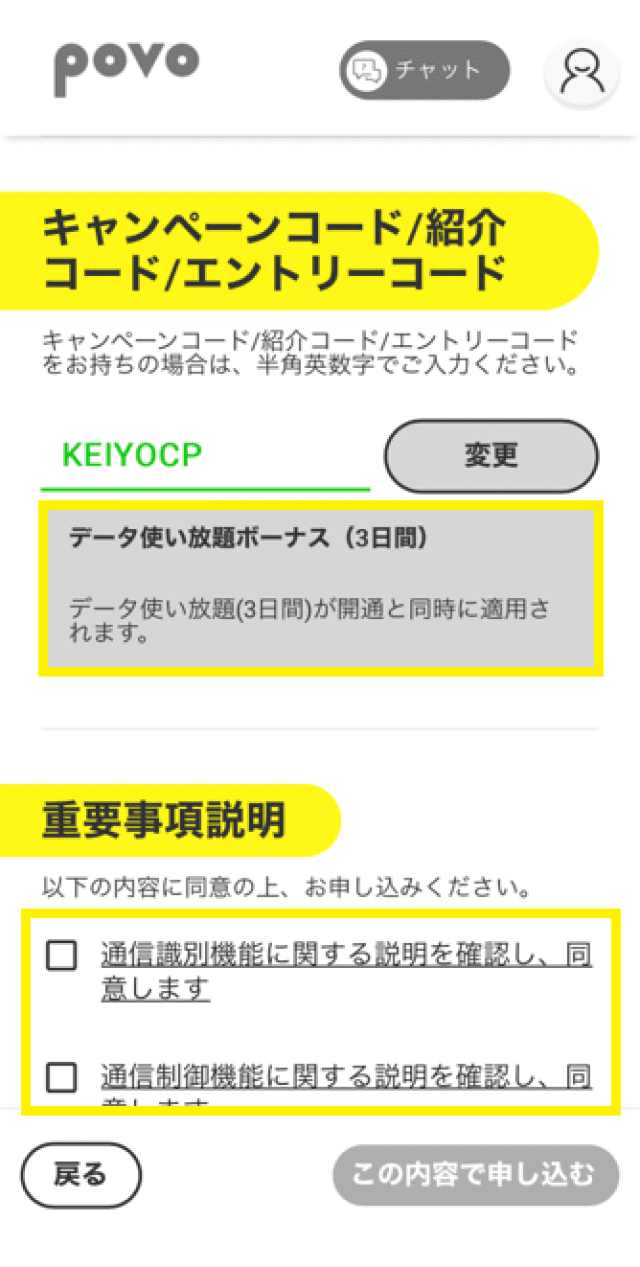
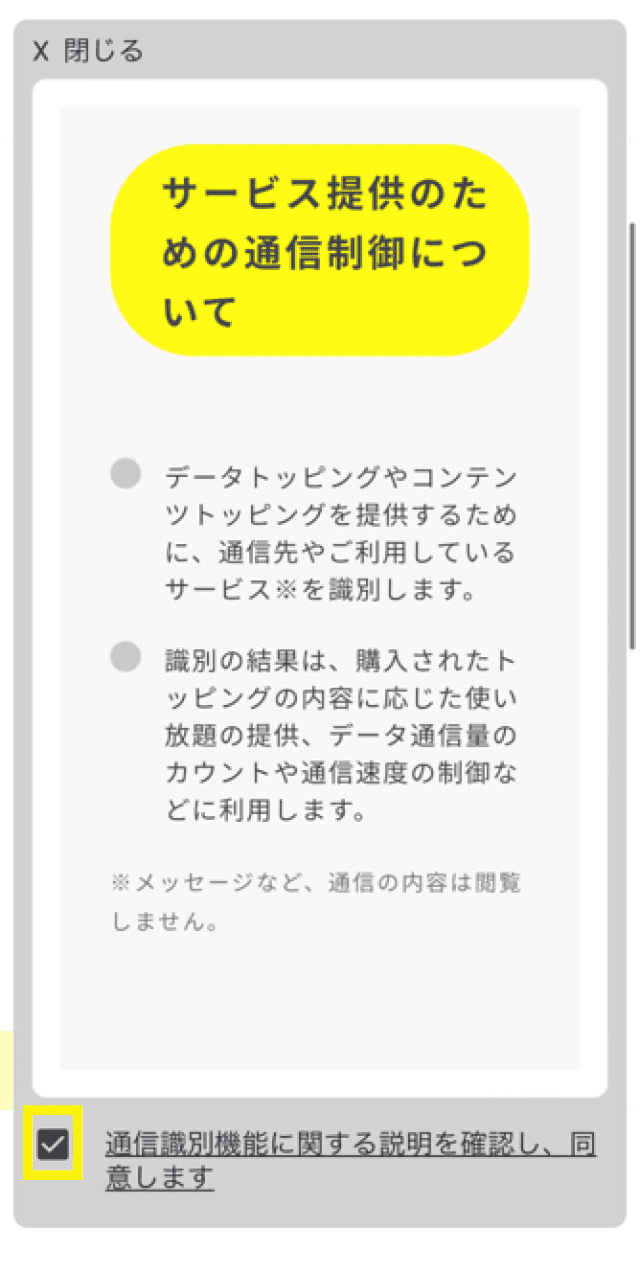
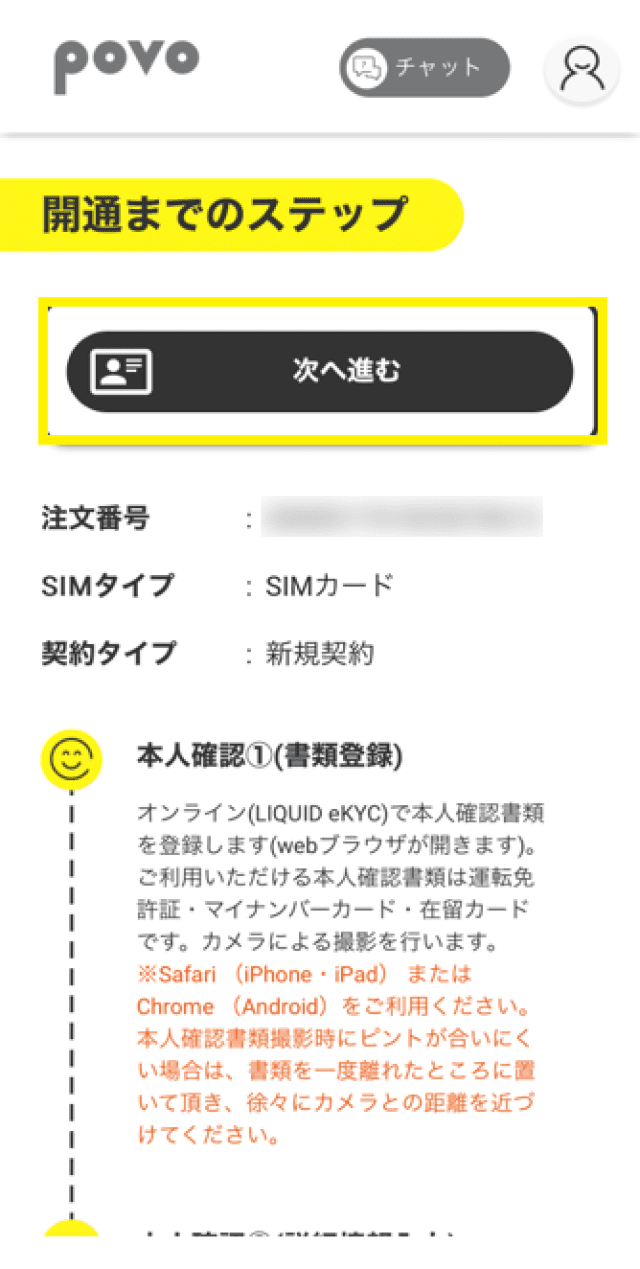
    After confirming that the code entry benefits are displayed, tap each item in the important information explanation.

  • STEP3-5
    alt_txt

    Check the box after agreeing to the explanation.

  • STEP3-6
    alt_txt

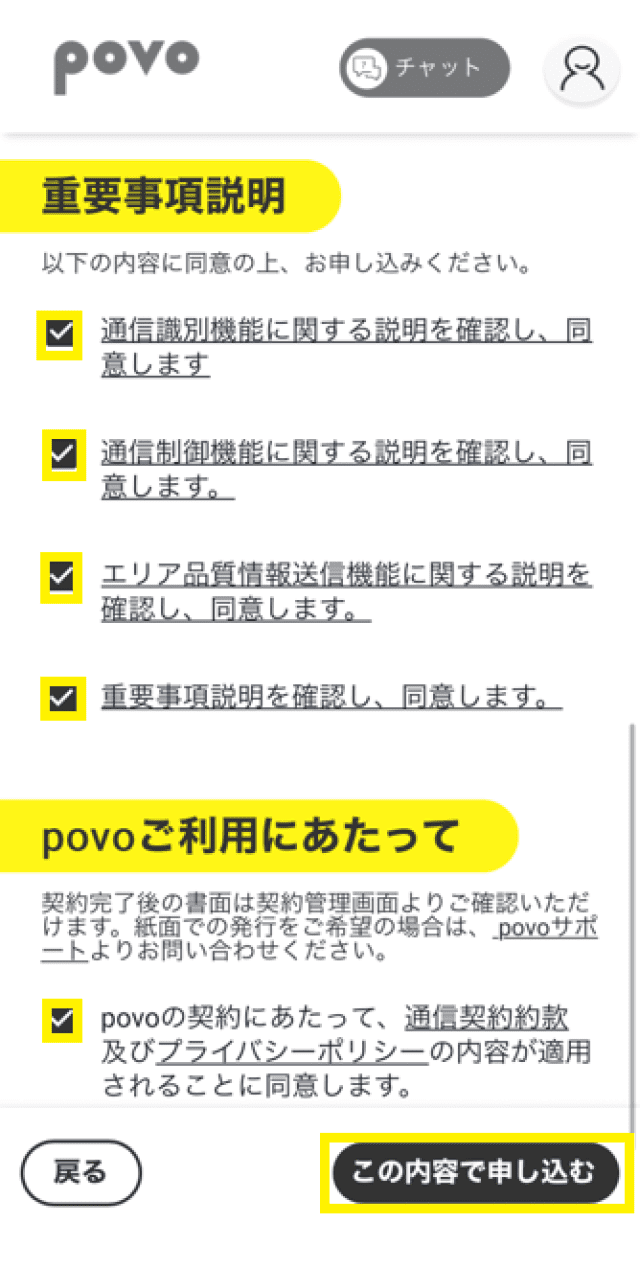
    Check all the items and tap "Apply with this content"

  • STEP3-7
    alt_txt

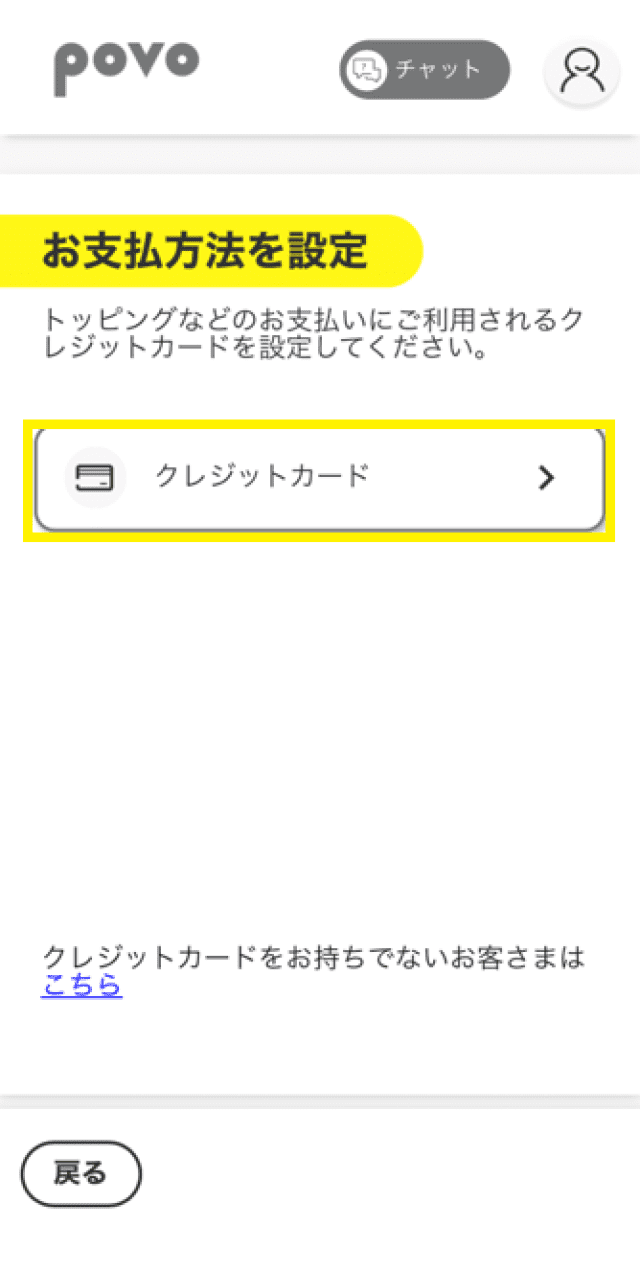
    Tap "Credit Card"

  • STEP3-8
    alt_txt

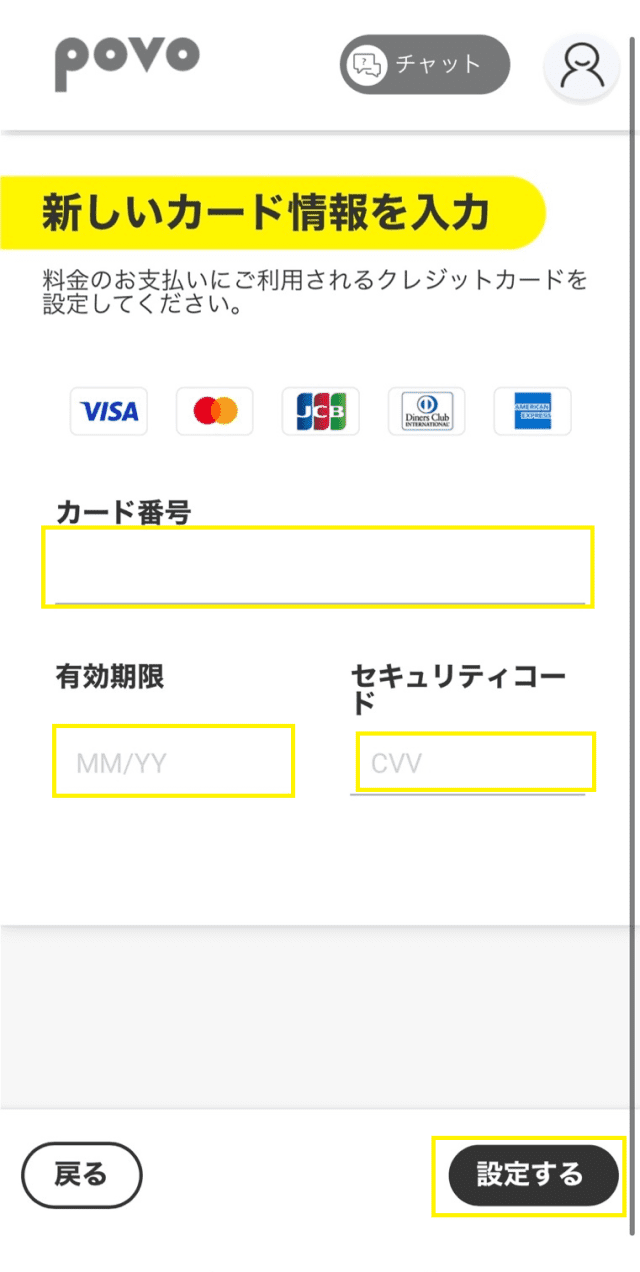
    Enter your card information and tap "Authenticate"

  • STEP3-9
    alt_txt

    Tap "Next"

  • STEP3-10
    alt_txt

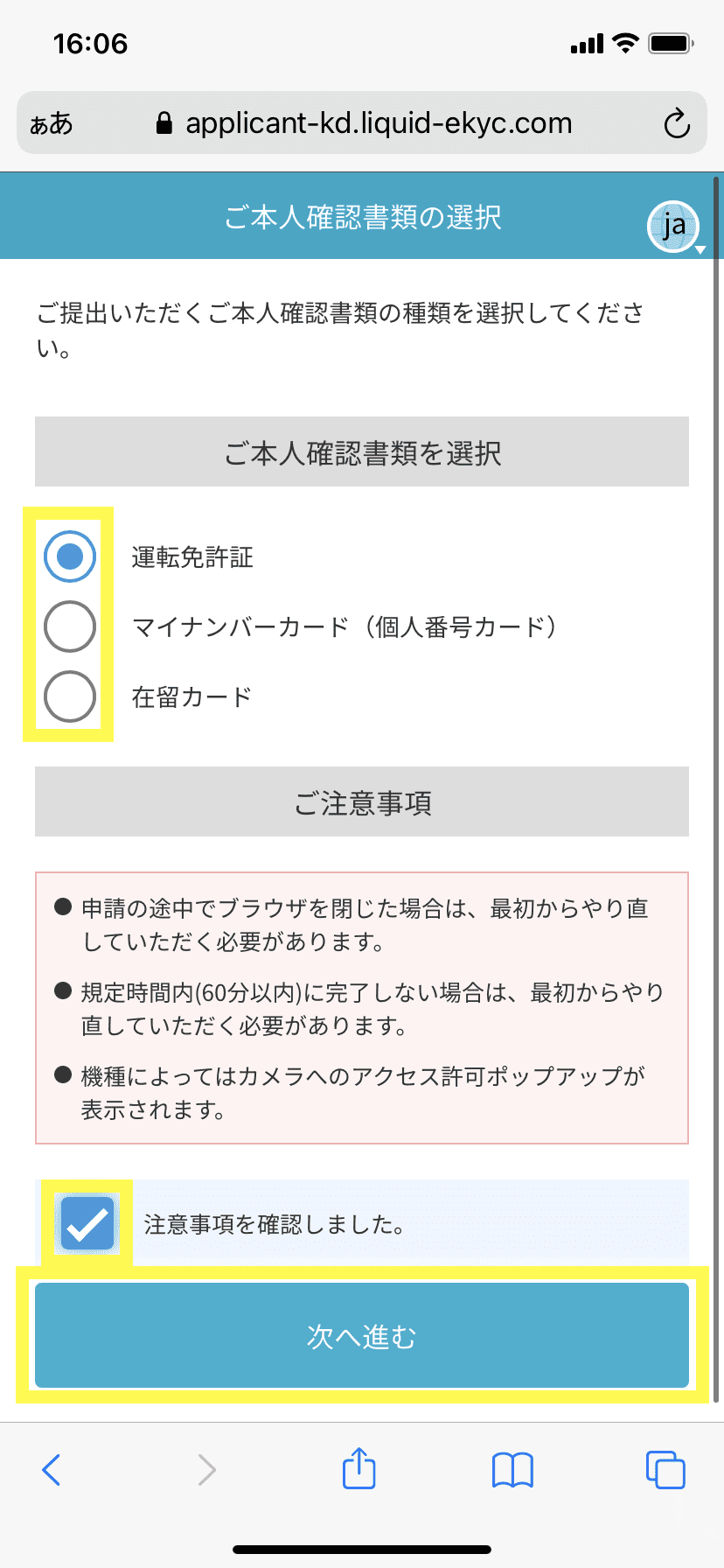
    Select the personal identification document you wish to use, check the box to confirm the notes, and tap "Next"

    *The smartphone browser will open.

  • STEP3-11
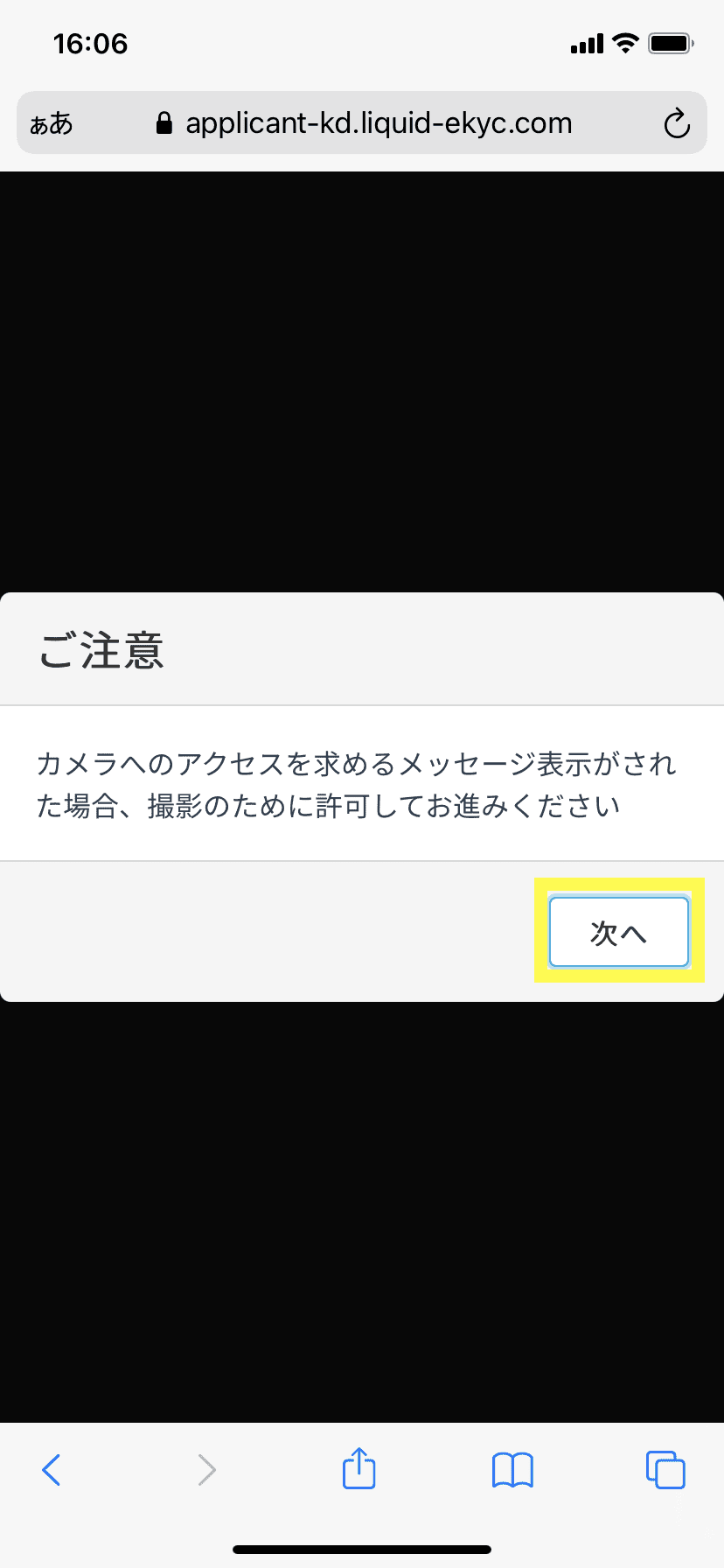
    alt_txt

    Tap "Next"

  • STEP3-12
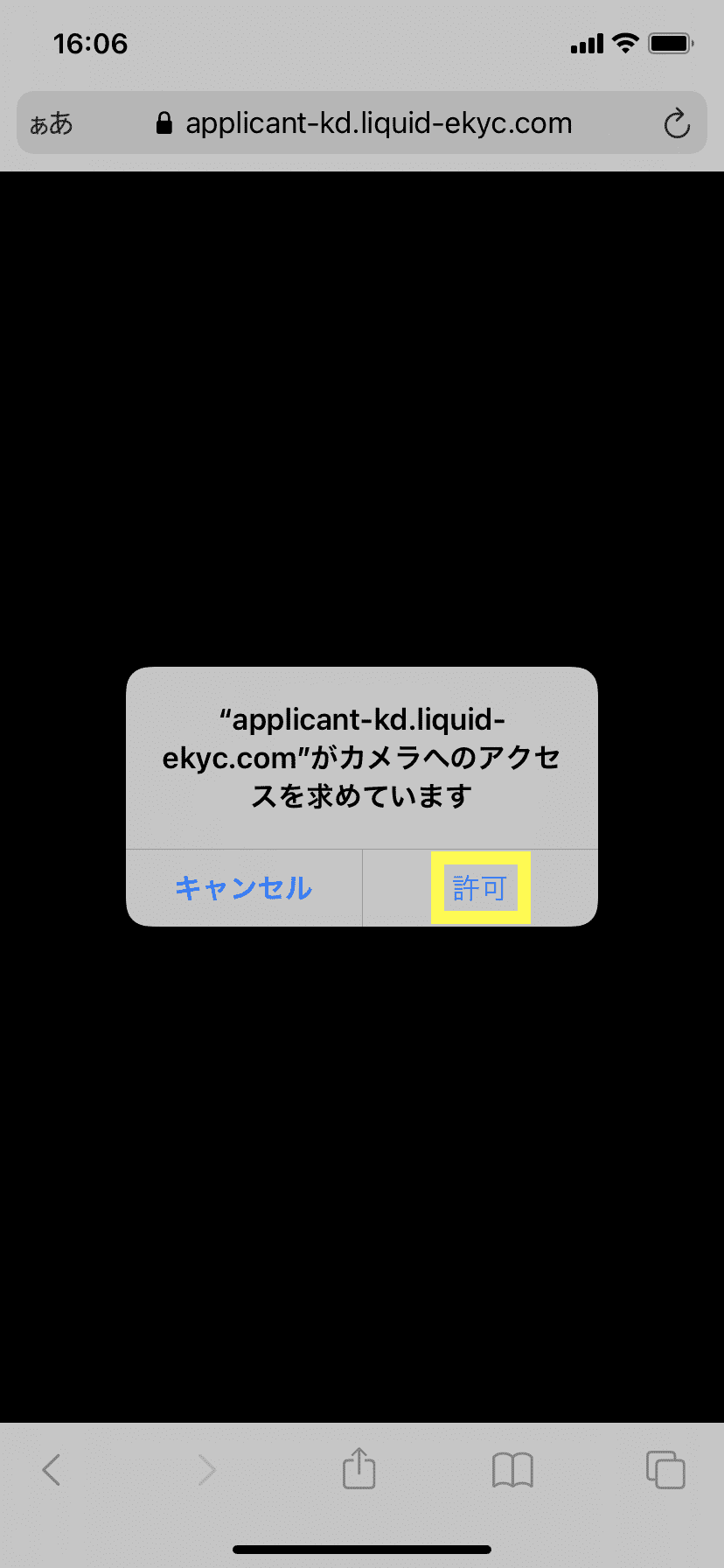
    alt_txt

    Tap "Allow"

  • STEP3-13
    alt_txt

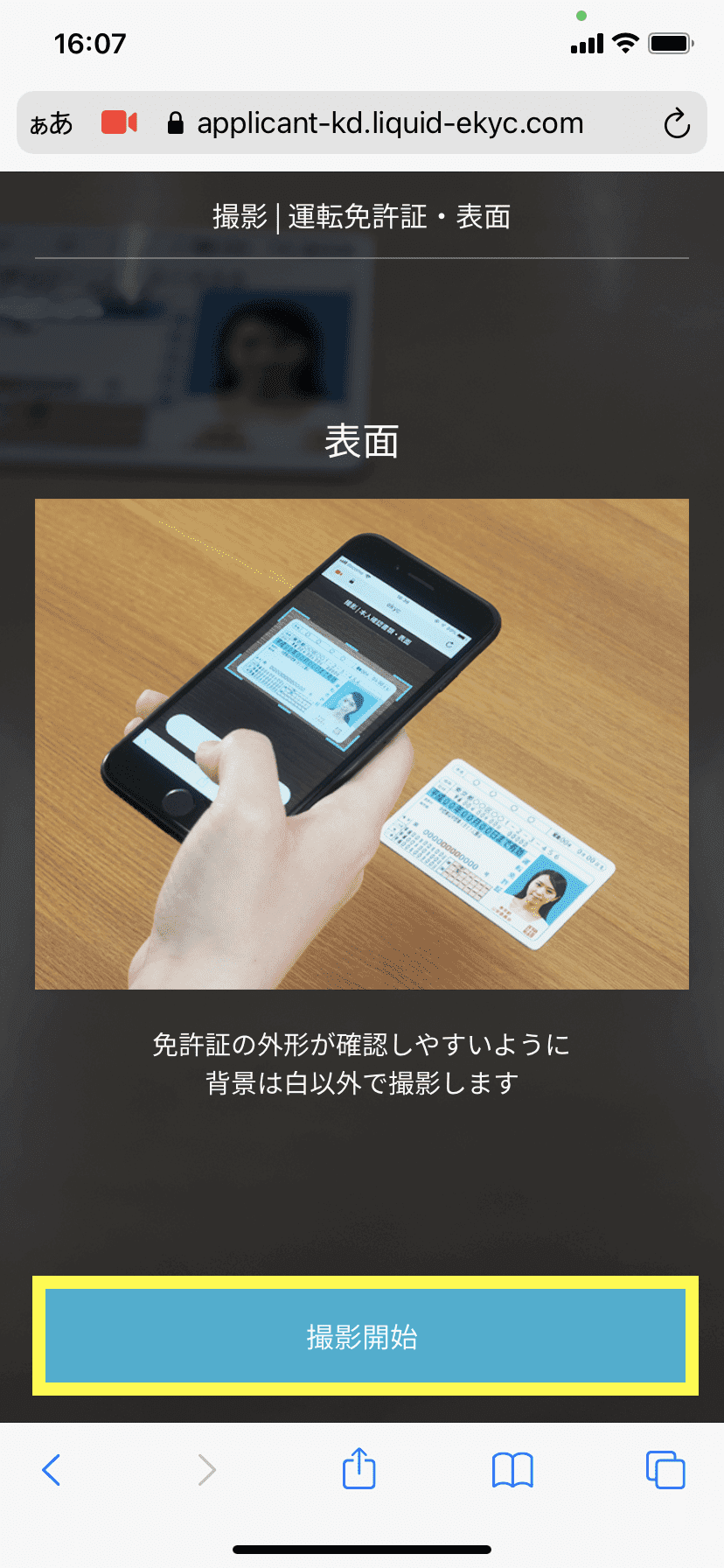
    Tap "Start shooting"

  • STEP3-14
    alt_txt

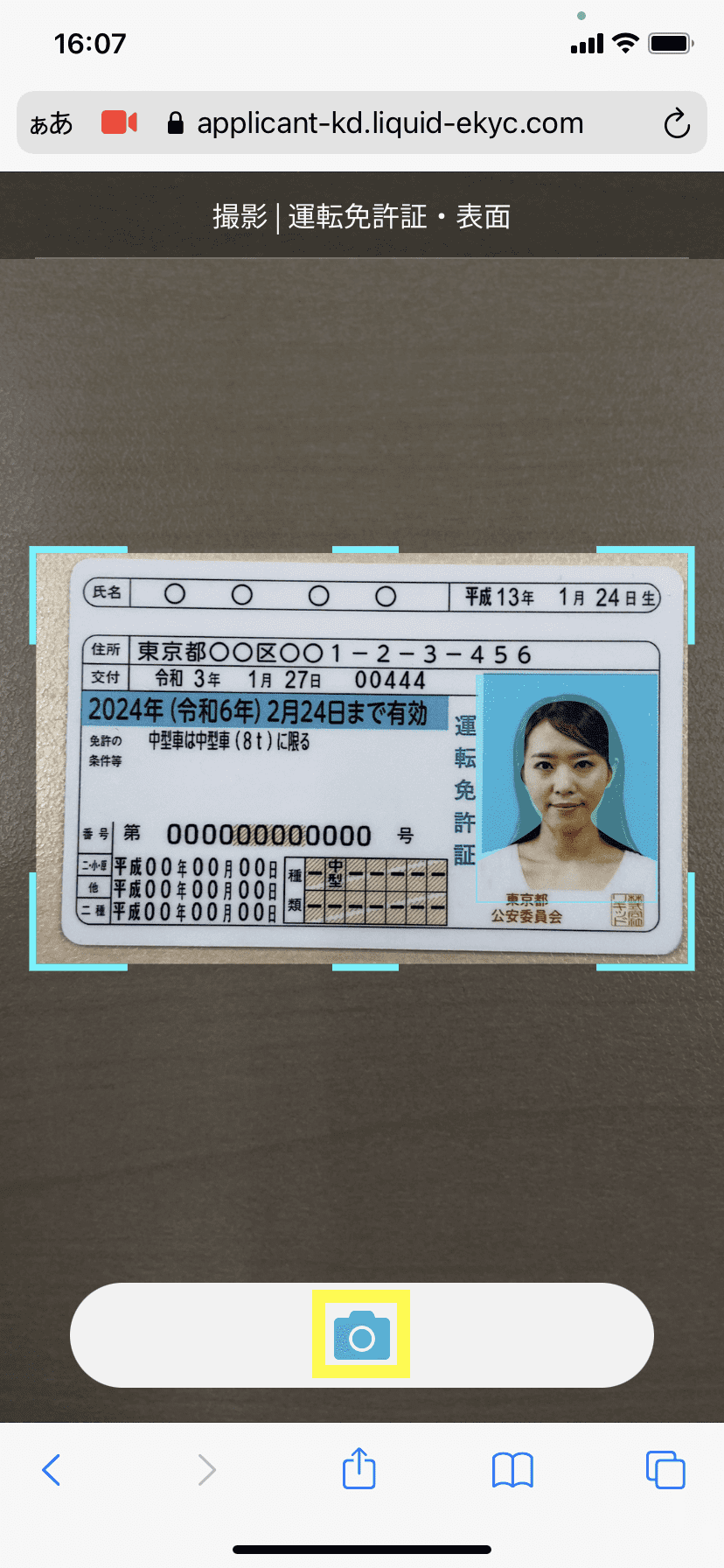
    Take a photo of the front of your identification document

    *If you are using a My Number Card, be sure to remove the protective cover before taking the photo.

  • STEP3-15
    alt_txt

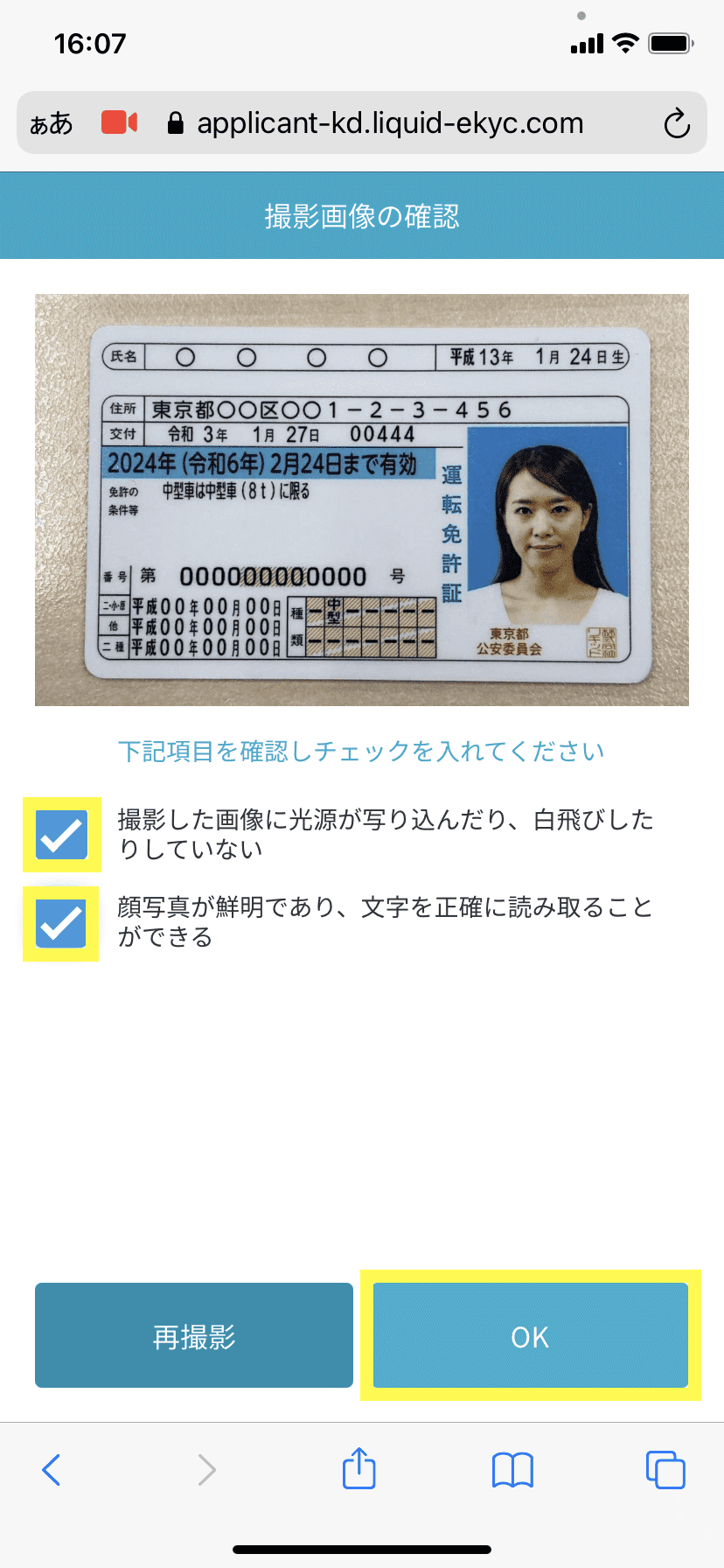
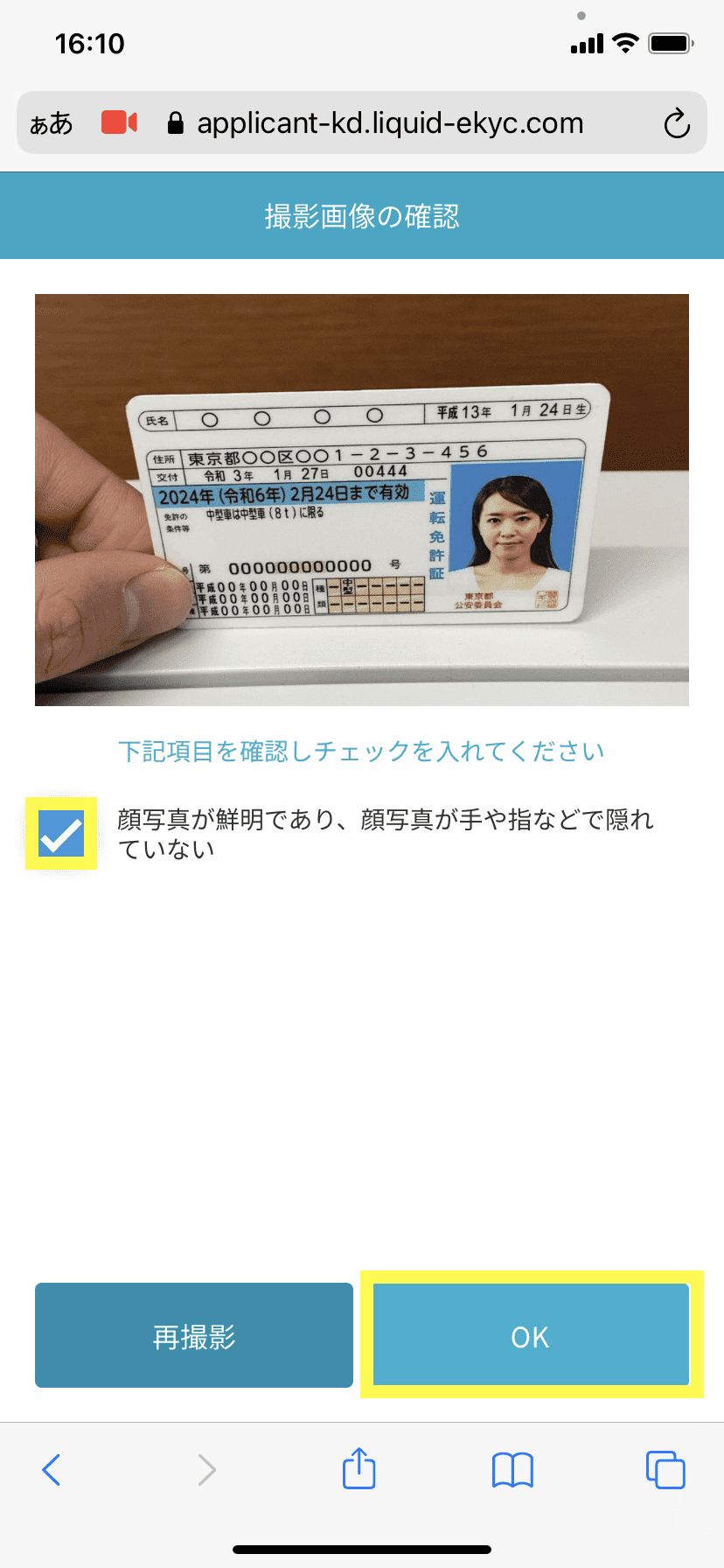
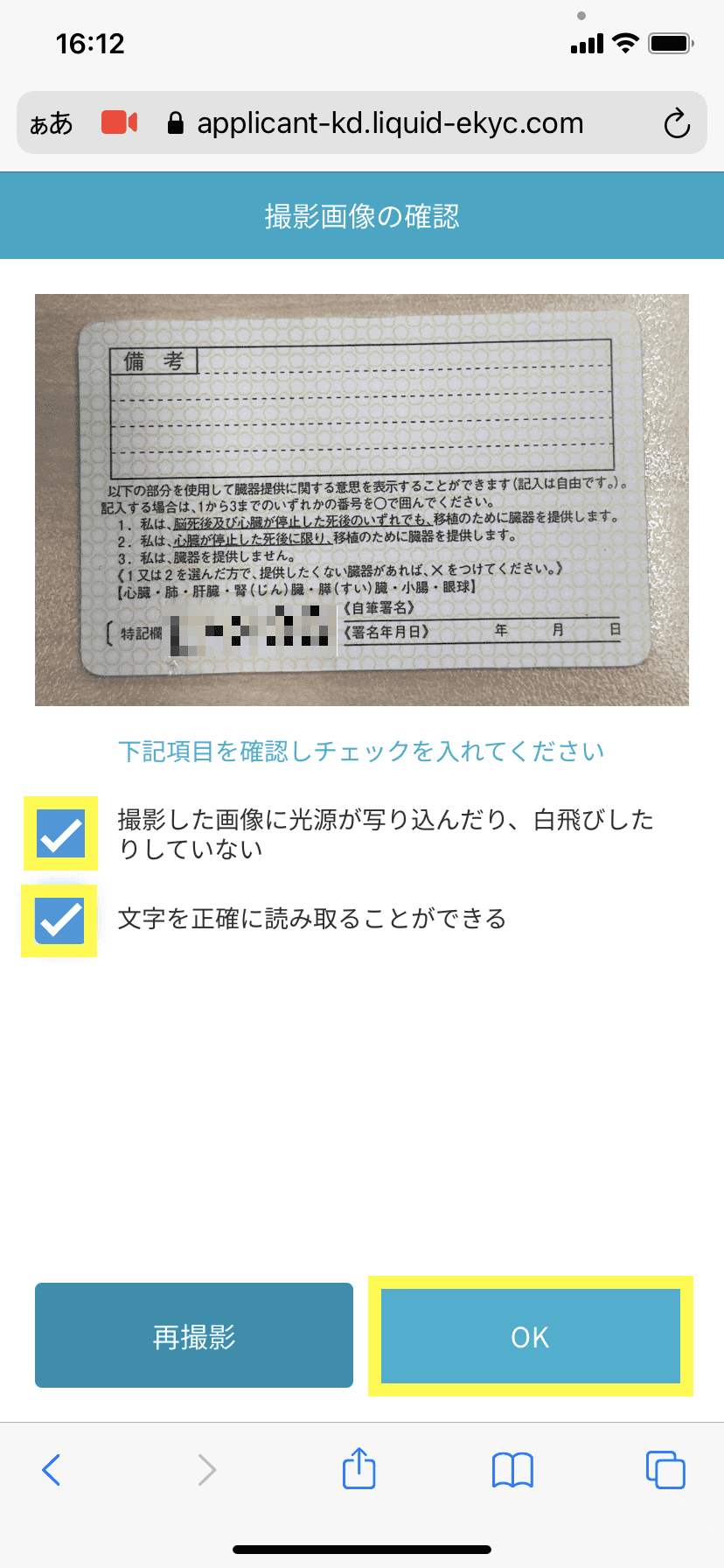
    Check the photos you took, and if there are no problems, check the box and tap "OK"

  • STEP3-16
    alt_txt

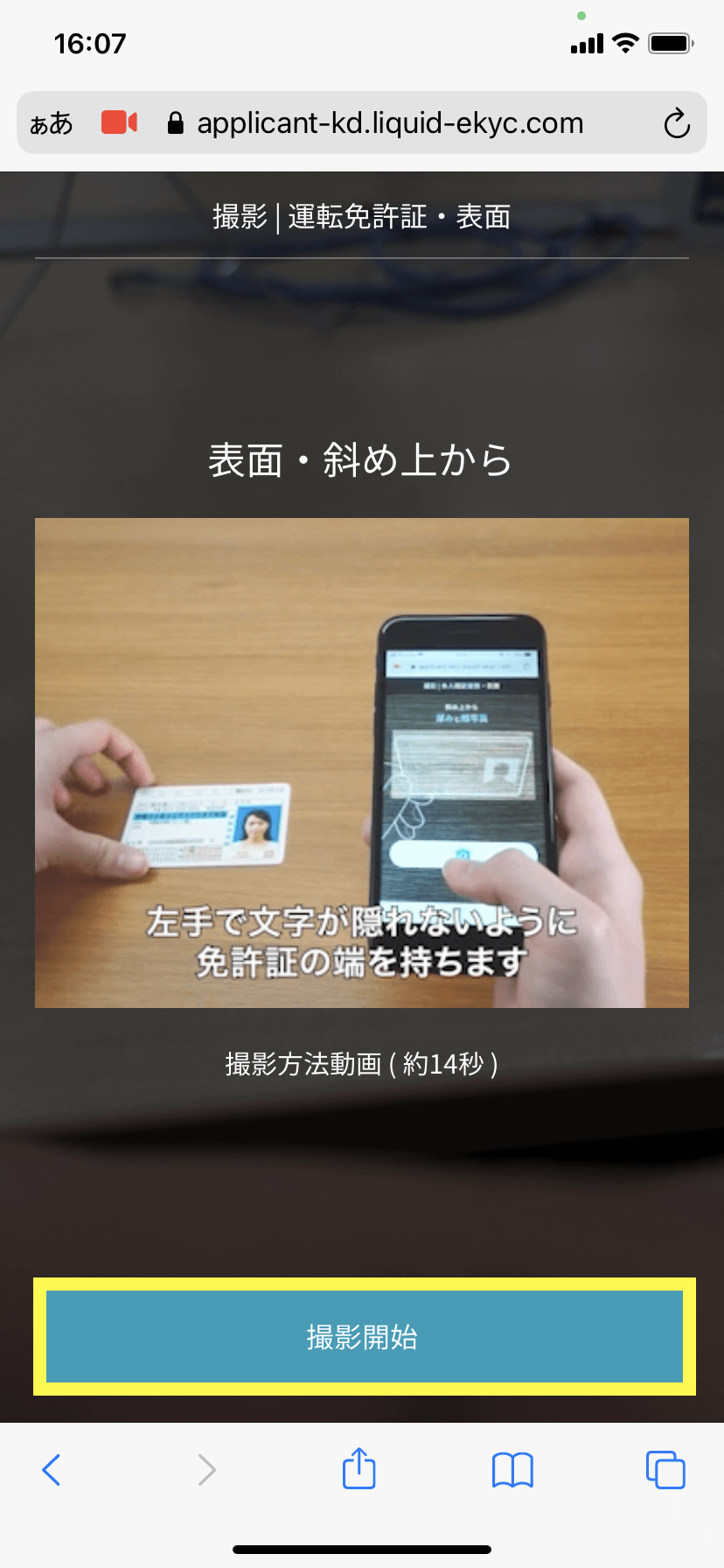
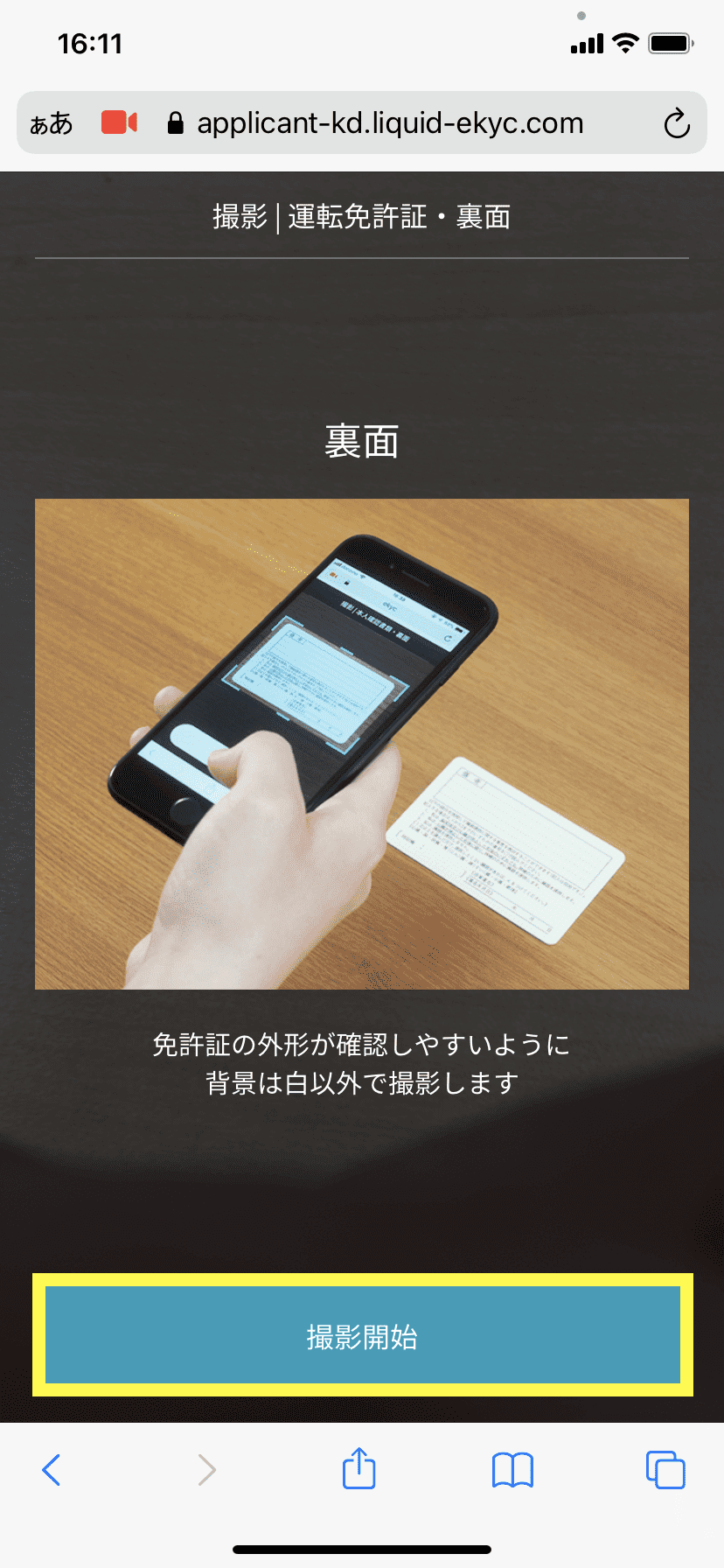
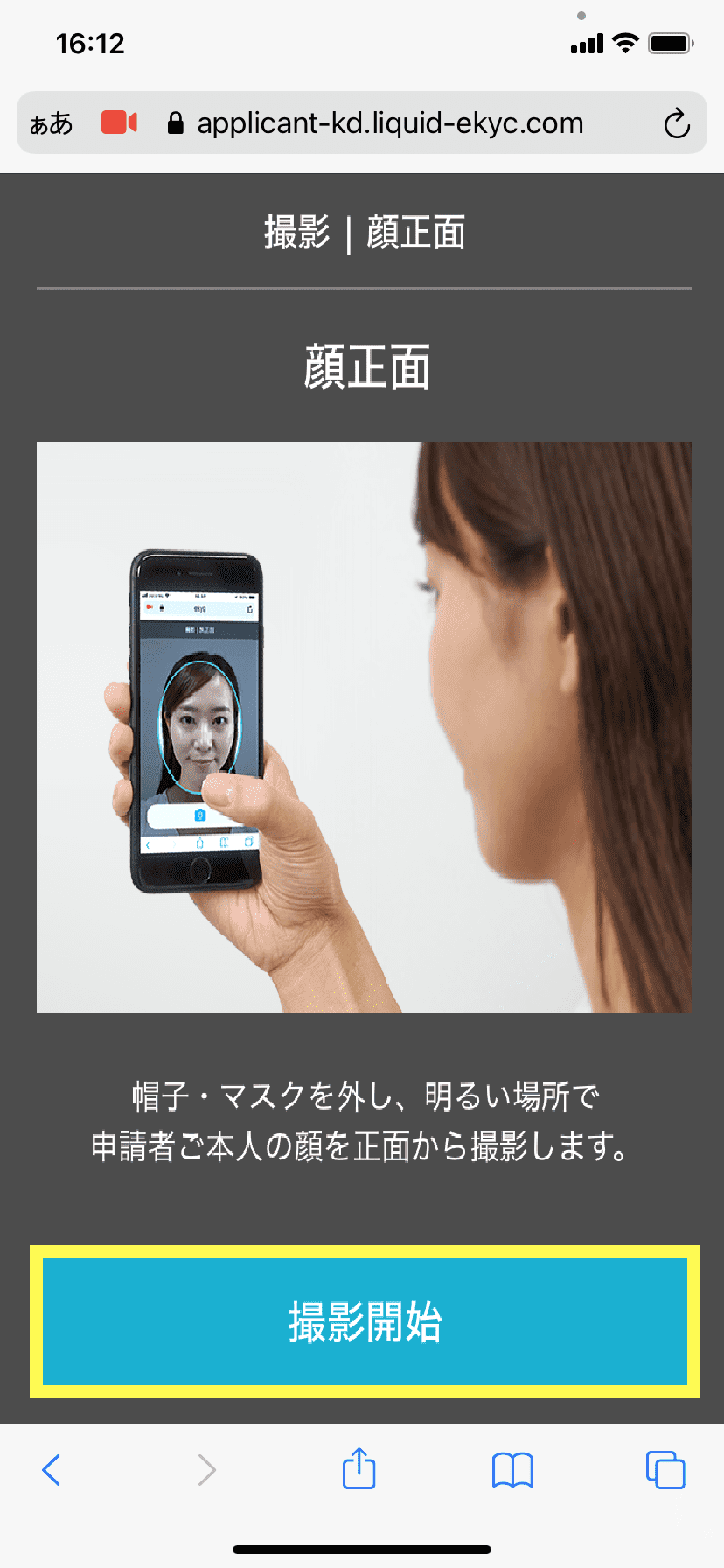
    Tap "Start shooting"

  • STEP3-17
    alt_txt

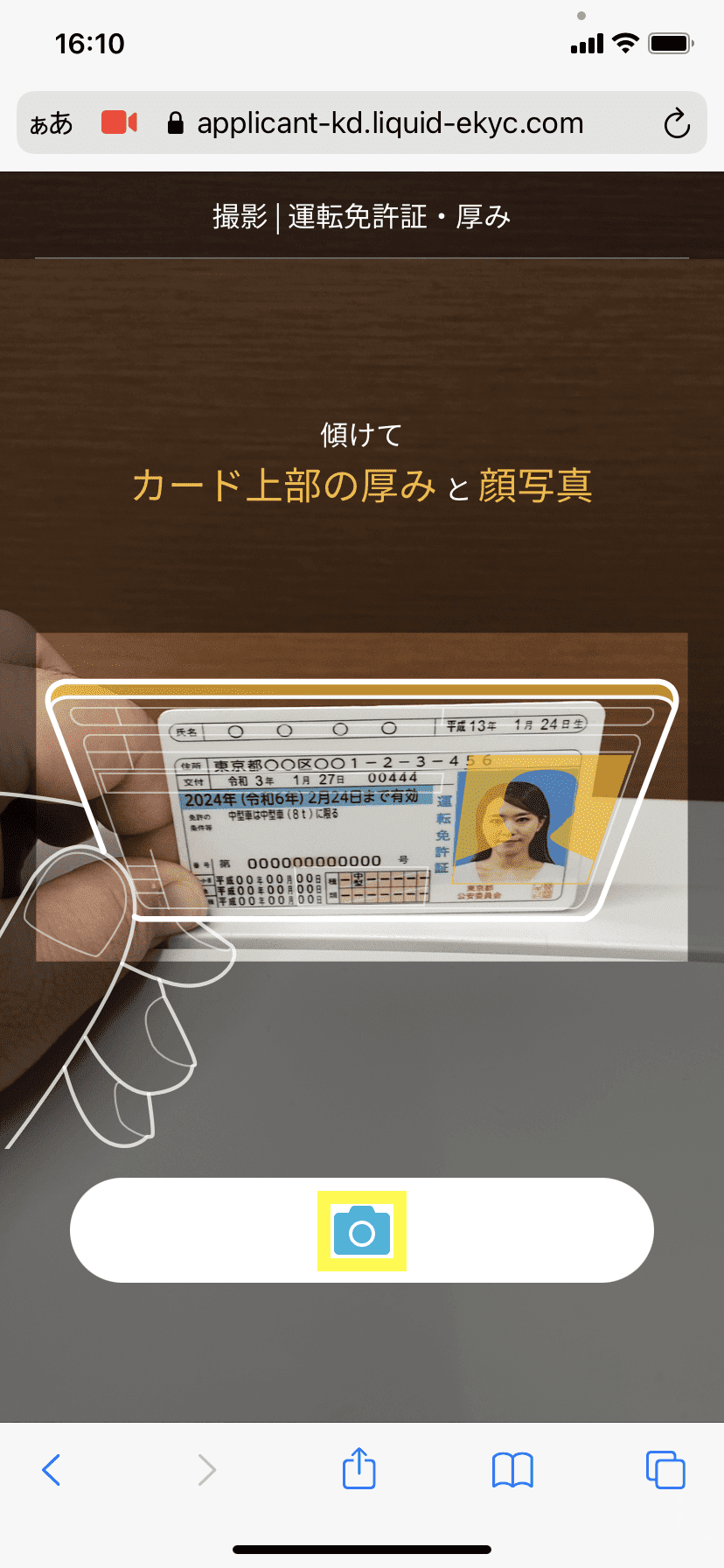
    Take a photo of your ID from an angle so that you can see the thickness and your face photo.

  • STEP3-18
    alt_txt

    Check the photos you took, and if there are no problems, check the box and tap "OK"

  • STEP3-19
    alt_txt

    Tap "Start shooting"

  • STEP3-20
    alt_txt

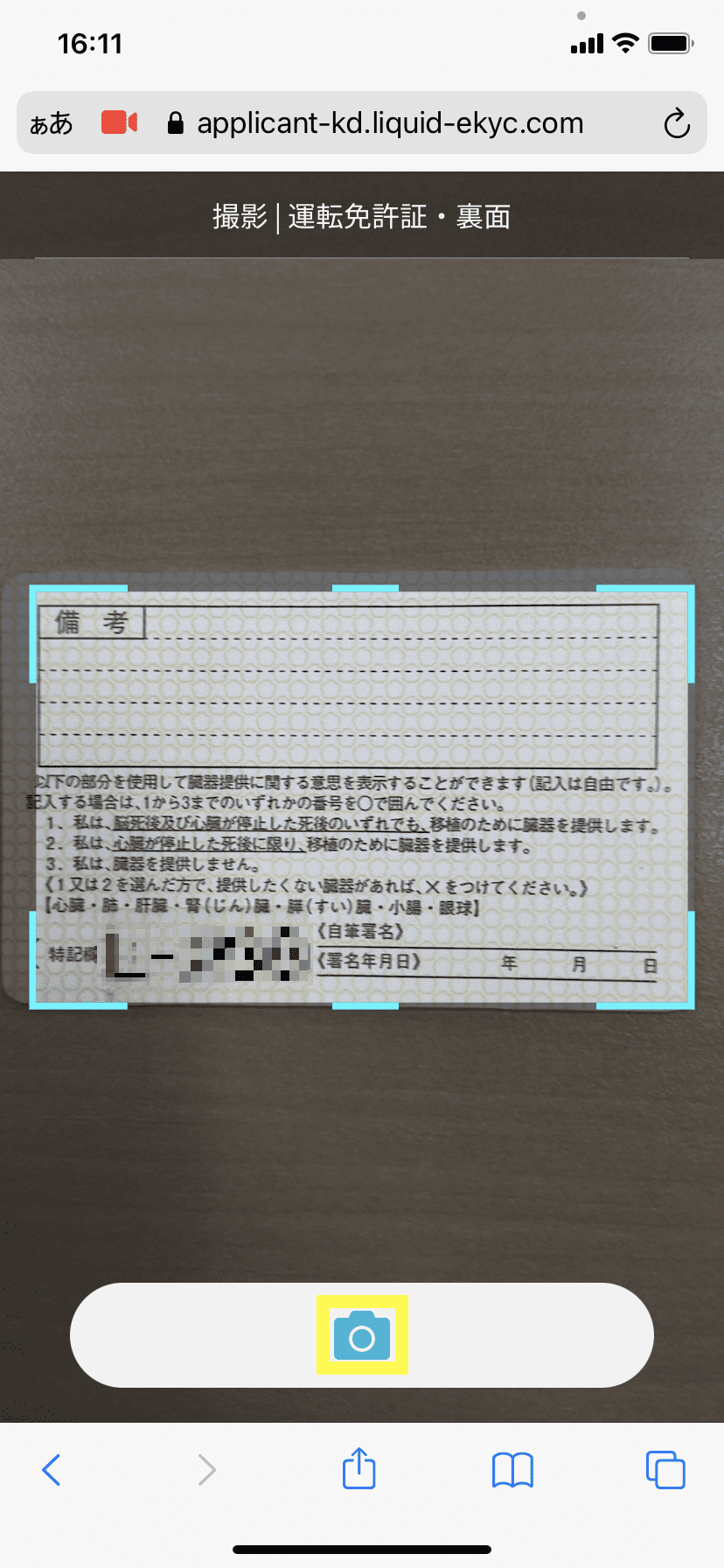
    Take a photo of the back of your identification document

  • STEP3-21
    alt_txt

    Check the photos you took, and if there are no problems, check the box and tap "OK"

  • STEP3-22
    alt_txt

    Tap "Start shooting"

  • STEP3-23
    alt_txt

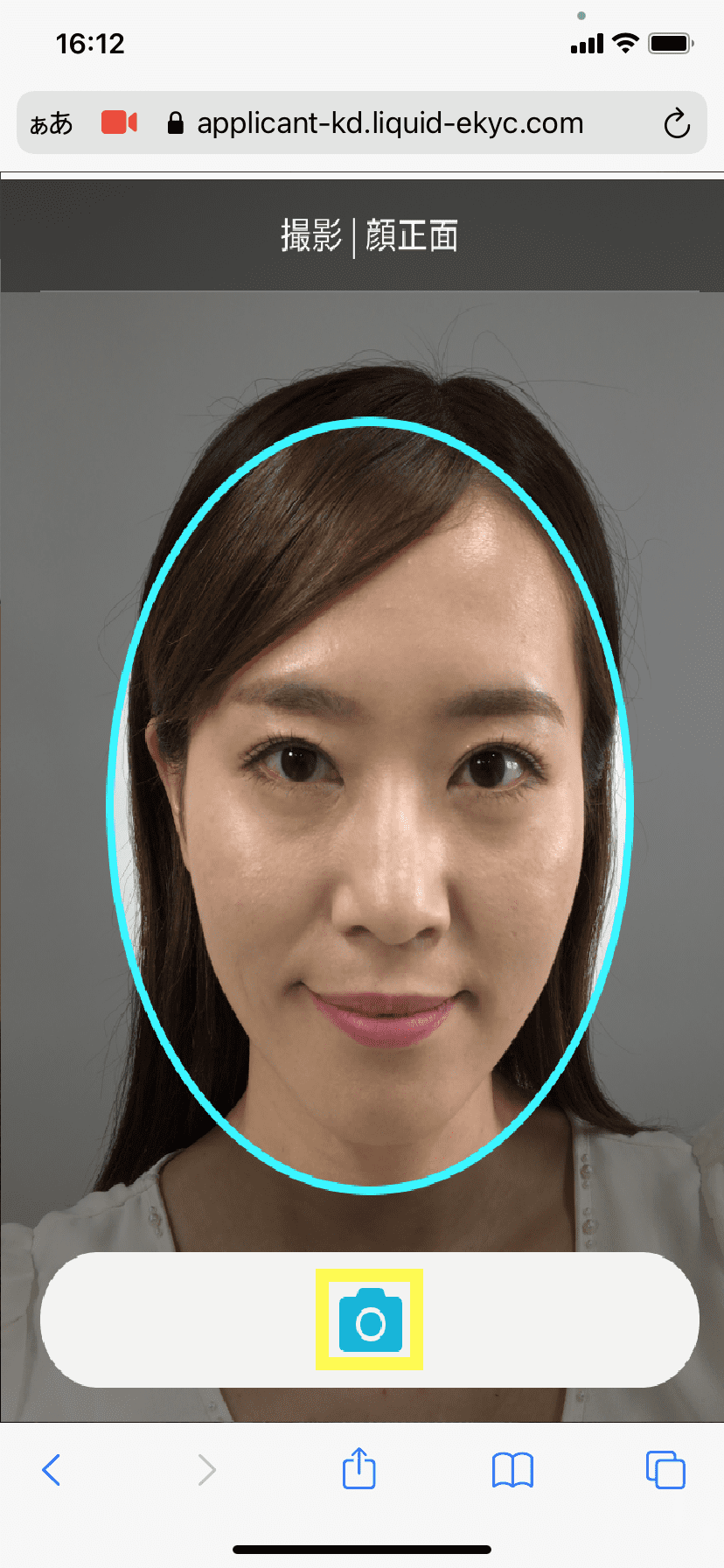
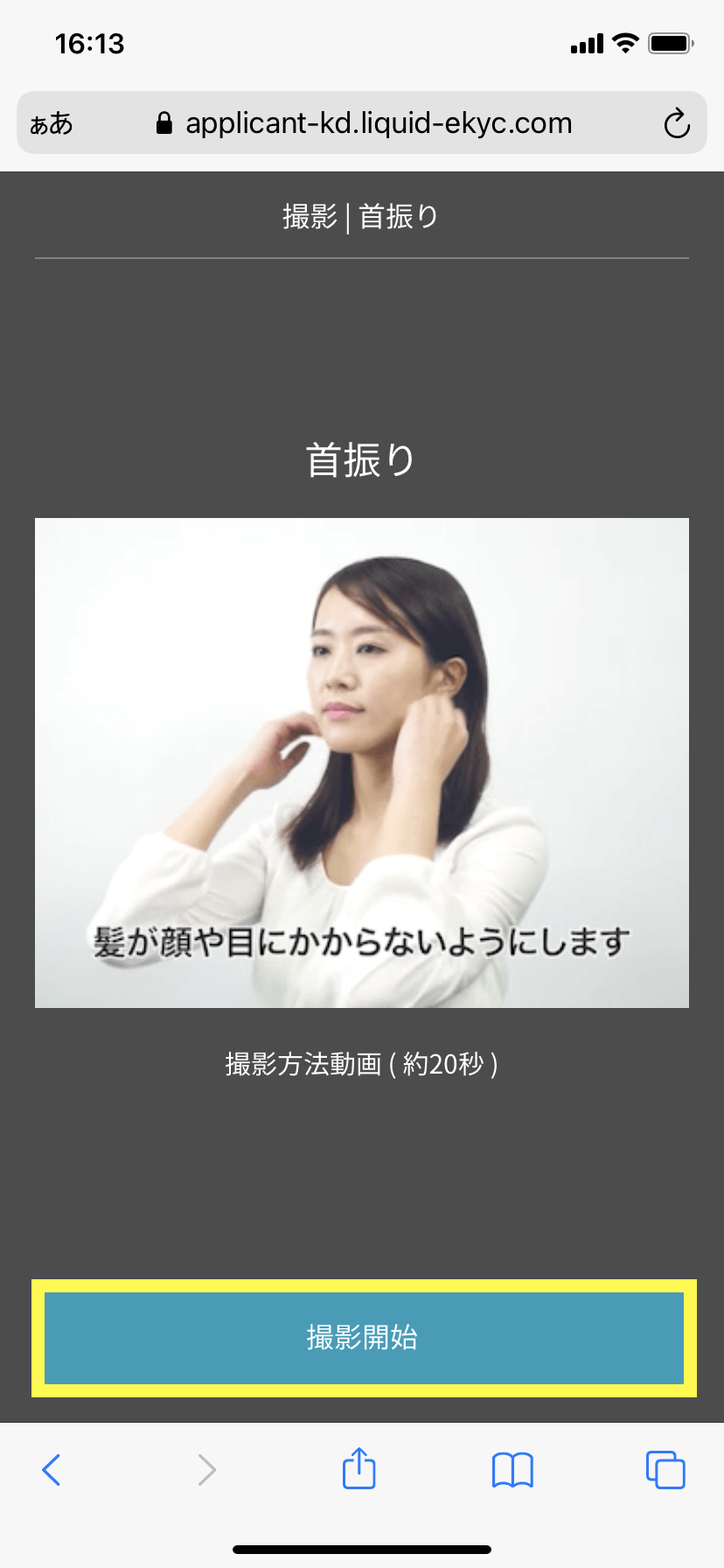
    Photographing the front of the face

  • STEP3-24
    alt_txt

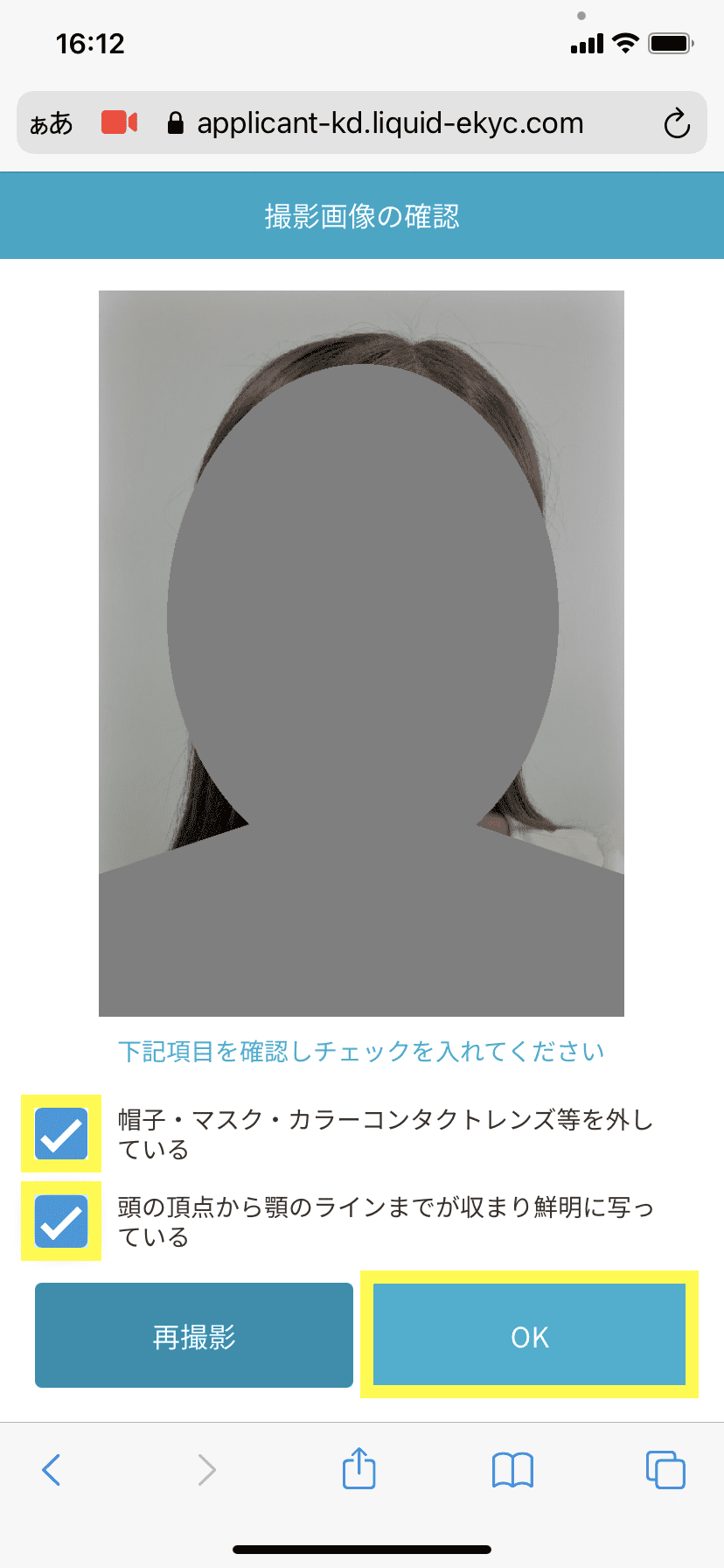
    Check the photos you took, and if there are no problems, check the box and tap "OK"

  • STEP3-25
    alt_txt

    Tap "Start shooting"

  • STEP3-26
    alt_txt

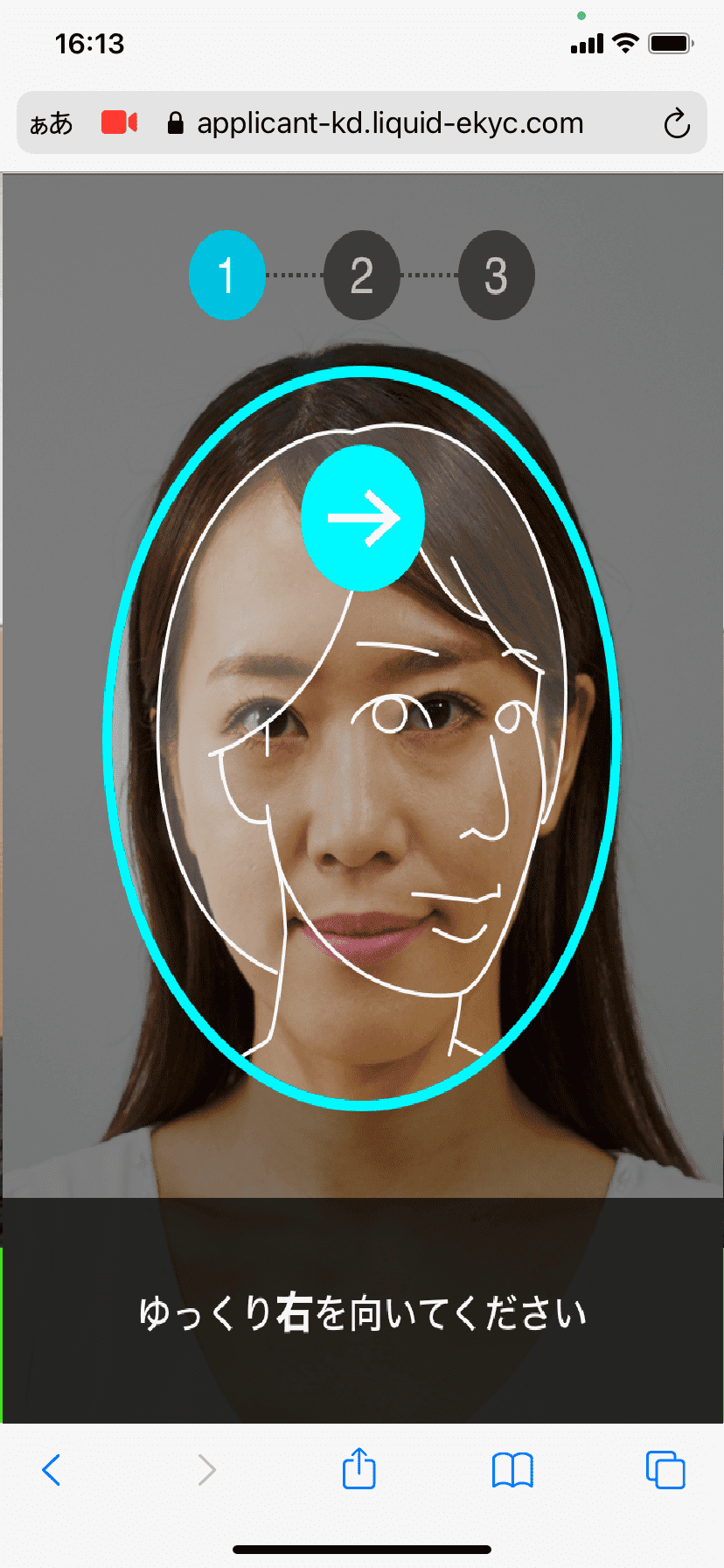
    Tap "Start" and follow the instructions to take a panoramic photo

  • STEP3-27
    alt_txt

    Tap "Next"

  • STEP3-28
    alt_txt

    Tap "Next"

  • STEP3-29
    alt_txt

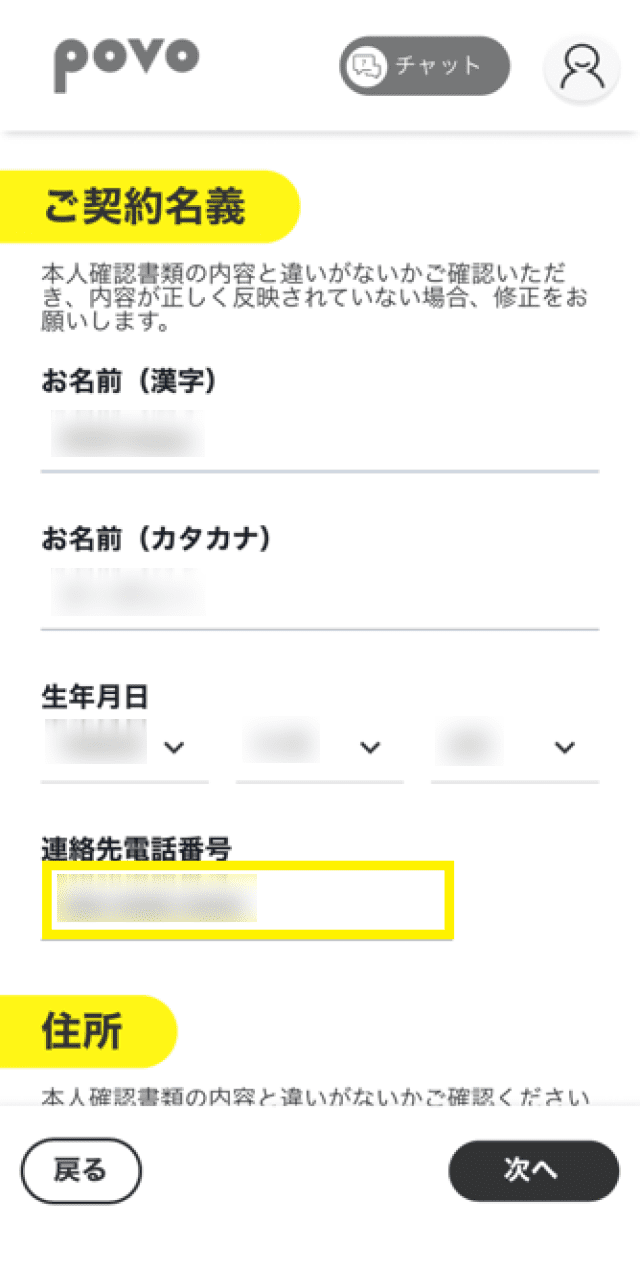
    Check that your name and date of birth are the same as those on your identification document. Enter your "Contact Phone Number" and scroll down.

    *Please make sure that the content is correct.

  • STEP3-30
    alt_txt

    Check and enter your address and tap "Next"

  • STEP3-31
    alt_txt

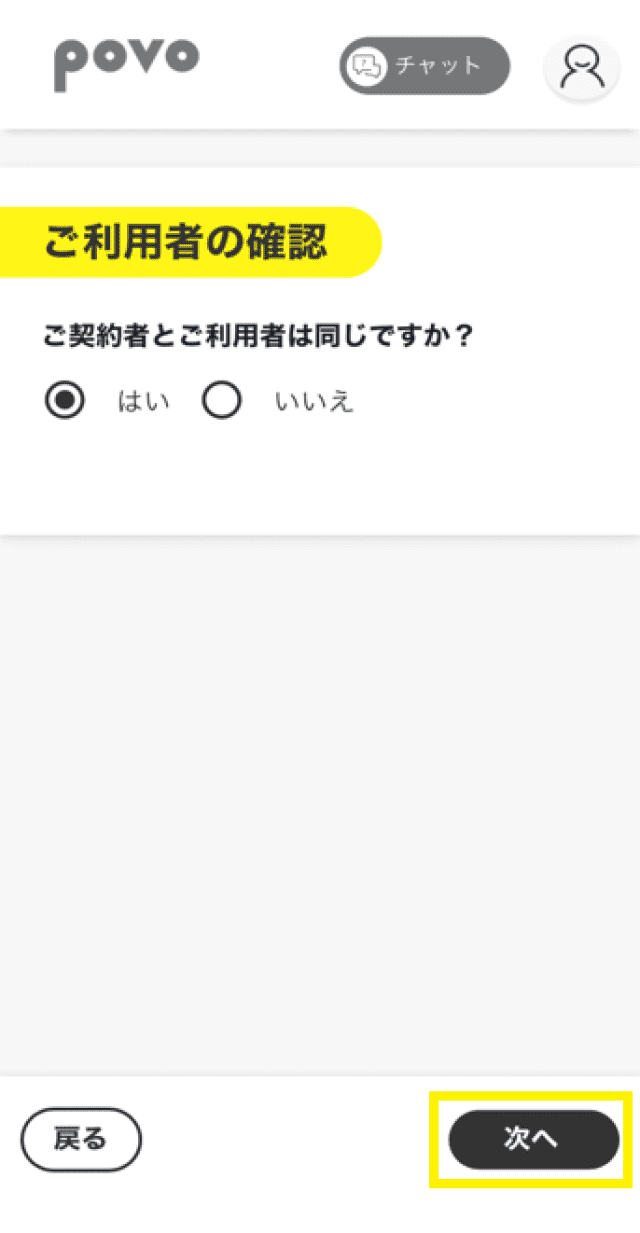
    If the contractor and user are the same, select "Yes" and tap "Next"

    *If the contract holder and the user are different, please follow the instructions on the screen and enter the information.

  • STEP3-32
    alt_txt

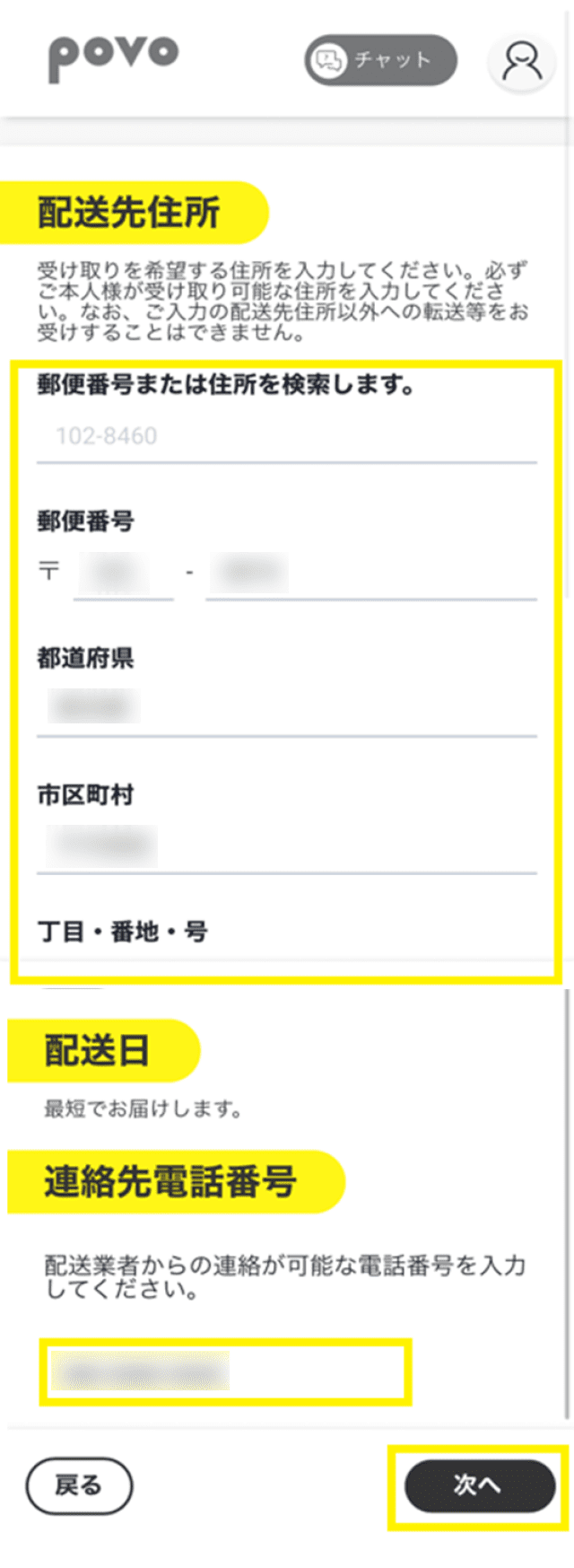
    Enter the SIM card delivery address and tap "Next"

    *If the information has been entered automatically, please be sure to check that there are no errors in the information you entered.

  • STEP3-33
    alt_txt

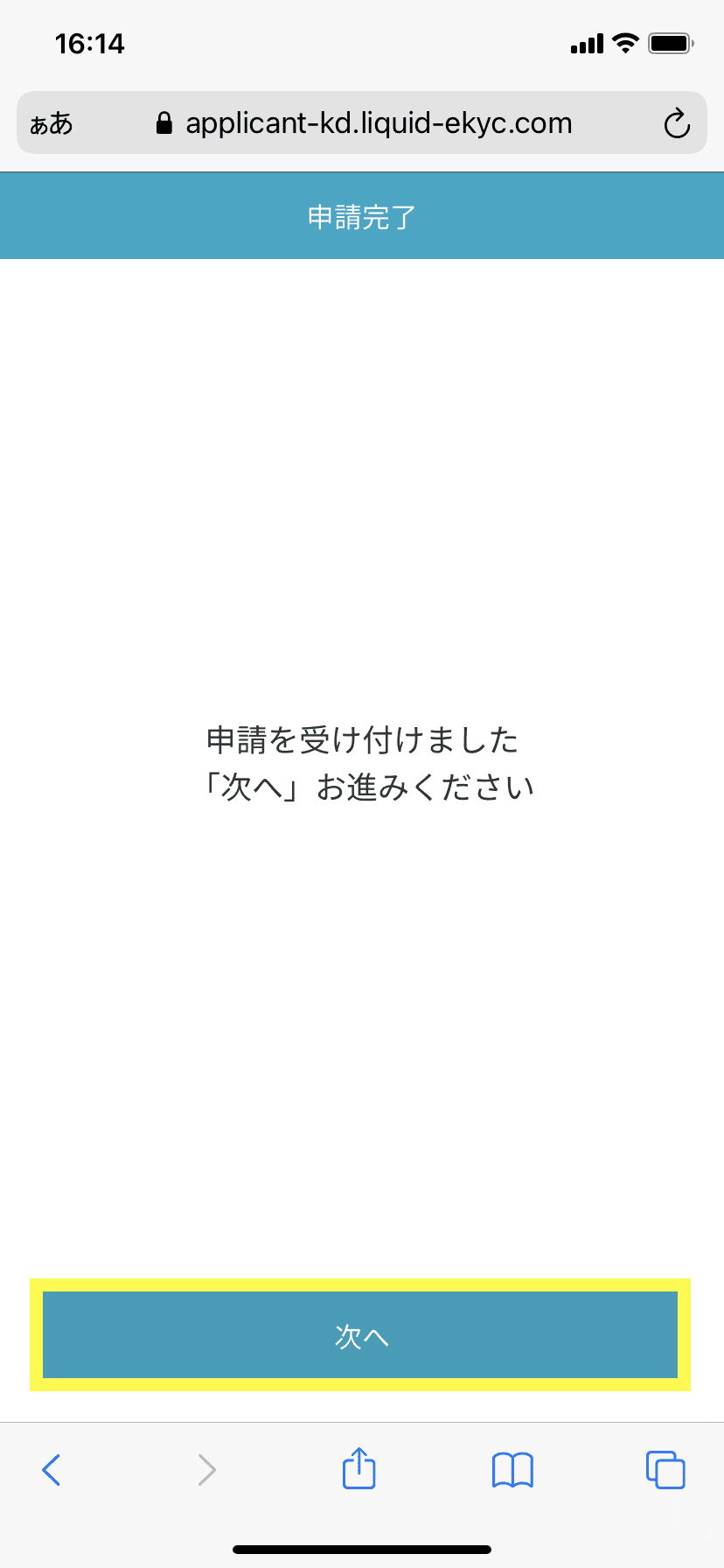
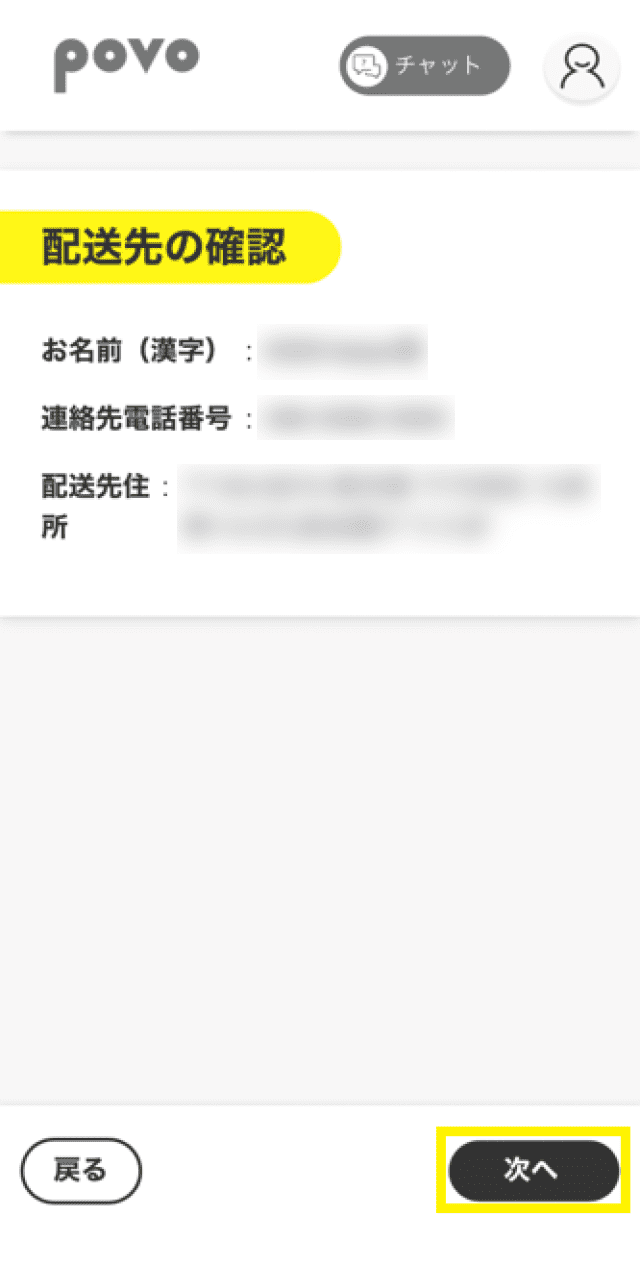
    Tap "Next"

  • STEP3-34
    alt_txt

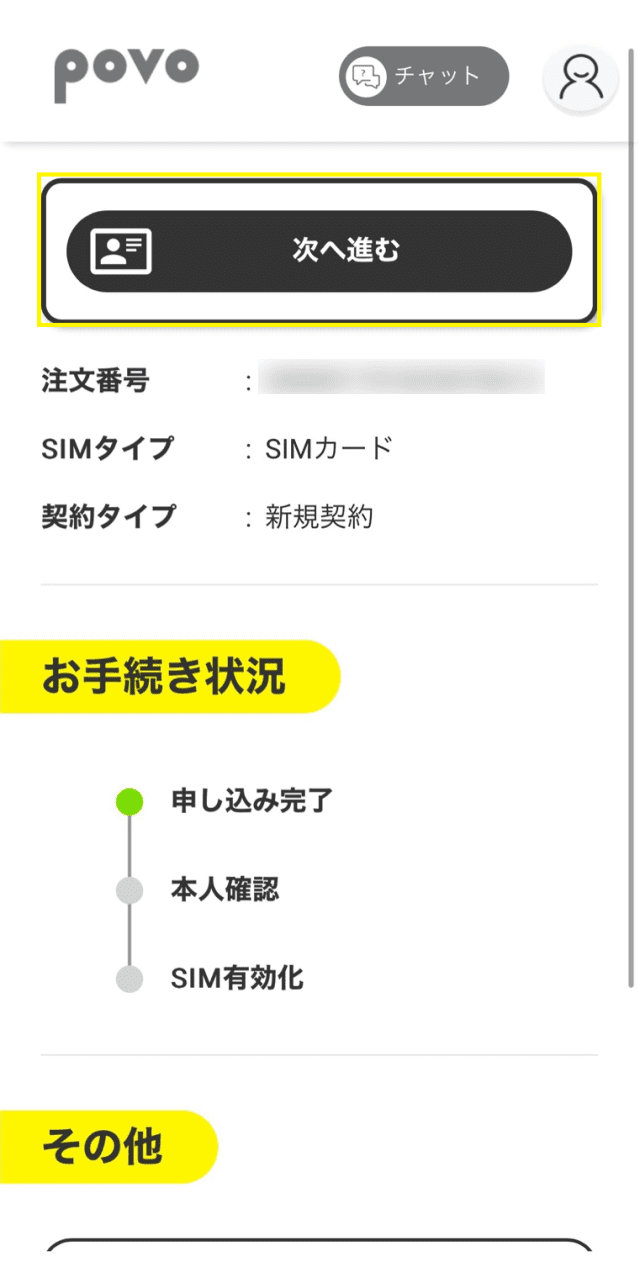
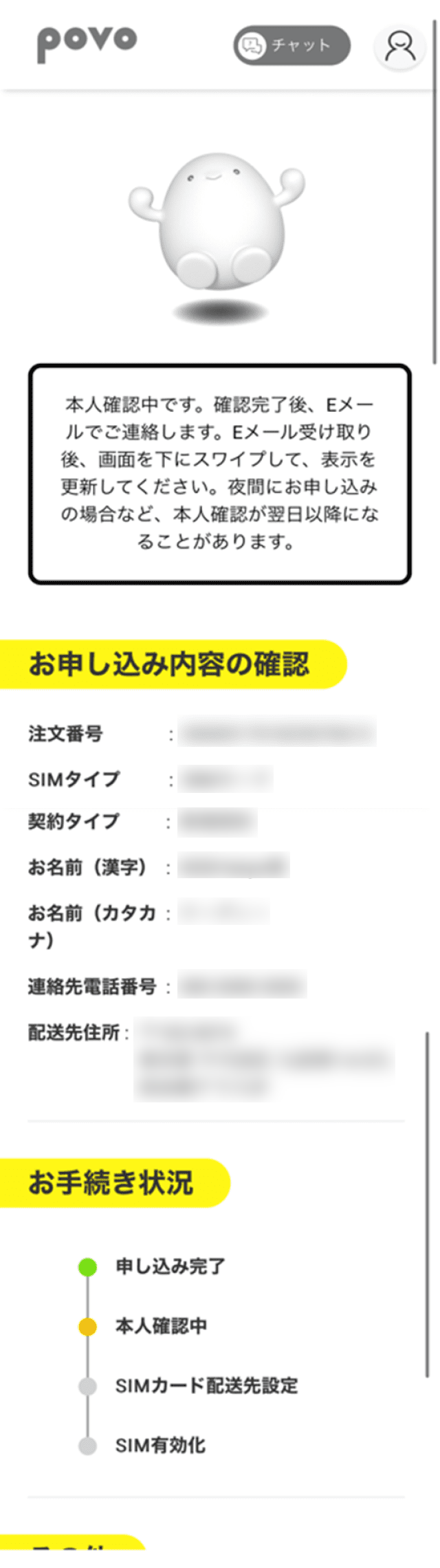
    Please wait until identity verification is complete. After identity verification is complete, you will receive an email. Swipe down on the screen to check the message.

  • STEP3-35
    alt_txt

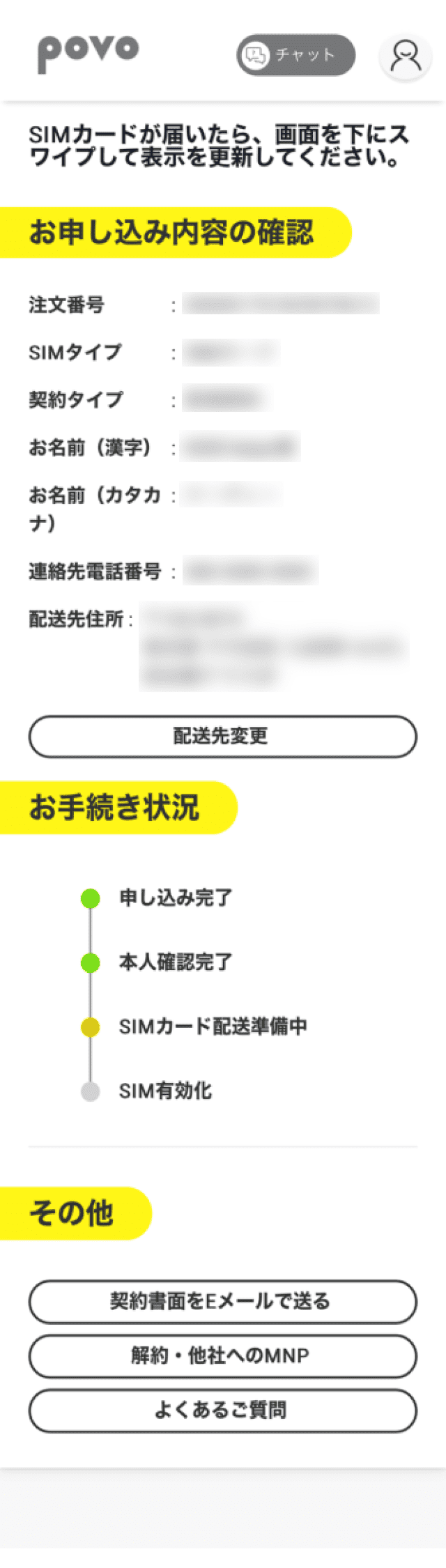
    Once you receive your SIM card, swipe down on the screen to refresh the display.

STEP 4SIM card activation procedure

  • STEP4-1
    alt_txt

    After signing the contract, you will receive the SIM card by mail.

  • STEP4-2
    alt_txt

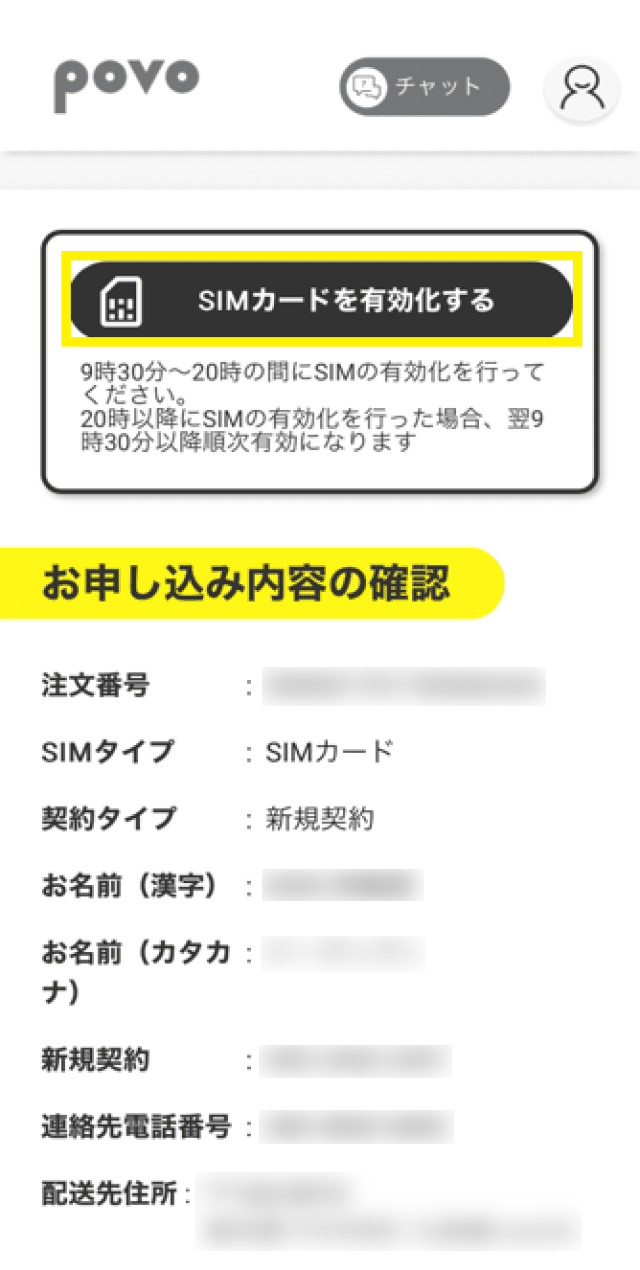
    Once you receive your SIM card, swipe down to refresh the screen. After refreshing the screen, tap the "Activate SIM card" button.

  • STEP4-3
    alt_txt

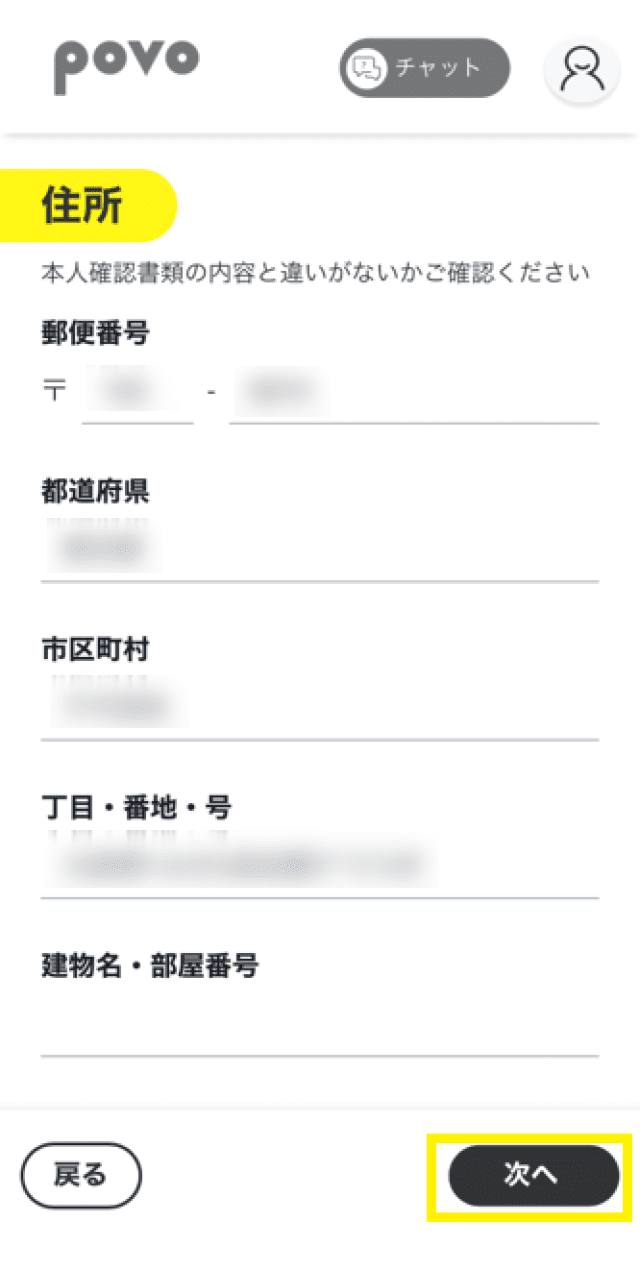
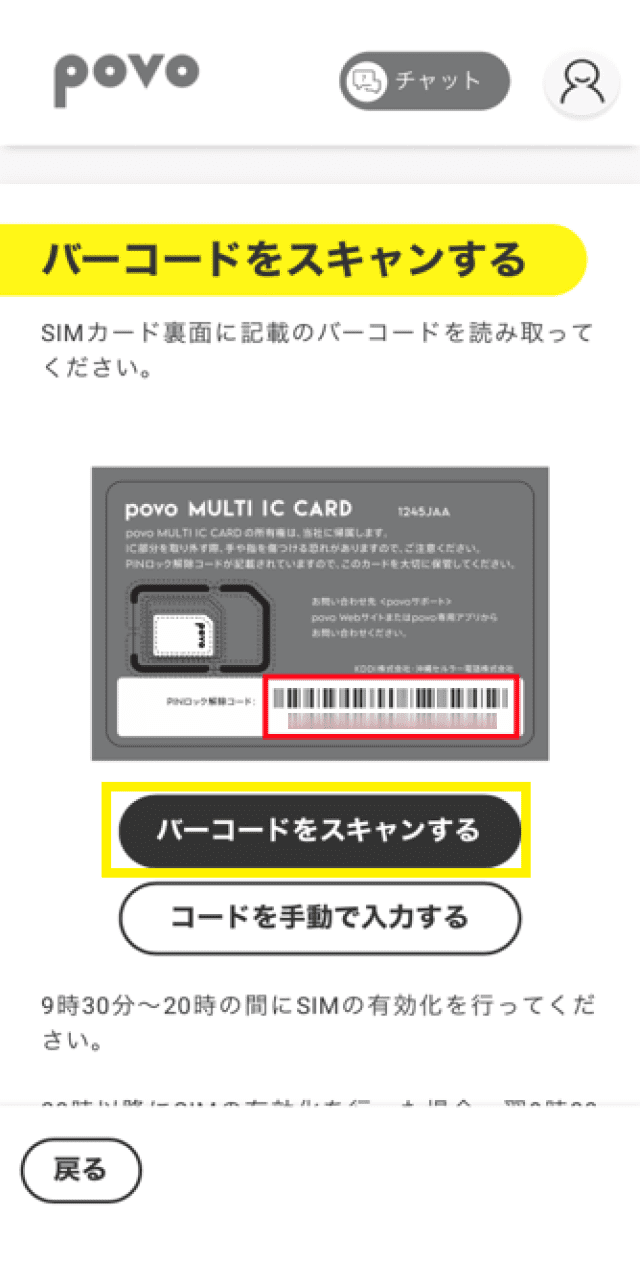
    Tap "Scan barcode" to read the barcode on the back of your SIM card.
  • STEP4-4
    alt_txt

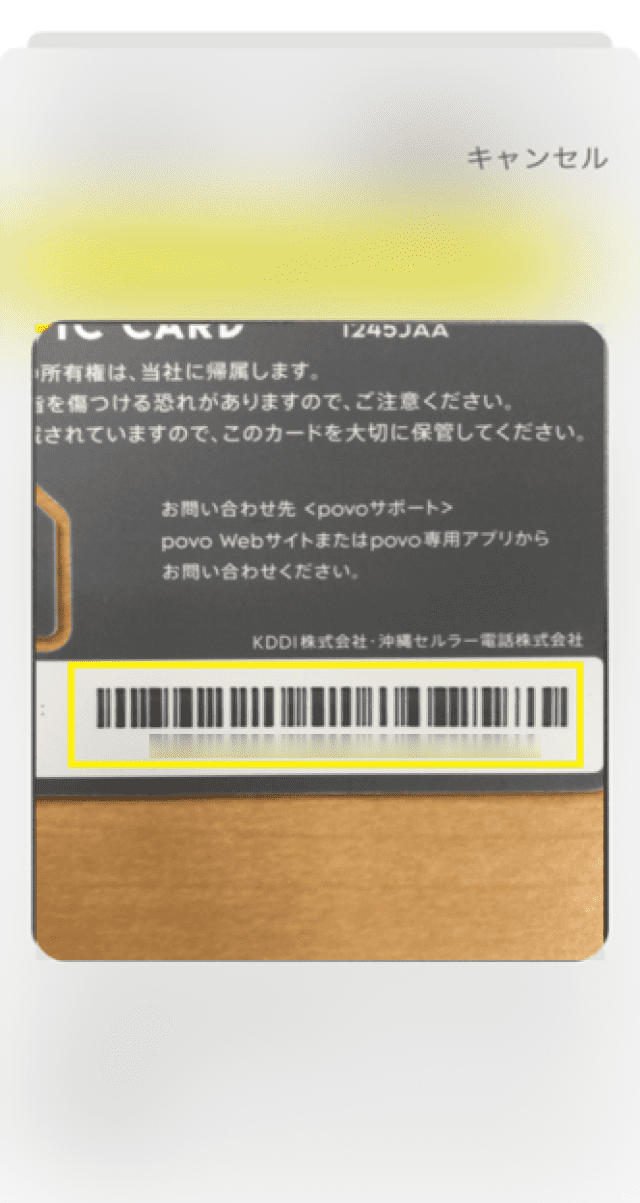
    The camera will start, so scan the barcode on the SIM card backing.

    *If the camera cannot read it, return to the previous screen and manually enter the ICCID (19 digit number).

  • STEP4-5
    alt_txt

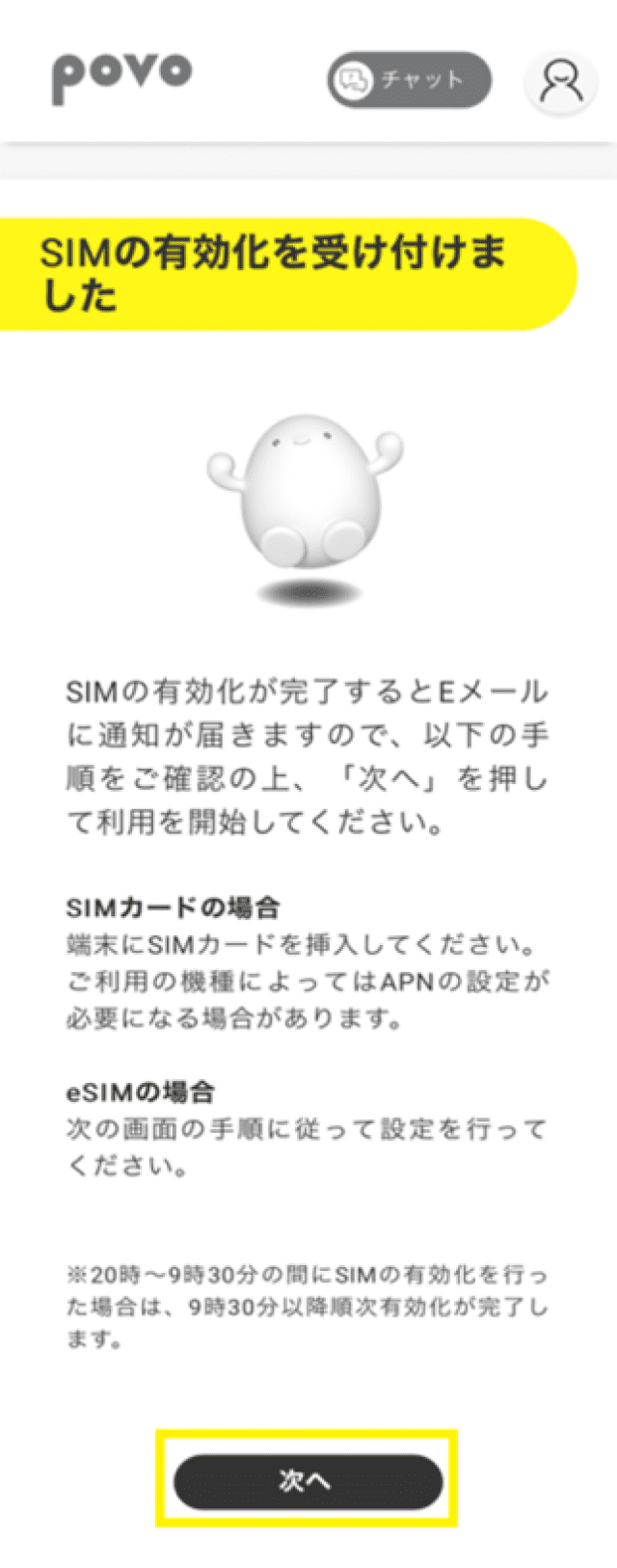
    When you receive an email confirming your SIM card has been activated, tap "Next."

  • STEP4-6
    alt_txt

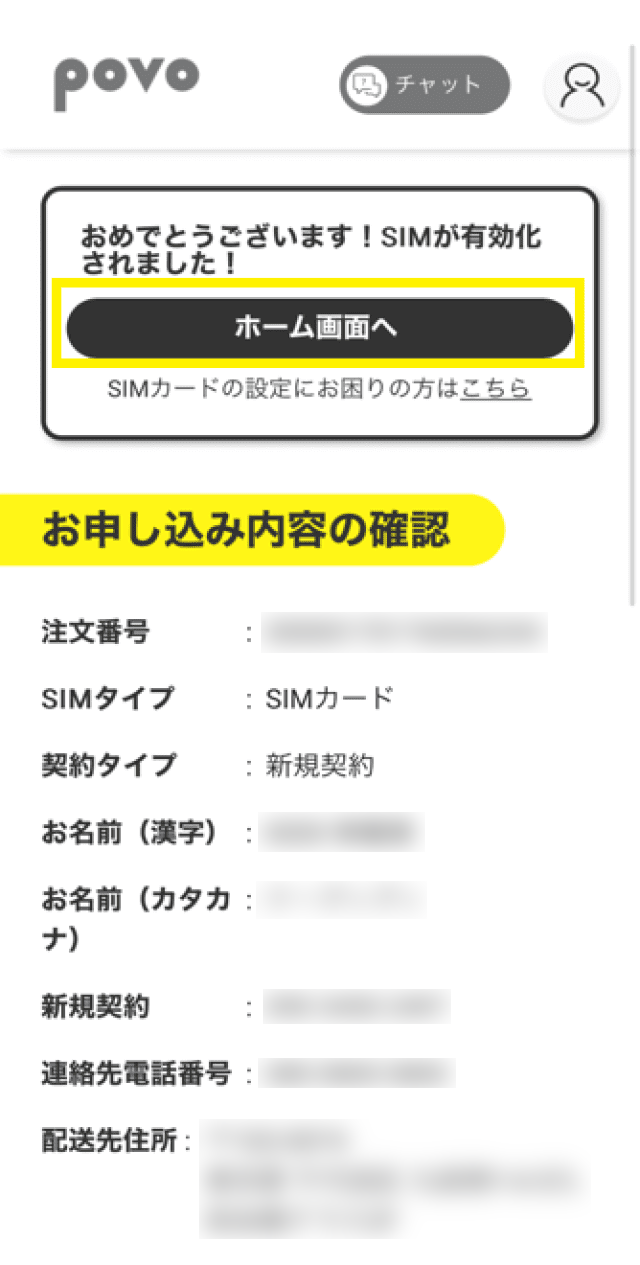
    Tap "Go to Home Screen"

  • STEP4-7
    alt_txt

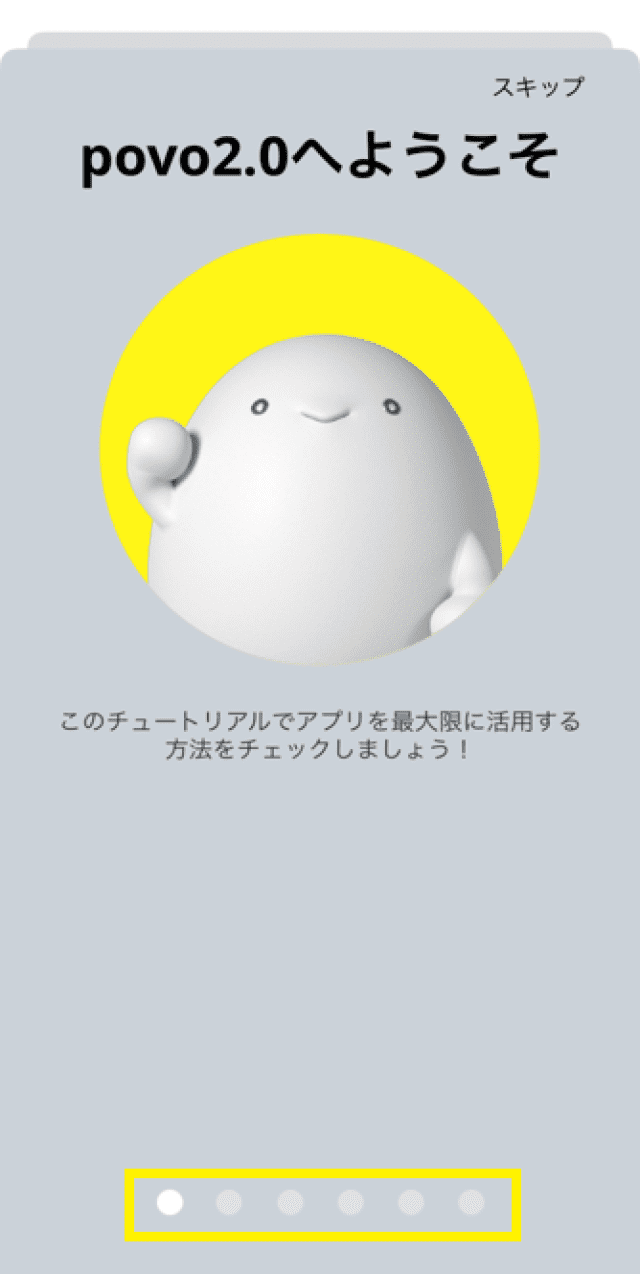
    A tutorial will be displayed, so swipe to check the contents

  • STEP4-8
    alt_txt

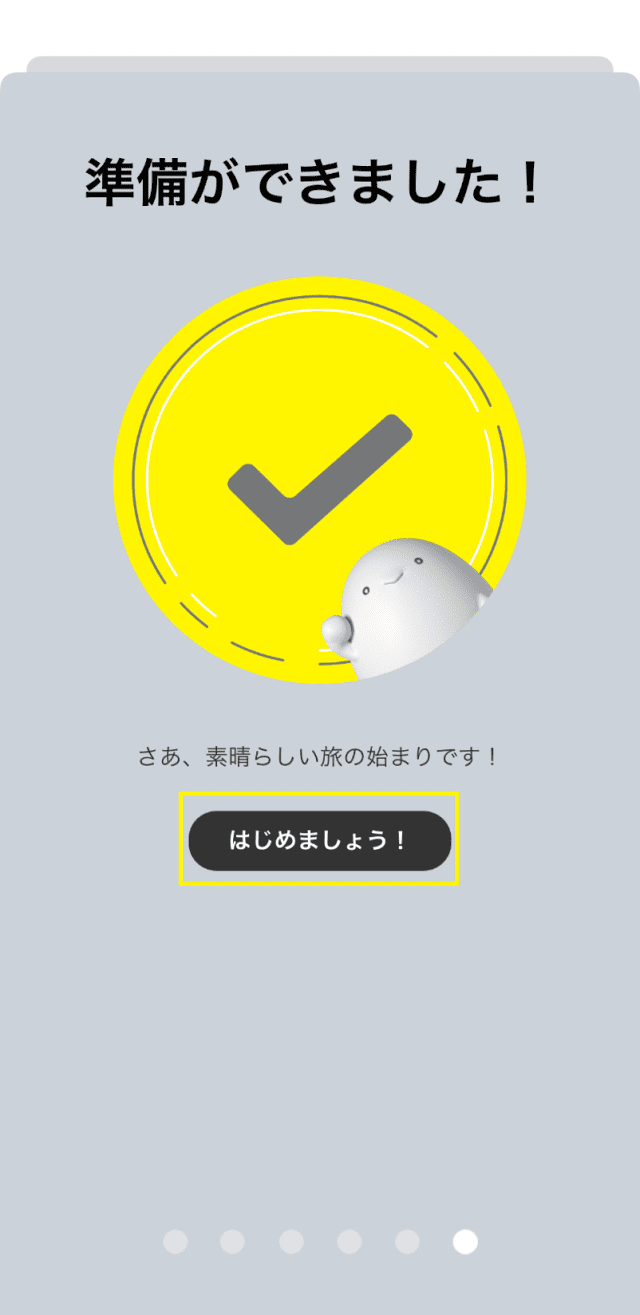
    Tap "Let's get started!"

  • STEP4-9
    alt_txt

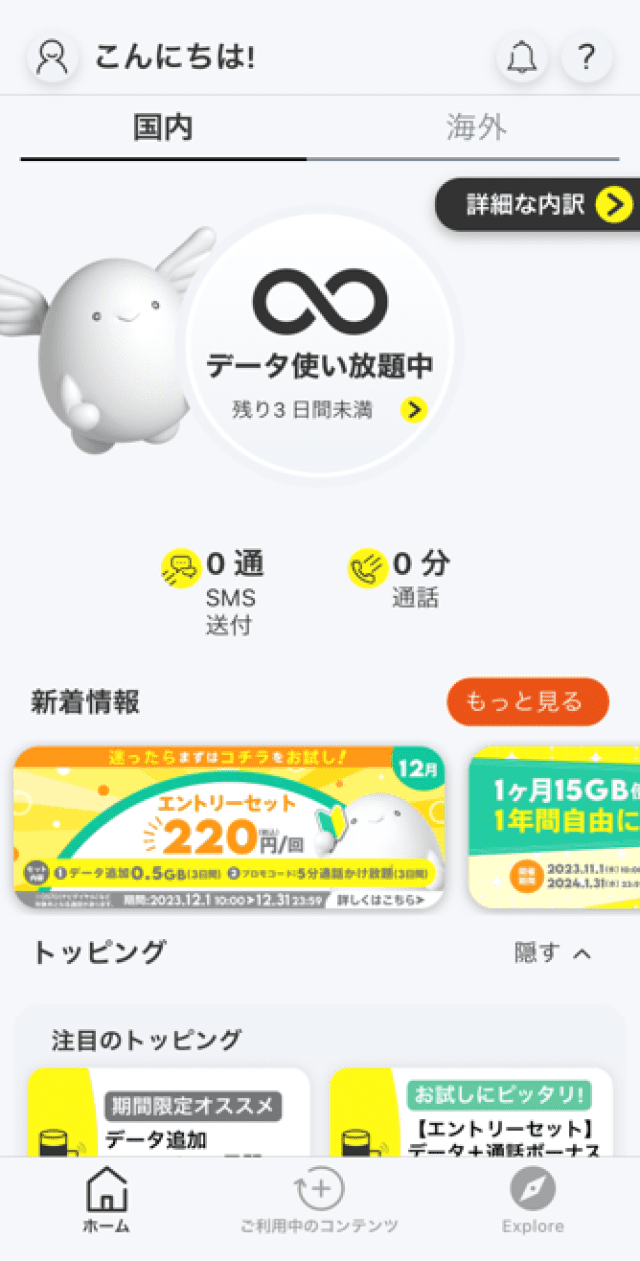
    When the app home screen appears, go to "STEP 5 Insert SIM card."

STEP 5Inserting the SIM card

  • STEP5-1
    alt_txt

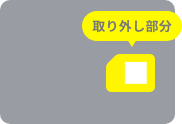
    Cut the smallest size SIM card from the backing.

  • STEP5-2
    alt_txt

    Unplug the power cable of the in-car mobile router and insert the SIM card into the device with the power turned off. For details, please refer to the instruction manual that came with it. You can also download the instruction manual here.

STEP 6Connecting to a Wi-Fi network

  • STEP6-1
    alt_txt

    Restart the mobile router by unplugging and plugging the cigarette lighter power cable or by pressing the reset button.

  • STEP6-2
    alt_txt

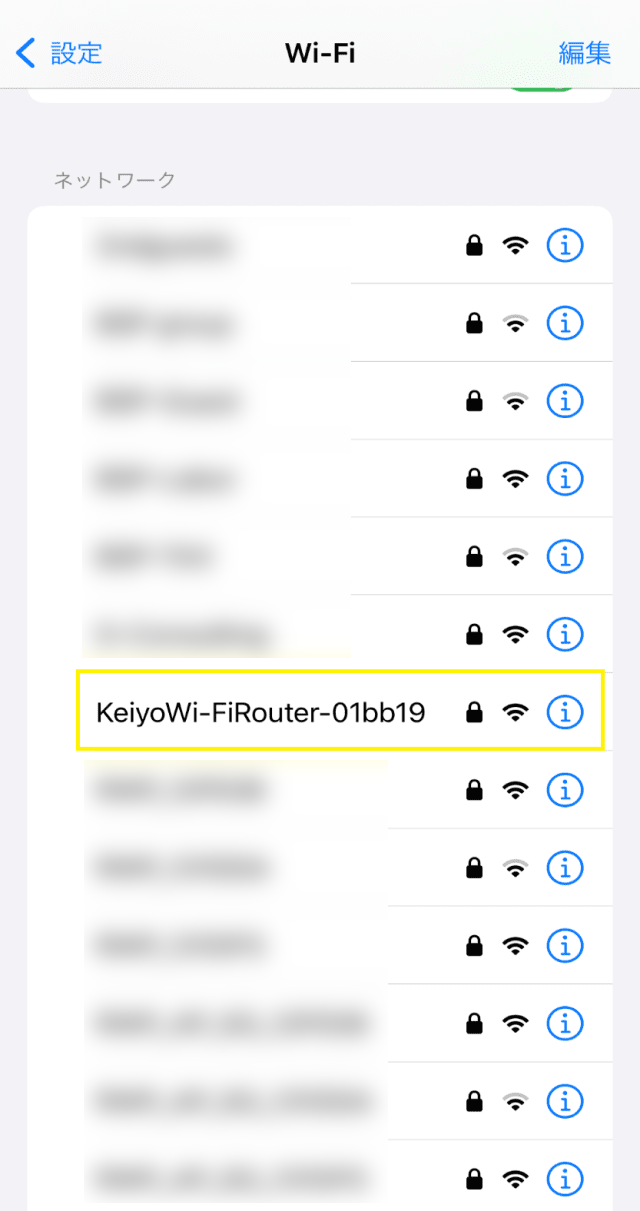
    On the settings screen of a Wi-Fi-enabled device such as a smartphone, select "KeiyoWi-FiRouter-XXXXXX" (default setting).

  • STEP6-3
    alt_txt

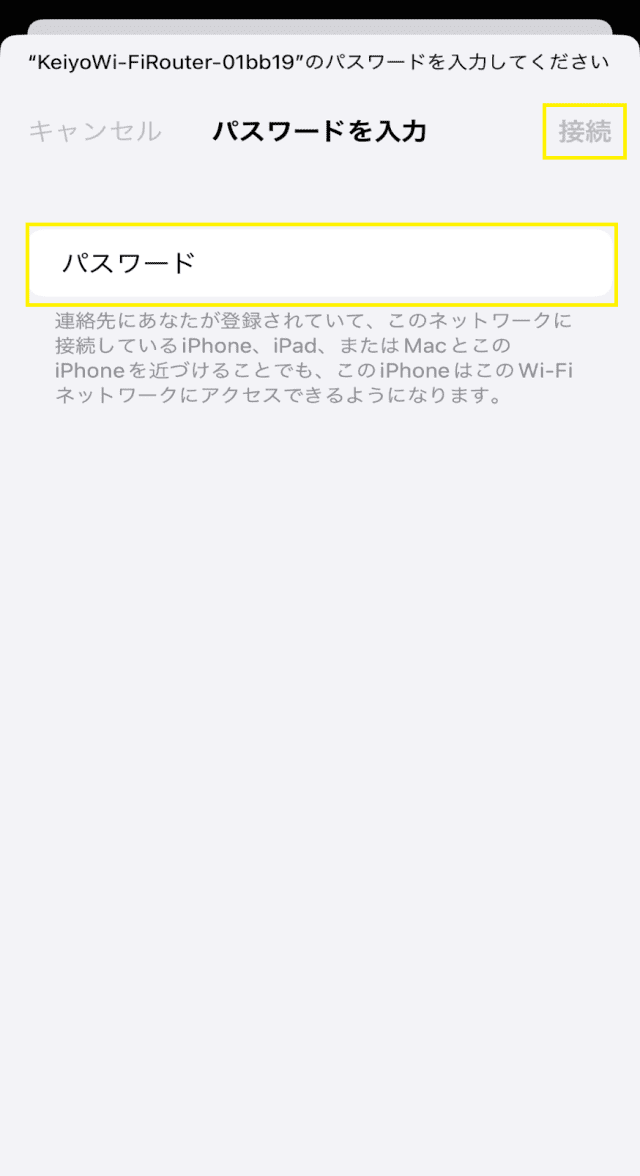
    Enter the password and tap "Connect." The initial password for connection is "1234567890."

    *If you are asked, "This online bank does not have an internet connection. Do you want to stay connected?", please select "Yes."

  • STEP6-4
    alt_txt

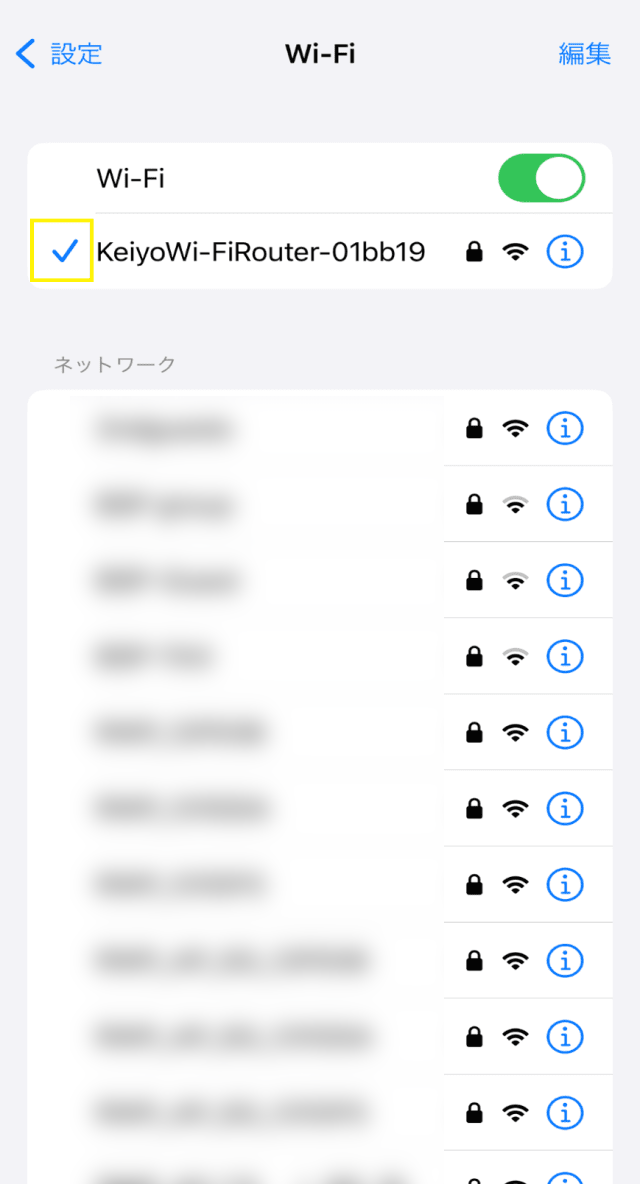
    The connection is complete when a check mark or a sector mark appears on the screen.

  • STEP6-5
    alt_txt

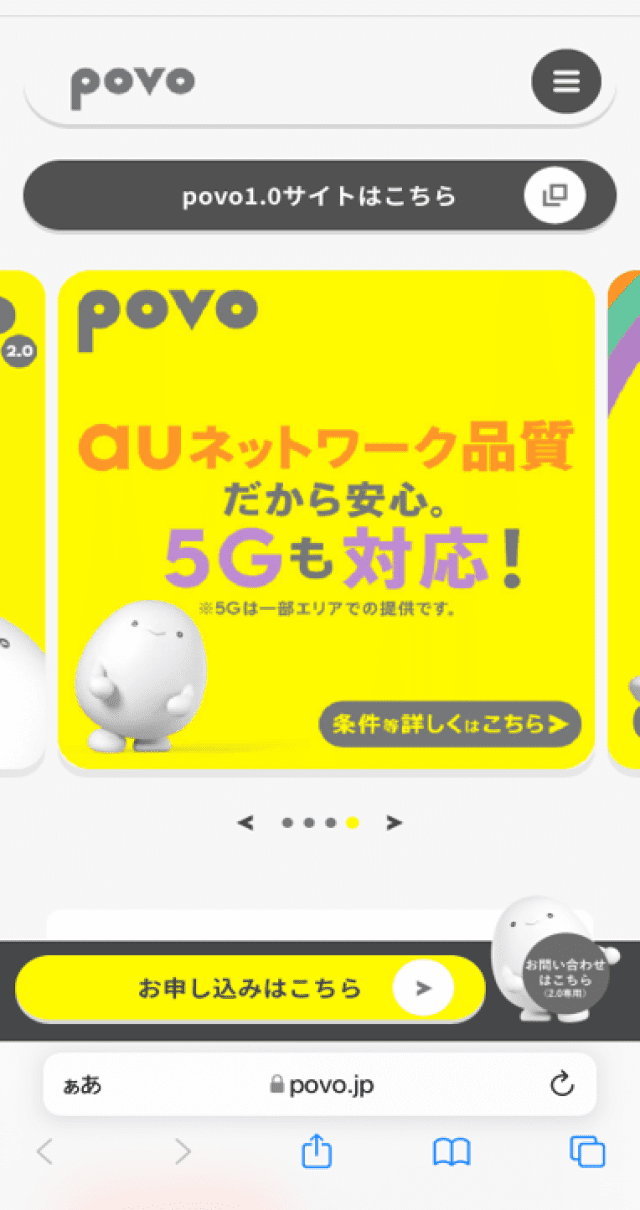
    Launch your browser and use your mobile data to access the website (https:// povo.jp) is available to view

    *Before purchasing data Topping, it may take some time for the screen to display, but as long as the screen can be displayed, there is no problem.

    This completes the communication usage settings.

STEP 7Purchase toppings

If you are currently using povo2.0 on your smartphone, please switch your logged-in account to the account you use on your in-car mobile router before purchasing Topping.
For details, please see "STEP 1: Logging out of the povo2.0 app."
  • STEP7-1
    alt_txt

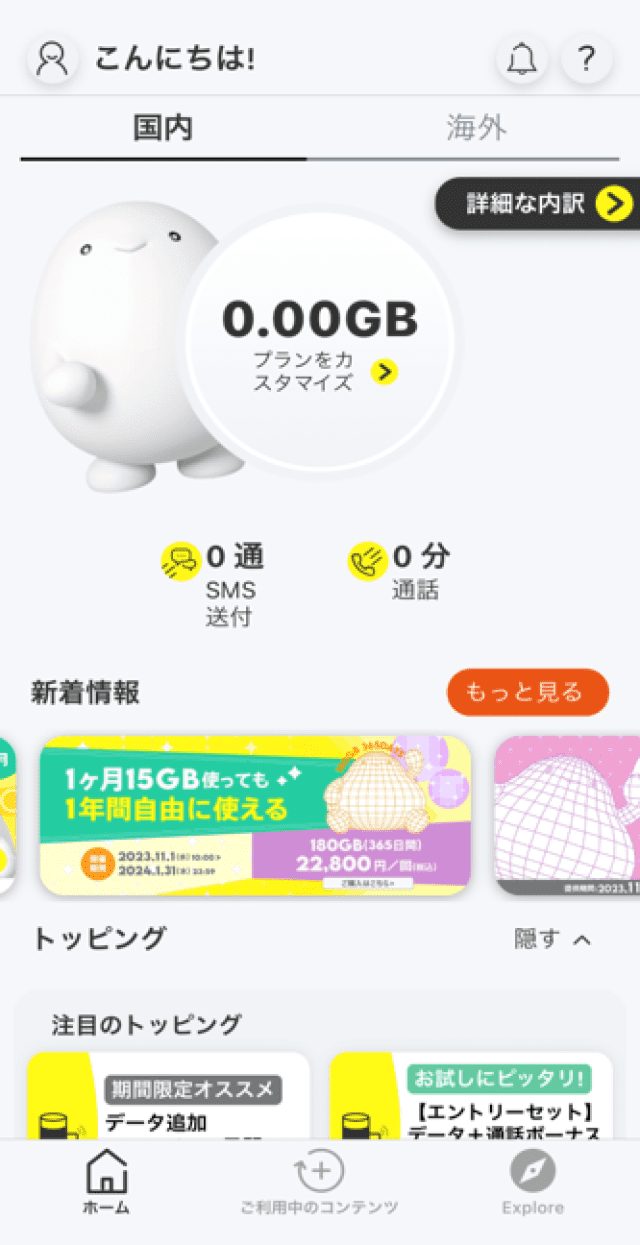
    Launch the "povo2.0" app

  • STEP7-2
    alt_txt

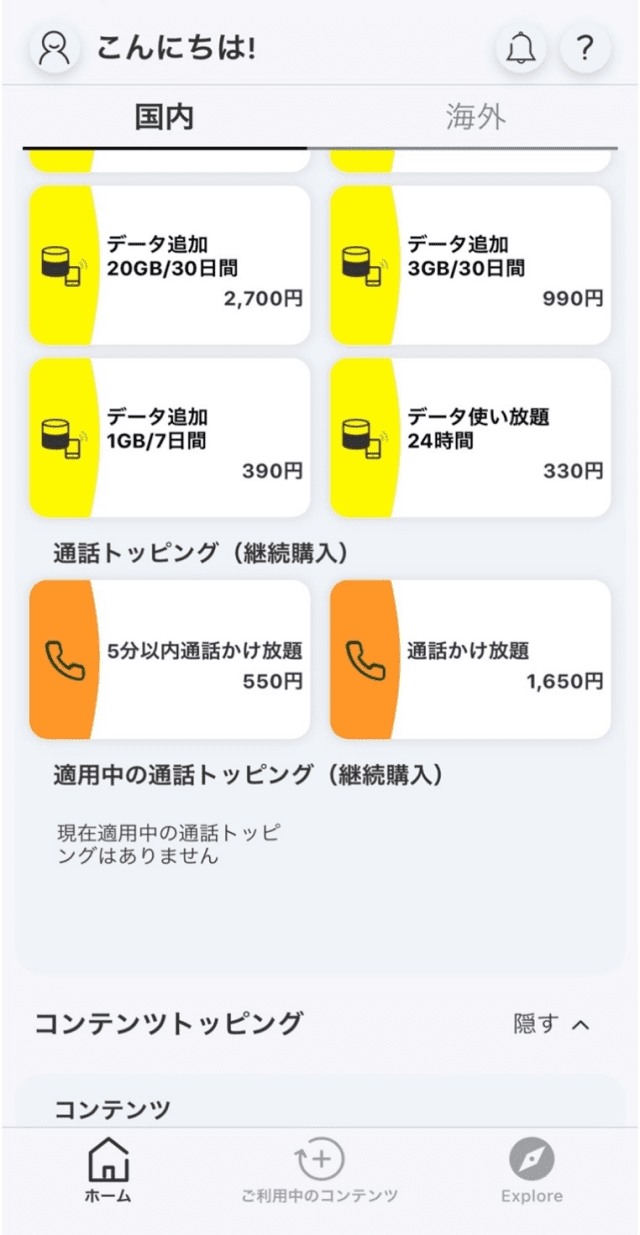
    Tap Topping you want to purchase

  • STEP7-3
    alt_txt

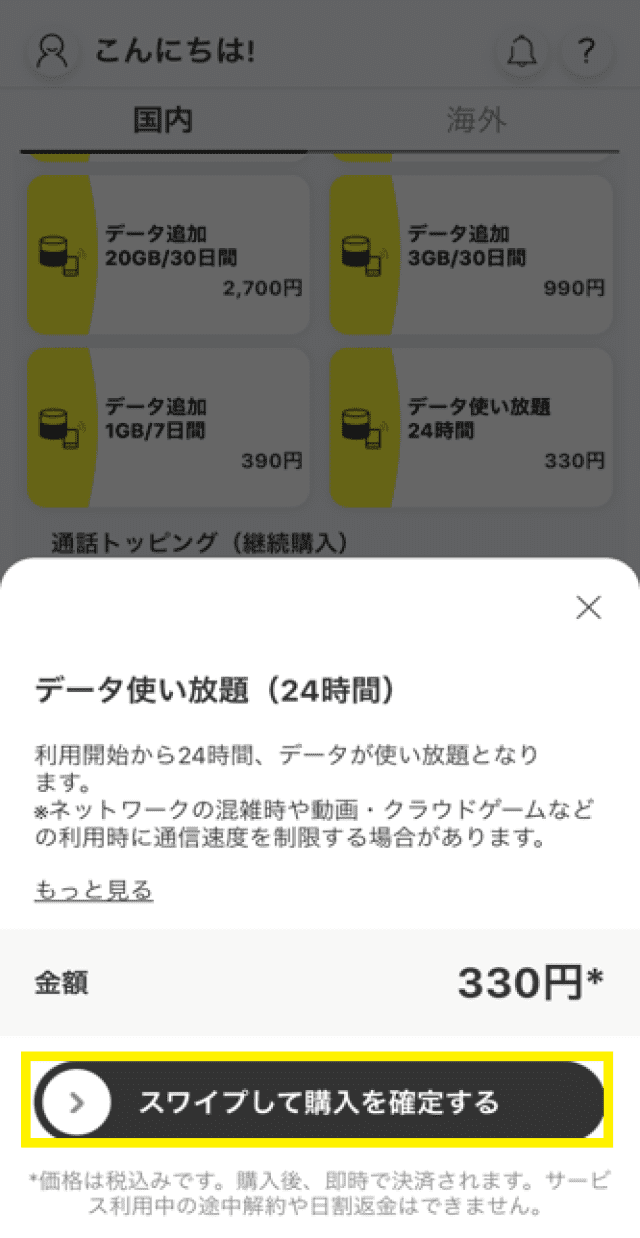
    Swipe "Swipe to confirm purchase"

  • STEP7-4
    alt_txt

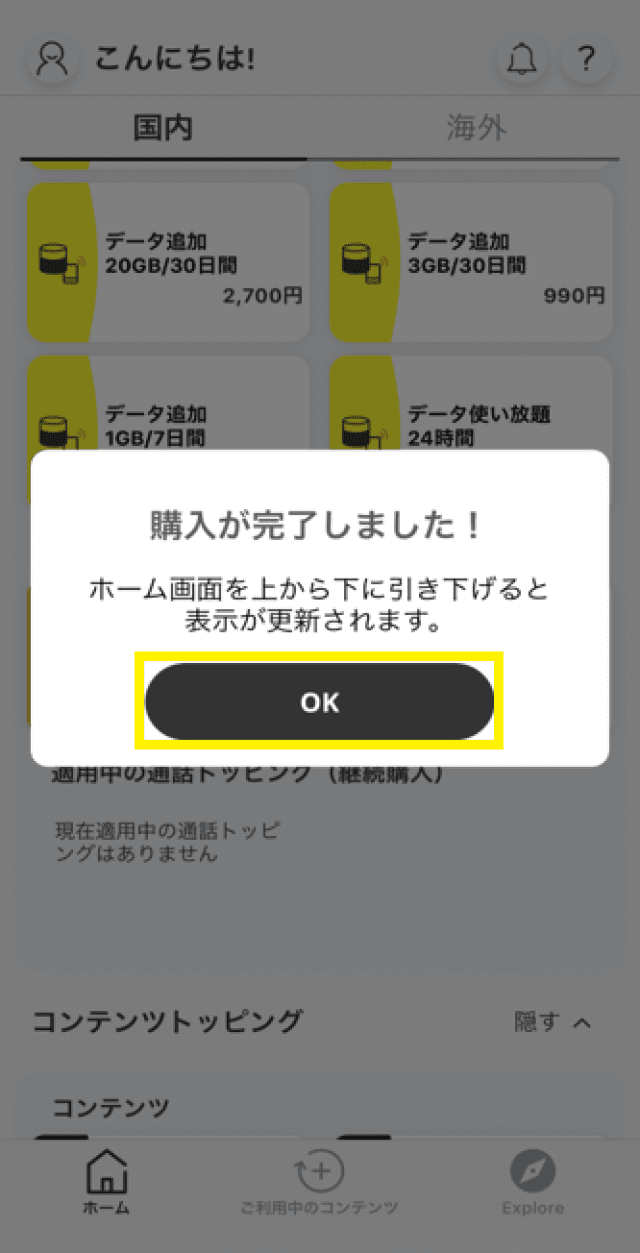
    Tap "OK"

  • STEP7-5
    alt_txt

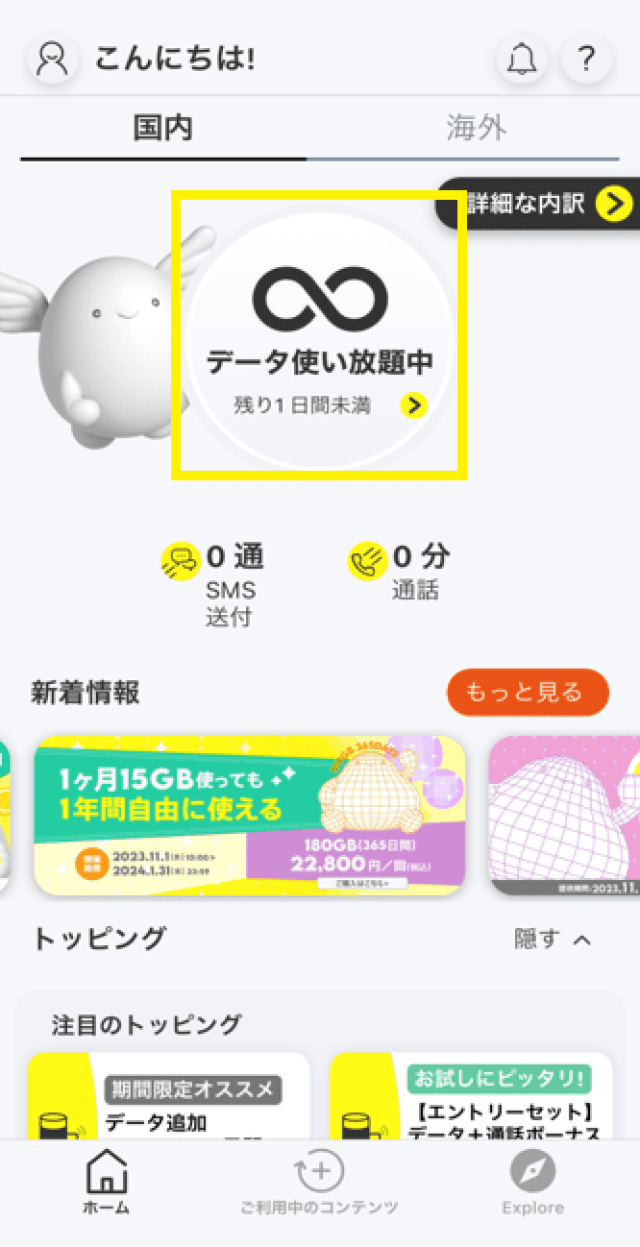
    Check that the remaining data display has changed

Important Notice

  • Contract procedures are carried out sequentially, so during busy times it may take several days to complete.
  • Once completed, we will contact you at the email address you registered.
  • To cancel your contract, please insert the SIM card used for your in-car mobile router into a smartphone that is compatible with the povo2.0 app, and complete the cancellation process here.
  • You cannot register with carrier email address on povo2.0.
  • Corporate customers cannot apply.

*If you are currently using a SIM card other than povo2.0 for your in-car mobile router, please apply for povo2.0 using the steps below, reset your in-car mobile router (factory reset), then insert the SIM card into the in-car mobile router, turn it on, and wait a while. For older models (purchased before December 27, 2023), separate APN settings are required, so please check the instruction manual for your in-car mobile router or contact Keiyo Engineering customer support.