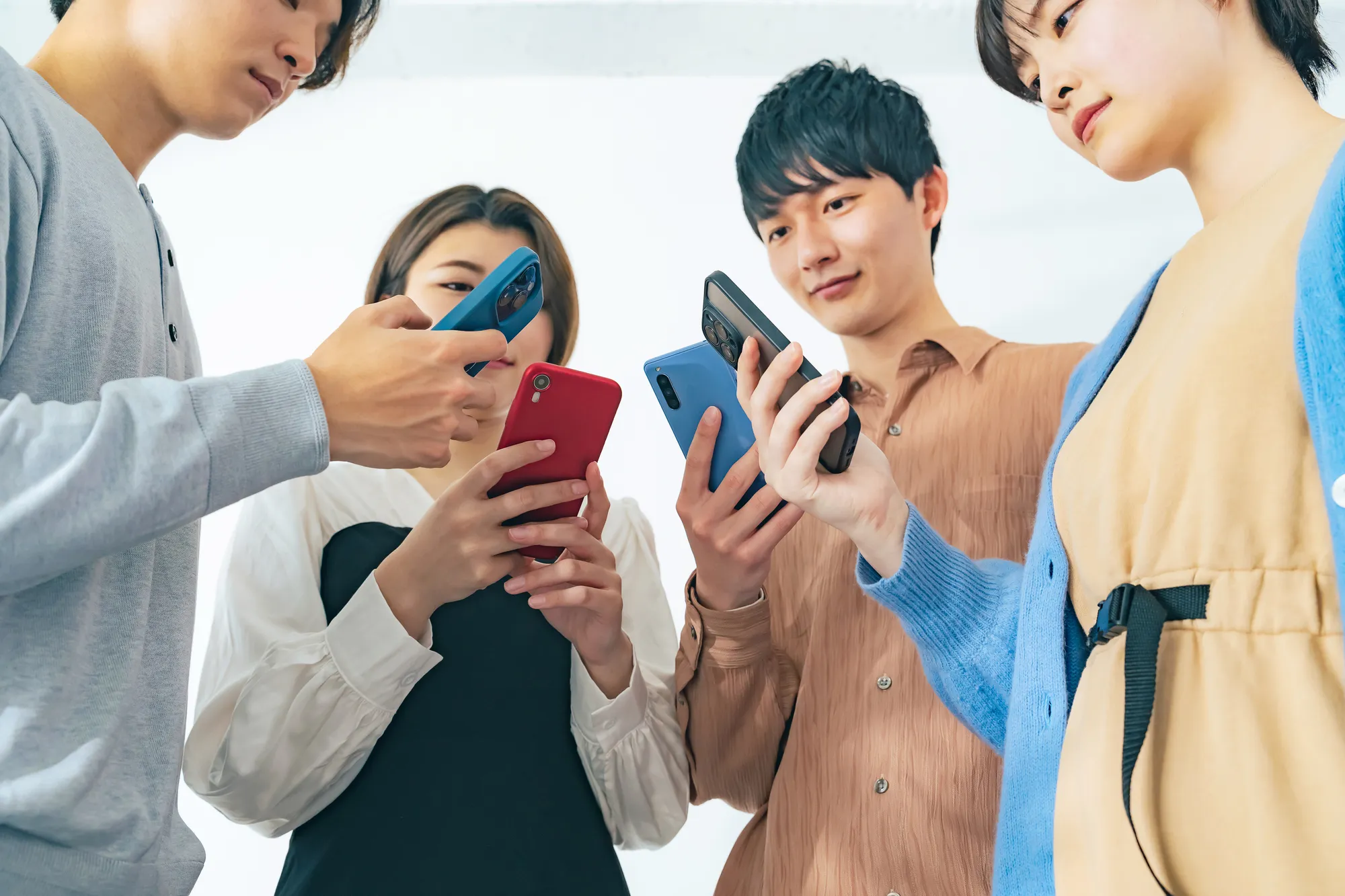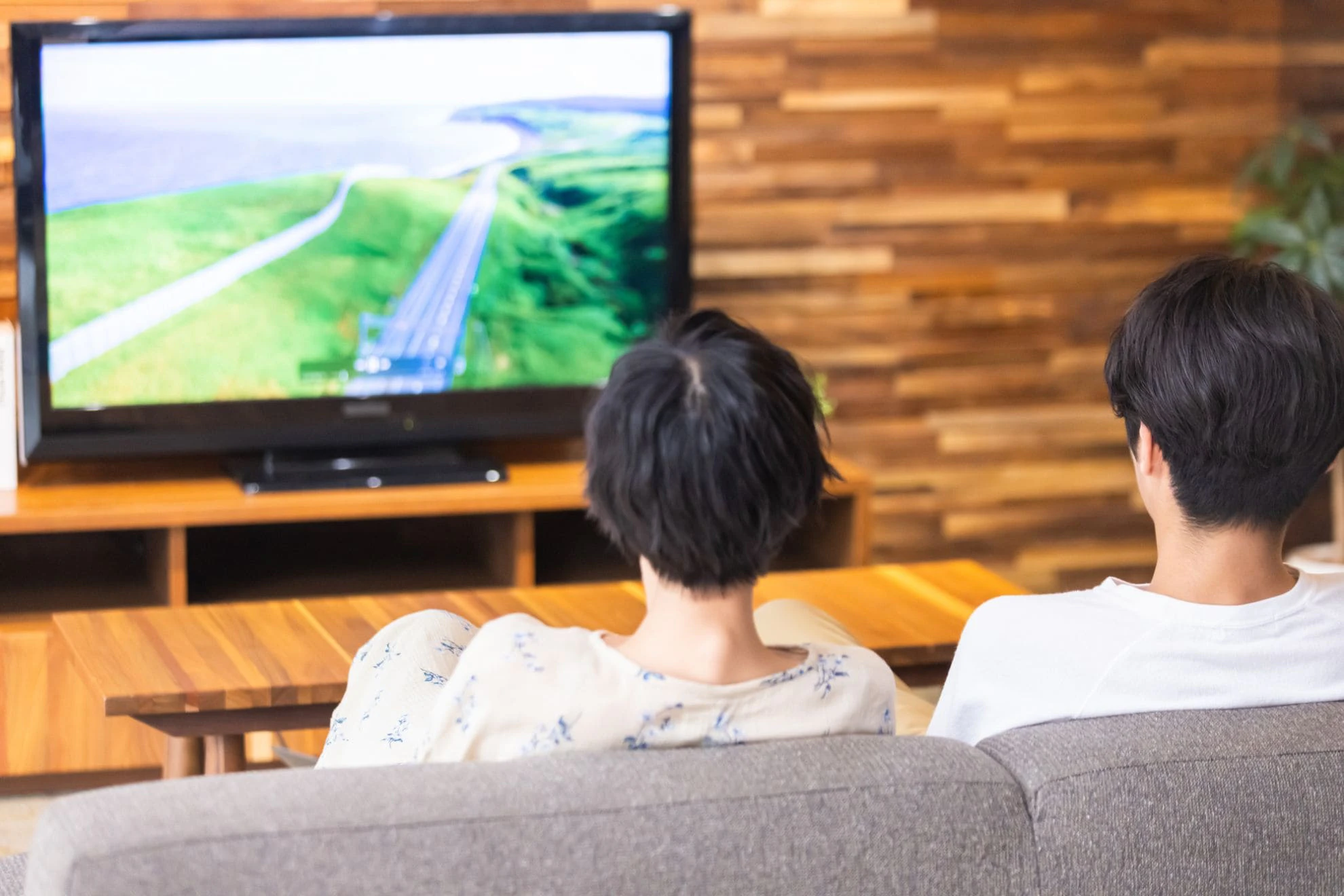
Have you ever wanted to watch the video streaming service you're watching on your smartphone on a bigger screen? In such cases, the screen mirroring function comes in handy.
This time, we'll explain how mirroring works, what you need, and how to connect for both iPhone and Android. It's also recommended for when you want to enjoy smartphone content on a larger screen with family and friends, so be sure to give it a try.
Mirroring is the act of transferring and displaying your smartphone screen on a TV, computer display, or other device display.
It's useful when you want to enjoy your smartphone on a large, impressive screen, or when you want to watch smartphone videos or content with others. For those who have difficulty reading small text on their smartphone screens, a large screen will make it easier to see.

There are two ways to mirror your smartphone to your TV: a wired connection, where you connect your smartphone to your TV with a cable, or a wireless connection, where you connect via Wi-Fi. Let's take a look at the advantages and disadvantages of each.
Now, let's look at the advantages and disadvantages of wired connections.
① Easy to set up
The advantage of a wired connection is that it's easy to set up. Mirroring is possible with just a cable and, if necessary, a conversion adapter. Even those who say, "I'm not good at detailed settings," can easily enjoy mirroring.
② The connection is stable
Another advantage of a wired connection is that it tends to be more stable. Wireless connections can cause radio wave interference with other wireless devices and home appliances such as microwaves. This can slow down your smartphone's speed and cause the mirroring connection to be interrupted. When using a wired connection, your smartphone's Wi-Fi is not used, which also reduces battery consumption.
① Dedicated cable or conversion adapter required
On the other hand, one disadvantage of a wired connection is the need for a dedicated cable or conversion adapter. Because it must be connected to the TV while mirroring, a short cable can make it difficult to operate your smartphone, which is less convenient than a wireless connection. Also, if you don't have a conversion adapter, you may not be able to charge your device at the same time, so be careful.
② Cannot be charged at the same time
When mirroring, a wired cable is used for the charging port, so you cannot charge your smartphone at the same time, which limits the time you can mirror.
Next, we will introduce the advantages and disadvantages of wireless connections.
① No cables required
The advantage of a wireless connection is that it does not require cables. Unlike wired connections, there is no limit to the length of the cable, so mirroring can be done over a wide area.
② Charging possible while mirroring
Although a wireless connection consumes more battery power than a wired connection, it does not require a charging port while mirroring, so you can charge your phone with a cable while mirroring.
① A device that supports wireless connection is required.
The first disadvantage is that you need a device that supports wireless connections, such as a smartphone, TV, or computer. If you have a device that supports wired connections but not wireless connections, be careful. If you still want to connect wirelessly, you will need to purchase a device separately.
② It takes time to set up
You may need to change settings or install an app to use a wireless connection, but this only takes time the first time you set it up; once you've done so, mirroring will be easy from the next time.
③ The connection may be unstable compared to a wired connection.
Compared to wired connections, wireless connections can be unstable and may experience interruptions or time lag depending on the environment. Wired connections are better suited for mirroring video of games, sports, or other content where speed is important.
To mirror, you need different equipment for wired and wireless connections. Below we will explain what you need to prepare for each.
To mirror your iPhone via a wired connection, you will need a Lightning Digital AV Adapter and an HDMI cable.
For Android devices, if you have a USB-C port that supports Display Port Alternate Mode (DP Alt Mode), you can mirror your device via a wired connection. All you need is a USB-C to HDMI adapter and an HDMI cable.
Not all smartphones support DP Alt Mode; some manufacturers don't support it, and some only support high-end models. If you want to mirror via a wired connection, check your smartphone's manual to see if it supports DP Alt Mode, and then prepare an adapter or cable.
To mirror wirelessly, you need a connection device called a set-top box. A set-top box is a receiver that connects to your TV to display internet content, and there are various types, such as Amazon's "Fire TV," Google "Chromecast," and Apple's "Apple TV."
Each set-top box has a different connection method. Some devices that can be used with iPhones may not be compatible with Android devices, so be sure to check your device.
There are also mirroring-compatible TVs, such as those that are Miracast-compatible and AirPlay-compatible, which allow for wireless mirroring without a set-top box.
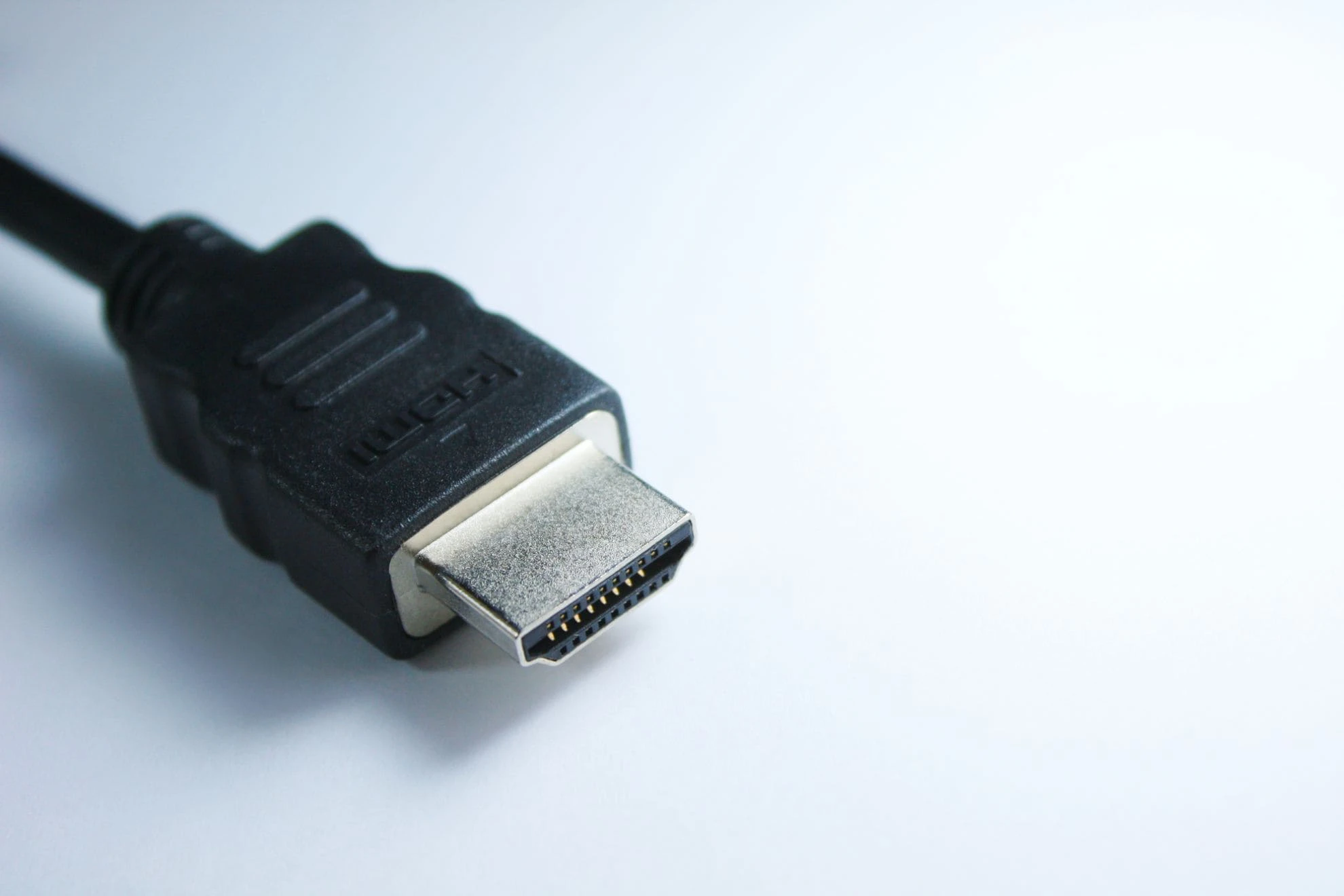
To mirror via wired connection, simply connect your smartphone to your TV with an HDMI cable and switch the TV's input to HDMI. We'll explain how to connect via wired mirroring for both iPhone and Android.
Connect the Lightning Digital AV Adapter to the HDMI port on your TV using an HDMI cable, and then connect the Lightning Digital AV Adapter to the Lightning connector on your iPhone.
Similarly, for Android, mirroring is possible by connecting the device with a cable. Connect the HDMI port of the destination device to the "USB-C to HDMI adapter" with an "HDMI cable," and then connect the "USB-C to HDMI adapter" to your smartphone.
To mirror wirelessly, you need to set up your set-top box and smartphone and install the app. You also need to connect your set-top box and smartphone to the same Wi-Fi network. Here, we'll explain how to mirror wirelessly on both iPhone and Android.
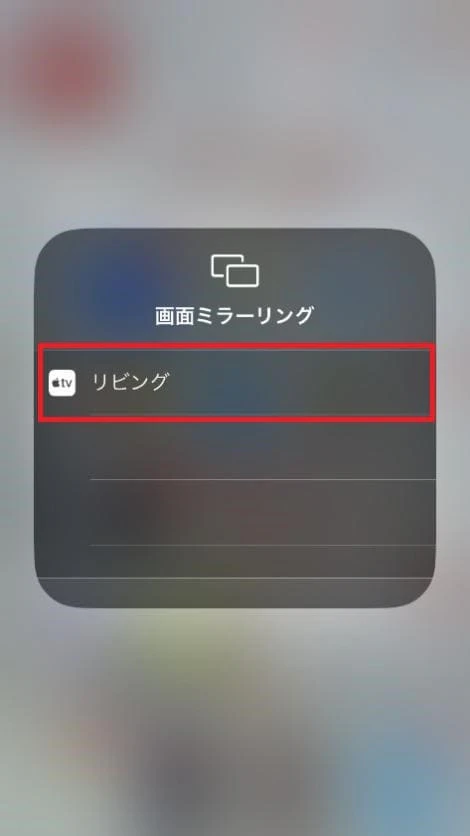
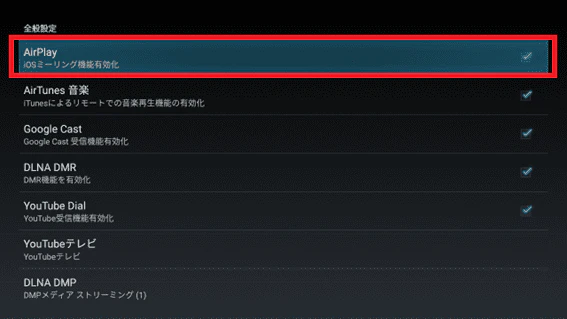
Wireless mirroring on an iPhone uses a feature called "AirPlay." "AirPlay" is basically a system for mirroring between Apple devices. You can also mirror to a "Fire TV" using an app such as "AirReceiver."
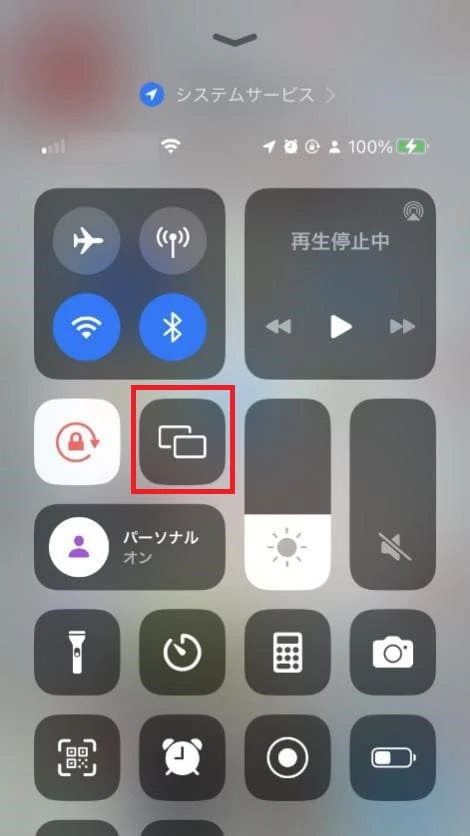
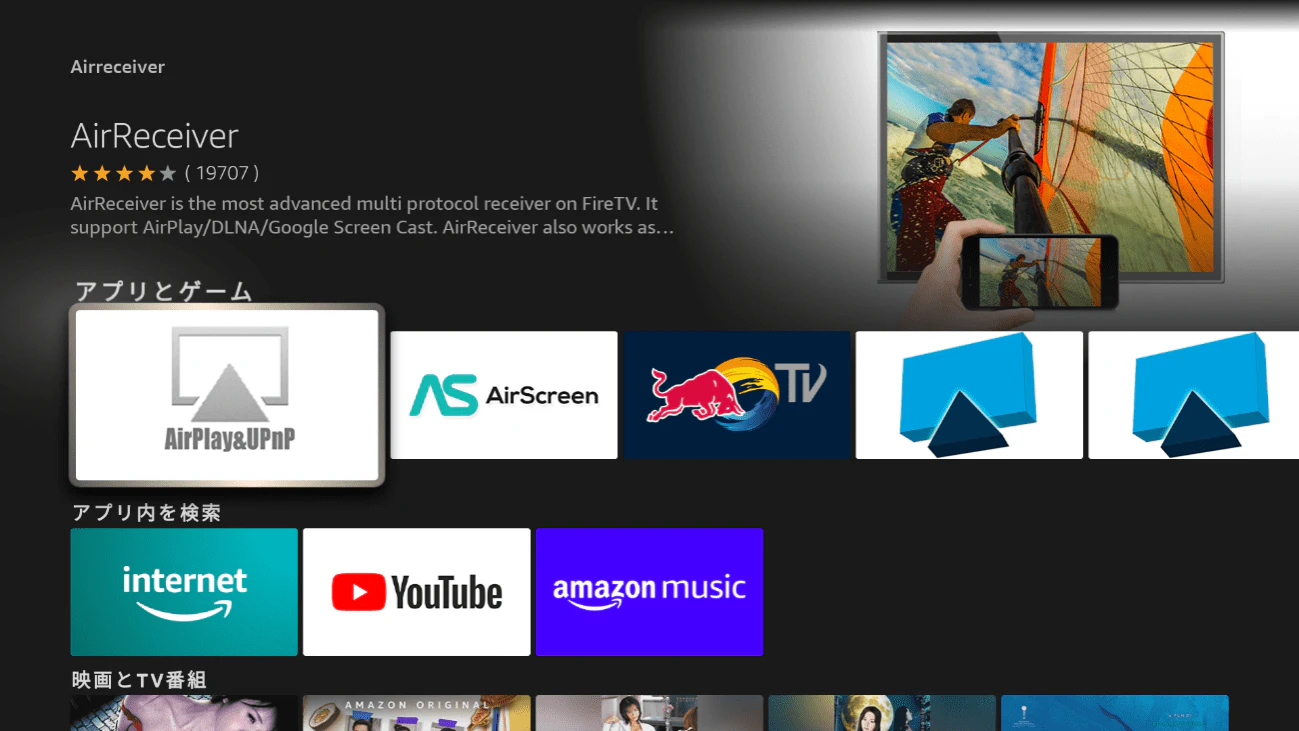
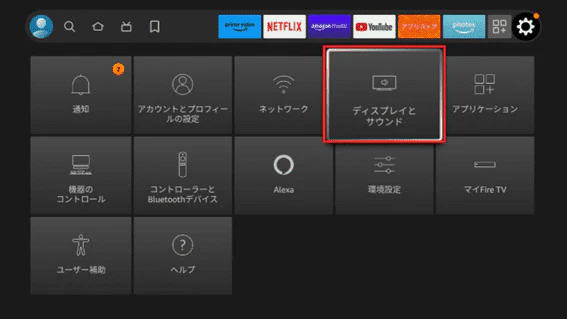
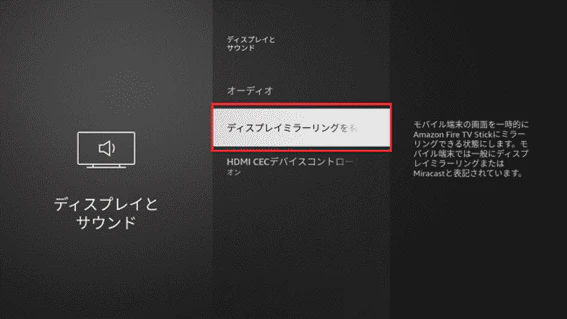
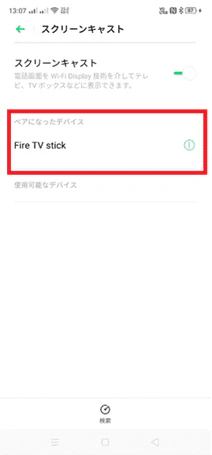
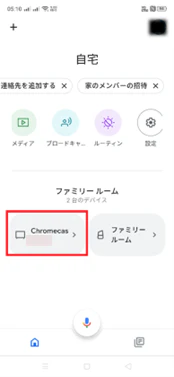
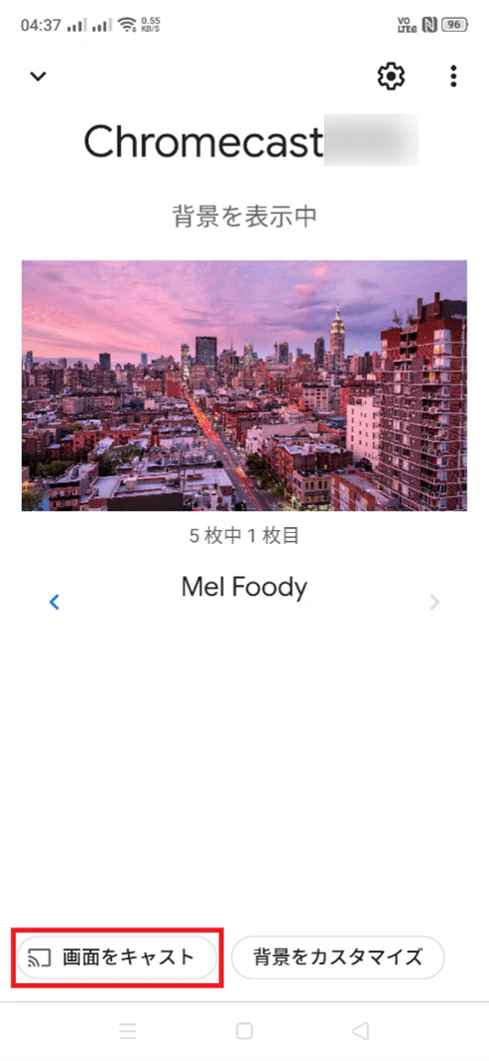
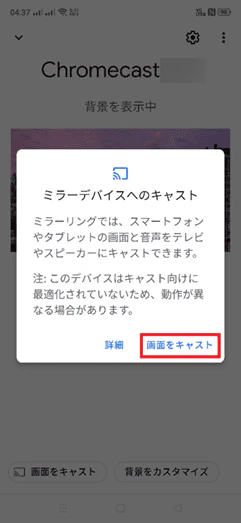
Most Android devices support mirroring via Miracast or Google Cast as standard. We will show you how to mirror using Fire TV and Chromecast.

Once you have set up your Fire TV and Android, you can tether your Android and mirror it even if you cannot connect to the same Wi-Fi.

By using mirroring, you can enjoy not only videos and photos stored on your smartphone, but also video streaming services on a large screen. However, many people are concerned that playing video streaming services for a long time will consume data capacity (gigabytes).
For those who want to enjoy video streaming services without any worries, we recommend "povo2.0 (※1)", an online-only brand provided by au.
povo2.0 has a basic fee of 0 yen (*2) (*3) (*4), and you can purchase additional paid Topping as you need. For example, you can purchase "Unlimited data (tax included included)" (*5) (*6) only on the days when you want to enjoy content to the fullest on video streaming services.
In addition to Data Top-up, paid Topping also include the "DAZN Unlimited Use Pack (7 days) 1,145 yen/use including tax included" (※6) (※7) (※10) and the "smash. Unlimited Use Pack (24 hours) 220 tax included /use including Topping" (※6) (※8) (※9), which allow unlimited use of data when using content, and are recommended for people who want to use a lot of data when friends and family get together.
\3 easy steps with the app/
*1: All procedures and support are online only. No in-store or telephone support is available. *2:If you subscribe to 5 lines(*) under the same name, a contract administration fee of tax included 3,850 yen per line will be charged after the 6th line. If you do not purchase Topping for a fee for 180 days or more, your subscription may be suspended or cancelled.
*2: Including lines that have already been terminated or cancelled by the Company within the past year. 3:When 0 GB for 0 yen, the maximum sending/receiving speed is 128 kbps. *4:In case of Data Only, initial Topping purchase is required at the time of contract. Calls+Data In the case of tax included, domestic calls: 22 yen/30 seconds Some calling charges may differ, such as calls to satellite phones. See here for details. In addition, designated call charges apply to calls to phone numbers set up fees by other companies. Sending domestic SMS: tax included 3.3 yen/text (up to 70 characters) Receiving: Free Up to 670 full-width characters can be sent depending on the model. However, up to 134 characters will be charged for two SMS, and after that, one SMS will be charged for every 67 characters. 5:Refer to "Unlimited data (24 hours)" (povo
)*6:Transmission speed may be limited during network congestion or when using videos, cloud games, etc. 7:Reference "DAZN All-You-Can-Use Pack (7 days)"(povo
) ※8:Reference "smash. All-You-Can-Use Pack (24 hours)"(povo
)※9:On April 30, 2024, "smash. 10:On November 30, 2024, "DAZN All-You-Can-Use Pack (7 days)" will no longer be offered.