For those who need to back up their iPhone when repairing it or switching to a new model.
A backup is a way to save various data such as apps, images, music, etc. stored on your iPhone or other devices.
By backing up your data, you can always recover it from the backup if you need to send your iPhone in for repairs or switch to a new model and your data is lost.
In this article, we will explain in detail why you cannot back up your iPhone and how to deal with the problem.
Let's start by finding out why your iPhone won't back up.

There are two ways to back up your iPhone: using iCloud or iTunes.
(*iTunes can be used with macOS 10.14.6 or earlier, Windows 10, and Windows 11.)
The unique feature of iCloud is that it stores backup data in the cloud, while iTunes stores data on the computer where iTunes is installed.
If you don't have a computer that can use iTunes, we recommend backing up your data using iCloud.
There are several reasons why you may not be able to back up your iPhone:
First, check why you can't back up your iPhone.
・Lack of storage space → Delete unnecessary files
・Cannot connect to Wi-Fi → Check the connection
・Wi-Fi speed is slow → Connect to another Wi-Fi
・The previous backup was not completed.
・Delete old backups
・Lack of storage space → Delete unnecessary files
・iOS has not been updated to the latest version
・Security software is working

iCloud is a cloud service provided by Apple that helps you back up your devices.
For example, if you restore the data that you backed up to a repaired device that you have returned to you or to a new model after switching, you can always use the data that you used on your previous device.
By storing various data such as apps, images, and music on the cloud, you can also use it to back up your iPhone data.
Now, let's take a look at the reasons why you can't back up with iCloud and how to deal with the problem.
If you don't know how to back up your data to iCloud, please refer to the following article.
Reference: "I want to replace my iPhone battery! Explaining the guidelines, replacement locations, and backup methods" (povo)
If the iCloud storage capacity is insufficient, there will be no space to store the backup data and the backup will not be possible.
If you're running out of iCloud storage space, start by deleting unnecessary photos, videos, files, apps, and other data.
First, check your iCloud storage capacity using the following steps:
Check your iCloud storage
Starting with iCloud, everyone gets 5GB of free storage.
If deleting unnecessary apps doesn't solve the problem of insufficient storage space, you can purchase more storage space from Apple, so it's a good idea to consider doing so.
iCloud storage is relatively affordable, costing 130 yen (tax included) per month for 50GB and 400 yen (tax included) per month for 200GB (as of September 2023).
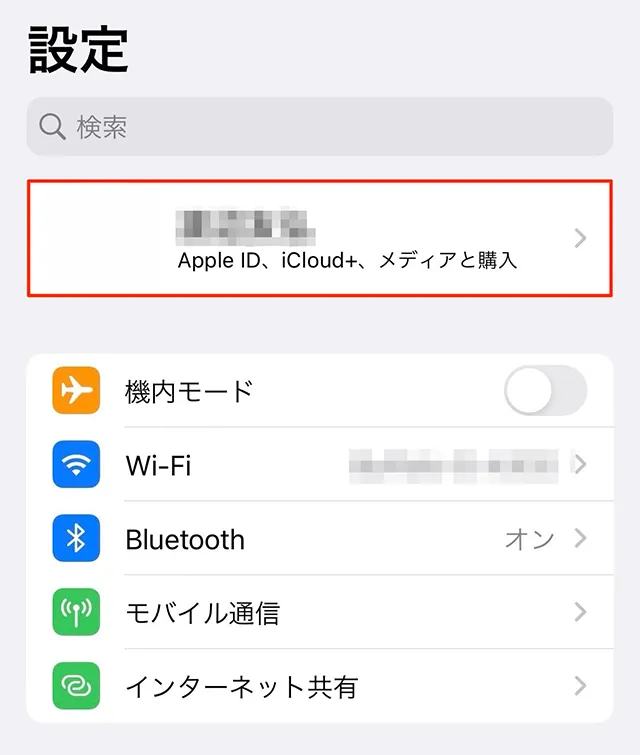
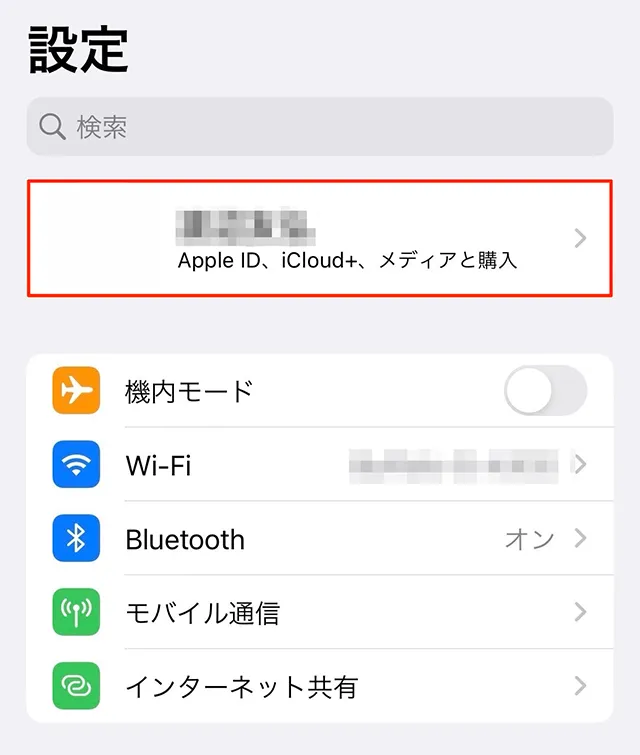
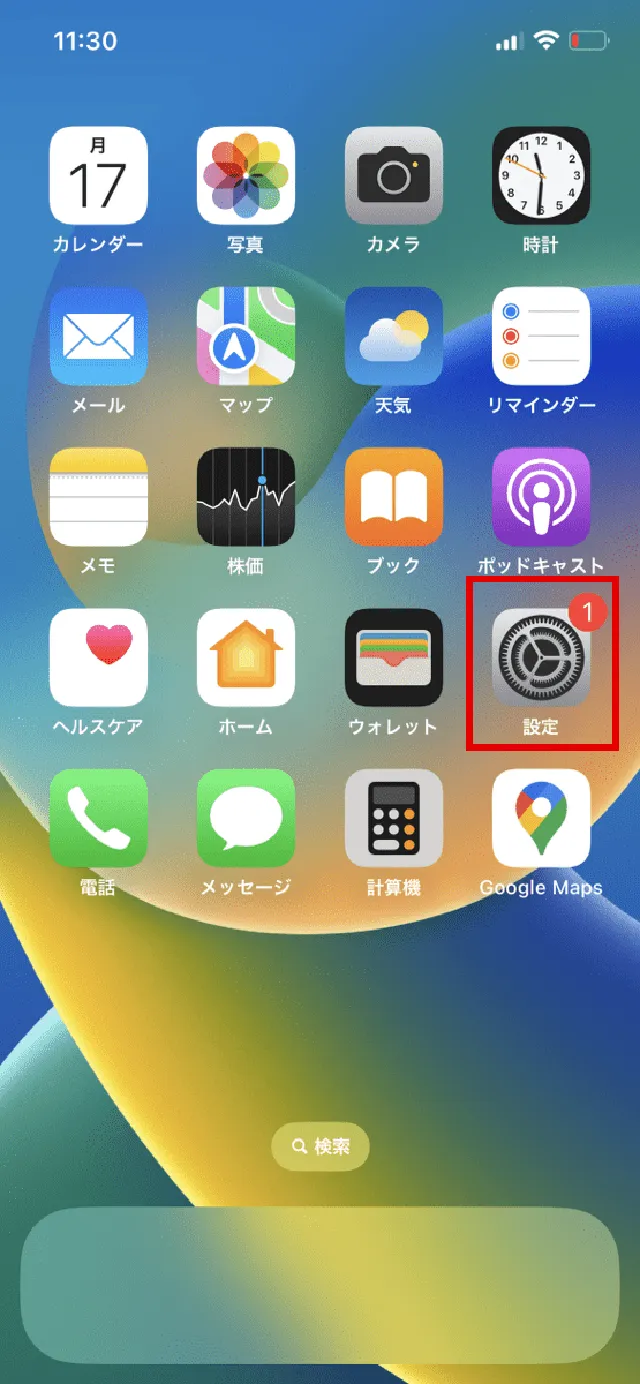
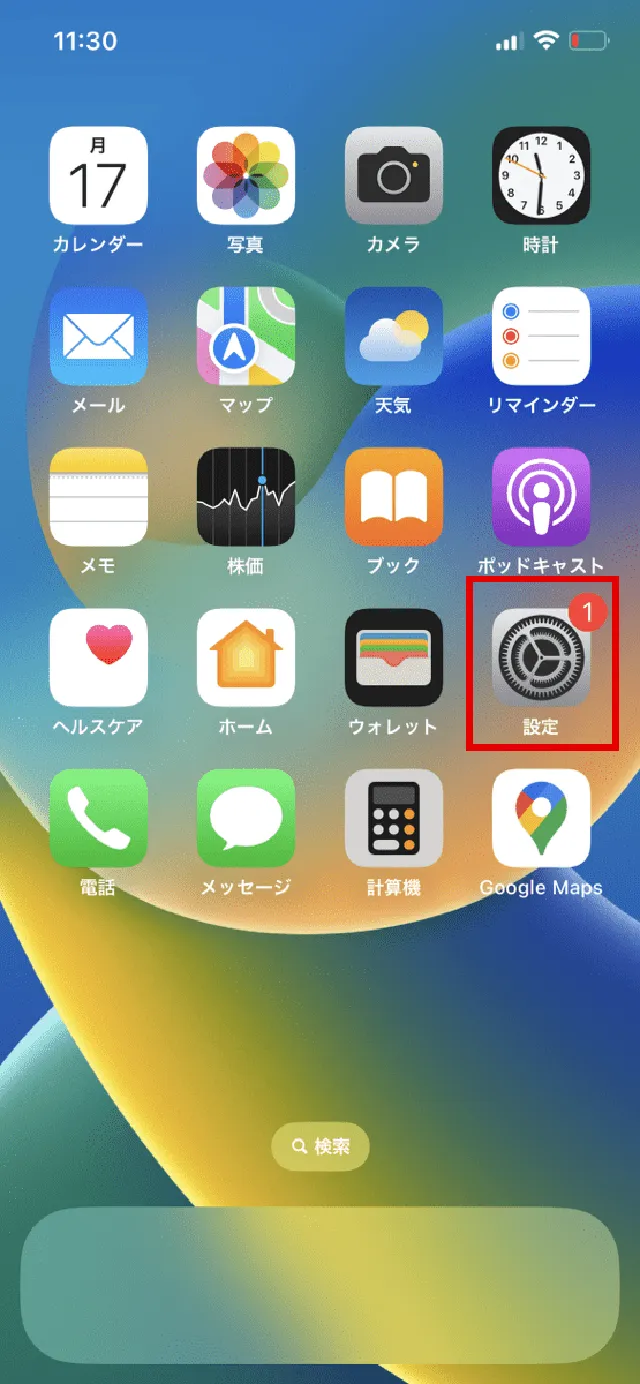
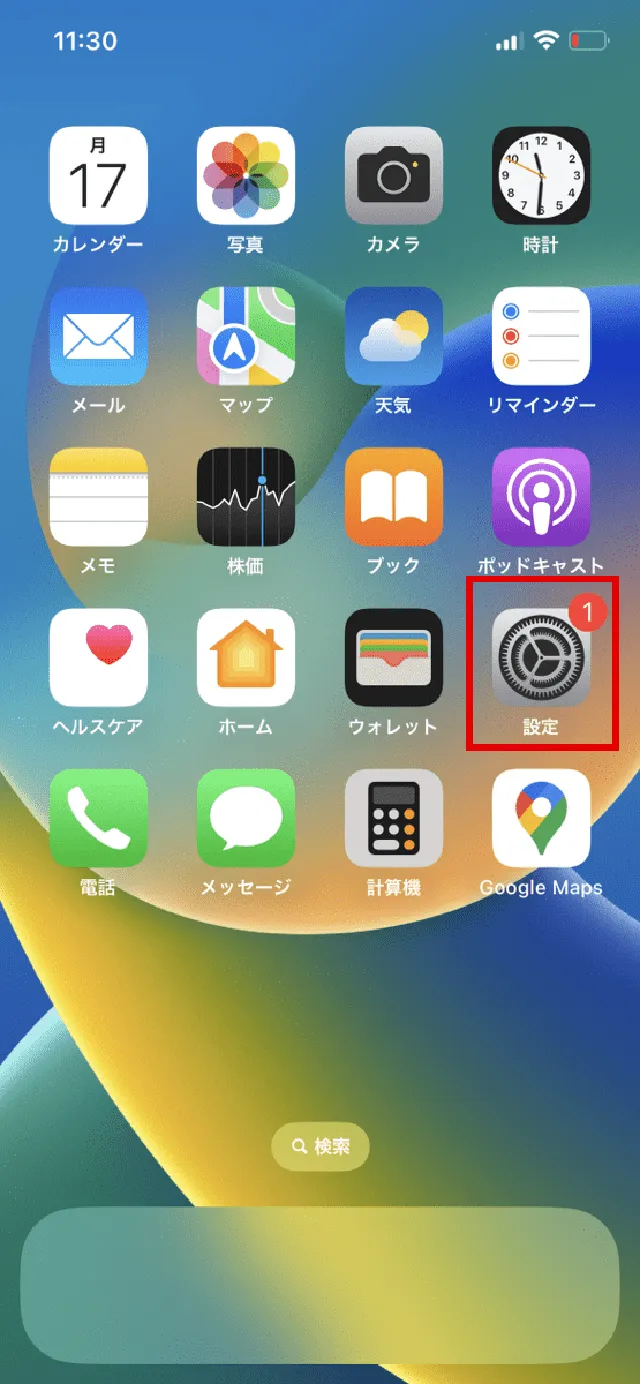
1. Tap "Settings" on the iPhone home screen
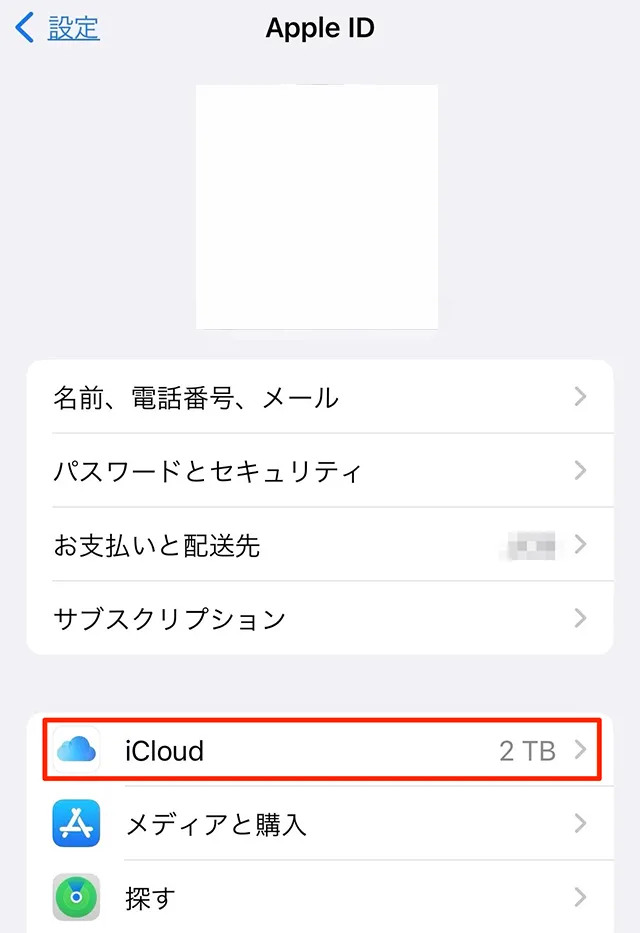
2. Tap "Account Name"
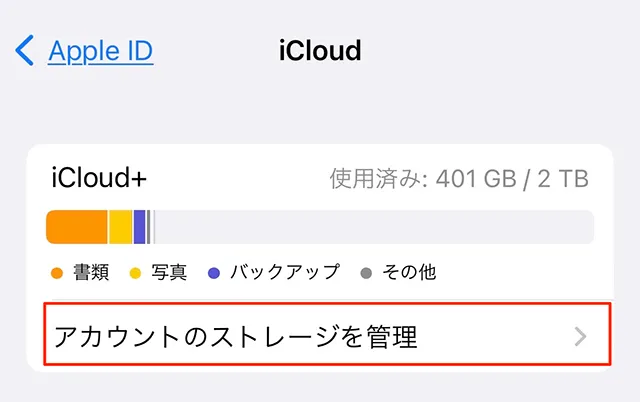
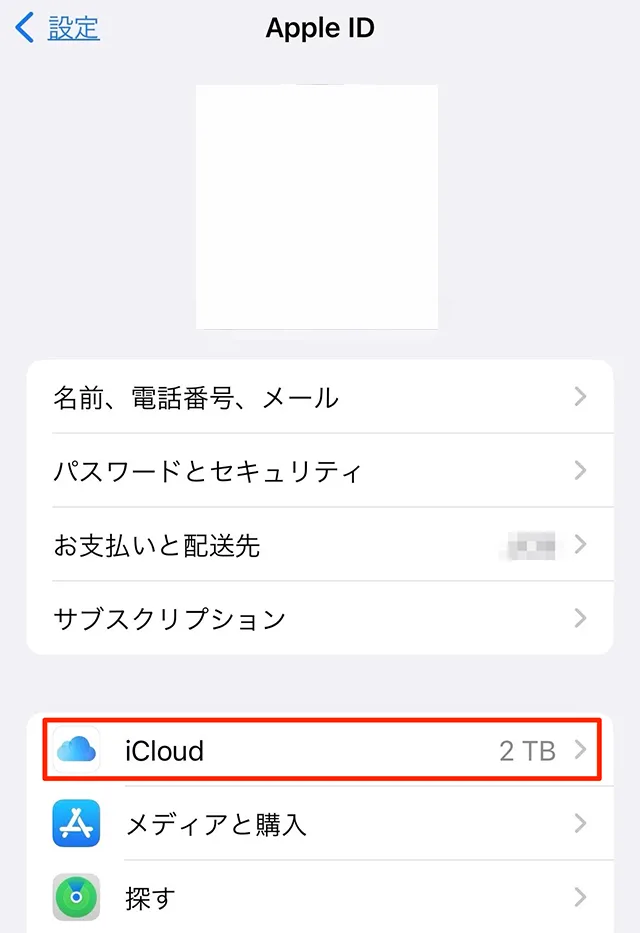
3. Tap "iCloud"
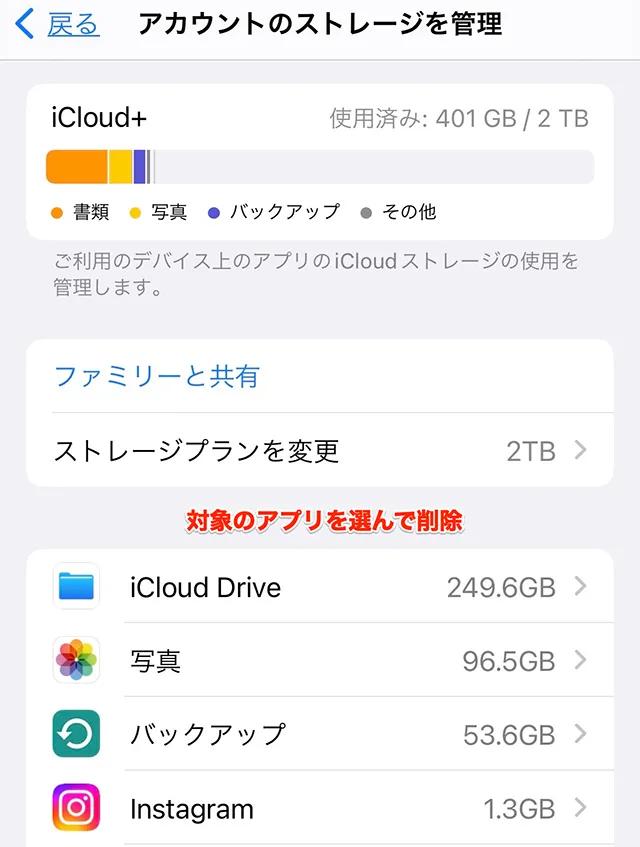
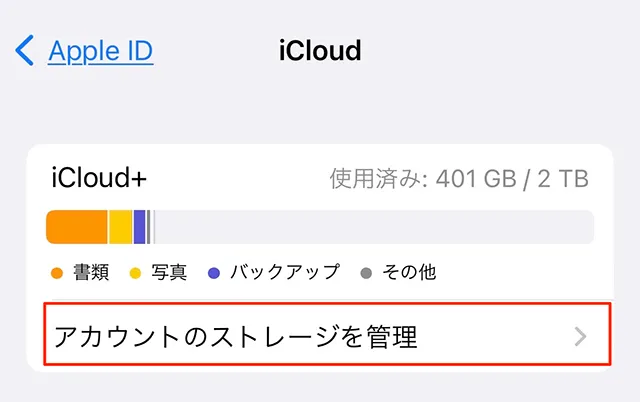
4. Tap "Manage account storage"
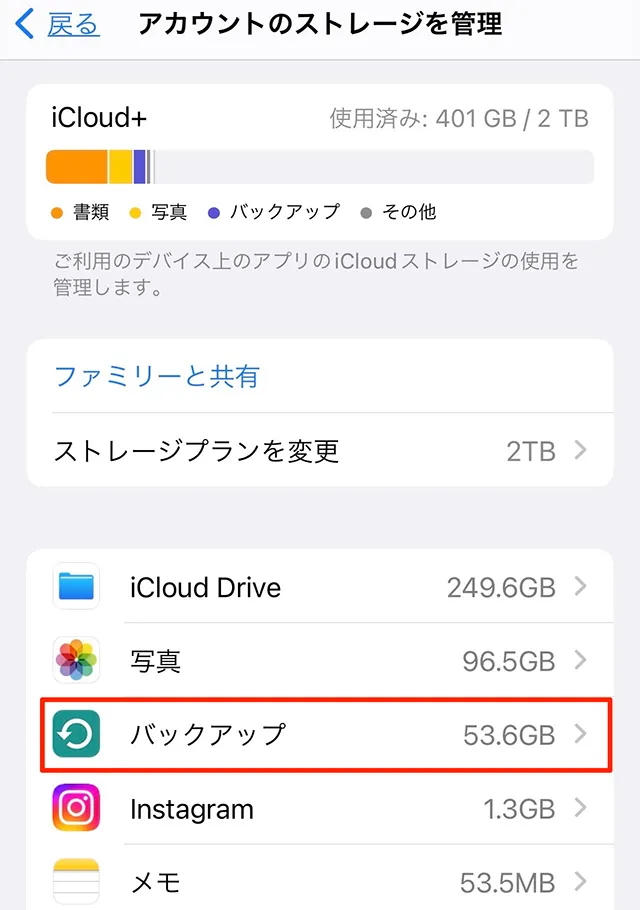
5. Tap "Change storage plan"
If your iPhone isn't connected to Wi-Fi, you won't be able to back up your data to iCloud, so make sure you're connected to Wi-Fi in the first place.
If you're connected to Wi-Fi but it's still not working, connecting to a different Wi-Fi network may help you back up your data.
If the backup does not proceed smoothly even when connected to Wi-Fi, it may be that slow or unstable internet connection is causing the backup to take a long time.
An error may also cause the message "The last backup was not completed."
If this happens, first make sure you're connected to Wi-Fi and try updating your iOS to the latest version.
If the problem persists, we recommend trying connecting to a different Wi-Fi network. For information on how to update iOS, please visit Apple's official website.
iCloud overwrites old backup data and always updates it to the latest version. However, sometimes this process doesn't work properly and errors occur.
In such cases, try deleting old backup data to see if you can perform the latest backup.
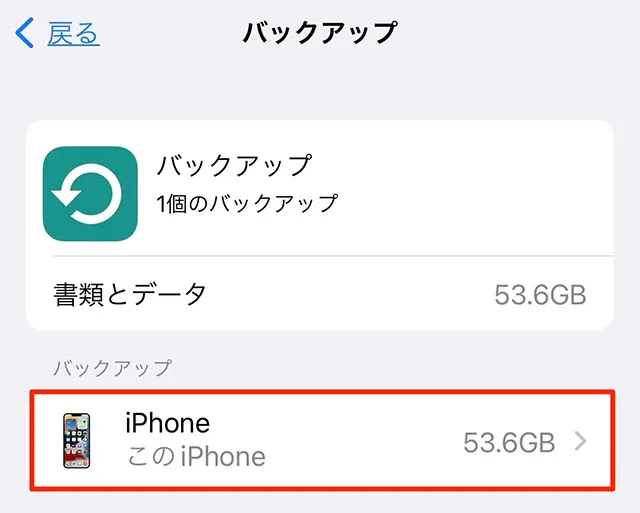
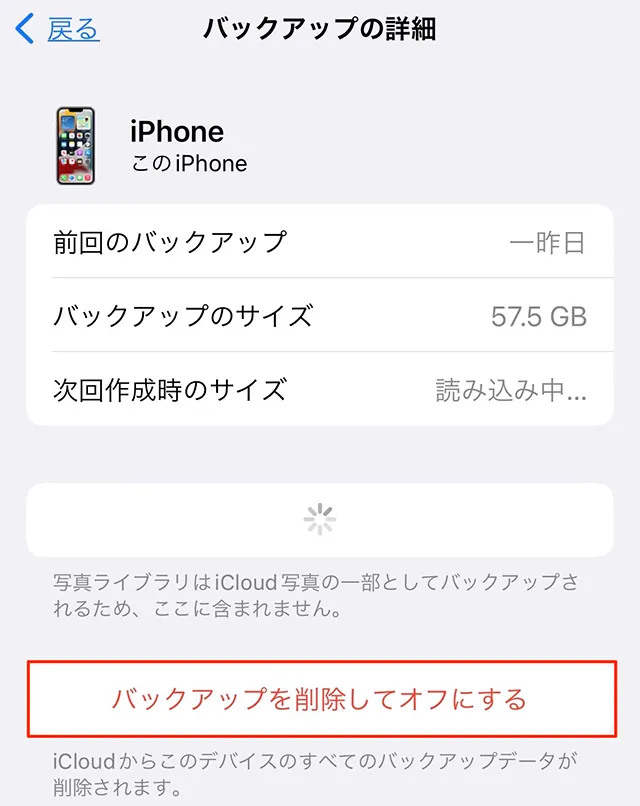
To delete old backup data, follow the steps below:
How to delete old backup data

Next, we will explain why you cannot back up your iPhone data to a computer with iTunes installed and how to deal with the problem.
(*iTunes can be used with macOS 10.14.6 or earlier, Windows 10, and Windows 11.)
When backing up with iTunes, you will need free space on your computer to store your iPhone data.
If you have a lot of data stored on your computer, such as videos, photos, and music, delete any unnecessary data.
Other effective ways to free up space include compressing file sizes, using an external hard drive, and cleaning up your disk.
If your iTunes or iOS version is outdated, you may not be able to back up properly.
Apple's official website also clearly states that "your Mac or Windows computer must be up to date" and "if you're using iTunes, make sure the latest version is installed."
1. Open iTunes and click "iTunes" from the menu bar at the top of the screen.
2. Check "About iTunes"
1. Open iTunes and click "Help" from the menu at the top of the screen.
2. Check "Version Information"
If you are using a Mac, updating your OS will automatically update iTunes.
1. If you don't have iTunes installed on your computer, install it from the Microsoft Store or Apple's official website.
2. If you have installed iTunes from the Microsoft Store, it will automatically update when a new version is released.
3. If you installed it from Apple's official website, you can update it by clicking "Help" in the menu bar at the top of iTunes and selecting "Check for Updates."
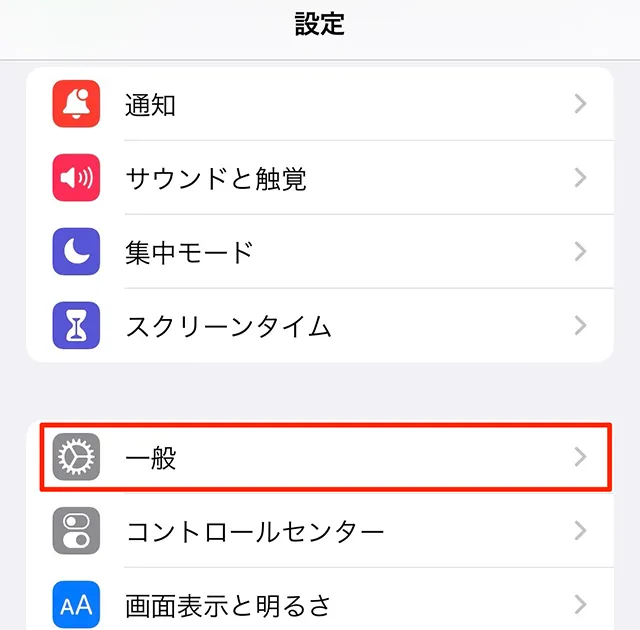
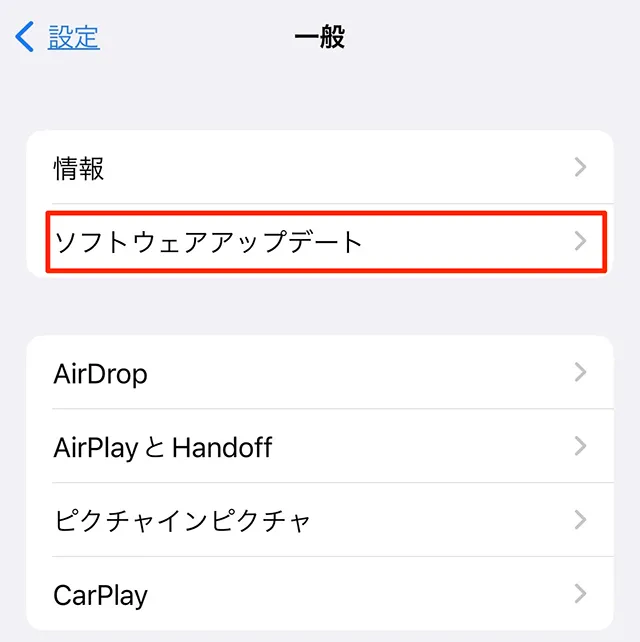
How to update iOS
If you don't see "Install now" or "Download and install," you're on the latest version. If you don't, update.
In rare cases, security software functions may interfere with backups.
Temporarily turn off your security software and then perform a backup.
To back up, you will need your Apple ID and password. Writing them down in advance will help you back up smoothly.
If you have forgotten your password and are unable to log in, please reset your password.
If you are considering transferring data between iPhones, "Quick Start" is convenient as it does not require iCloud or iTunes.
With Quick Start, you can wirelessly transfer data from your old device to your new one by simply lining up your iPhones and following the on-screen instructions on each device.
To begin the quick start, you will need to prepare the following three things on your old and new devices.
・iOS 12.4 or later
・ Charging the device (quick start may take several hours)
・ Turn on Bluetooth and Wi-Fi
To use Quick Start, both iPhones must be running iOS 12.4 or later.
If you are using a version earlier than iOS 12.4, please update before using Quick Start.
There are also a few things you need to be aware of, such as the fact that some apps require individual settings and that the destination iPhone must have sufficient storage space.
Please refer to the following article for information on how to perform a quick start and precautions to take.
reference: "Quick Start" is convenient for transferring data from your iPhone! Explaining the steps and points to note

In this article, we've introduced the reasons why you can't back up your iPhone and how to deal with the issue, separately for iCloud and iTunes.
If you are unable to back up, first try to find the cause, such as insufficient storage space, whether or not you are connected to Wi-Fi, or deleting old backups.
If you use this article to identify the cause and take action, you won't have any trouble backing up your data when it comes time for repairs or switching to a new model.
However, if you are unable to back up properly even after trying various solutions, it is possible that your iPhone or computer is malfunctioning.
In such cases, please contact Apple Support or the store where you purchased the computer.
When you switch to a new iPhone model, why not also consider reassessing your smartphone fees?
With povo2.0 (※1), au 's online-only brand, you can choose Topping that suit you and use them without waste.
povo2.0 is au 's online-only brand, and is a new fees plan that can be used from a basic fees 0 yen (※2) (※3) (※4) and allows you to freely customize the number of gigabytes and call Topping.
Now is the time to consider a new model, so please also consider povo2.0.
*1: All procedures and support are online. povo2.0 Please contact us through the application or official website. *2: Additional fees such as handling charges may apply. validity for 180 days or more, or if you have never purchased Topping for a fee, your usage may be suspended or your contract may be terminated. Please understand this in advance.
If you subscribe to 5 lines(*) under the same name, a contract administration fee of tax included 3,850 yen/line will be charged for the 6th line and thereafter. 3:Domestic calls to tax included cost 22 yen/30 seconds, and SMS sending to tax included costs 3.3 yen/text (up to 70 characters). Depending on the model, up to 670 two-byte characters can be sent; up to 134 characters are counted as two SMS messages, and thereafter two SMS messages will be charged for each 67 characters. Calling rates may differ for some calls, such as calls to satellite phones. For details, click here.
Reference:" povo2.0 Plan Details" (povo)
*4: If data Topping is not purchased, the maximum sending/receiving rate is 128 kbps. *The images are for illustrative purposes only.