When you reset your iPhone, all settings will be reset and all data such as apps, images, videos, and music will be erased. Many people would prefer not to reset their iPhone if possible, but if a problem occurs, it may be better to reset it.
This article provides detailed information on resetting your iPhone, including when resetting is necessary and what you should do before resetting. Note that the method for resetting your iPhone differs depending on the iOS version, so please check the iOS version you are using before reading this article.
The main reasons why you need to reset your iPhone are as follows:
If you use your iPhone for a long time, various problems such as slow performance and sudden power outages can easily occur, which can cause problems in your daily life and work. In such cases, resetting your iPhone may solve the problem.
However, if you experience any issues with your iPhone, try restarting it first, or uninstalling and reinstalling the app. If the issue persists, consider consulting Apple Support or a repair specialist.
If you are changing your model or trading in your old iPhone and want to give it away or sell it, be sure to initialize it beforehand. Your iPhone contains contact information, photos, credit cards, and other information about your friends, acquaintances, and family. Therefore, if you give it away or sell it without initializing it, you could be at risk of having your personal information leaked or becoming involved in crime.
If you reset your iPhone, all personal information will be erased, so you can sell or give it away with peace of mind.

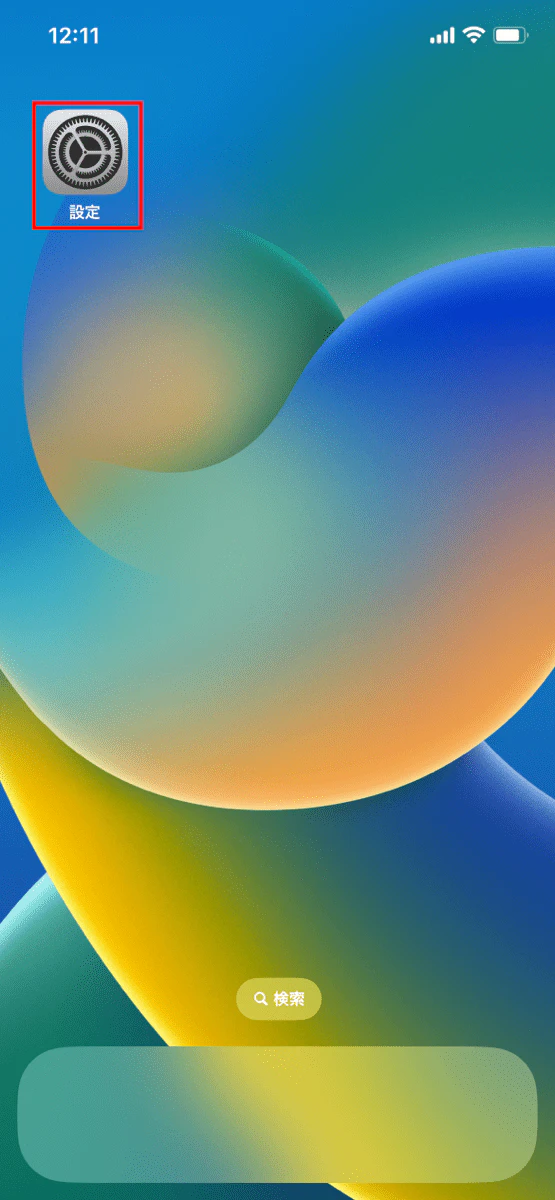
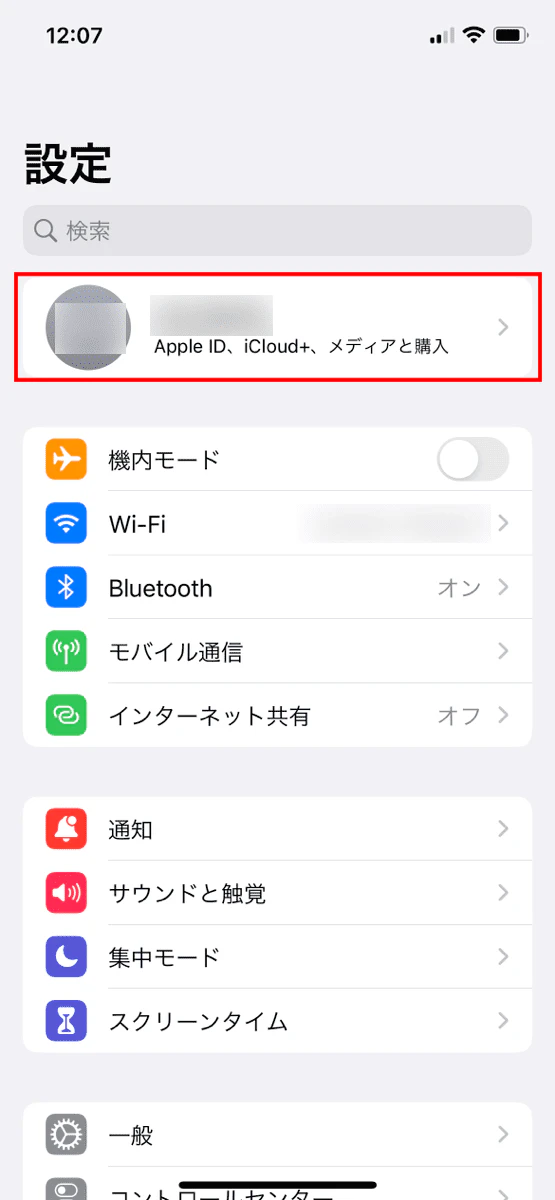
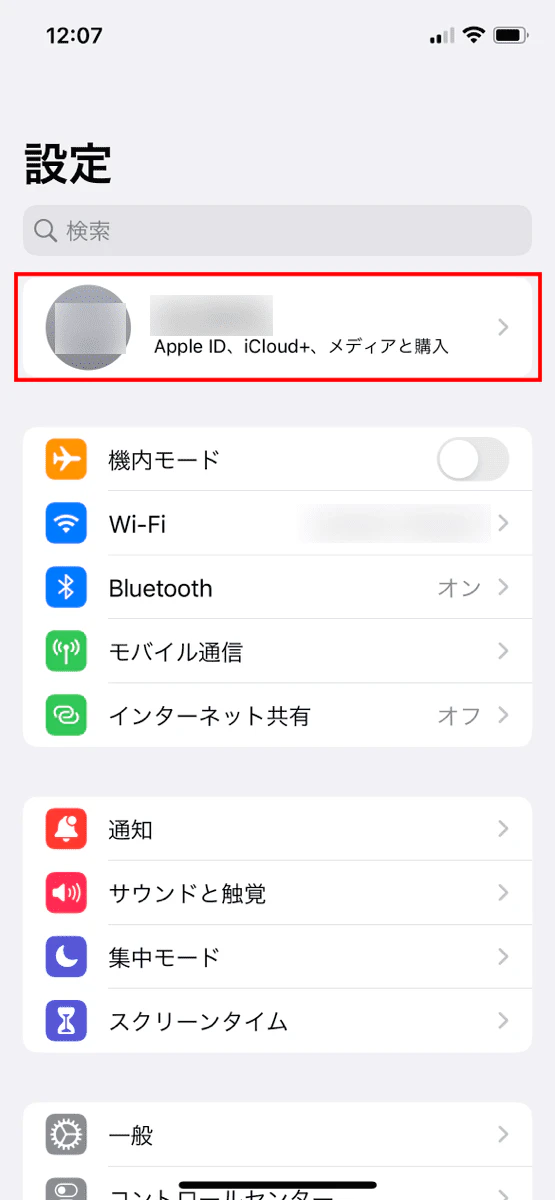
You will need an Apple ID to reset your iPhone. You can find your Apple ID by tapping "Username (your name)" at the top of "Settings." You will also need to complete the following preparations before resetting your iPhone:
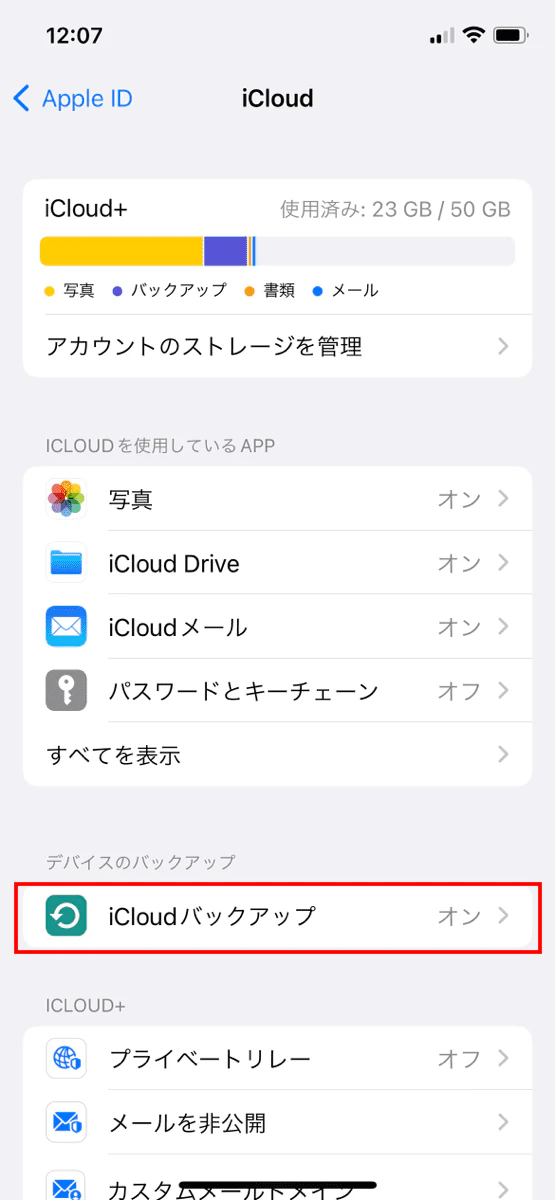
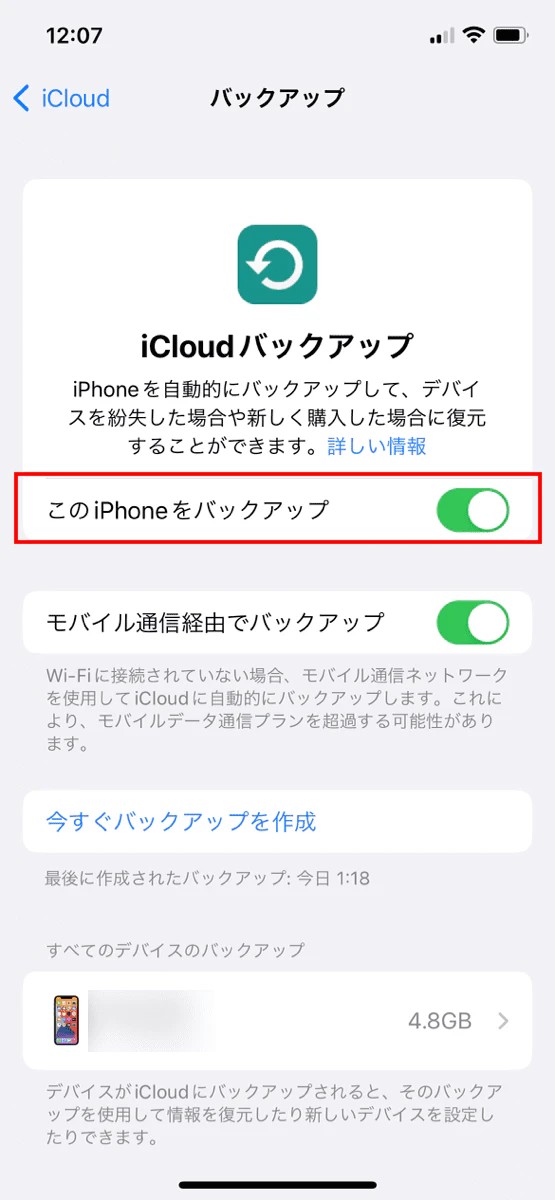
・Back up data on your iPhone with iCloud
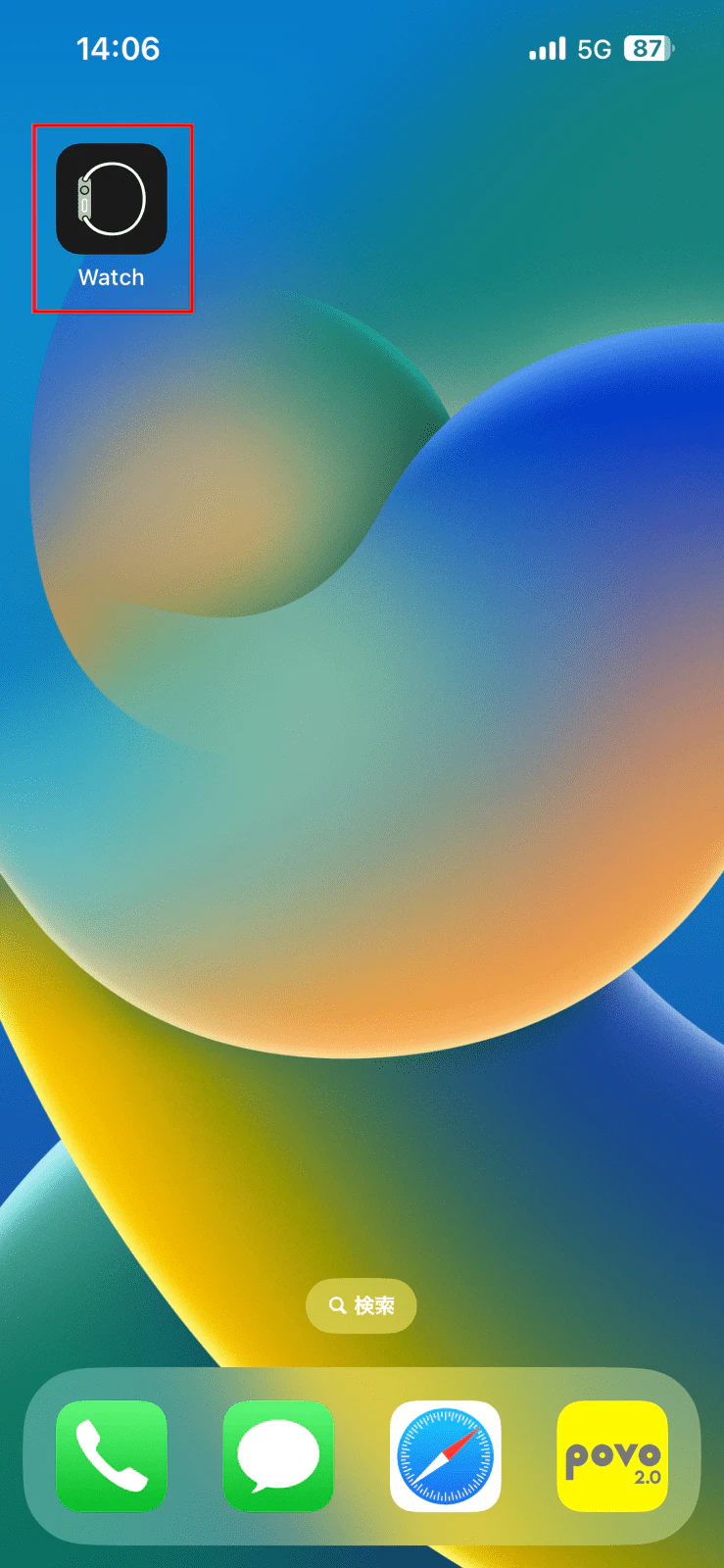
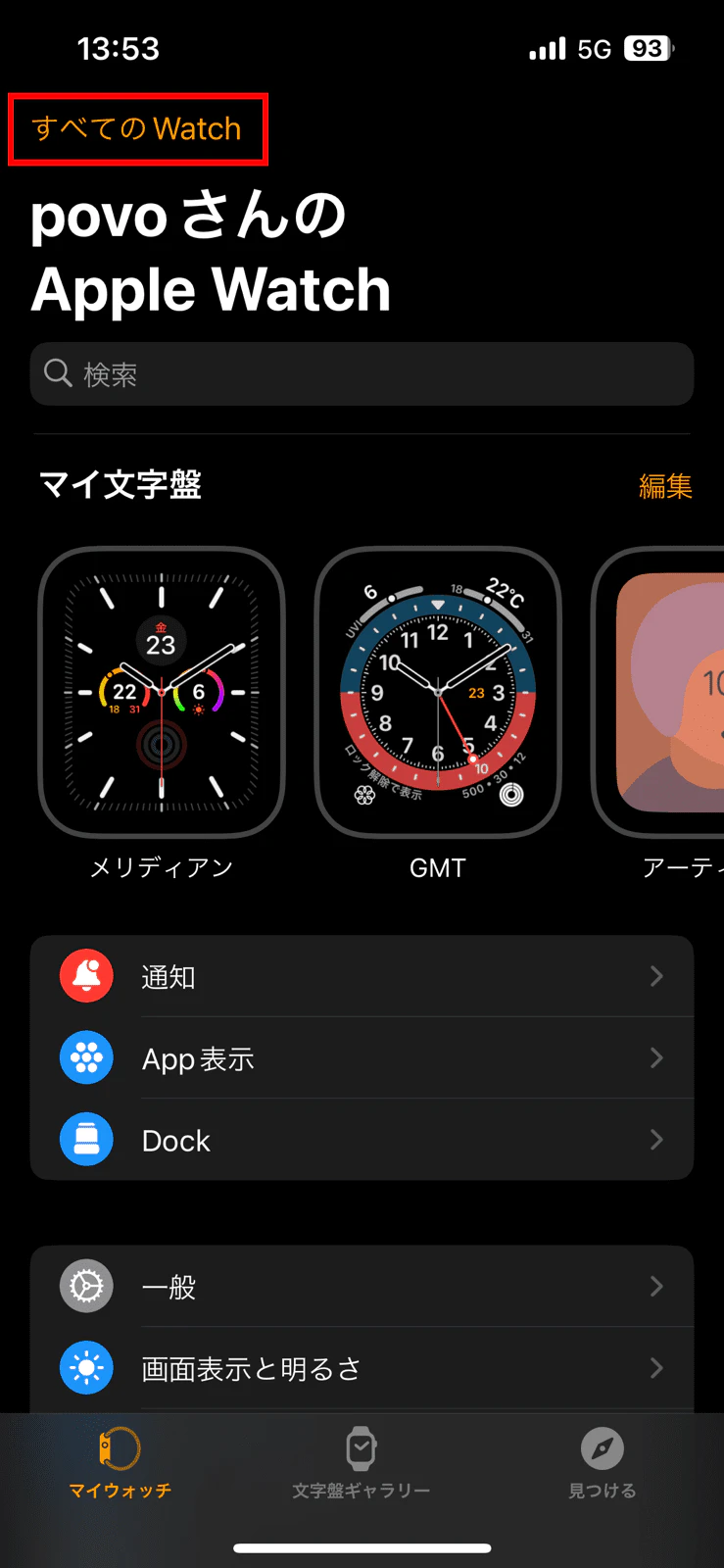
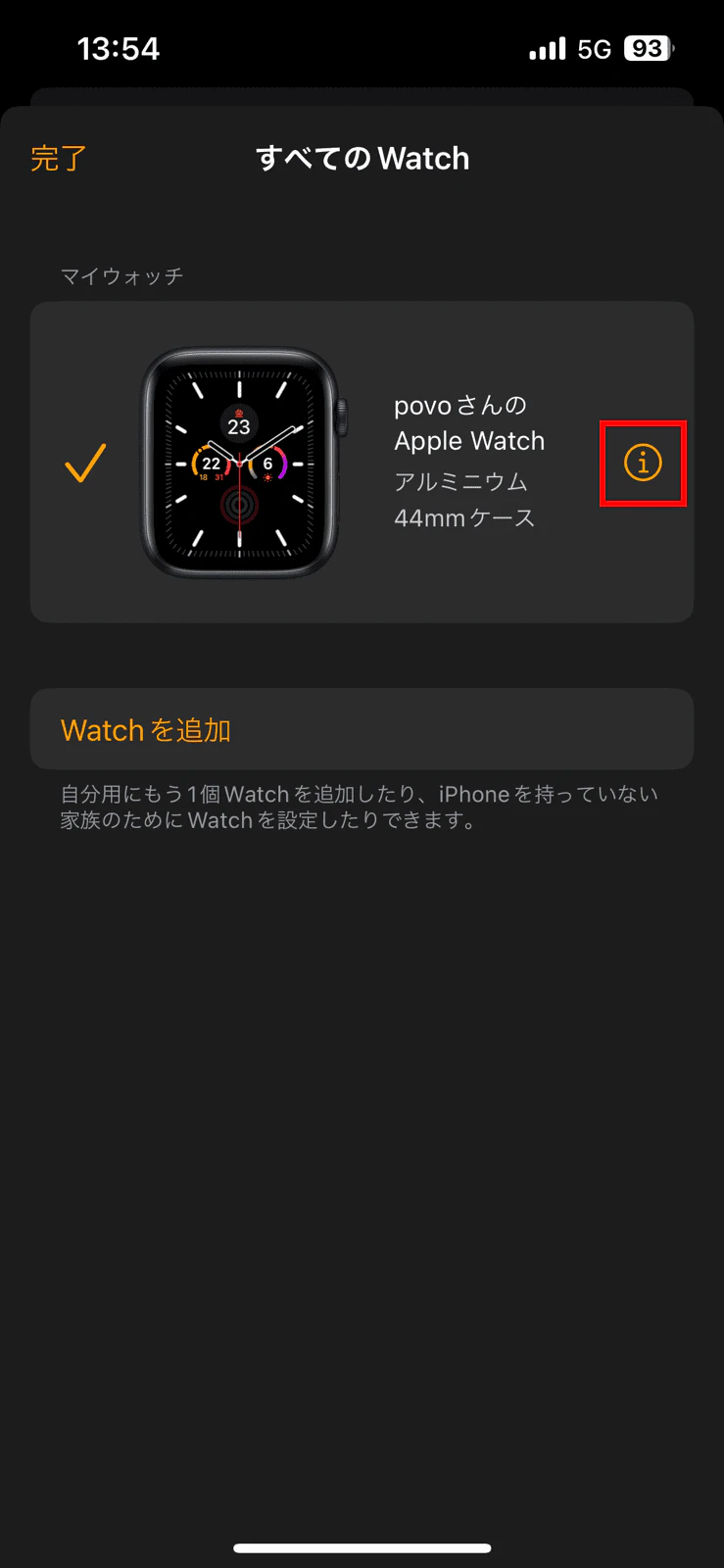
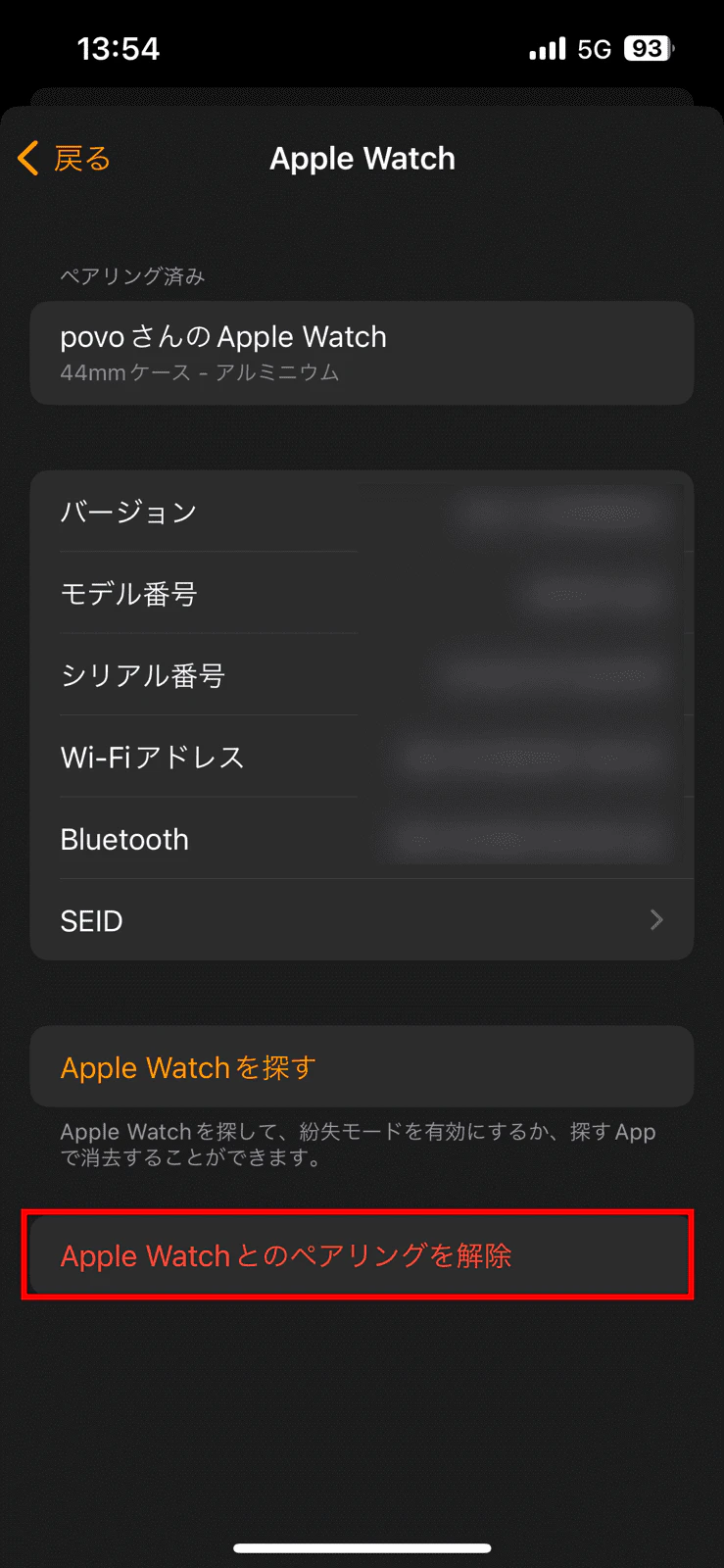
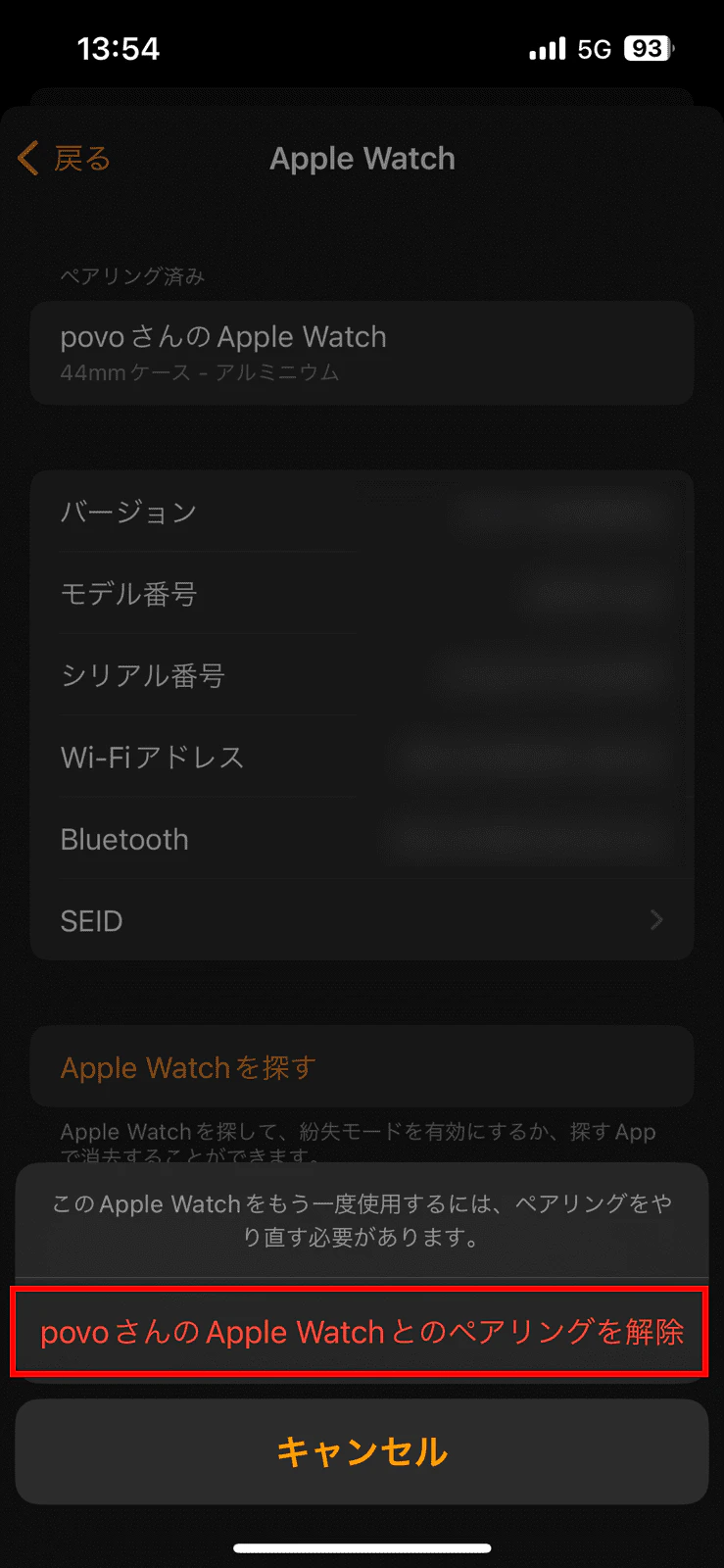
・Unpair your Apple Watch
・Delete Suica/PASMO registered to Apple Pay
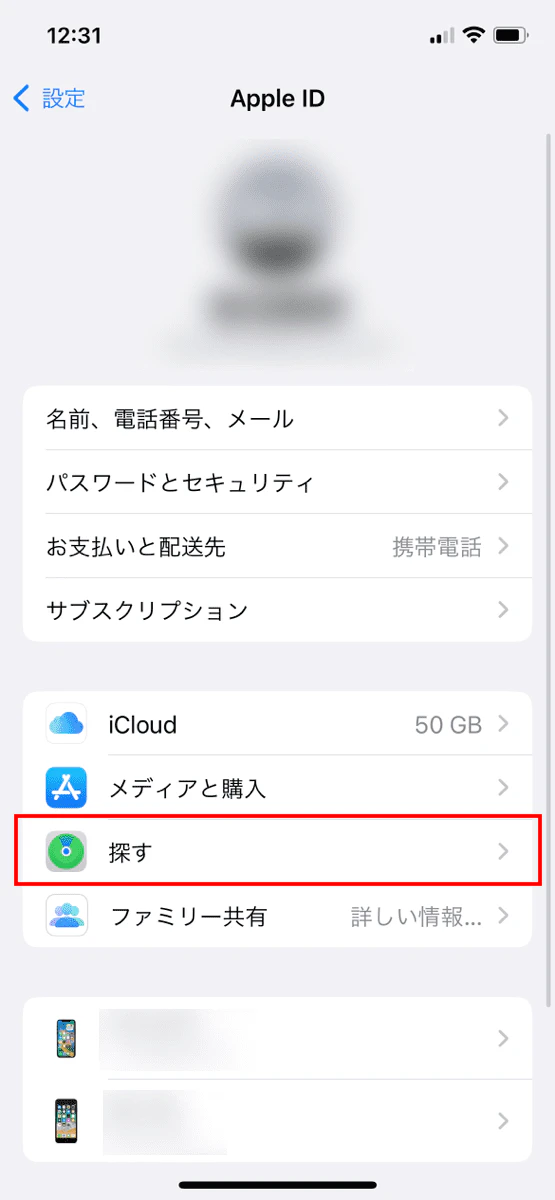
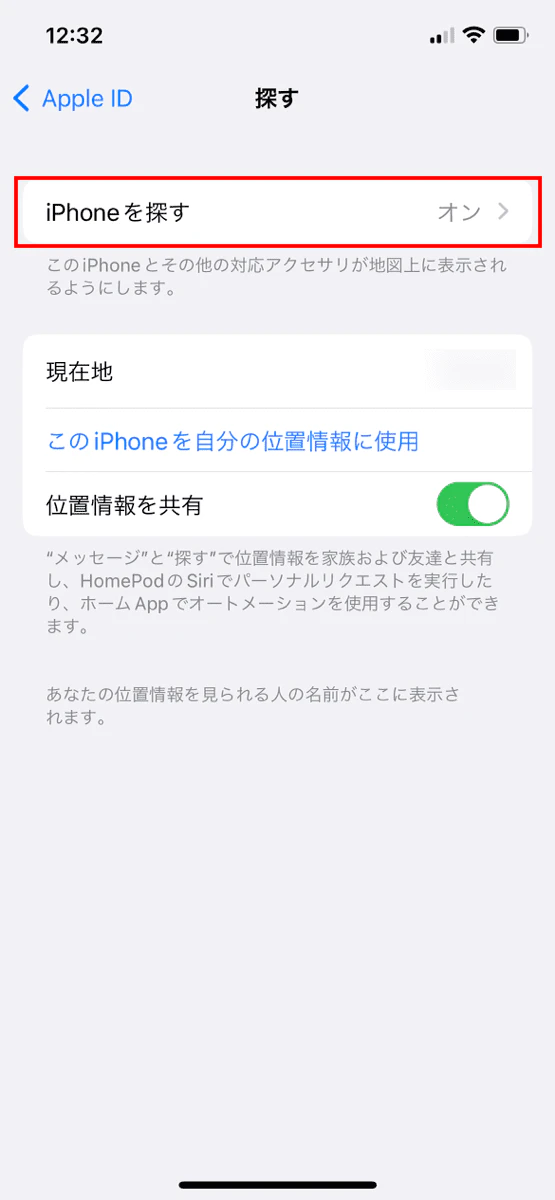
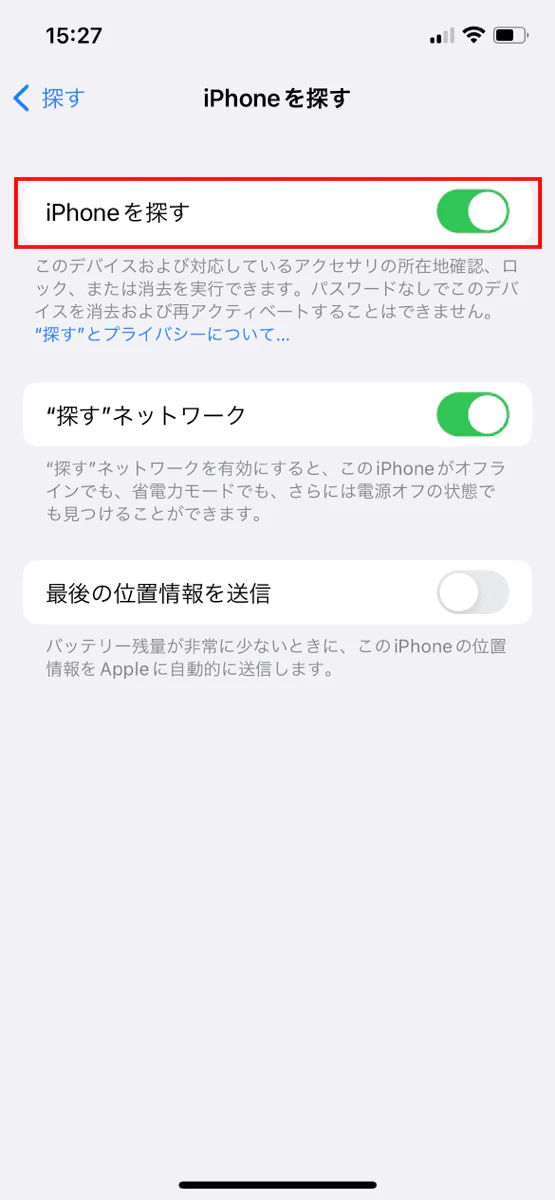
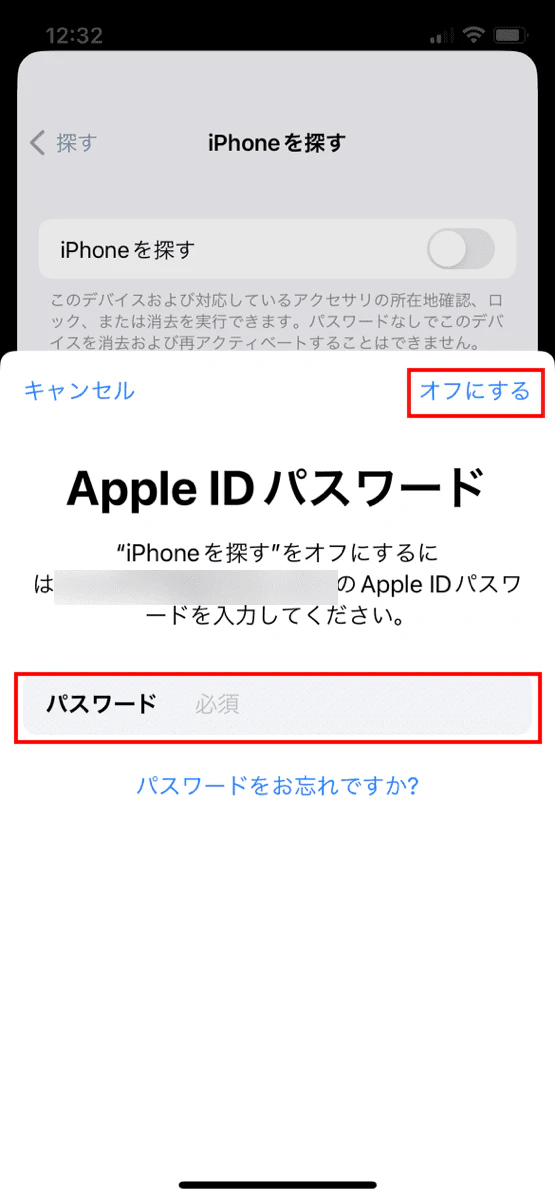
・Turn off "Find My iPhone"
Below we will explain each step and some points to note.
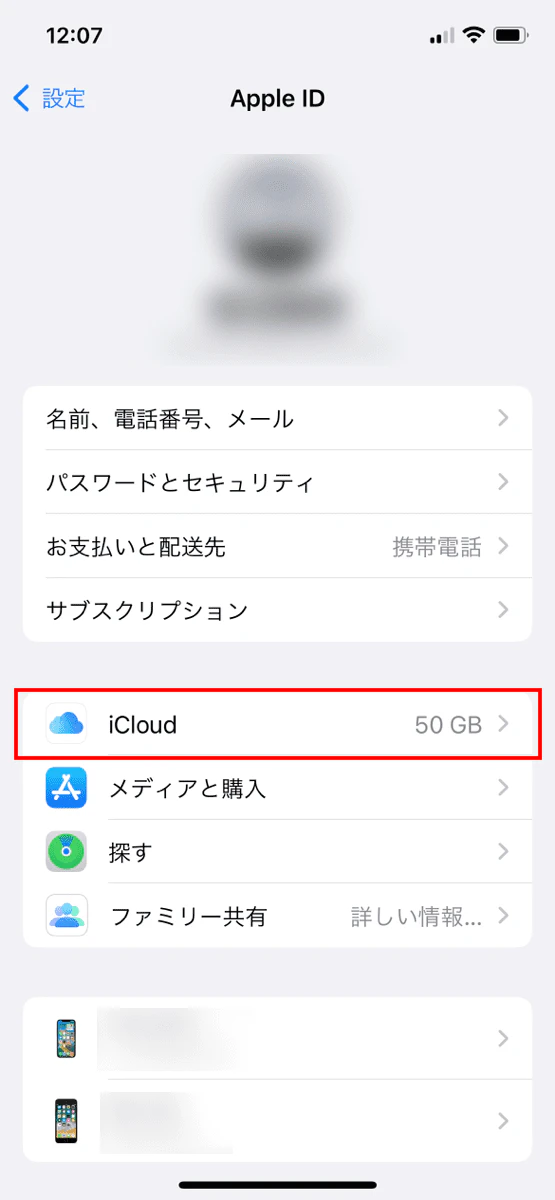
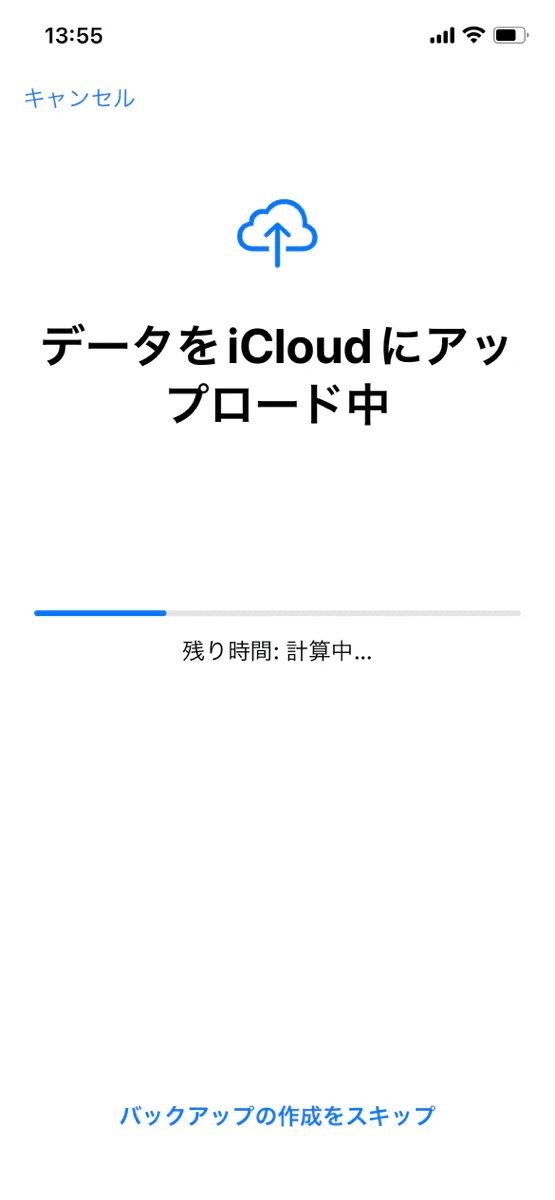
When resetting your iPhone, be sure to back up your data. Creating a backup will make it easier to restore data after resetting or transfer data to a new model.
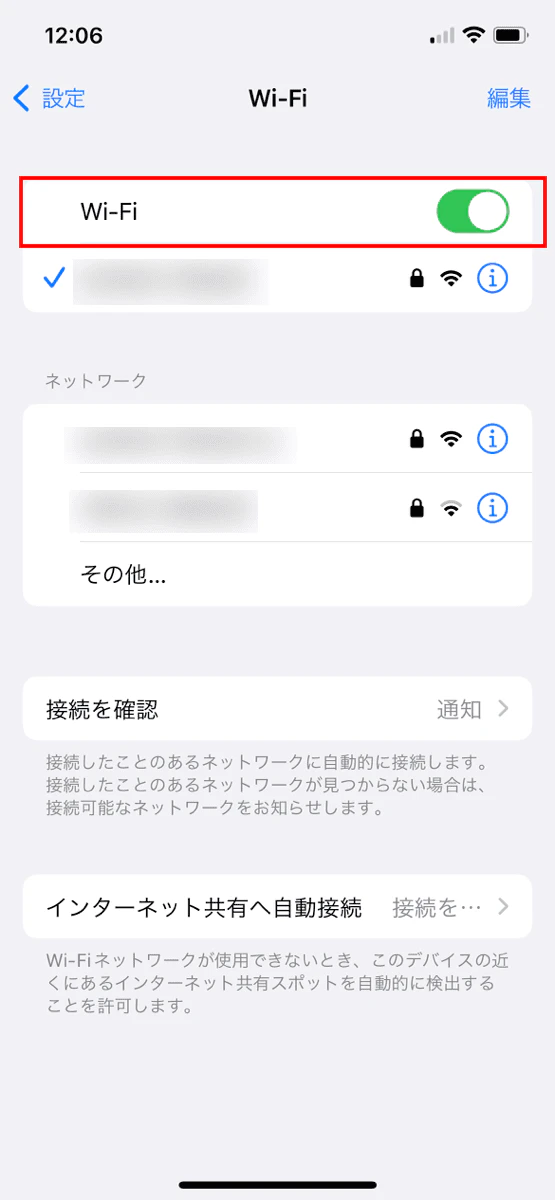
If you use iCloud, you can back up your iPhone alone. The steps for creating a backup and restoring/transferring data are as follows:
1. Turn on your reset or new iPhone
2. Follow the instructions until you reach the "Apps & Data" screen.
3. Tap "Restore from iCloud Backup"
4. Sign in to iCloud with your Apple ID
5. Select Data Backup
6. Follow the on-screen instructions to restore your apps and purchased content.
7. A progress bar will appear, so wait until it is complete
If you are resetting your iPhone because you are changing your model, be sure to unpair your Apple Watch beforehand. To use your Apple Watch with your new iPhone after resetting, you must first unpair it from your current iPhone.
The steps to unpair are as follows:

If your iPhone supports Apple Pay, you can issue and register a transportation card. However, each transportation card can only be registered to one device. If you change your phone model and want to register a transportation card on your new iPhone, you must first delete the transportation card you are currently using from Apple Pay.
Please note that the procedure for deleting a transportation IC card differs depending on whether it is registered to an iPhone or Apple Watch.
1. Tap "Settings"
2. Tap "Wallet & Apple Pay"
3. Tap the Suica card registered in "Payment Cards"
4. Tap "Delete this card"
1. Place your iPhone and Apple Watch close together
2. Launch the "Watch" app on your iPhone
3. Tap "My Watch"
4. Tap "Wallet & Apple Pay"
5. Tap the Suica card registered in "Payment Cards"
6. Tap "Delete this card"
If you are selling or giving away your iPhone, make sure to turn off Find My iPhone before initializing it, otherwise the person you are selling it to may not be able to use it.
To turn off Find My iPhone, follow these steps:
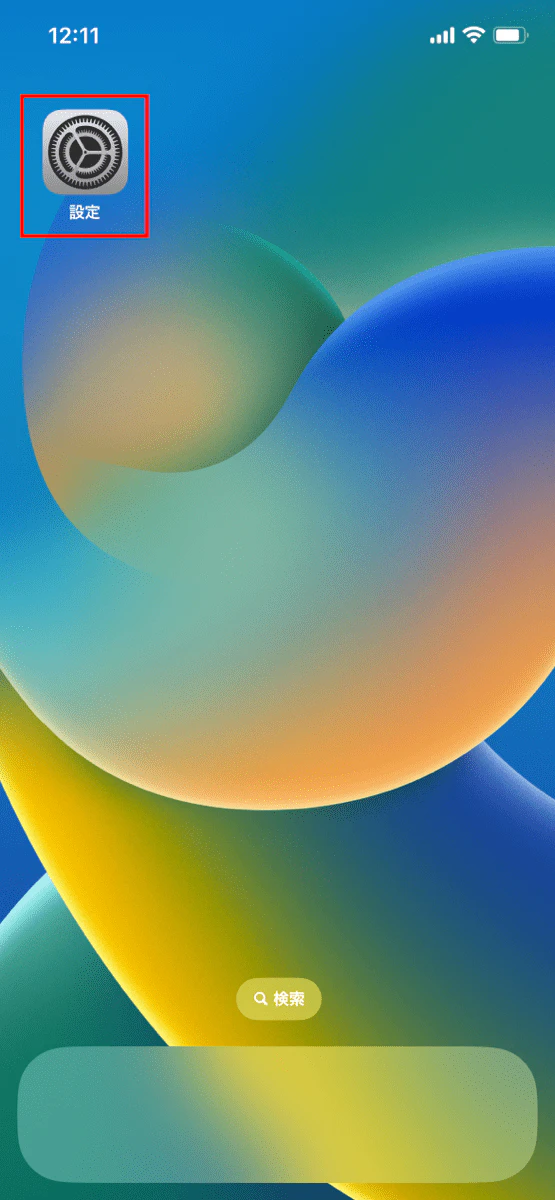
The method for resetting your iPhone varies depending on the version of iOS.
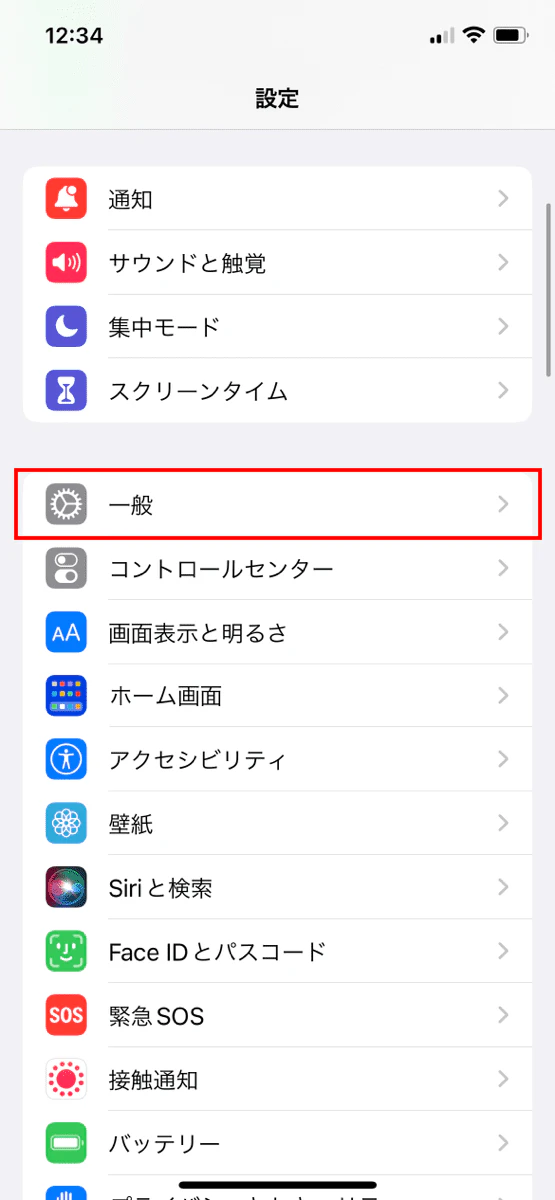
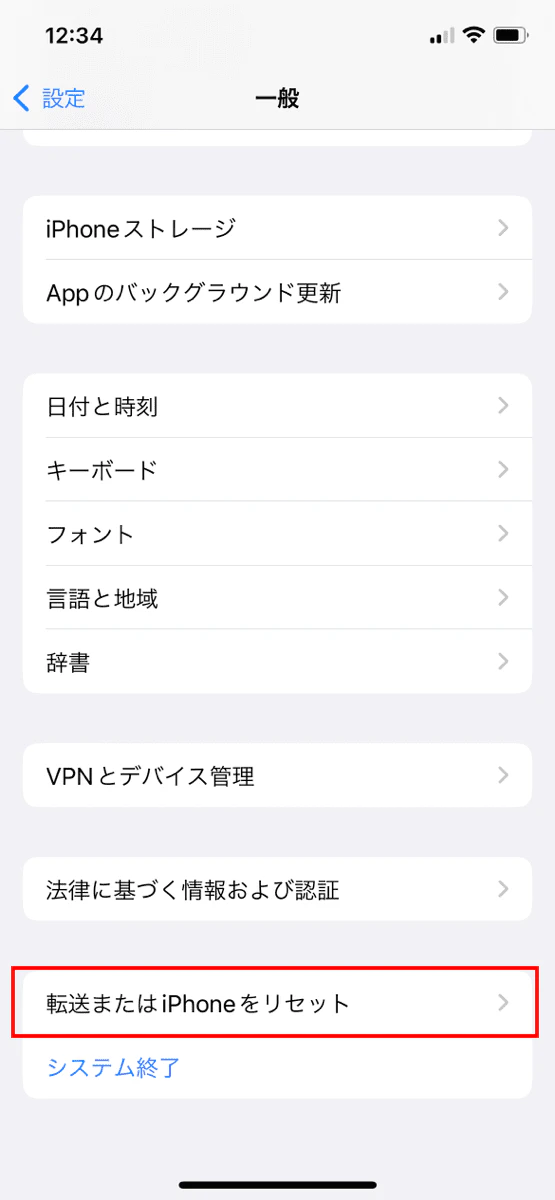
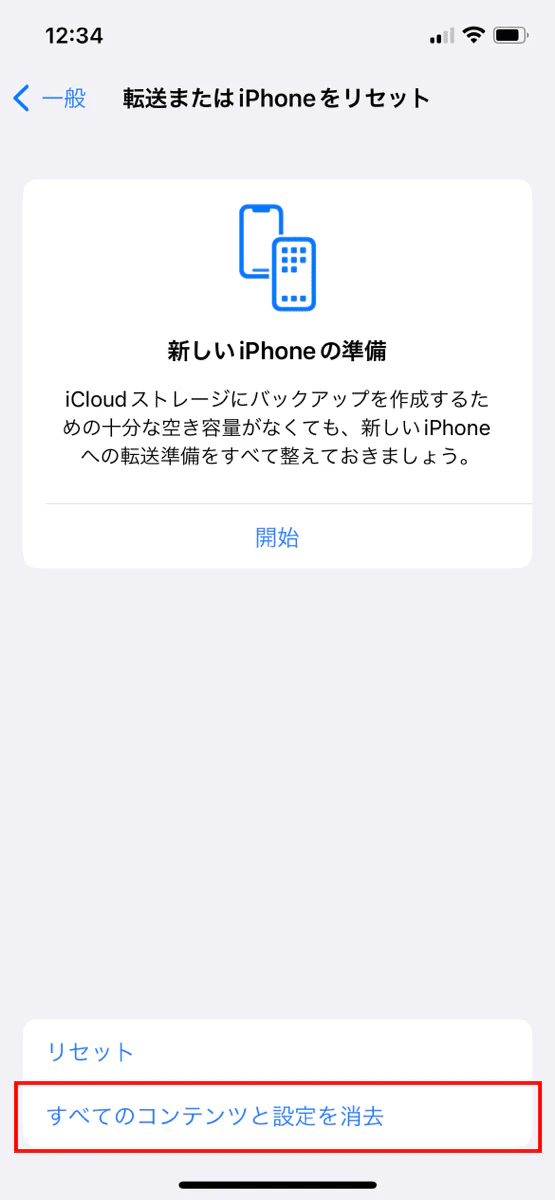
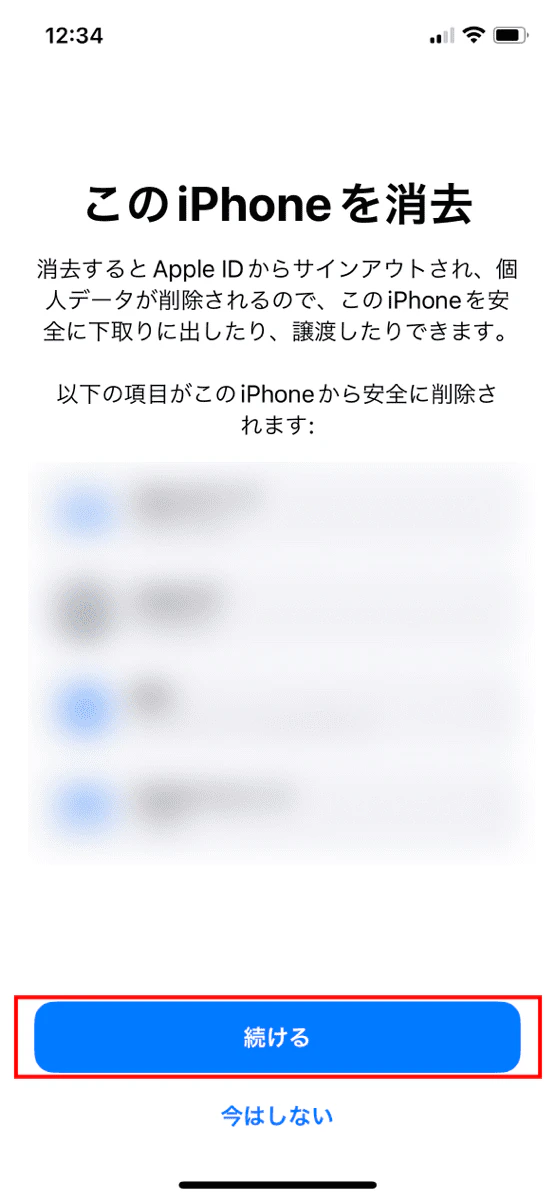
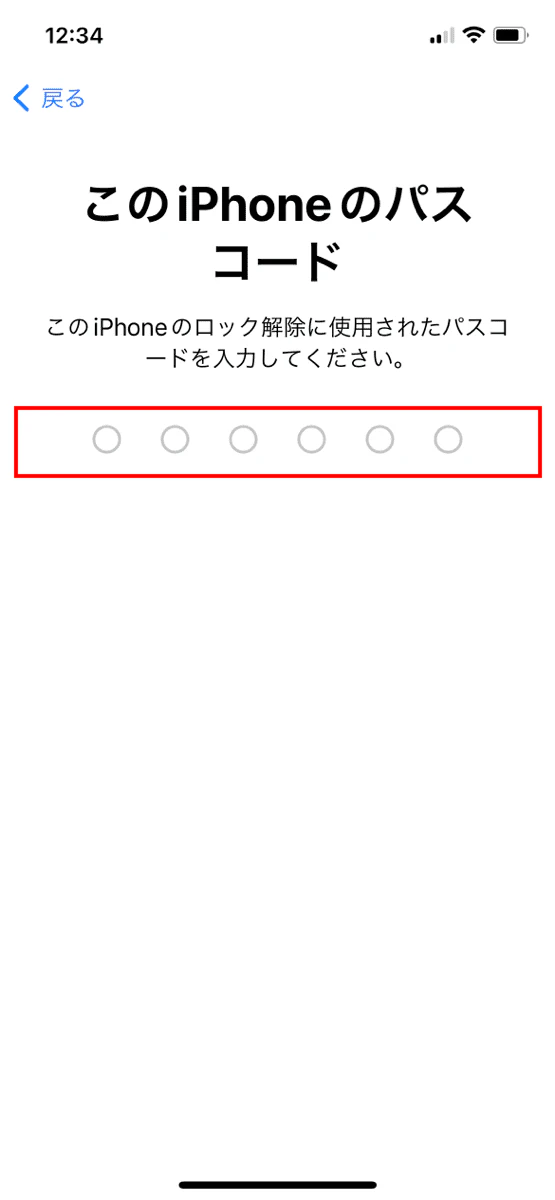
The steps to initialize your device for iOS 15 or later are as follows:
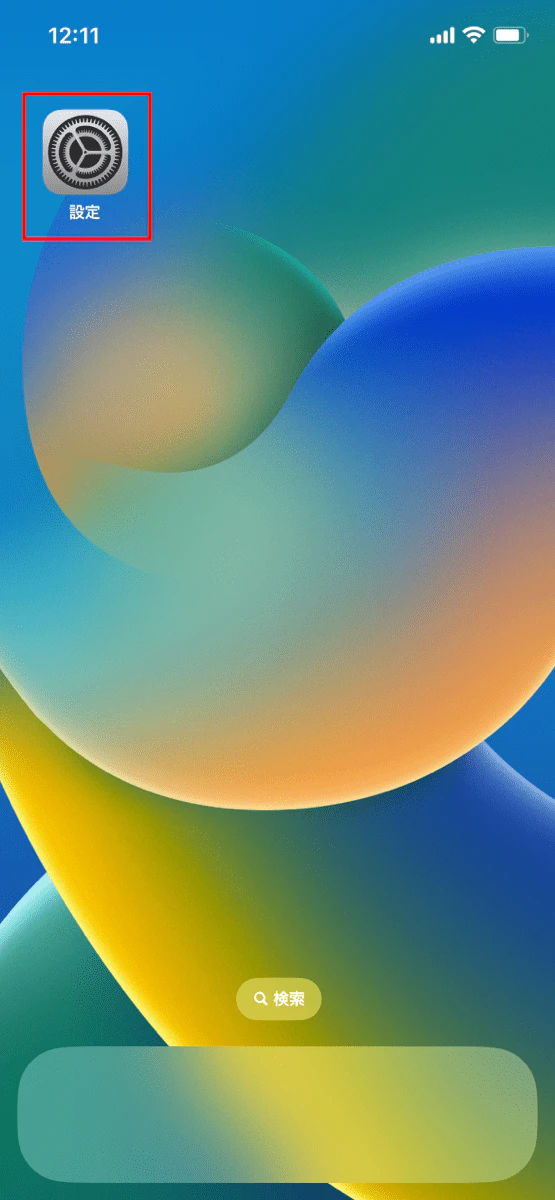
The steps to initialize your device if you are using iOS 14 or earlier are as follows:
1. Tap "Settings" on the home screen
2. Tap "General"
3. Tap "Reset"
4. Tap "Erase all content and settings"
5. Tap "Erase after uploading" or "Erase now." This screen may not appear depending on your iPhone settings.
6. Enter your iPhone passcode. If you have not set a passcode, this entry screen will not appear.
7. If you tap "Erase after uploading is complete", wait until the upload is complete.
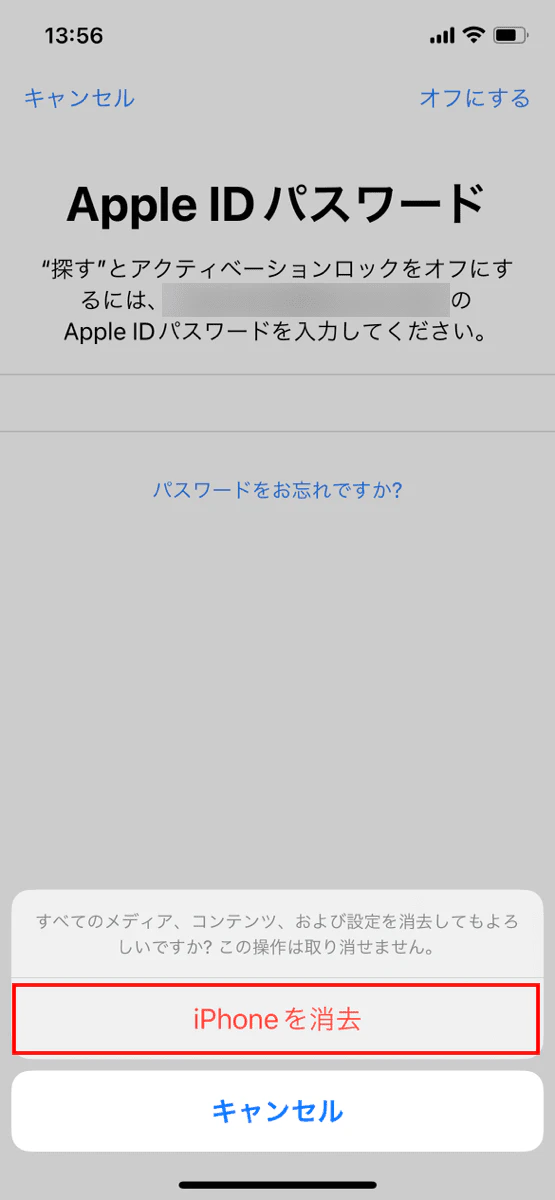
8. Tap "Erase iPhone." The Apple logo will appear when the initialization process begins, so wait until the process is complete.
If you are using an eSIM, a different screen will be displayed.
To delete the eSIM, tap "Erase everything." To continue using it, tap "Erase everything except for the mobile plan." 9. When the "Hello" screen appears, the initialization is complete.
If you don't have your iPhone with you or you have forgotten your iPhone passcode, you can reset it using the method described below.
You can force reset your device from your computer or smartphone by using the "Find My iPhone" feature in the browser version of iCloud.
This method can be performed even if you do not have your iPhone with you, but the "Find My iPhone" setting on your iPhone must be turned on.
Follow the steps below to perform a forced reset using iCloud.
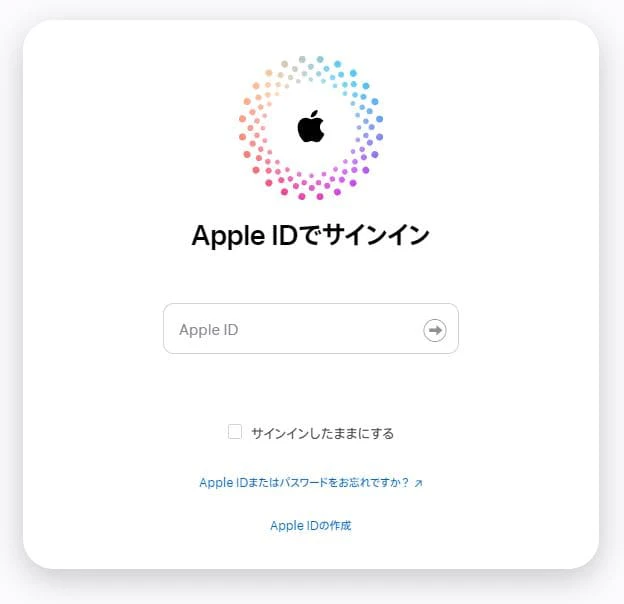
If you have iTunes installed on your computer, you can force a reset. This method can be performed even if you don't know your iPhone's passcode.
Follow the steps below to perform a forced initialization using iTunes.
1. Turn off the iPhone you want to reset
2. Launch iTunes on your computer
3. Start recovery mode on your iPhone (for iPhone 8 or later, hold down the power button and connect your iPhone to your computer).
4. When the recovery mode screen appears on your computer, release the power button on your iPhone.
5. Click "Restore" on your computer
If you are unable to initialize your device after trying the above methods, we recommend taking it to your nearest Apple store or contacting official support via chat or phone.
If you try to initialize your device without thinking, it may actually make the situation worse, so if you are unsure, please contact support.
So far we've explained how to reset your iPhone, but why not use this opportunity to reassess your communication fees? For those who want to reduce their monthly communication fees even a little, we recommend "povo2.0 (※1)" provided by KDDI. "povo2.0" is an online-only brand that has a basic fee of 0 yen (※2) (※3) (※4) and allows you to add paid Topping only for the services you want to use. Paid Topping are free to be added, and you can use only the services you need each time without waste, making it easy to keep your monthly fees down.
*1: All procedures and support are online. povo2.0 Please contact us through the application or the official website. *2: 5 lines under the same name (*) After the cumulative 6th line, tax included 3,850 yen/line contract administration fee will be charged. If there is no paid Topping purchase, etc. for 180 days or more, the use of the service may be suspended or the contract may be cancelled.
*Includes lines that have been terminated or cancelled by the Company within the past year.
Reference: "povo2.0 Plan Details" (povo)
3: For Data Only, initial Topping purchase is required at the time of contract. Calls+Data For domestic calls: tax included 22 yen/30 seconds Some calling charges may differ, such as calls to satellite phones. For more information The company will charge a specified rate for calls to the following numbers. In addition, designated call charges will apply to phone numbers set by other companies to fees. Sending domestic SMS: tax included 3.3 yen/text (up to 70 characters) Receiving: Free Up to 670 full-width characters can be sent depending on the model. However, up to 134 characters will be charged for two SMS, and after that, one SMS will be charged for every 67 characters. *4: When 0 yen and 0 GB, the maximum sending/receiving speed is 128 kbps.
The features of povo2.0 are summarized below.
povo2.0 has been tested on a wide range of devices and is compatible with many iPhones. For details on compatible devices, please see below.
Compatible models and devices | au line smartphone plan starting from zero basic fee [Official] povo2.0
povo2.0 offers a smartphone buying service called "Smartphone Gigatrade."
Smartphone Gigatrade is a service that allows you to sell your old iPhone and receive data capacity (gigabytes) that can be used with povo2.0 according to the trade-in price. Please try using it as much as possible.
Smartphone Gigatrade | au line smartphone plan starting from zero basic fee [Official] povo2.0
povo2.0 allows you to use au 's 4G LTE network. 4G LTE coverage is 99.9% (*5), covering a wide area nationwide, so you can use it without any hassle, even on subways or in large commercial facilities.
In addition, 5G lines will also be available within the applicable areas, allowing you to enjoy a comfortable internet environment.
*5: "Population coverage rate" is calculated based on areas where communication is possible in 50% or more of the approximately 500m sections used in the national census.
This information is current as of the end of December 2020. Content is subject to change. Compatible models are 4G LTE (800MHz) compatible.
Resetting your iPhone will erase all settings and data, but it may resolve issues such as slow performance. It's also important to reset your iPhone if you're selling or giving away your device to prevent any issues.
The initialization process itself is not that difficult, but please make sure to back up your data beforehand. Also, when initializing your iPhone, keep in mind that you cannot cancel the process once it is complete.
*The names of products and services mentioned in this article are trademarks or registered trademarks of the respective companies. *Apple, Apple Pay, Apple Watch, iPhone, and iTunes are trademarks of Apple Inc., registered in the U.S. and other countries.
The iPhone and iCloud trademarks are used under license from Aiphone Co., Ltd.
TM and (C) 2023 Apple Inc. All rights reserved. " au" is a registered trademark of KDDI Corporation. "Wi-Fi" is a registered trademark of the Wi-Fi Alliance. The iOS trademark is used under license from Cisco in the U.S.