Tethering is useful when you want to use the internet on a computer or other device in a place where there is no Wi-Fi environment. It allows you to use the internet on your computer or other device using your smartphone's network. In this article, we will check how to connect when using tethering with an iPhone and what to do if you cannot connect.

Tethering is a feature that uses your smartphone as an access point to connect devices such as tablets, game consoles, and laptops to the Internet while you're out and about (*1). Tethering allows you to connect to the Internet even on devices that don't have a contract (such as a tablet without a SIM card). Furthermore, when you want to use the Internet from your computer while you're out and about, there may be times when you don't have a Wi-Fi router or can't find public Wi-Fi. In these situations, you can still connect to the Internet even in environments without Wi-Fi by tethering from your smartphone.
There are three types of tethering (*1). We have summarized their features below.
*1: Reference: "Tethering Options" (au)
*2: au conducted a survey on current consumption when no packet communication is taking place. This may vary depending on the communication environment, communication conditions, model, etc.
*3: Both the smartphone and device must be equipped with the Bluetooth® PAN (Personal Area Network) profile, with the smartphone supporting NAP (Network Access Point) and the device supporting PANU (Personal Area Network User). Smartphones released after 2015 support the PAN-NAP profile. If you are unable to use this and have never updated your OS, please try again after updating.
*4: Depending on the model, USB power supply may not be possible. A USB driver must be installed on the device, such as a laptop. Please check the manufacturer's website for the device you are using.
Tethering can also be used on an iPhone. The steps for use are summarized below, so please refer to them when trying it out. The steps are also summarized on the Apple website (*5). Please check these and try connecting. However, tethering is referred to as "Internet Sharing" on the iPhone's operation screen (excluding the iPhone 4s) and in the explanations on the Apple website. Please be careful when reading the explanations.
Additionally, some carriers offer tethering as an option. You may not be able to use it unless you apply for and pay fees. This varies depending on the carrier and plan, so be sure to check the website of your carrier.
Launch the "Settings" app on your home screen.
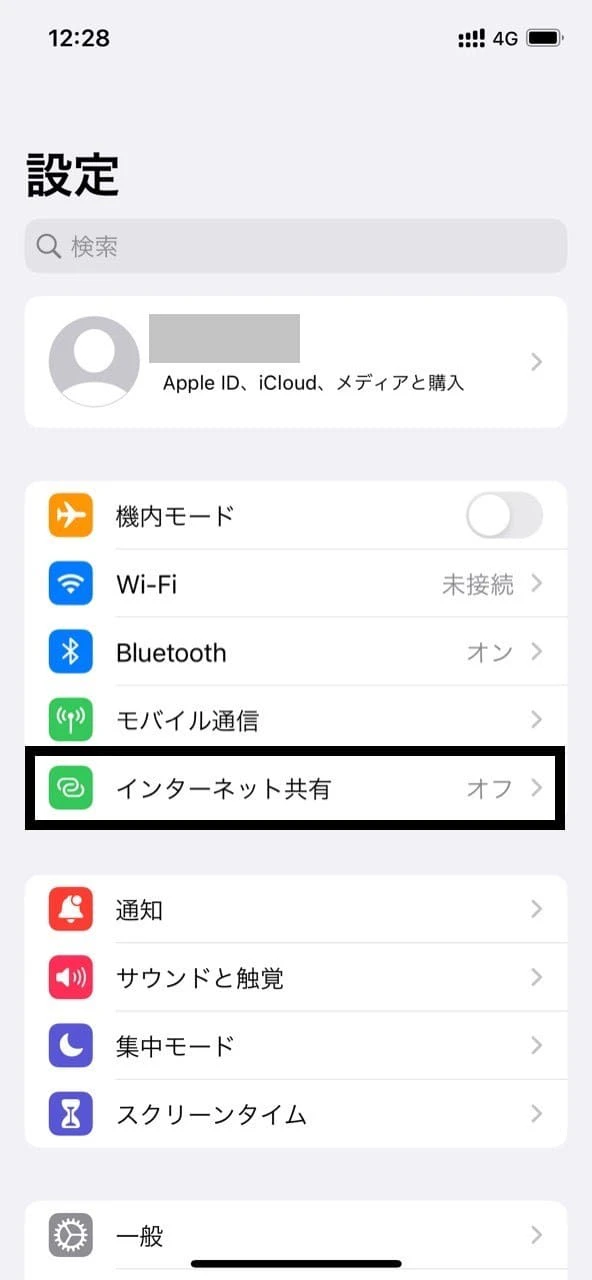
In some cases, you can go directly to "Personal Sharing" from "Settings," while in other cases you may need to go to "Settings," then "Mobile Data," and then to "Personal Sharing." If the "Personal Sharing" options screen does not appear, your contract may not allow tethering. Please contact your carrier for assistance.
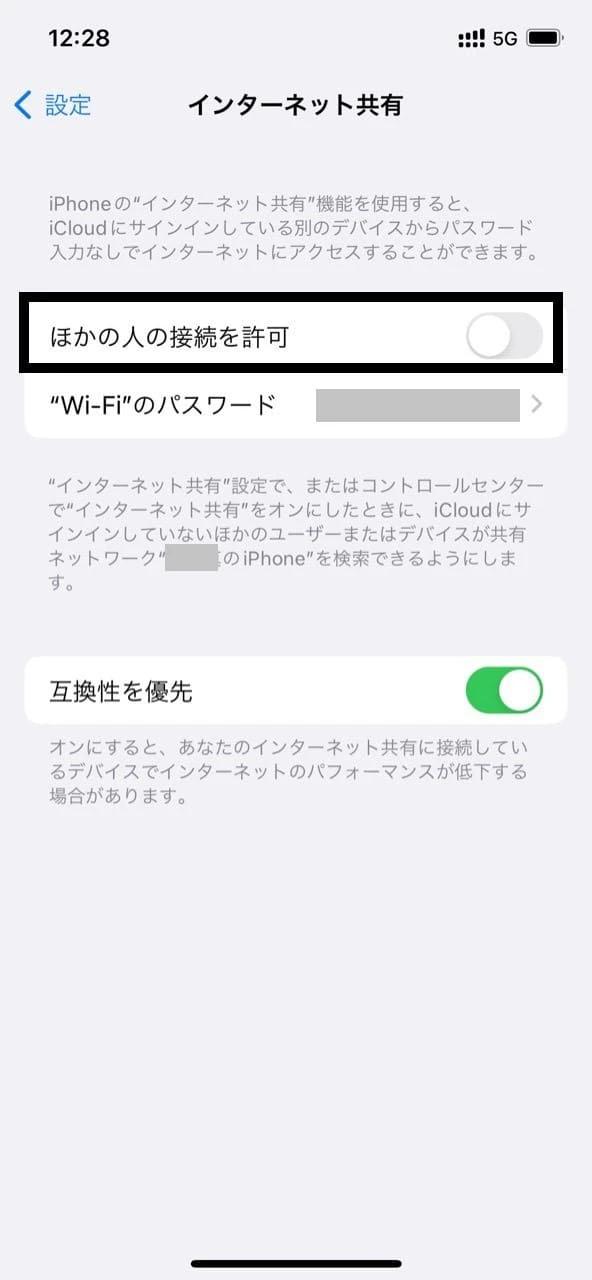
Tap the slider to the right of "Allow other people to connect" to set it to blue, on.
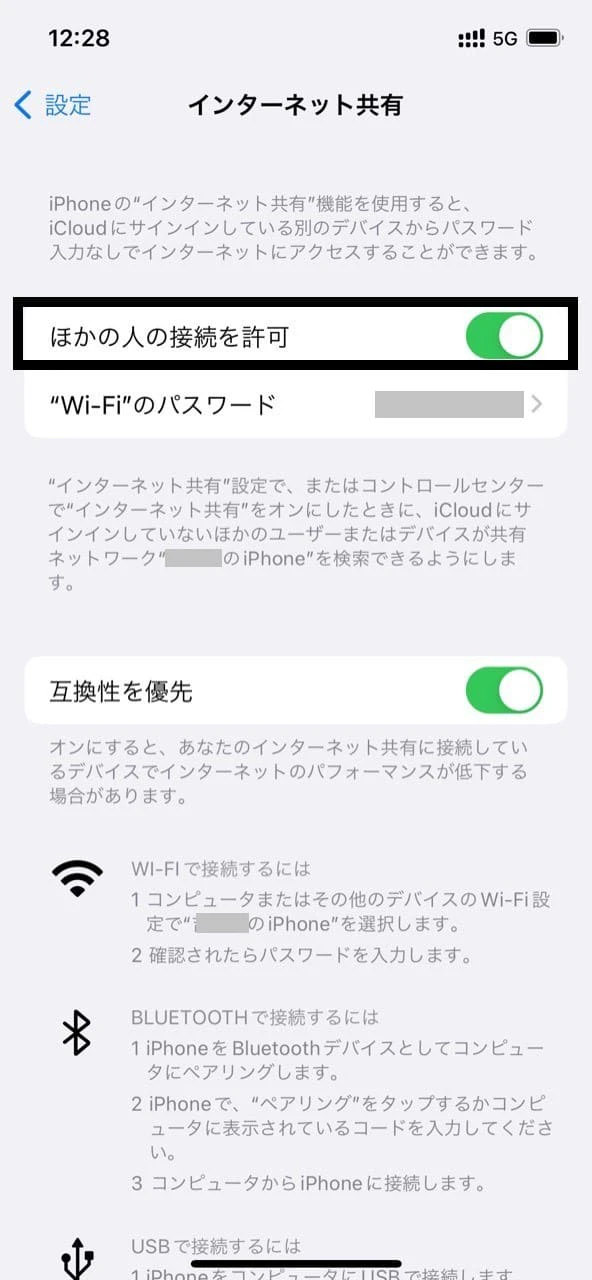
If the setting is already on, it will not be displayed.
Next, let's configure the device you want to connect to the Internet via tethering. As mentioned above, there are three types of tethering. Since the connection methods are different, we will go through the steps for each. There will also be differences in the detailed connection methods and notations depending on the device. We recommend that you refer to the device manufacturer's website when configuring the connection.
When using Wi-Fi tethering, you need to check the "network name" (SSID) and "password" (encryption key) on your iPhone and enter them on the device you want to connect to.
Open "Personal Sharing" on your iPhone.
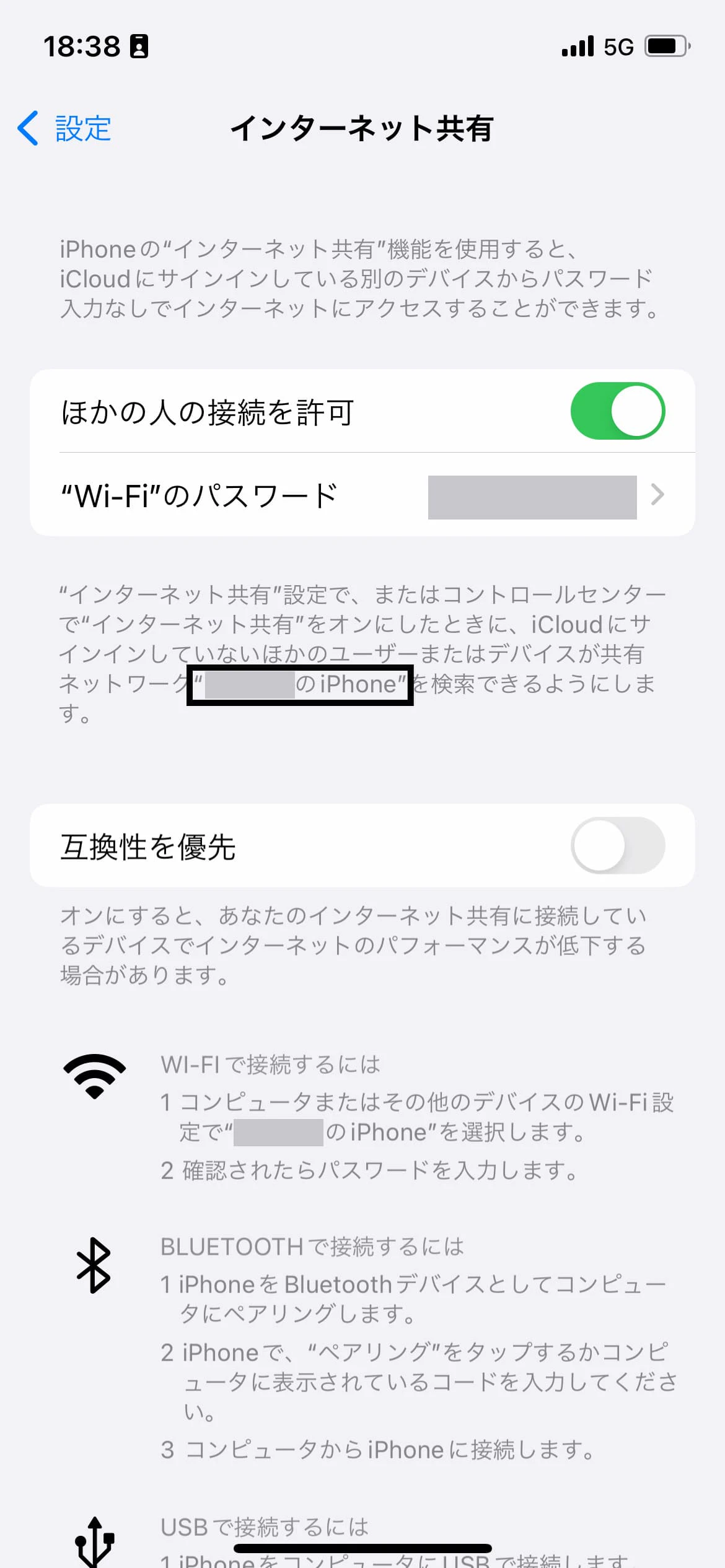
It says "Wi-Fi password," so you can easily see the password. You should also see the explanation below the password, "Makes 'XX's iPhone' searchable." That "XX's iPhone" is the network name.
On the device you want to connect to, go to "Settings" > "Wi-Fi" and select the network name of your iPhone that you checked earlier from the list of available networks. A password entry screen will appear, so enter the password you checked on your iPhone to complete the internet connection via Wi-Fi tethering.
Since the method and notation for Bluetooth® tethering varies depending on the device you are connecting to, we recommend checking the device's instruction manual or the manufacturer's website. For now, let's check the connection method for Mac and Windows® computers, as introduced on the Apple (*5) website.
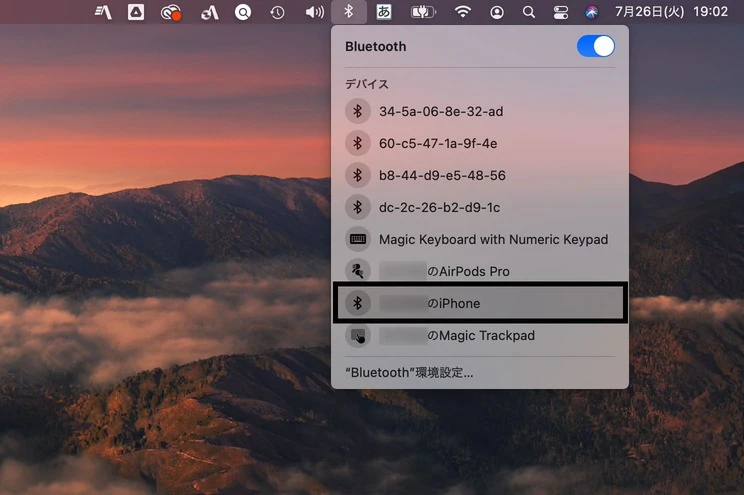
Click the Bluetooth® icon in the menu bar.
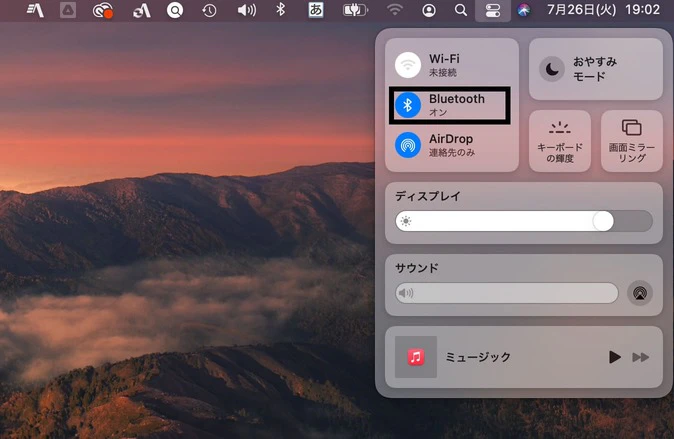
Alternatively, you can perform the same operation by clicking "Bluetooth" in the Control Center.
Select the network name of the iPhone you want to use for Internet sharing, and click "Connect to Network" to complete the setup.

Click the Bluetooth® icon in the notification area, on the right side of the taskbar.
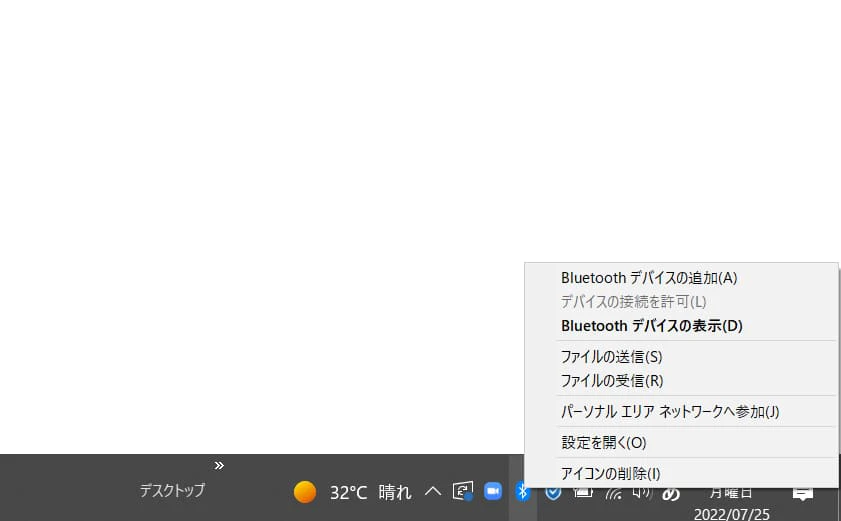
Select "Join a Personal Area Network."
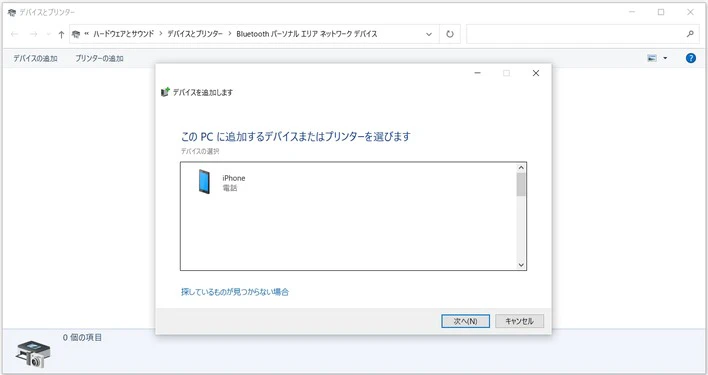
Right-click on the iPhone icon under "Devices."
Then place the pointer on "Connection Method" and select "Access Point" when it appears to complete the setup.
Regarding USB tethering, we will introduce how to connect using a computer (Mac/Windows®) as introduced on the Apple (*5) website.
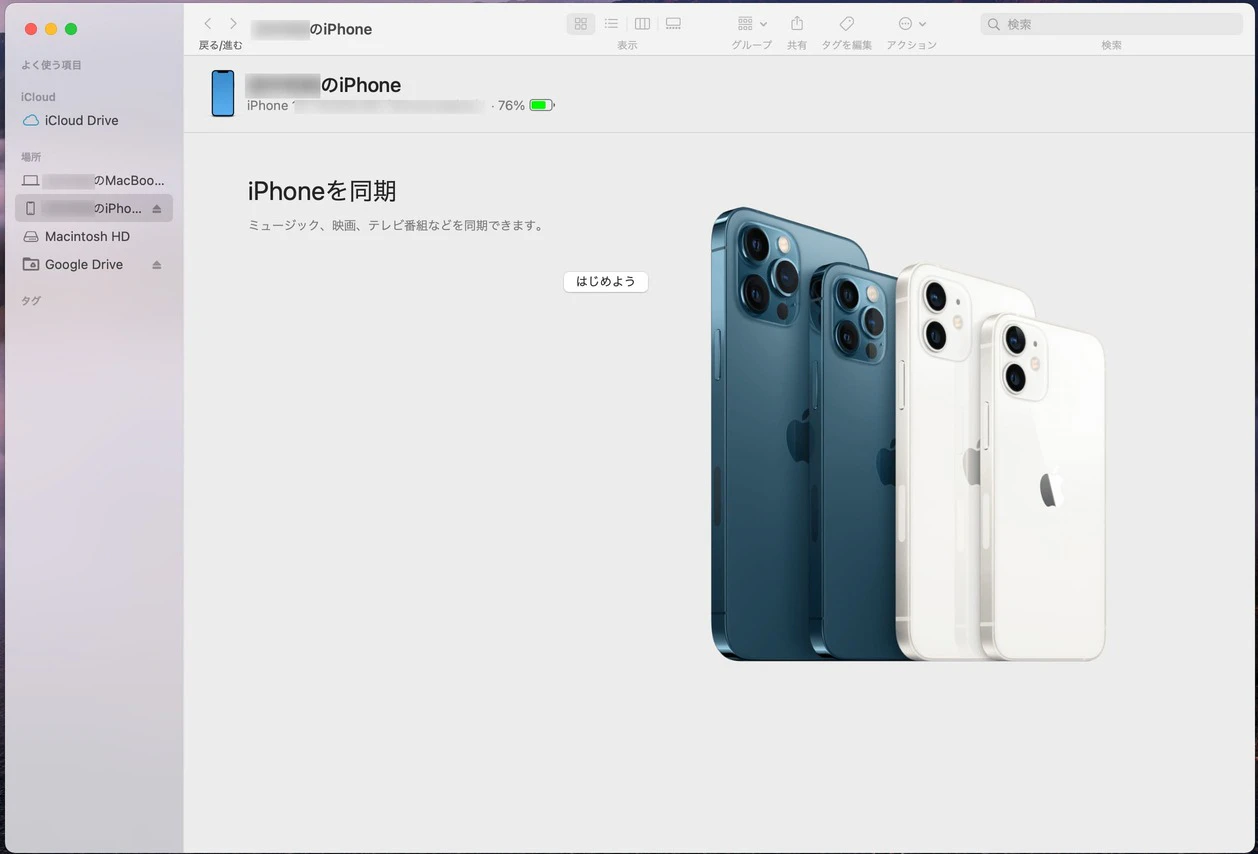
First, install the latest versions of iTunes and Finder on your computer. Even if you already have them installed, it's recommended that you update them if they're not the latest versions.
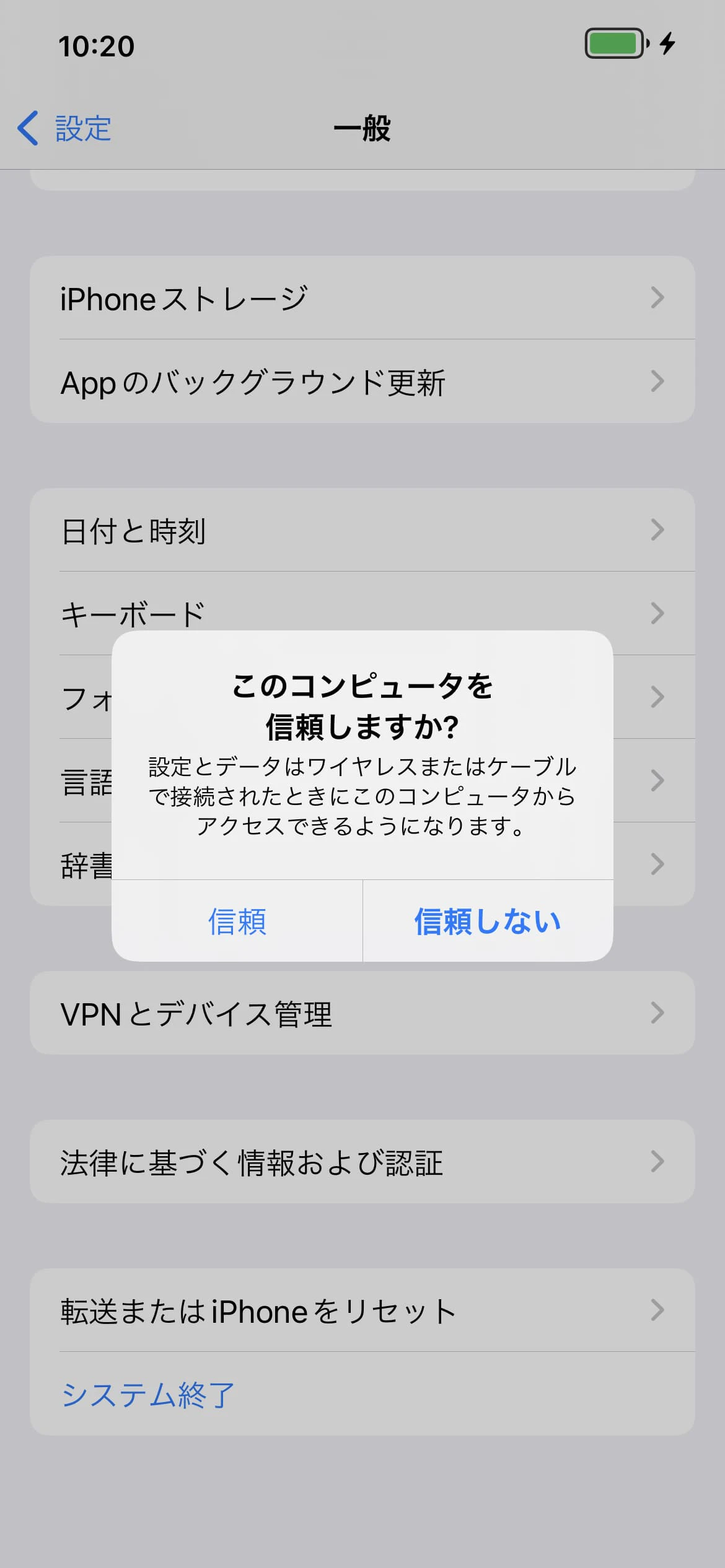
Then connect your iPhone to your computer with a USB cable. If a message appears asking "Trust this computer," tap "Trust."
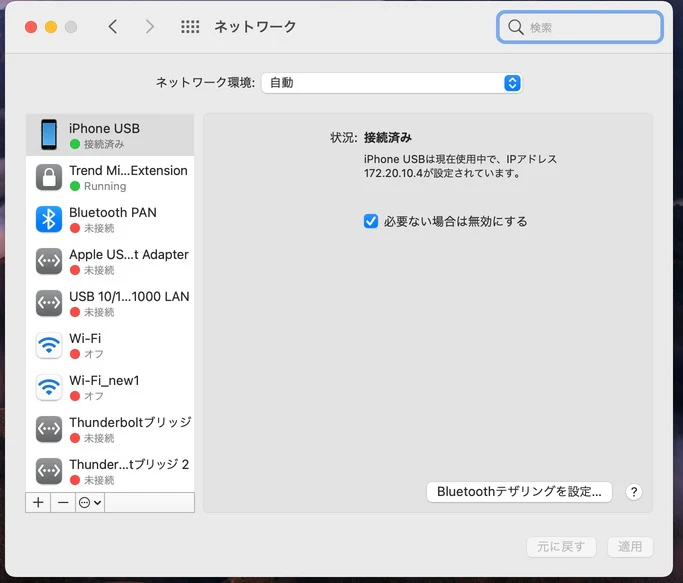
The connection is now complete. You can check if the connection is complete from the Network screen in System Preferences.
Also, Apple's website (*6) provides information on connecting with other devices. If you are using something other than a computer, be sure to check that as well.
Even with the methods introduced so far, there may be cases where you are unable to connect via tethering. Let's take a look at some of the most common causes and solutions. It's also important to consider the differences depending on the device you're connecting to. We recommend checking the device's instruction manual and manufacturer's website to find the cause and solutions.
We explained that depending on the plan, tethering may be an option and require application and payment of fees. Tethering may also be unavailable depending on the model and OS. For iPhones, tethering is available on models that support 5G (*7) /4G LTE (*1) (tethering is available on iPhone 5 and later models). povo 's compatible models are also listed on its dedicated page (*9), so please check it out.
*7: 5G is available in some areas. Please see below for details.
Reference: "Supported areas" (povo)
If you don't have data enabled on your iPhone, you won't be able to connect to the internet even if you connect a device. Open the "Settings" app on your iPhone and go to "Cellular." Make sure the slider to the right of "Cellular Data" is blue and on.
When a device such as a smartphone is not working properly, restarting it can sometimes improve the situation. This applies not only to the iPhone that is the source of the tethering connection, but also to the device that is the destination. Try turning it off, waiting a short while, then turning it back on and setting up the connection.

If your current carrier offers tethering as a paid option, you may be unsure whether to sign up for it. If that's the case, we recommend using povo2.0. With povo2.0, you can use tethering without signing up for an additional option by purchasing a data Topping (*10).
*10: If you do not purchase a data Topping, the maximum sending and receiving speed will be 128kbps.
In addition, povo2.0 can be used with a basic fees of 0 yen (*11) (*12) (*13). Add your favorite Topping (paid) and use your smartphone with your own plan. Tethering consumes a lot of data, but with povo2.0, you can add only the amount you need, and when you want to use tethering, you can use the "Unlimited data tax included" plan, which means you can keep fees to a minimum.
*11: If you do not purchase any paid Topping for 180 days or more, your service may be suspended or your contract may be terminated. Also, if you have a contract for five lines (*) under the same name, a contract administration fee of 3,850 yen (tax included included) per line will be charged for the sixth line and beyond.
*This includes lines that have been cancelled or have been canceled by our company within the past year. If you do not purchase a data Topping, the maximum sending and receiving speed will be 128kbps.
Reference: "What is povo2.0?" (povo)
*12: Domestic calls are charged at tax included 22 yen/30 seconds and sending SMS is charged at tax included 3.3 yen/text (up to 70 characters). Some calling charges may differ, such as calls to satellite phones. See here for details.
Receiving SMS is free. Depending on the model, up to 670 double-byte characters can be sent. However, up to 134 characters, two SMS will be sent, and after that, one SMS will be sent for every 67 characters.
Reference: "What is povo2.0?" (povo)
*13:オンライン専用のプランなので、お手続き・サポートはすべてオンラインとなります。povo2.0アプリや公式サイトからお問い合わせください。
In addition to au 's 5G (*7) network, it also uses au 4G LTE network, which boasts a population coverage rate of 99.9% (*14), allowing you to communicate via tethering from various locations throughout the country. If you are dissatisfied with fees or ease of use of tethering, we recommend you try povo.
*7:5Gは一部エリアでの提供です。詳しくは下記のサイトよりご確認ください。
参考:「対応エリア」(povo)
*14: "Population coverage rate" is calculated based on areas where communication is possible in 50% or more of the approximately 500m blocks used in the census. Information is current as of the end of December 2020. Content is subject to change. Compatible devices are 4G LTE (800MHz) compatible.
*The names of products and services mentioned in this article are trademarks or registered trademarks of the respective companies.
・Apple, iPad, iPhone, and iTunes are trademarks of Apple Inc., registered in the U.S. and other countries. The iPhone trademark is used under license from Aiphone Co., Ltd. TM and (C) 2022 Apple Inc. All rights reserved.
・Android is a trademark of Google LLC.
・" au" is a registered trademark of KDDI Corporation.
・"Bluetooth®" is a trademark or registered trademark of Bluetooth SIG, Inc. USA.
・"Wi-Fi" is a registered trademark of the Wi-Fi Alliance.
・"Windows®" is a trademark or registered trademark of Microsoft Corporation.