povo 2.0 is an online-only fees plan * provided by KDDI.
Since the contract is completed online, you will need to verify your identity and payment information online. In this article, we will introduce three points and reasons why you need to verify your identity when signing up for povo2.0, as well as the procedure for signing up for a new contract.
By reading this article, you will be able to smoothly apply for a new povo2.0 contract.
All procedures and support will be done online.

The three points you need to check when signing up for a new povo2.0 contract are as follows:
・Identification documents
・Credit card information
・Device you are using
The device you are using will be confirmed after you sign up for povo2.0.
When signing up for a mobile phone contract, you will need to verify your identity.
One of the following documents is required for identity verification for povo2.0.
·driver's license
・My Number Card
・Residence card
Since povo2.0 is an online-only plan, you will need to take a photo of your ID with your smartphone and upload it to the specified file. When taking the photo, make sure to take it against a dark background so that your ID can be captured properly.
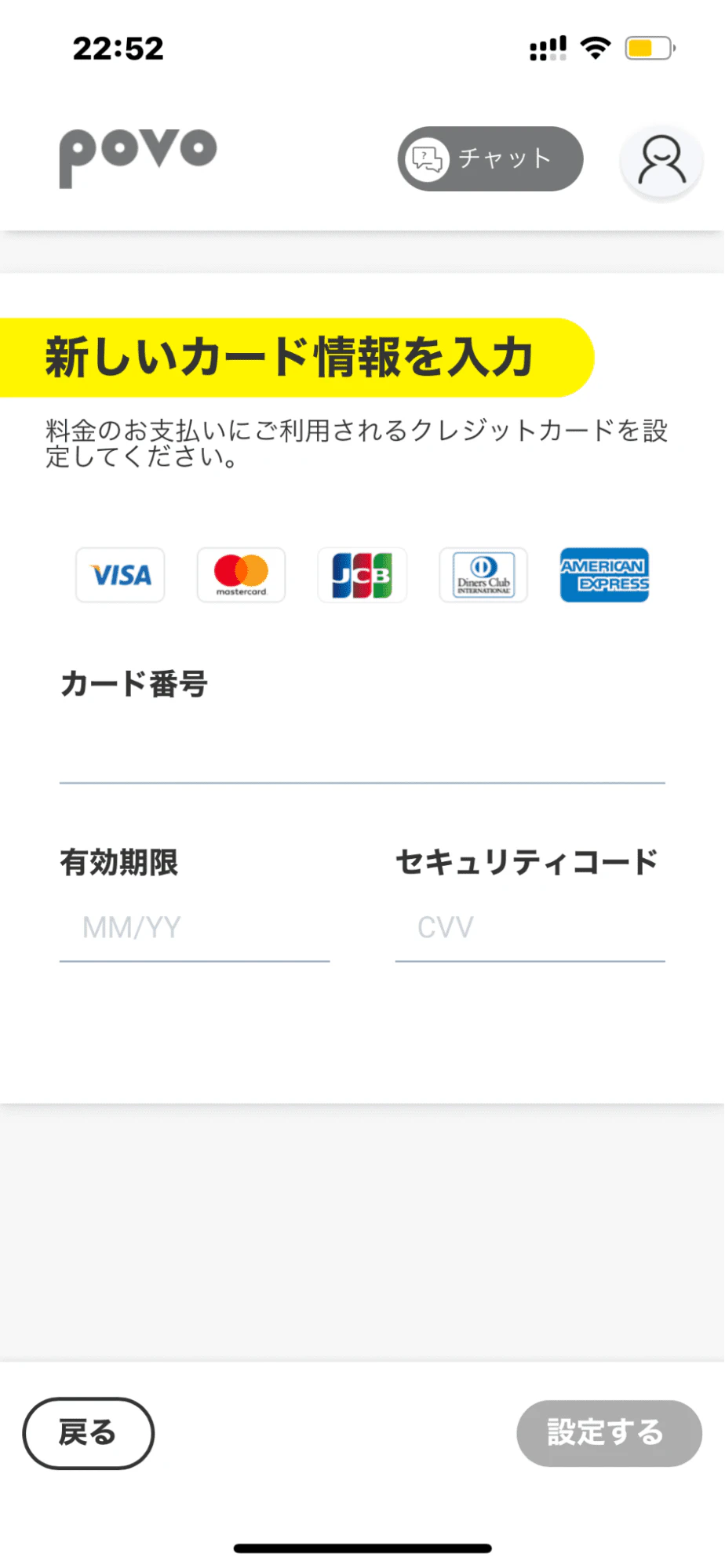
povo2.0 is a service where you pay your monthly usage fees by credit card. Please prepare your credit card in advance.
The following five types of credit cards can be used:
・VISA
・MasterCard
・JCB
・American Express
・Diners Club
If you do not have a credit card, you can apply for one here.
povo2.0 does not sell devices, so you will need to prepare your own device when using the service. Devices that can be used are either "SIM-free devices" or "devices with the SIM lock removed."
If you purchase from a smartphone sales site, it will often be a "SIM-free device," but smartphones purchased from docomo or SoftBank before October 1, 2021 will need to be SIM-unlocked.
You can also use devices that you used before signing up for povo2.0, but please note that depending on when you purchased the device, you may need to unlock the SIM.
Reference: Is SIM unlocking necessary when using povo2.0? Detailed explanation for each case

From here, we will explain the actual procedure for povo2.0 in chronological order.
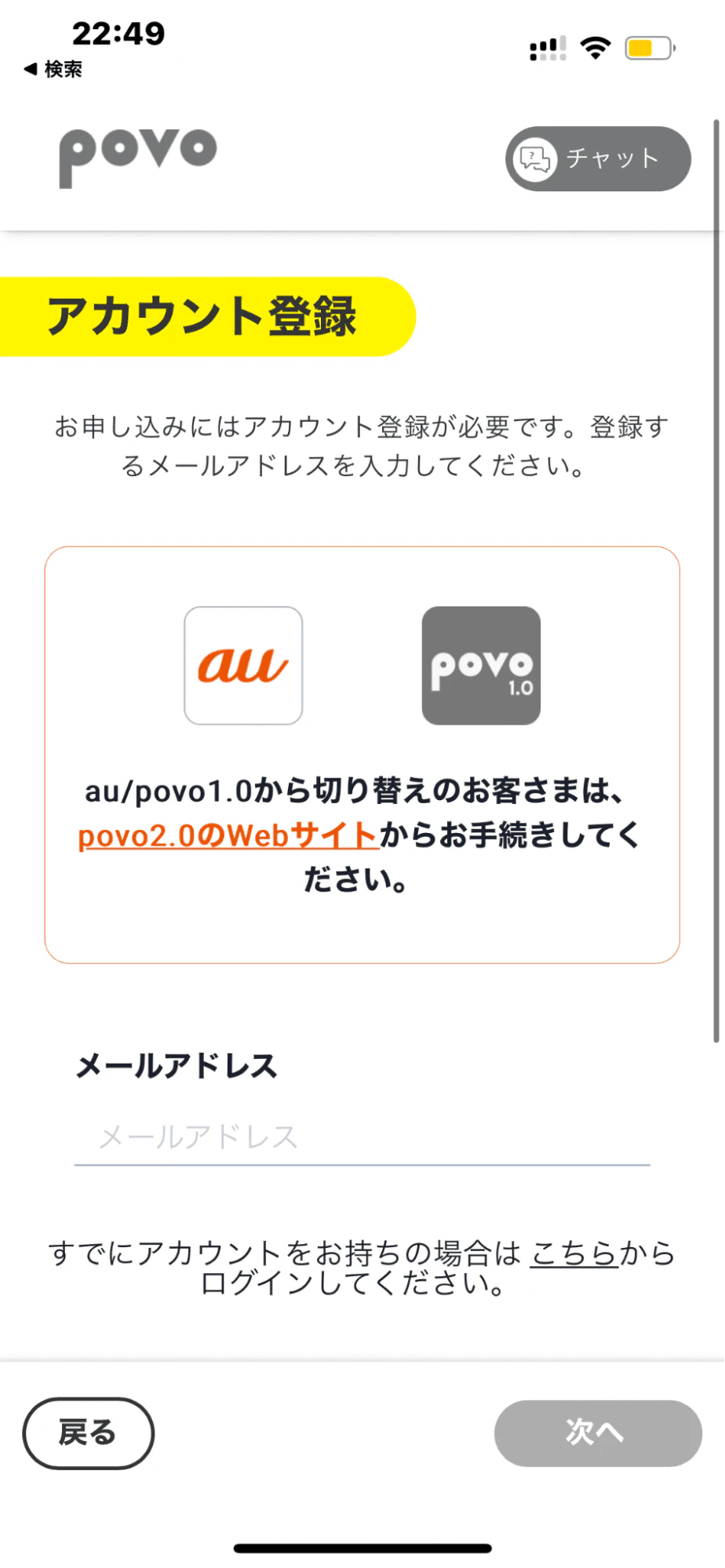
1.Confirm your email address
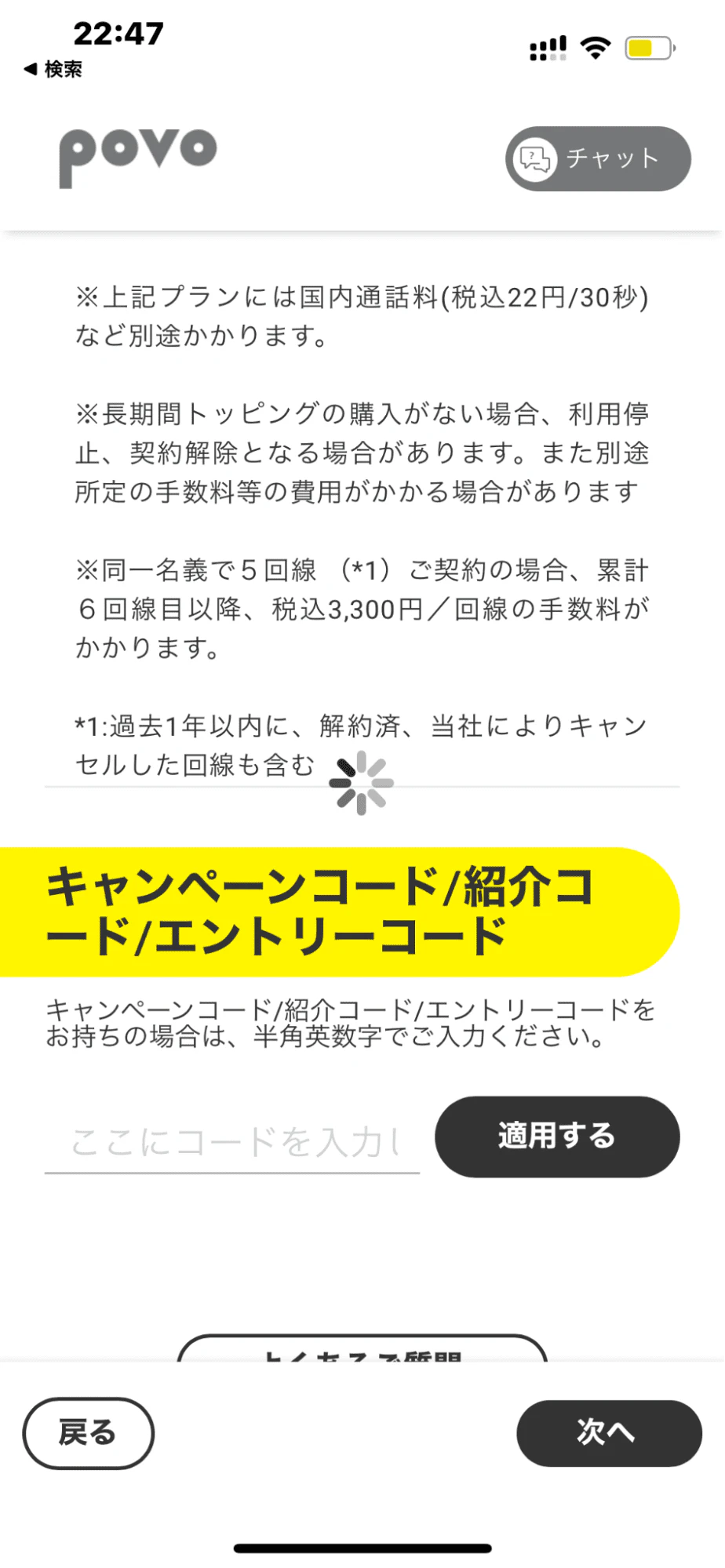
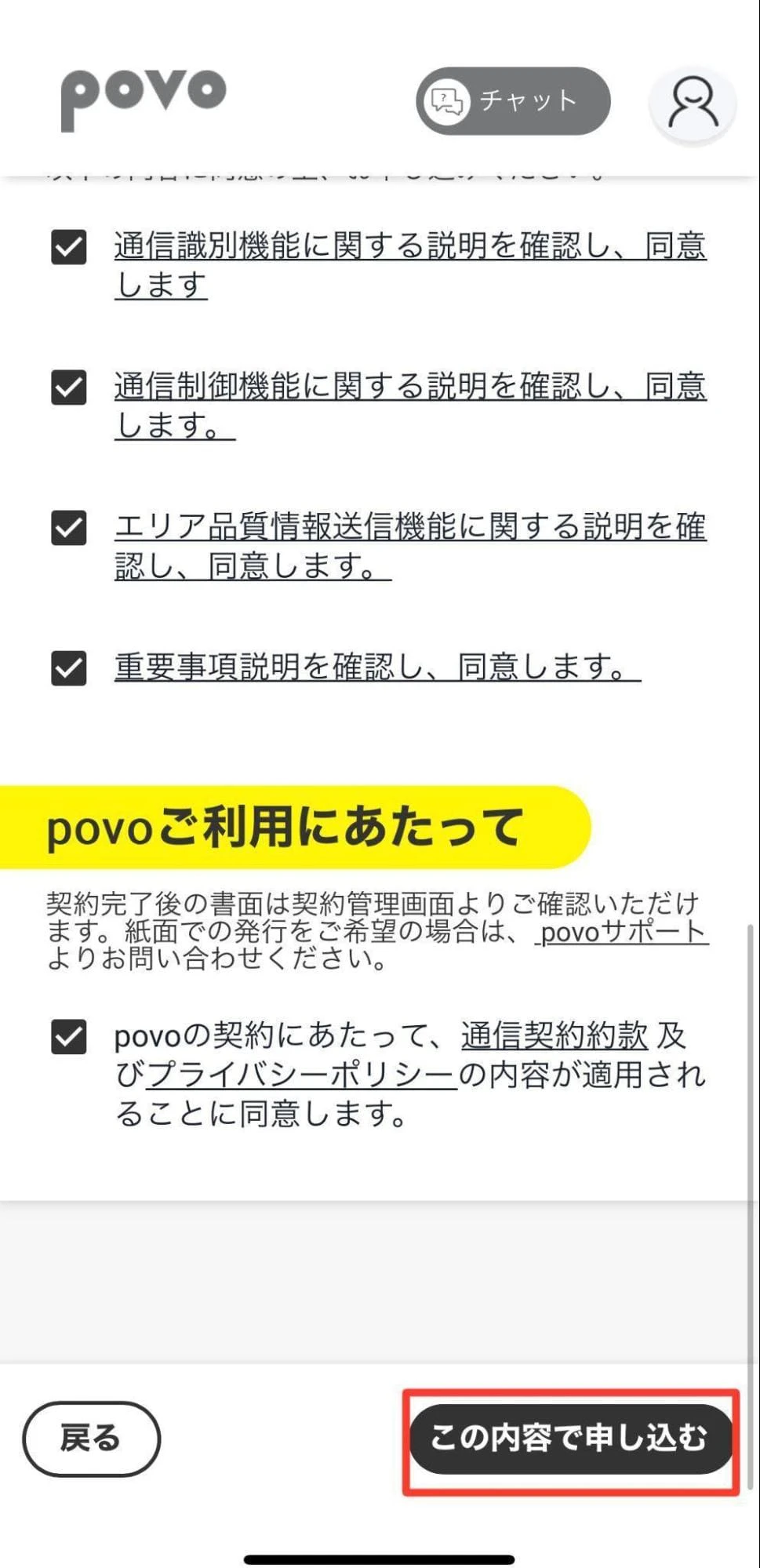
2.Confirmation of contract details
3. Identity verification and customer information entry
4. SIM activation procedure
Since povo2.0 is an online-only plan, new subscribers will need to download a dedicated app.
If you are using an Android device, please download the povo2.0 app from Google Play. If you are using an iPhone, please download the app from App Store.
For Android users, click here
For iPhone users, click here
When signing up for a new contract, you will need to use the app, so you will need a Wi-Fi environment, so please be sure to have it ready before proceeding with the new contract.
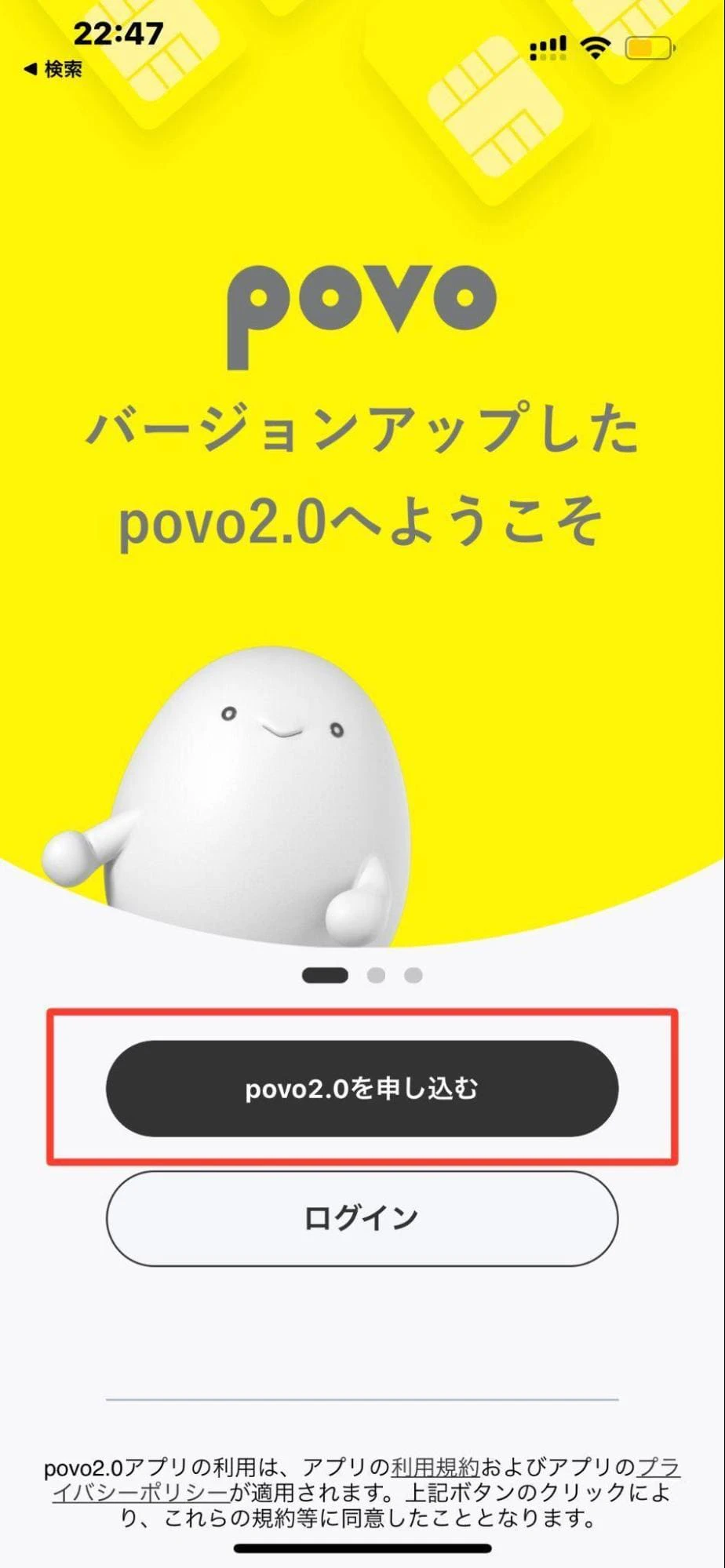
After registering your email address and clicking "Next" at the bottom of the screen, please send us a 6-digit authentication code. A 6-digit authentication code will be sent from povo2.0 to the registered email address, so please enter it in the specified field.
If you can do this, your povo2.0 account registration is complete.
You cannot use carrier email to register for a povo2.0 account. Also, when registering an email address, you can only use three symbols: "- (hyphen)", "_ (underscore)", and "." (dot).
*For details about other email addresses that cannot be registered with povo2.0, please click here.

Next, you will need to verify your identity and enter your customer information.
First, please prepare the documents you will need to verify your identity (My Number Card, driver's license, residence card).
Identity verification will be carried out online using "eKYC." Using eKYC not only speeds up identity verification, but also prevents fraudulent contracts by requiring a selfie along with identification documents.
Follow the instructions on the screen to submit your identification documents and verify your identity.
Once identity verification is complete, enter personal information such as the contract holder's name and date of birth. After completing the input, tap "Next" at the bottom of the screen and then "Confirm User" to complete entering personal information.
Once identity verification is complete, you will receive an email titled "[povo] Notification of identity verification completion" at your registered email address. After checking the contents of the email, proceed with the SIM activation procedure.
If you selected a SIM card as the SIM type, you will need to complete the SIM card delivery procedure. Enter your delivery address.
Once identity verification is complete, you will be able to activate your SIM. However, the procedures differ depending on whether you are using a SIM card or eSIM, so we will explain the activation procedures for each.
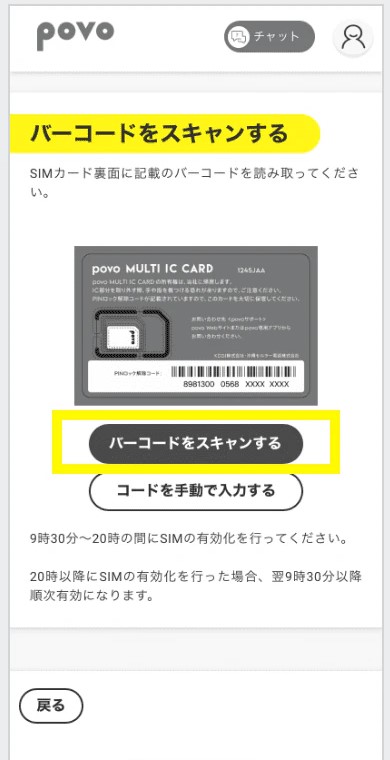
The procedure for activating a SIM card is as follows:
1. After signing the contract, receive the SIM card by mail
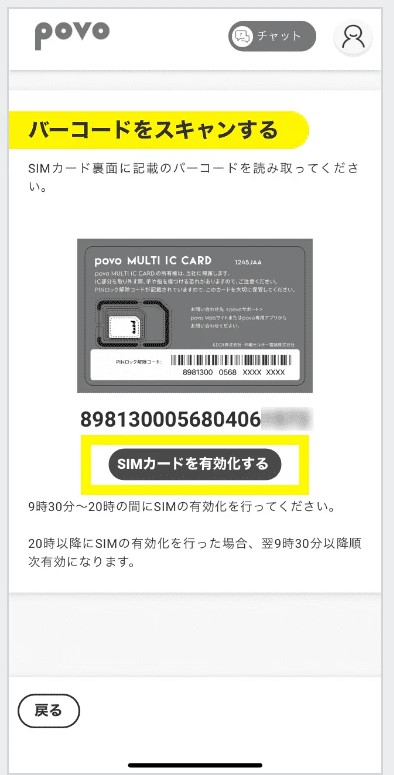
2. Tap Activate SIM card
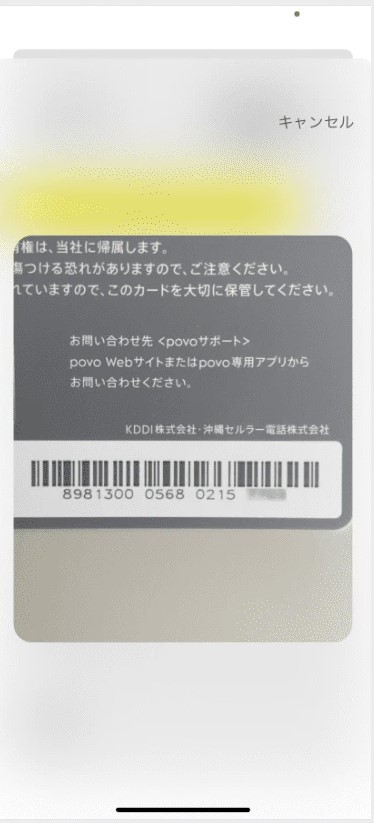
3. Read the barcode printed on the SIM card backing and activate it.
4. Call the call test number (111/toll-free) (※2)
5. Activation procedure complete
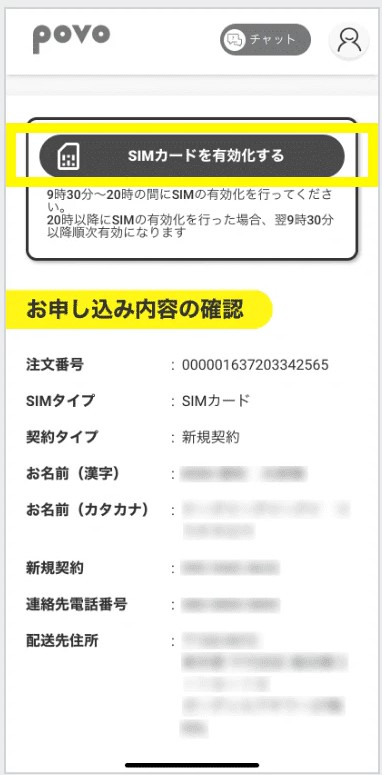
eSIM is a function that allows you to use communication without a physical card by writing information from your smartphone.
Please note that if you are using a device that does not support eSIM and you apply for an eSIM, you will not be able to proceed with the application.
The eSIM activation procedure is as follows:
1. Open the povo2.0 homepage from a PC or tablet other than the device you want to use, and select "povo2.0 Login" in the "Support/Service" menu on the left.
2. Enter the email address you registered when signing up, and enter the 6-digit authentication code sent to your email to log in to povo2.0
3. Tap "Issue eSIM" to activate it and select eSIM settings
4. A QR code will be displayed
5. Open the mobile communication settings on your device and scan the QR code.
6. Finally, add a mobile plan and you're done
If you do not have a device such as a PC or tablet and cannot read the QR code, please refer to the eSIM activation procedure on povo2.0 official website.
eSIM activation procedure for iPhone and iPad
eSIM activation procedure for Android

Below are two points to keep in mind before signing up for povo2.0.
1. Carrier email cannot be used to register a povo2.0 account.
2. Identity verification requires an iOS or Android smartphone
You cannot use carrier email to register a povo2.0 account. Only free email addresses such as Gmail and Outlook can be used to register a povo2.0 account.
povo2.0 has introduced "eKYC (electronic identity verification)" which allows you to verify your identity online, but you will need a smartphone to verify your identity. You will need to use eKYC from the povo2.0 app.
If you have iPad OS 12 or higher, you can sign up for a new contract on your tablet, and if you have the latest version of iPad OS, you can use eKYC.
To use eKYC, you must first update your iOS or Android device to the following versions:
・iOS: OS version 11.0 or later, latest version of Safari
・Android: OS version 6.0 or higher, latest version of Chrome
When completing the procedure, please have your smartphone with the povo2.0 app downloaded ready.

In this article, we explained the three items we check when signing a new contract with povo2.0 and the procedure for doing so.
When signing a new contract for povo2.0, we check the following three points.
・Identification documents
・Credit card information
・Device you are using
Please note that if you are unable to prepare the above three items, you will not be able to apply for povo2.0.
povo2.0 procedure is explained in detail on the official website. If you have any questions, please refer to the "Frequently Asked Questions" on the Q&A page.
reference: Frequently asked questions
*The names of products and services mentioned in this article are trademarks or registered trademarks of their respective companies. ・" au" is a registered trademark of KDDI Corporation. ・docomo is a registered trademark of Nippon Telegraph and Telephone Corporation. ・SoftBank and the SoftBank name are registered trademarks or trademarks of SoftBank Corporation in Japan and other countries. ・iPhone is a registered trademark of Apple inc. ・Android is a registered trademark of Google LLC.