iPhones come with a built-in feature called "Find My iPhone," which allows you to find your lost iPhone from your Apple device. This article explains how to set it up and use it in detail.
"Find My iPhone" is a feature that uses the "Find My iPhone" app to locate your lost iPhone.
Previously, there were two separate apps, "Find My iPhone" and "Find My Friends," but in iOS 13 and later, these have been combined into one app called "Find My."
The Find My app can also find other Apple products, including iPads, Macs, Apple Watches, and AirPods, in addition to iPhones.
The Find My app has the following features:
・Identifying location information
・Sound playback
・Remote screen lock
・Initialization
The Find My app helps you locate and identify lost Apple products, such as your Mac or iPhone.
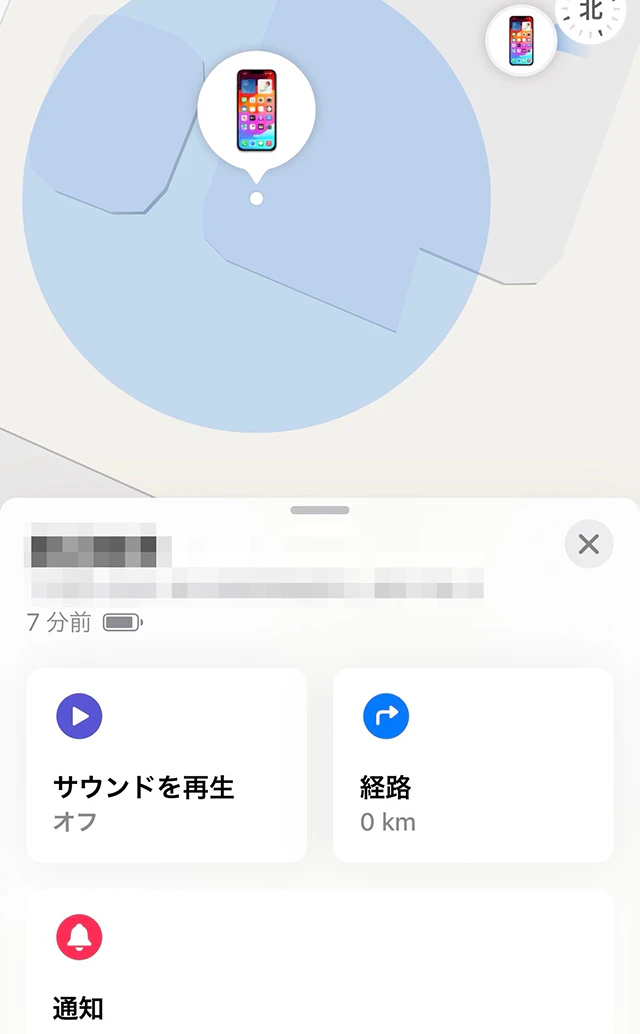
For example, if you go shopping and leave your iPhone in the store, you can use another device to locate your misplaced iPhone and get directions to where you lost it.
Not only will it show you the route, but it will also show you the distance and travel time, making it easier to find your iPhone.
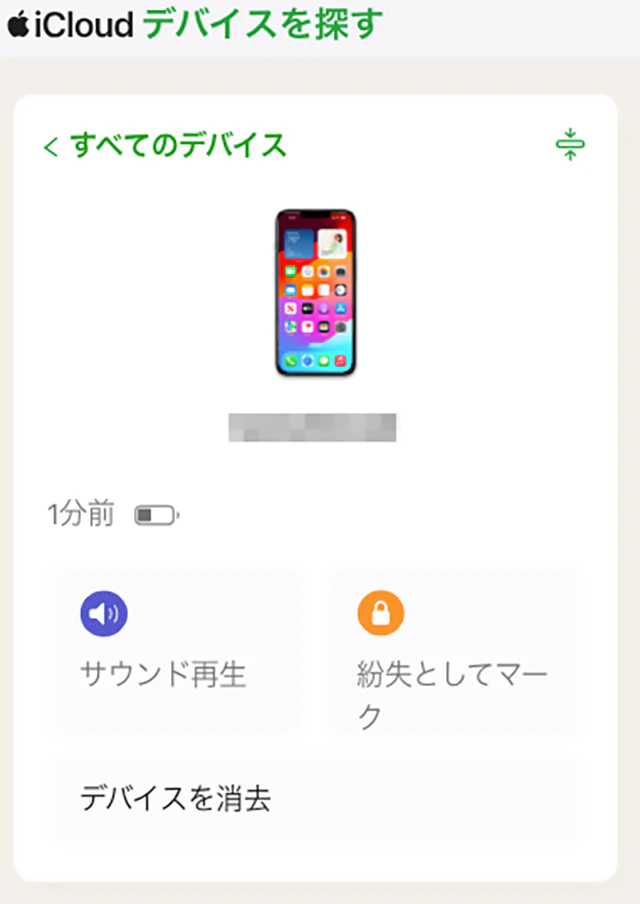
If you've located your lost iPhone but can't find it, the "Play Sound" feature in the Find My app can be useful.
You can make your lost iPhone play a sound, which makes it easier to find the device.
The sound will start playing after a short delay, gradually increase in volume, and play for approximately 2 minutes.
The Find My app has a feature called "Mark as Lost," which, when enabled, allows you to remotely lock your lost iPhone with a passcode.
You can also display a custom message on the screen with your contact information to help find your iPhone and help return it to the person who found it.
If someone finds your iPhone, they can call the contacts displayed on the screen, but they cannot do anything else, so security is ensured.
If you can't find your lost iPhone and there's a high risk of it being stolen, you can use the "Erase this device" feature to reset the device itself.
Resetting your iPhone will delete all information (including credit and debit card information in Apple Wallet), which will help prevent unauthorized use of your iPhone.
If your device is running iOS 15 or later or iPadOS 15 or later, you can still find it by using the Find My app again even if you erase it.
However, with other devices, once you initialize them, not only will your data be deleted, but you will also be unable to use the Find My app, so initialization should be considered a last resort and should be considered carefully.

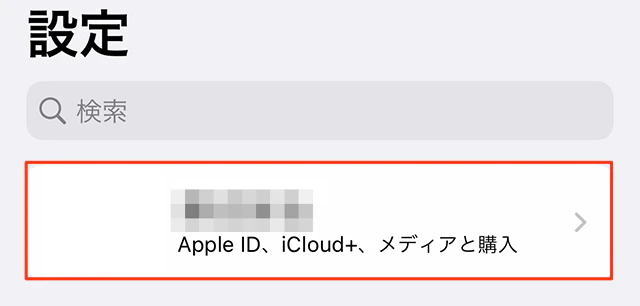
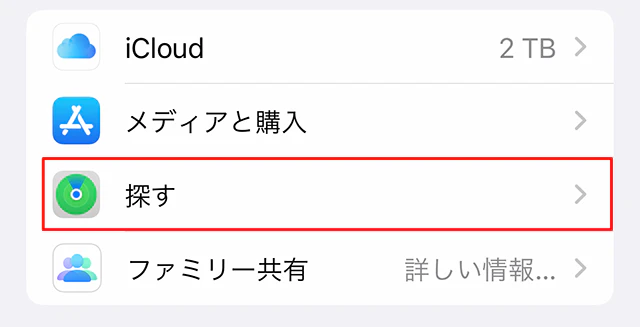
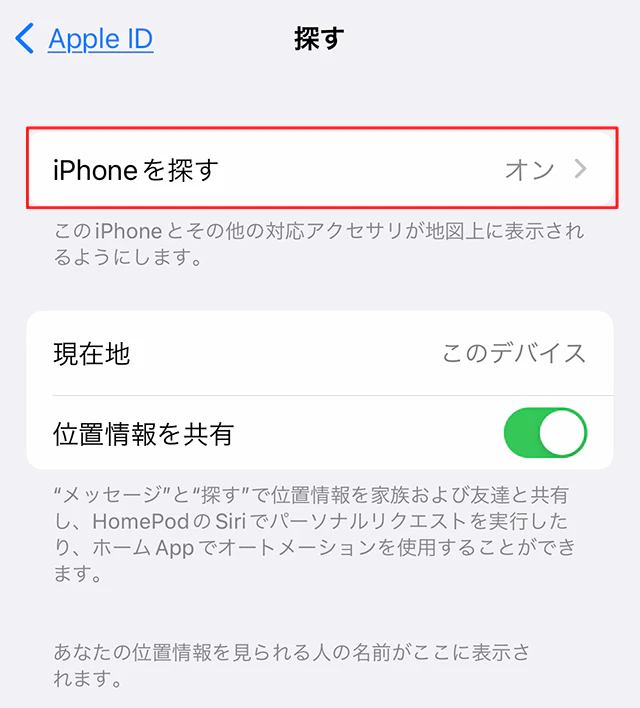
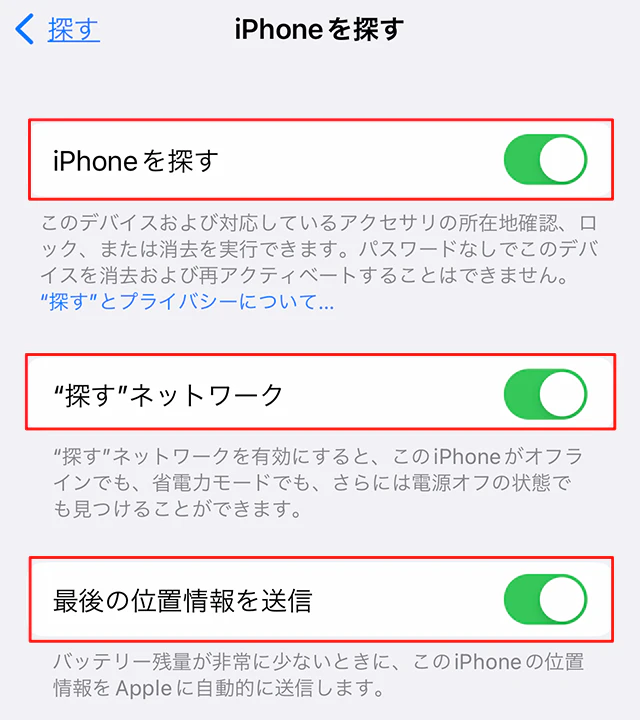
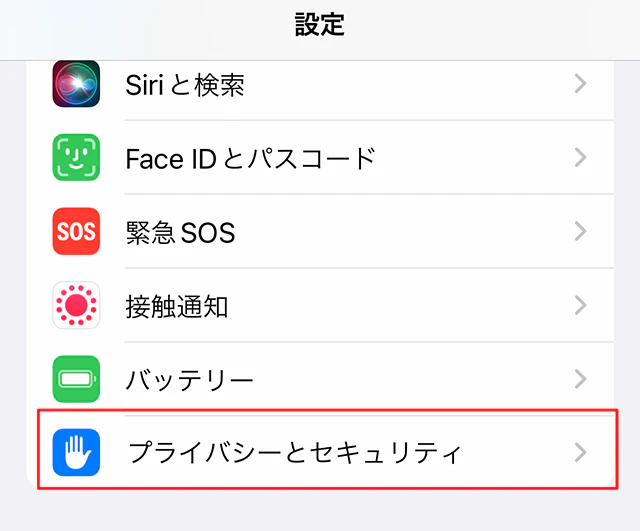
To use "Find My iPhone," you must first set it up on your iPhone. If you don't set it up, you may not be able to use the feature if you lose your iPhone. Be sure to be well prepared in case of an emergency.
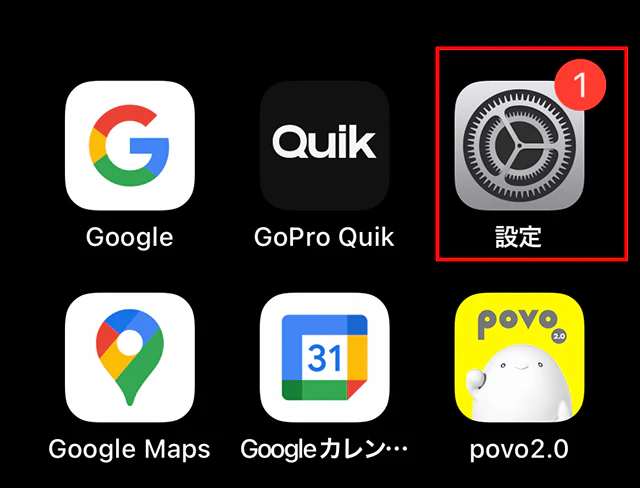
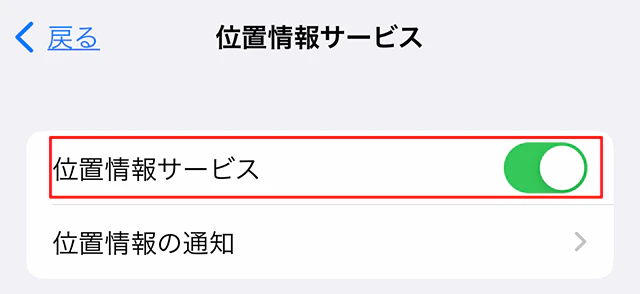
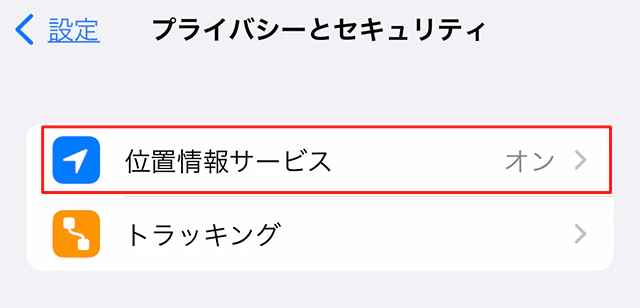
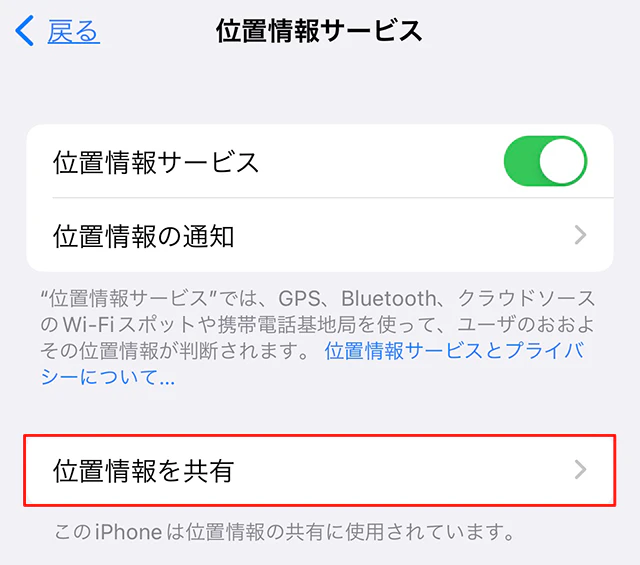
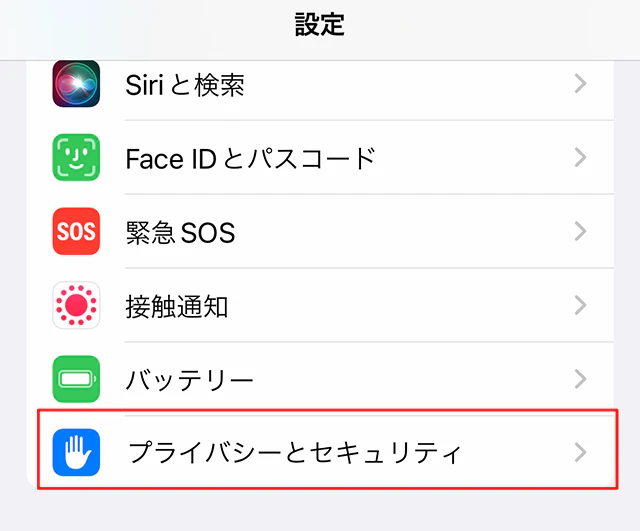
To use the "Find My iPhone" feature properly, you must enable "Location Services" on your iPhone.
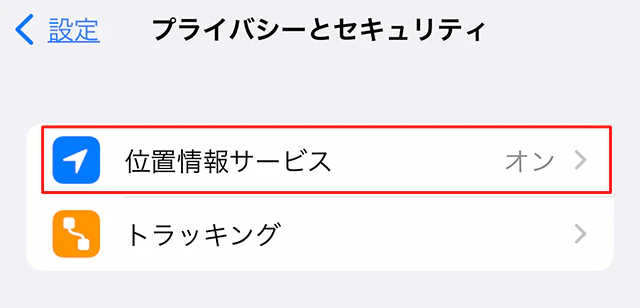
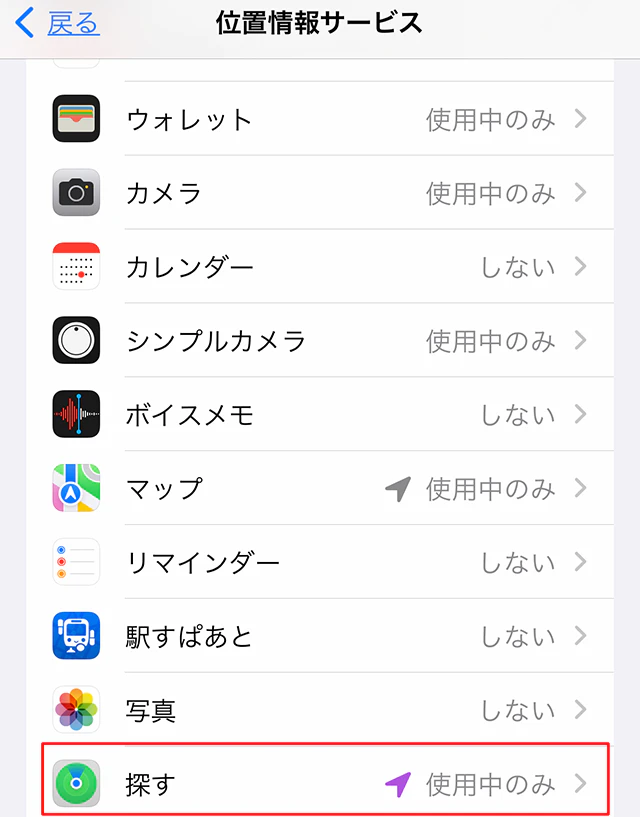
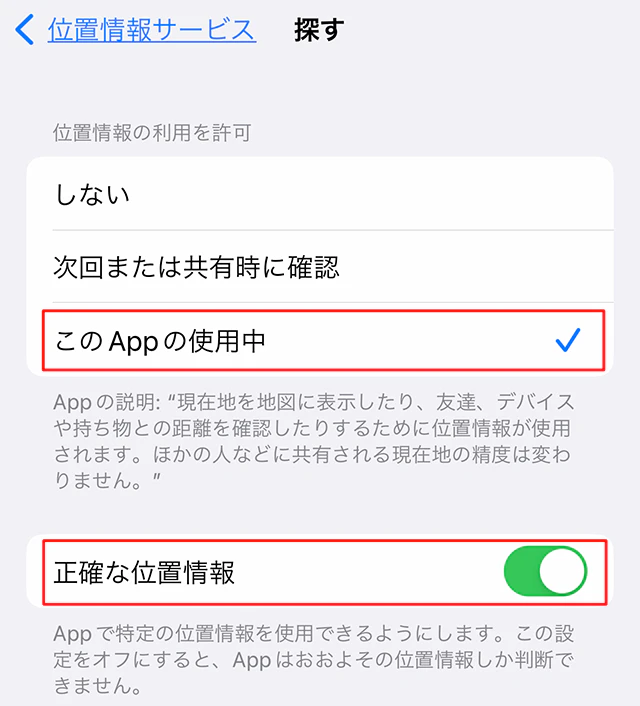
If it says "Never" instead of "Only While Using," tap it and select "While Using This App."
Also, if the "Precise Location" toggle is OFF, turn it ON.
This completes the pre-settings for "Find My iPhone."

This completes the pre-settings for "Find My iPhone."
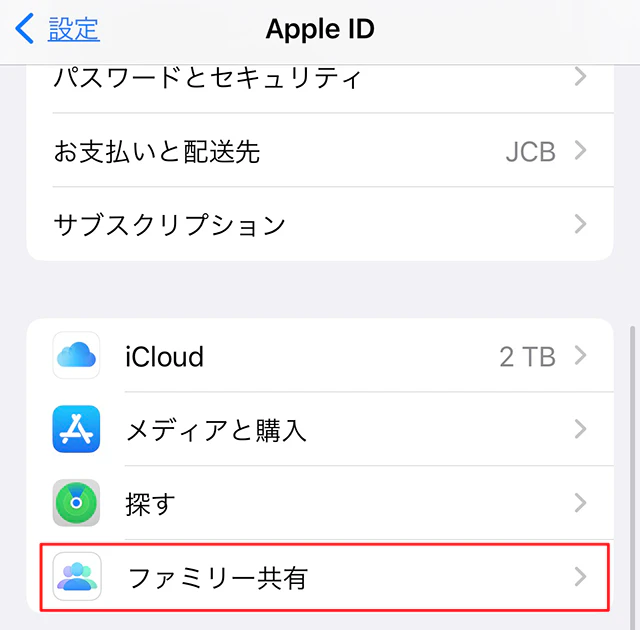
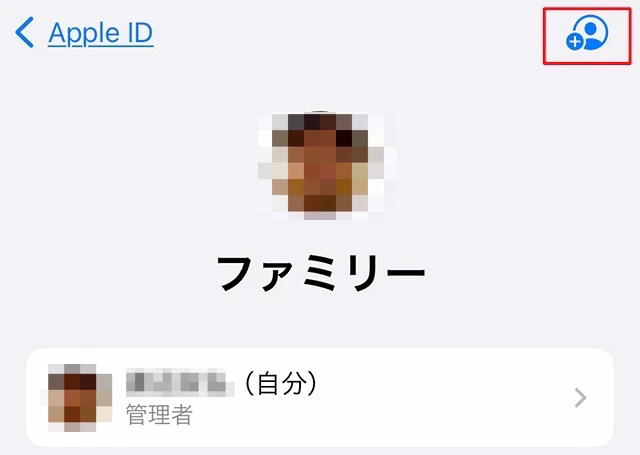
For even more convenience, if your family members use Apple products, we recommend enabling Family Sharing.
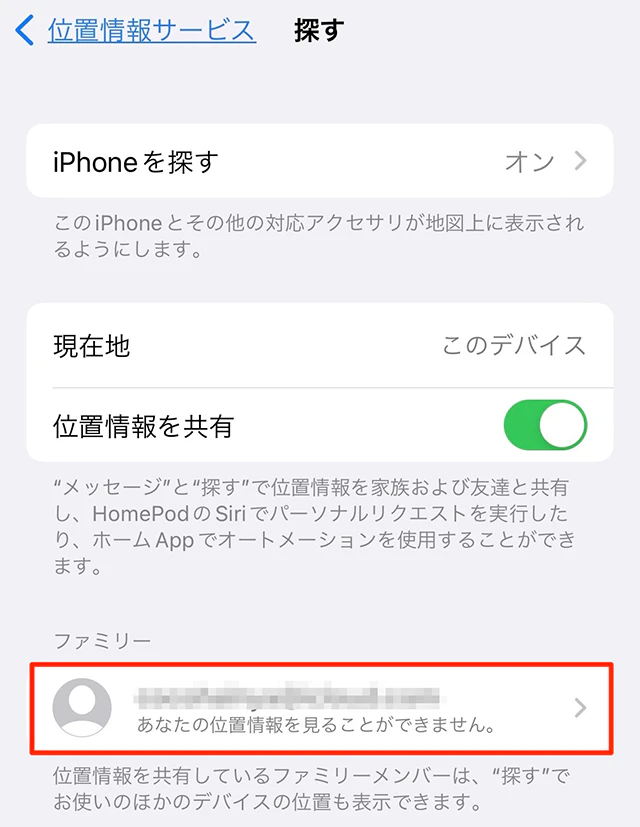
If you set up Family Sharing and add family devices, you can use them to locate and find your lost iPhone.
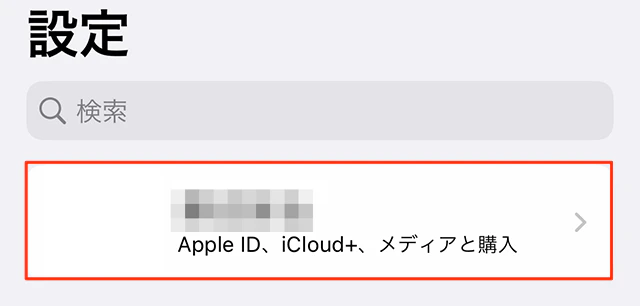
Now, let me show you how to find your iPhone.
There are two ways to find your iPhone: using the Find My app that comes with your Apple product, or using Find My Device on iCloud.com.
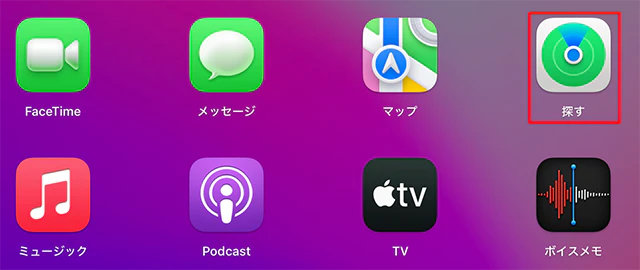
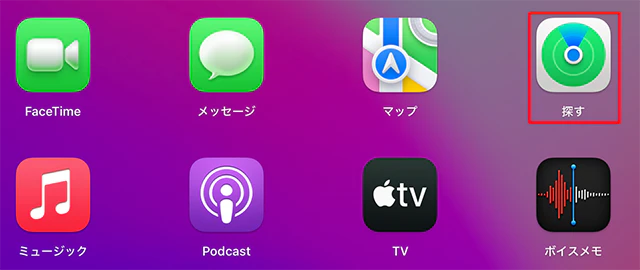
If you have an Apple product, the easiest way to find it is to use the Find My app.
Please note that the steps for using the Find My app are shown on the MacBook Pro that I use, but the steps may vary slightly depending on the device you are using.
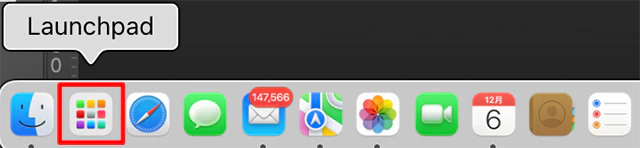
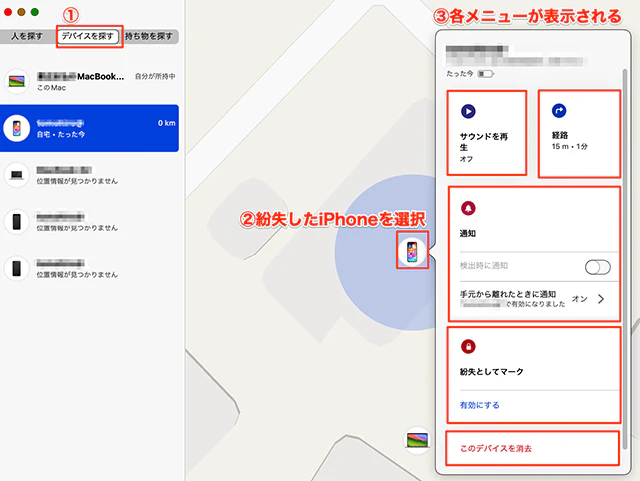
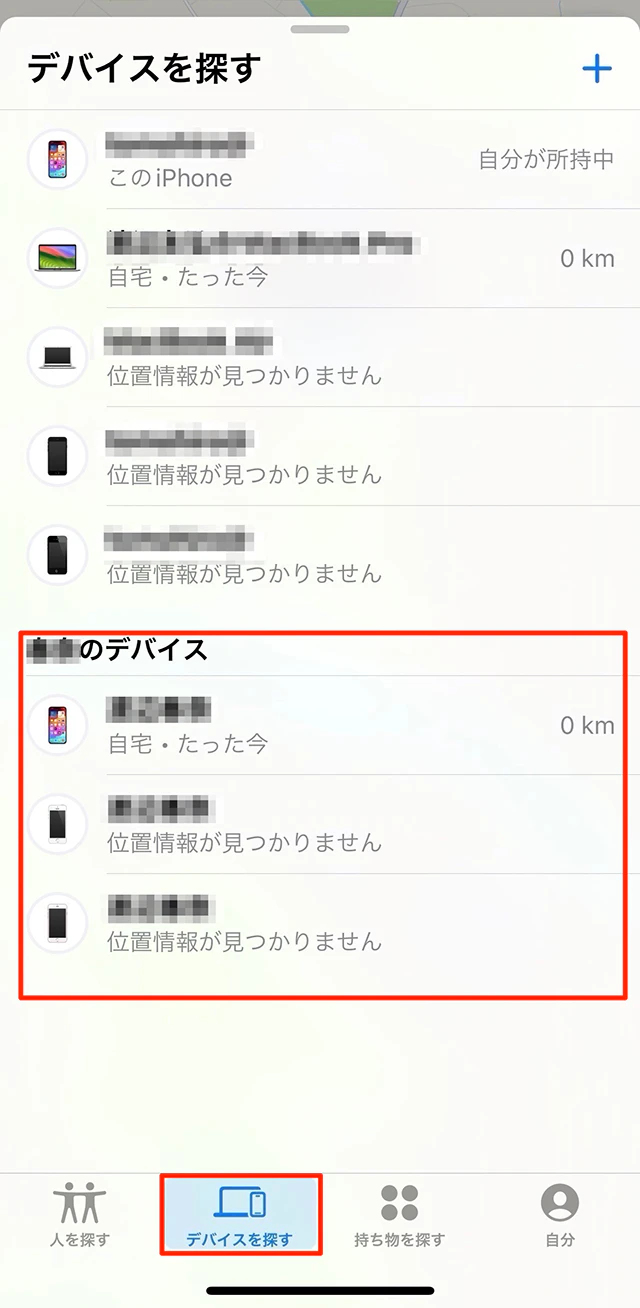
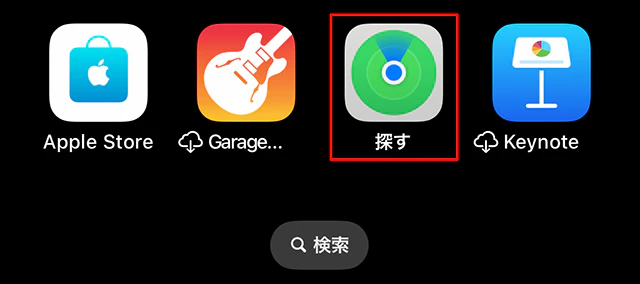
Select "①Find My Device" and your lost iPhone will appear on the map.
Furthermore, if you select "② Select the lost iPhone," "③ Each menu" will be displayed, allowing you to select any menu and efficiently search for your iPhone.
The route will show the time required and the distance to the device, so if you use it together with the sound playback, it will be easier to find it.
Above we have introduced how to find your iPhone using the Find My app on Apple products.
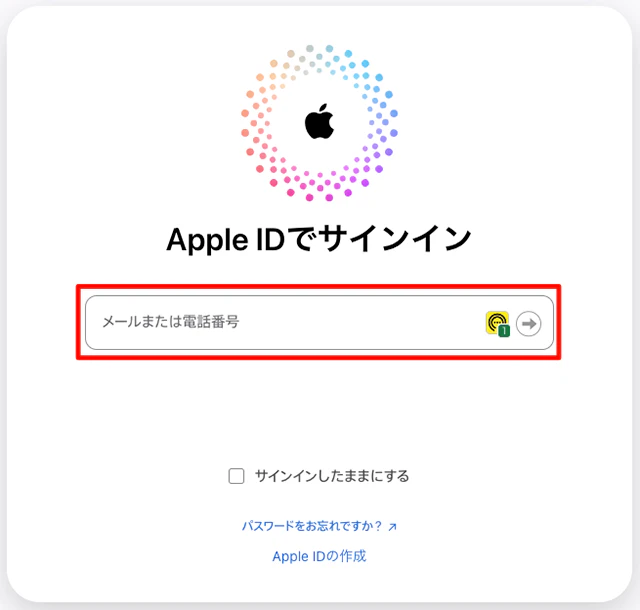
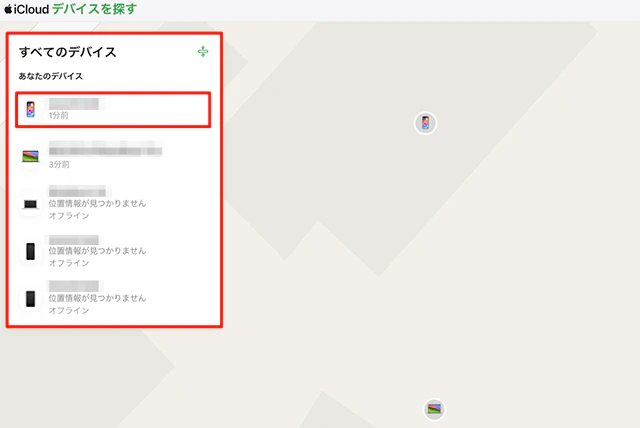
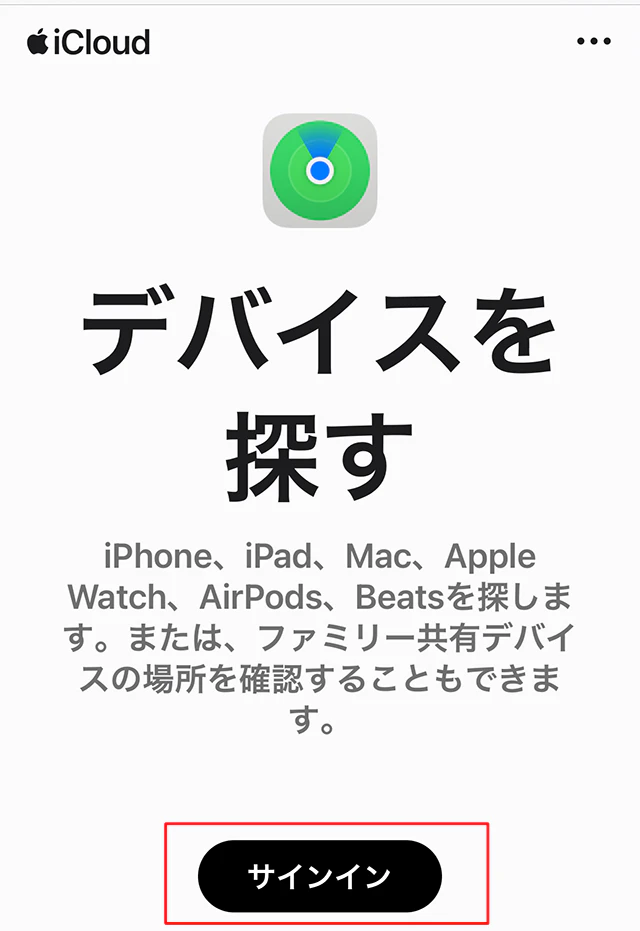
From here, we will show you how to find your iPhone by accessing iCloud.com and using "Find My Device" for those who do not own an Apple product.
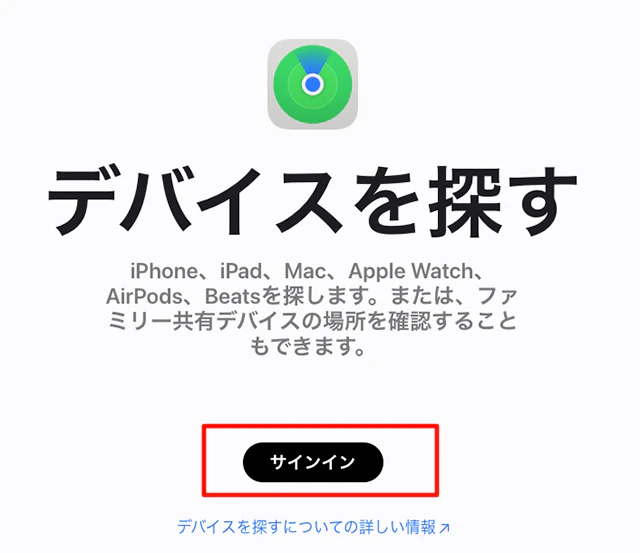
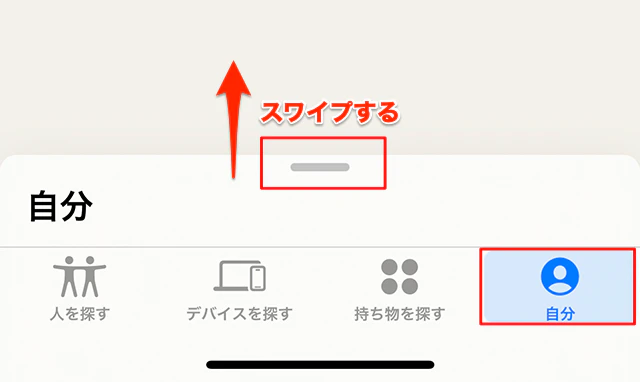
Next, we'll show you how to find someone else's iPhone using your own iPhone.
If you set up the "Family Sharing feature" introduced in this article, you will also be able to find your family member's iPhone.
If you haven't enabled the feature yet, please see the article "Enabling Family Sharing lets you find your iPhone from your family's devices."
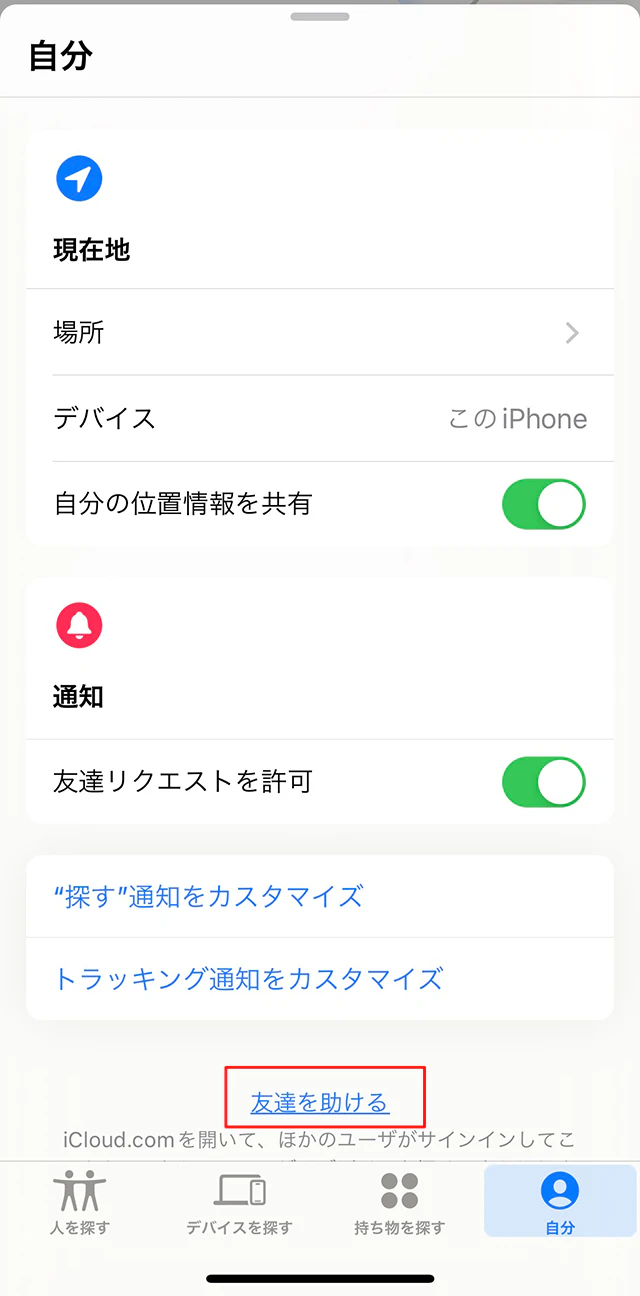
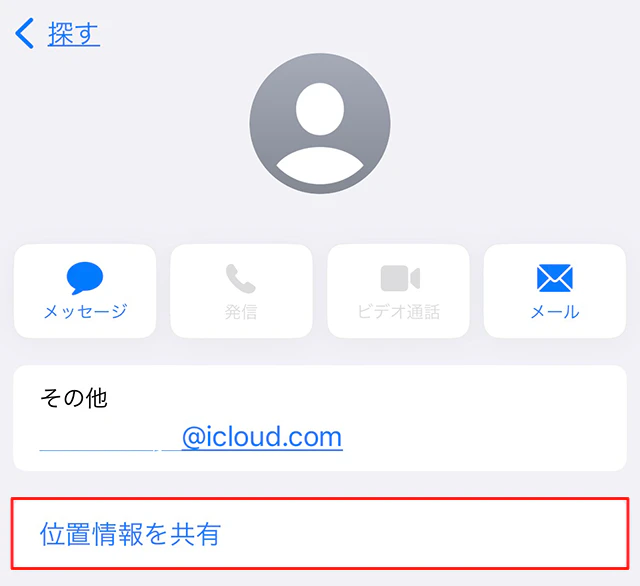
In order to find the location of a family member's lost iPhone from your own iPhone, you will need to have them share the location information of their iPhone with you in advance.
Here, we will explain everything from how to share the location of your family member's iPhone to how to actually find your family member's iPhone.

So far, we have introduced the features of "Find My iPhone" and how to set it up in advance.
povo2.0 (※1) Here, we will explain various basic information, such as what you should do before changing your iPhone model and how to reset your iPhone.
We also introduce a lot of recommended information about smartphones, so please feel free to refer to it.
reference: povo library
reference: What to do before changing your iPhone model, data transfer, and timing for changing your SIM card
reference: How to reset your iPhone? Explaining the timing and what to do before resetting!
■ What is povo2.0
au 's online-only brand with 0 yen basic fees (※2)(※3)(※4) This is a new fees plan that is available from and allows you to freely customize the number of gigabytes and call Topping.
If you are looking for a great fees plan when considering a new model, please also consider povo2.0.
\3 easy steps with the app/
*1: All procedures and support are online. povo2.0 Please contact us through the application or official website. *2: Additional fees such as handling charges may apply. validity for 180 days or more, or if you have never purchased Topping for a fee, your usage may be suspended or your contract may be terminated. Please understand this in advance.
If you subscribe to 5 lines(*) under the same name, a contract administration fee of tax included 3,850 yen/line will be charged for the 6th line and thereafter. This includes lines that have been terminated or cancelled by the Company within the past year. *3:Domestic calls to tax included cost 22 yen/30 seconds, and sending SMS to tax included costs 3.3 yen/text (up to 70 characters). Depending on the model, up to 670 two-byte characters can be sent; up to 134 characters are counted as two SMS messages, and thereafter one SMS message is charged for each 67 characters. Calling rates may differ for some calls, such as calls to satellite phones. For details, click here.
Reference:" povo2.0 Plan Details"
*4: If you do not purchase data Topping, the maximum sending/receiving speed is 128 kbps.